Plans and Adjustments
Group forecast initiatives, attribute changes to plans, and compare their direct effects by variable and period.
Summary
Use Plans in a scenario-planning model to explain why an assumption changed. A cell can contain adjustments from several initiatives. Dependent formulas use the adjusted result.
Capabilities
- Create plans with a name, color, team owner, and optional period window.
- Group plans one level deep.
- Add positive, negative, or zero adjustments to forecast cells.
- Tag a selection of existing assumptions in one operation.
- Archive a plan while keeping its historical attribution readable.
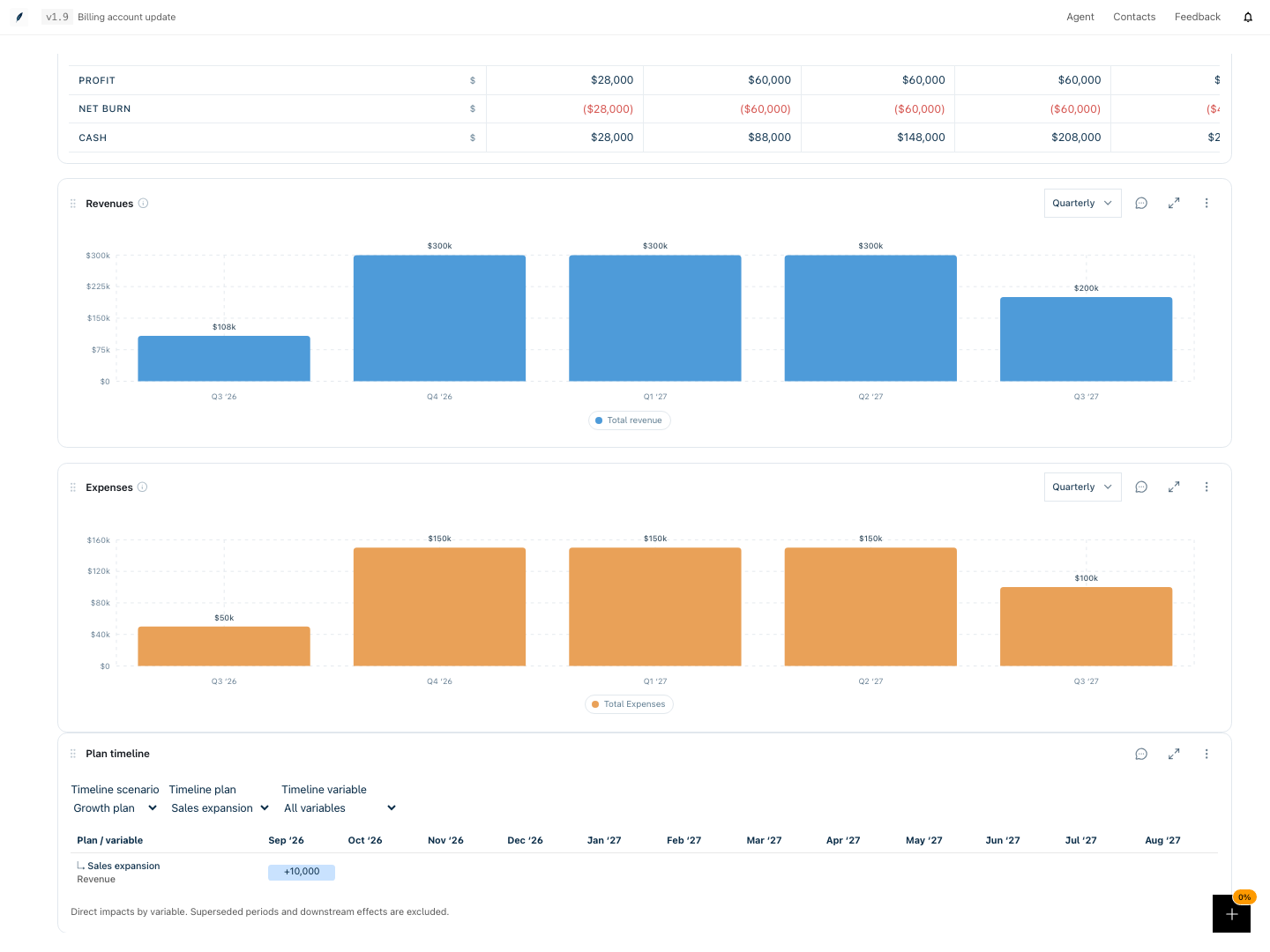
- Add a Plan timeline to the dashboard, filtered by scenario, plan, or variable.
Prerequisites
You need full model access. Select a forecast scenario before adding assumptions; base values are edited directly. Shared-view recipients see their authorized numerical results but cannot see plan names, adjustment details, controls, or timelines.
Concepts
| Term | Meaning |
|---|---|
| Default Plan | The permanent plan for unattributed changes. It cannot be archived or grouped. |
| Adjustment | A signed change to the underlying scenario value. Each plan has at most one adjustment per cell. |
| Absolute assumption | A fixed value that replaces the underlying value. It can carry a plan tag. |
| Group | A top-level plan with children. Children cannot have another level of children. |
| Direct delta | The change to one variable in one period. Dependent formula changes are not counted again. |
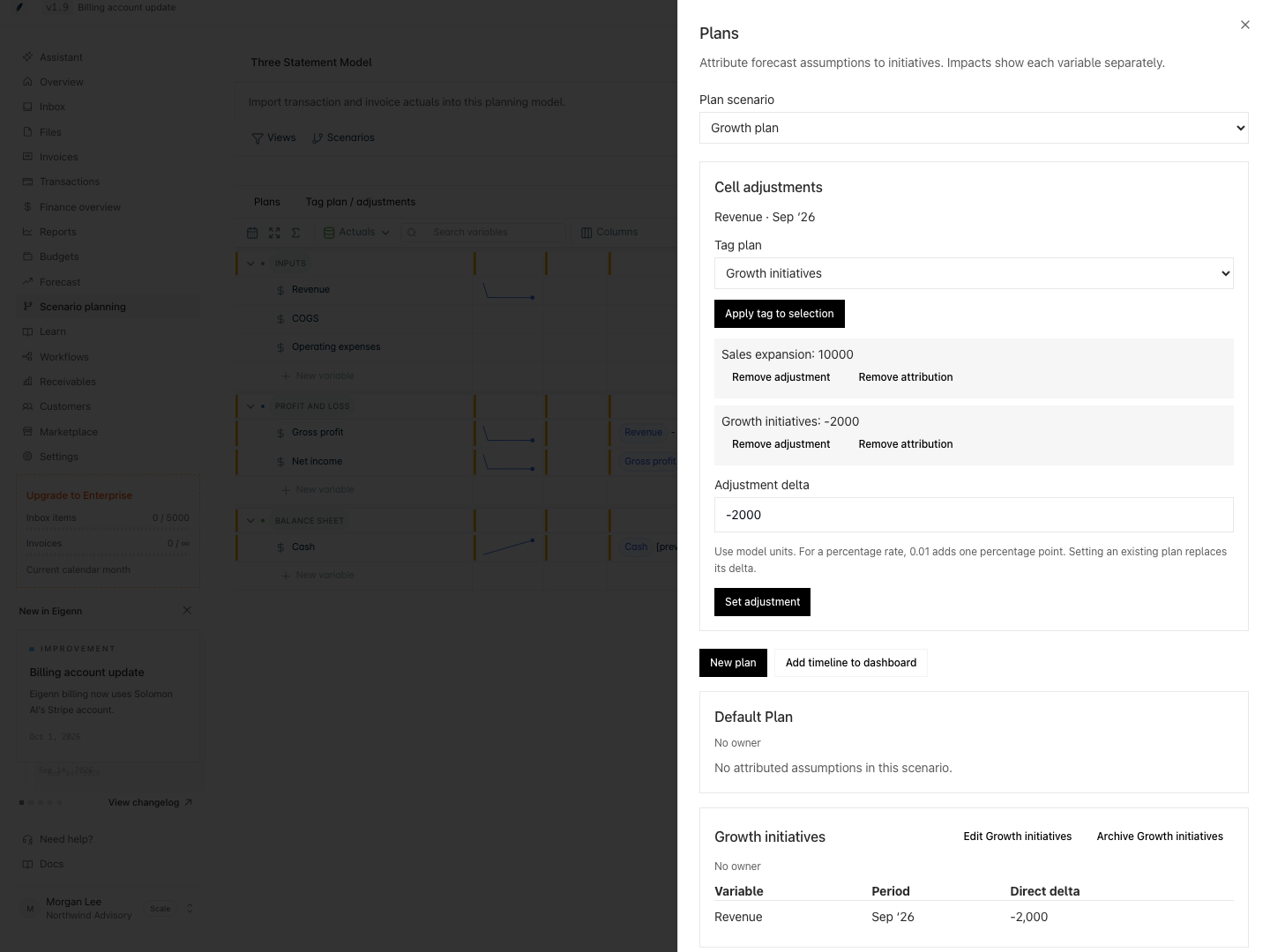
Underlying Revenue of 100,000 with adjustments of +10,000 and −2,000 displays 108,000. Ordinary edits preserve named adjustments. Changing that total to 110,000 gives Default Plan the remaining +2,000.
Workflow
- Open a model and select a forecast scenario under Scenarios.
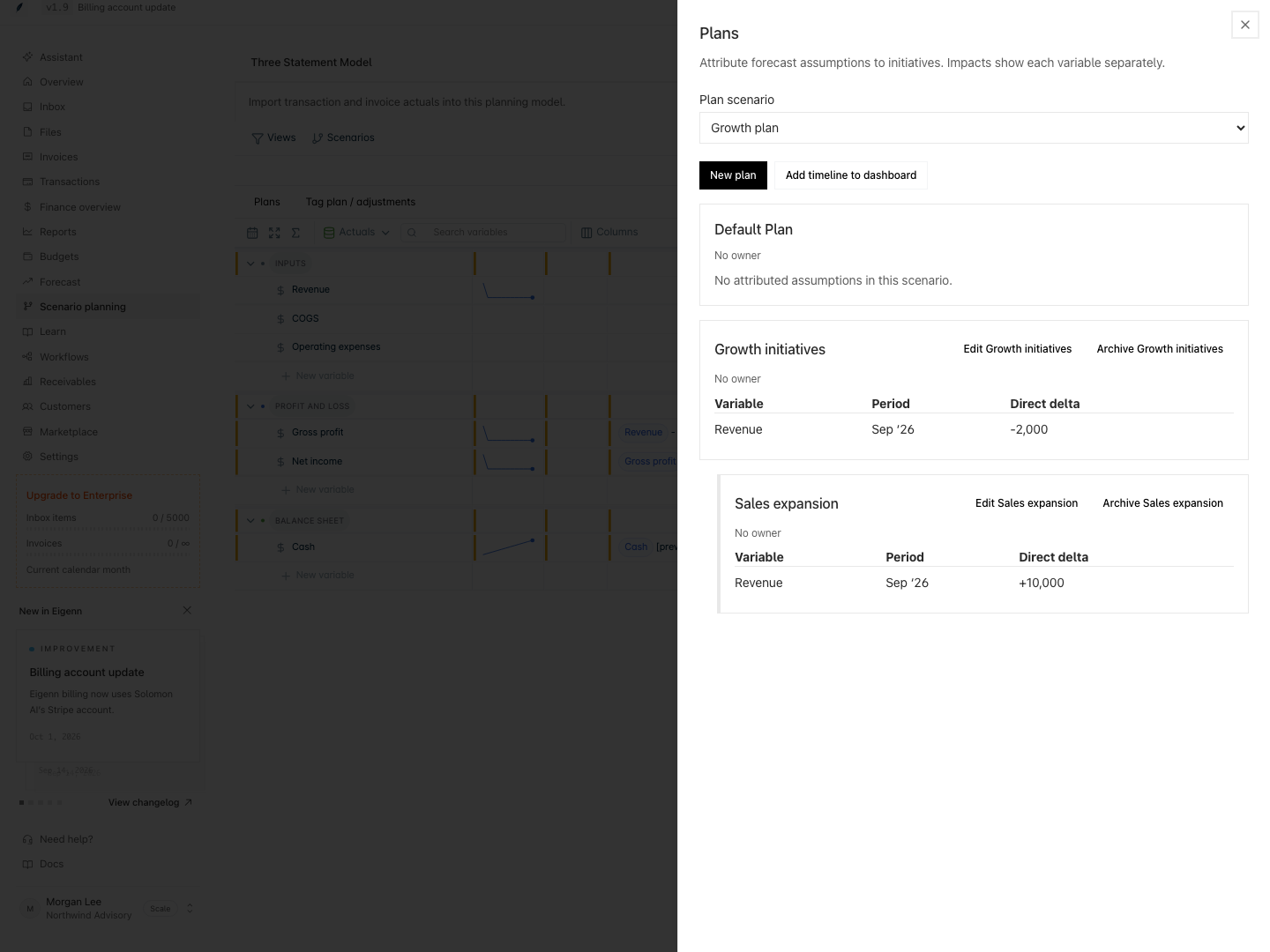
- Select Plans → New plan. Enter a name and choose an optional group, owner, color, and period window. Select Save plan.
- Select a forecast cell, then Tag plan / adjustments. Choose a plan, enter Adjustment delta, and select Set adjustment. Repeat with another plan to add a second adjustment.
- For an absolute assumption, first select Convert to adjustments. This preserves its total and attribution. Conversion requires a valid underlying value.
- To retag existing assumptions, select a cell and Shift-select the end of a range. Open Tag plan / adjustments, check the affected-cell preview, choose a plan, and select Apply tag to selection.
- Select Plans → Add timeline to dashboard, close the panel, and open Charts. Filter with Timeline scenario, Timeline plan, and Timeline variable.
- Select Archive beside a plan to retire it. Existing labels remain readable; the plan disappears from new-tag pickers. Archiving a group leaves its children active and moves them out of that group.
Use Tab to focus controls, Enter to activate buttons, and Escape to close Plans. Focus returns to the control that opened the panel.
Behavior specification
- Deltas use underlying model units. For a percentage rate,
0.01adds one percentage point. - Set adjustment replaces the selected plan's delta. It never adds a duplicate entry.
- Remove adjustment removes its numerical effect. Remove attribution transfers the delta to Default Plan and preserves the total.
- Bulk tagging combines each selected cell's deltas under the destination plan without changing totals. An invalid or stale selection is refused as a whole.
- Ordinary edits and shocks preserve named deltas. Default Plan absorbs the difference needed to reach the requested total. Absolute assumptions keep their tags during value changes.
- Scenario copies, merges, and saved versions preserve adjustments. Promotion materializes eligible resolved input values in base. Model duplication moves copied attribution to the new model's Default Plan.
- Actuals supersede covered assumptions. Their labels remain available, but the timeline omits their effects. Moving the boundary back reactivates retained assumptions.
- An explicit period window controls timeline display; otherwise active assumptions determine it. Display starts after the actuals boundary.
- Impacts remain separate by variable and period. Unrelated units are never summed. An absolute assumption's delta is its value minus the same cell evaluated without that assumption.
- Shared responses, historical views, dashboard configuration, and exports omit plan attribution while preserving authorized numbers.
- Deleting a variable or rebuilding dimension rows removes missing rows from timeline filters and discards their adjustments. Surviving rows retain their adjustments. A filter cannot name a missing scenario or variable.
- Proposal reviews include numerical and attribution changes. If a preview cannot replay safely, approval is blocked and you can still reject the proposal.
- Permanent plan deletion is not available.
Scenario: Two initiatives affect one assumption
  Given Revenue is 100000 in a forecast scenario
  When Sales expansion adds 10000 and Growth initiatives adds -2000
  Then Revenue is 108000 and dependent formulas use 108000
  And each plan has its own direct impact row

Scenario: An archived plan remains explainable
  Given an assumption is attributed to Sales expansion
  When Sales expansion is archived
  Then its existing label remains readable
  And it cannot be selected for a new attribution

Scenario: Shared recipients see results without private attribution
  Given an owner shares adjusted Revenue through a saved view
  When its recipient opens the view or exports it
  Then the authorized Revenue values are preserved
  And plan labels, adjustments, and timeline configuration are absent
Diagrams
Rendering diagram…
Screenshots
Verification
The local seeded browser suite planning-plans.spec.ts verifies grouping, two deltas, totals, bulk tagging, archiving, reload persistence, keyboard focus, proposal previews, and shared-view privacy. The repeatable capture suite is eigenn-planning-plans.
Application commit 17c66198a70d049bc5192af07c1822d3e0836669 is verified against the isolated local seeded Eigenn stack. The browser workflow covers mobile layout, metadata validation, stale revisions, atomic bulk failures, and shared recipients. Calculation and API behavior suites, typechecks, Gauntlet, migration replay, and public contract checks provide additional evidence. Repository-wide ship checks are reported separately in the pull request; screenshots alone do not certify behavior.