Planning Views and Exports
Present model results with focused views and charts, share scoped access, and generate repeatable CSV or Excel exports.
Summary
Planning views and exports turn a working model into a reviewable result. Use saved views for live, focused access. Use exports for a point-in-time file.
Capabilities
You can present models as grids, charts, saved views, or exports. Views allow sharing with scoped access, including view-only or scoped edit rights. You can export current and linked models in multiple formats and save export definitions for repeat use. Exports create point-in-time files independent from future model changes.
Prerequisites
Scenario planning requires Scale or Enterprise. Use a workspace Owner account for full-model workflows; other teammates open only saved views shared with them. Changes also require active billing access. See Planning access.
You need a plan that includes Scenario planning. Creating, editing, duplicating, ordering, deleting, and setting a default view require workspace owner permissions. Creating or changing shared-view access also requires the Scale or Enterprise plan. Owners can remove existing access after a downgrade. Recipients must be active teammates and can use only the views granted to them; team viewers cannot receive edit access. Exporting linked models requires workspace owner status.
Concepts
Choose a Presentation
| Presentation | Use it when |
|---|---|
| Grid | A model author needs to inspect variables, formulas, and periods. |
| Chart | A reviewer needs to understand a trend or comparison quickly. |
| Saved view | A teammate needs a stable slice of the live model. |
| Export | A reviewer or downstream process needs a file. |
The presentation should answer the decision without exposing unnecessary model detail.
Saved Views
A saved view keeps a useful model presentation, including the selected model context and visible planning scope.
Create a view for:
- a board review
- a department plan
- a scenario comparison
- a budget-versus-actual review
- a weekly liquidity review
- a focused set of assumptions and outputs
Use a specific label such as Board review, Collections +30 days or Sales plan, FY27 base.
A saved view does not freeze formulas, actuals, or source data. It presents the current model through the saved scope. Numeric edits and cleared overrides target the displayed scenario. Bulk distribution of dimension inputs (splashing) is available only in the Default scenario.
Filter a saved view
Add up to 100 rules in the view editor. Each selection rule can contain up to 500 values. Every rule is combined with AND, including multiple rules on the same axis. For example, Variable is one of Revenue plus Variable contains Services keeps only service revenue. Rules with no overlap intentionally produce an empty view.
| Rule | Behavior |
|---|---|
| Variable is one of / is none of | Includes or excludes selected variables. |
| Variable contains | Matches variable names, not section or group names. |
| Variable has dimension / does not have dimension | Includes variables according to whether they use the selected dimension. |
| Variable in section / in group | Includes variables below the selected section or group. |
| Dimension is one of / is none of | Keeps or removes selected dimension members and recalculates their direct totals. Dependent formulas show a dash. |
| Scenario is one of | Limits the scenarios available in the view. A user with full model access can switch among the allowed scenarios without changing the model. Shared recipients see the saved scenario. |
| Time period | Limits the visible period range. Multiple ranges use their overlapping window. |
| Chart is one of / is none of | Limits dashboard cards. It does not hide spreadsheet variables. |
Dimension filters follow configured member mappings. A Department selection can therefore narrow mapped Title and Employee rows. Filtering never guesses across an unlinked dimension. The editor and sharing panel warn when a used dimension remains unfiltered.
Variables that do not use a selected dimension stay visible. Add Variable has dimension when the view should contain only variables broken down by that dimension.
Variable filters can leave a visible total that includes hidden child rows; inspect the recipient preview and hide sensitive totals explicitly. The dimension-member rules below are narrower than a general promise that every total is recalculated.
Saved-view filters are presentation rules. They do not delete or rewrite model data. Direct dimension totals in live models and supported versions are recalculated from visible members. Values from formulas that depend on excluded members show a dash. This prevents a total from revealing excluded data. Open the full model to inspect those formulas.
The editor warns when rules exclude all data. It also warns when a chart rule does not have a variable rule, because chart rules do not hide spreadsheet variables.
Charts and Comparisons
Use charts when the shape of the result matters more than individual cells.
A useful chart should have:
- a clear business title
- only the variables needed for the question
- the correct period range
- the intended scenario
- units that can be read without opening the formula
When a chart or table offers comparison controls, choose a scenario or comparable version and confirm both series use compatible time and currency settings.
Do not compare a version marked Not comparable as though its periods or units match the current model.
Saved Export Definitions
A saved export definition keeps a reusable export configuration.
- Enter an export name.
- Choose a format.
- Select Save.
- Use Generate when you need the latest output.
Generating a saved definition runs it against the current state of the model. The definition is reusable. It is not a frozen receipt.
Saved definitions are model-scoped and shared with users who have full model access.
Export Run History
The export area shows recent runs, including:
- file name
- generation time
- row count
- status
- a download action when a stored artifact is available
A small export can download immediately. A larger export can be queued and appear in run history when it is ready.
An inline export can remain in history without a stored file for re-download.
Treat Exports as Point-in-Time Results
An exported file does not update when:
- source data refreshes
- formulas change
- the active scenario changes
- a version is restored
- the model timeline moves
- a saved view changes
Include the model, scenario, version, and generation date in the review context.
Workflow
Save and Manage Views
- Open Scenario planning and select a model.
- Select Views, then New.
- Enter a view name and an optional description.
- Select Add filter. Choose variables, dimensions, scenarios, time periods, or charts.
- Select Save to keep the view, or Save and apply to display it immediately.
- Open Views again to edit, duplicate, reorder, set a default, or delete a view.
The star sets the model's default view for its next opening. Clear the star to open without a default. Move views with the arrow buttons or drag them; the default marker does not change their order. A duplicate has independent filters and is not a default.
Choose All variables to return to the initial model presentation. Changing views does not edit model values or select a different stored scenario.
Share a Saved View
Only model owners can manage saved-view sharing.
- Open the sharing controls.
- Select the saved view.
- Select Preview Can view or Preview Can edit and check the visible scope.
- Choose a teammate.
- Assign the access level.
- Select Copy link.
- Open the link once to verify the scope.
Available access levels are:
- Can view
- Can edit within view, which allows input and formula edits within the shared view when the teammate is eligible to edit
A shared dashboard stays on the scenario resolved by the server. It does not recalculate another scenario in the browser from redacted data. Create a separate saved view to share another scenario.
Sharing one view does not automatically expose every view in the model. The share is designed to show the selected view without exposing the full working model.
Eigenn applies the saved-view scope on the server before it returns shared model data. The share grant authorizes the recipient to use that scope.
Filters still require review. Scenario filters do not hide variables that fall back to the base, and unlinked dimensions remain visible. Review the warnings, hide sensitive variables explicitly, and open the copied link once before sending it.
A saved view can have up to 100 teammate access grants.
Filtered aggregates in versions created before February 15, 2023 cannot be recalculated reliably. Eigenn displays a dash for those affected totals and explains the limitation in the view. The underlying historical version remains unchanged.
Verify Shared Access
Before sending the link, confirm:
- the model
- the saved-view label
- the active scenario
- visible variables
- visible periods
- comments that should be available
- the recipient's access level
Use the lowest access that supports the review.
Export a Model
Open Export and download or the export action from the model.
Supported saved export formats include:
- Formatted (.xlsx)
- Raw (.xlsx)
- Raw (.csv)
Linked-model scope
An export covers one of three scopes:
| Scope | Includes |
|---|---|
| Current | The current model only. This is the default. |
| All | The current model and every model linked to it |
| Custom | The current model and the linked models that you select |
All is stored as a rule, not as a fixed list. A saved definition using All re-resolves the set on every run, so a model linked after you saved the definition is included automatically.
Linked models are included only when all of these hold:
- the scope is All or Custom
- the export covers the whole model rather than a saved view
- the caller is a workspace Owner
Otherwise Eigenn exports the current model alone. A linked model that no longer exists for the team is dropped from the file rather than failing the export.
Review the export dialog before generation so the shape, columns, scenario, view, and revision are the intended ones.
Behavior specification
| Action or condition | Result |
|---|---|
| Multiple filters | Every rule must match; filters combine by intersection. |
| An included variable or scenario is deleted | A selection with no remaining matches stays empty. It does not expand to the full model. |
| A time range falls outside the model horizon | No periods are shown. Saving the view preserves the range. |
| Set a default | Replaces the prior default for that model. |
| Delete the active view | Returns to the initial presentation. Reloading does not restore the deleted view. |
| Change or delete a shared view | New shared reads and exports use the current restrictions or refuse access to a deleted view. Previously downloaded files remain unchanged. |
| Save fails | The error is shown and the editor stays available to retry. |
Access and removal
- A copied link grants no access by itself. The recipient must sign in to the same team and hold a grant for that view.
- Saved access survives a reload. Existing view and edit grants are retained during the upgrade; earlier comment grants become Can view.
- Archived models do not appear in the recipient list and cannot be opened through a shared link.
- Remove revokes the grant. New reads, exports, and edits are refused after revocation. A file already downloaded remains with its recipient.
- Deleting a saved view removes its grants. Restoring an older model version does not restore access that was removed.
- If the access list fails to load, select Retry access. Changes are unavailable until the list loads. Select Retry preview if the recipient preview fails.
- Can edit within view allows supported input and formula changes inside the saved scope. It does not grant full-model structure, source-refresh, sharing, or version-management permissions.
Troubleshoot
The shared link opens the wrong view
Select the intended saved view again, copy a new link, and confirm the URL contains the correct model and view context.
A teammate can view but cannot edit
An owner can choose Can edit within view for an eligible teammate. Team viewers can only receive Can view.
A chart comparison is unavailable
Confirm that the scenario or version is visible and comparable with the current model's time and currency settings.
A formula shows a dash after filtering
The formula depends on excluded dimension members. Its original value could reveal data outside the view, so Eigenn hides it and shows a warning. Direct totals use visible members only when their children can be evaluated safely. The full model retains its original values.
A filtered historical total shows a dash
The version was created before February 15, 2023, before filtered aggregate recalculation was supported. Open the live model or a newer version to see a recalculated total.
A dimension remains visible after filtering
That dimension is not linked to the filtered dimension. Add a mapping, filter it explicitly, or use a combined dimension when the business relationship cannot be represented by a mapping.
A view cannot be saved
A new or changed rule can refer to model data that is no longer available. Reopen the editor and select current variables, dimensions, scenarios, periods, or charts. Also confirm that the view has no more than 100 rules and that each selection rule has no more than 500 values.
An export is queued
Check export run history. Large files are completed asynchronously and can be downloaded after the run finishes.
A completed run has no download action
The file may have been delivered inline rather than stored. Generate the export again if another copy is needed.
A saved export contains newer values than the prior file
That is expected. A saved definition runs against the current model state each time.
A linked model is missing from the export
Confirm all three conditions: the scope is All or Custom, the export covers the whole model rather than a saved view, and you are a workspace Owner. A linked model that no longer exists for the team is dropped from the file rather than failing the run.
Diagrams
Rendering diagram…
Screenshots
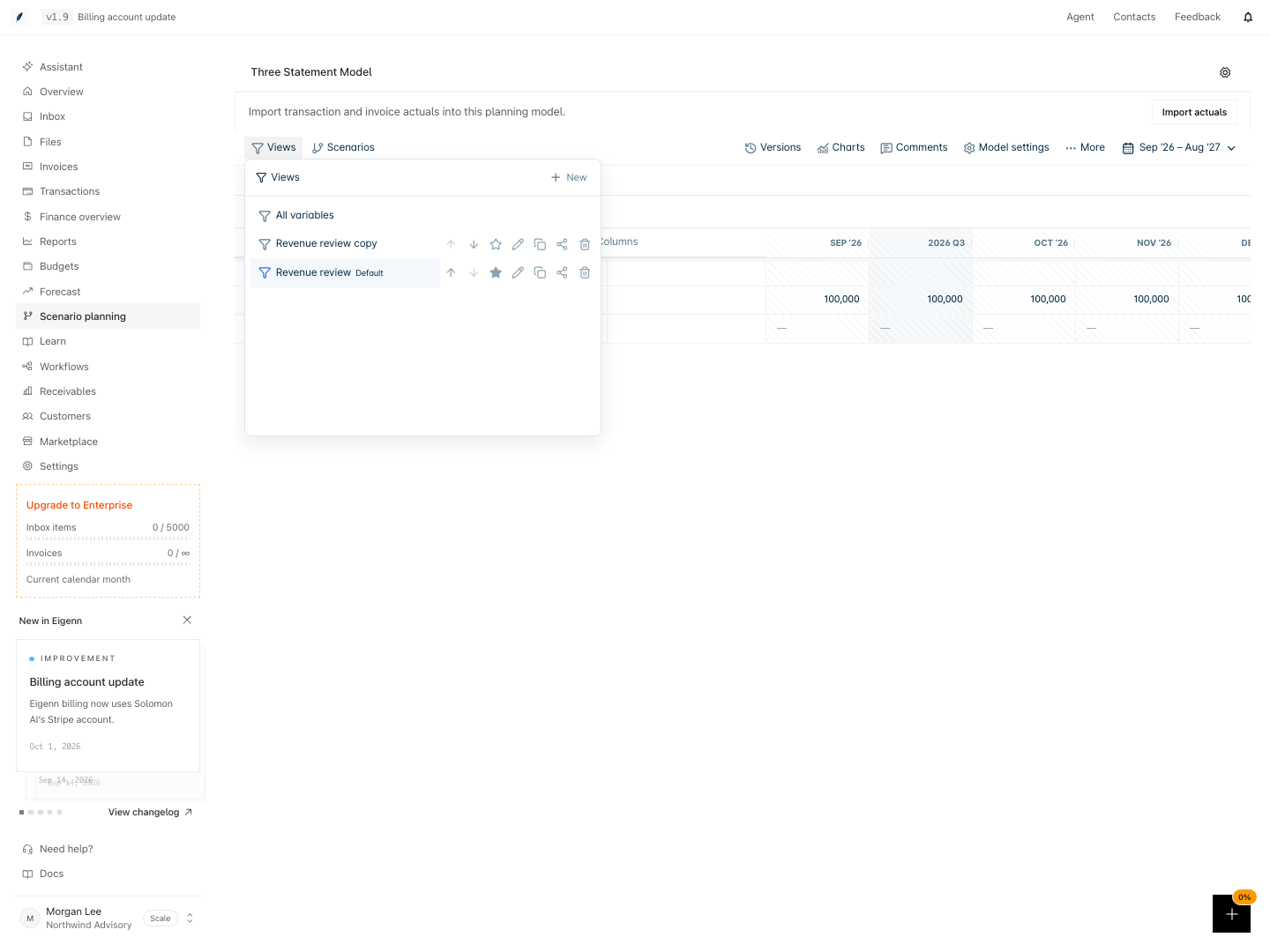
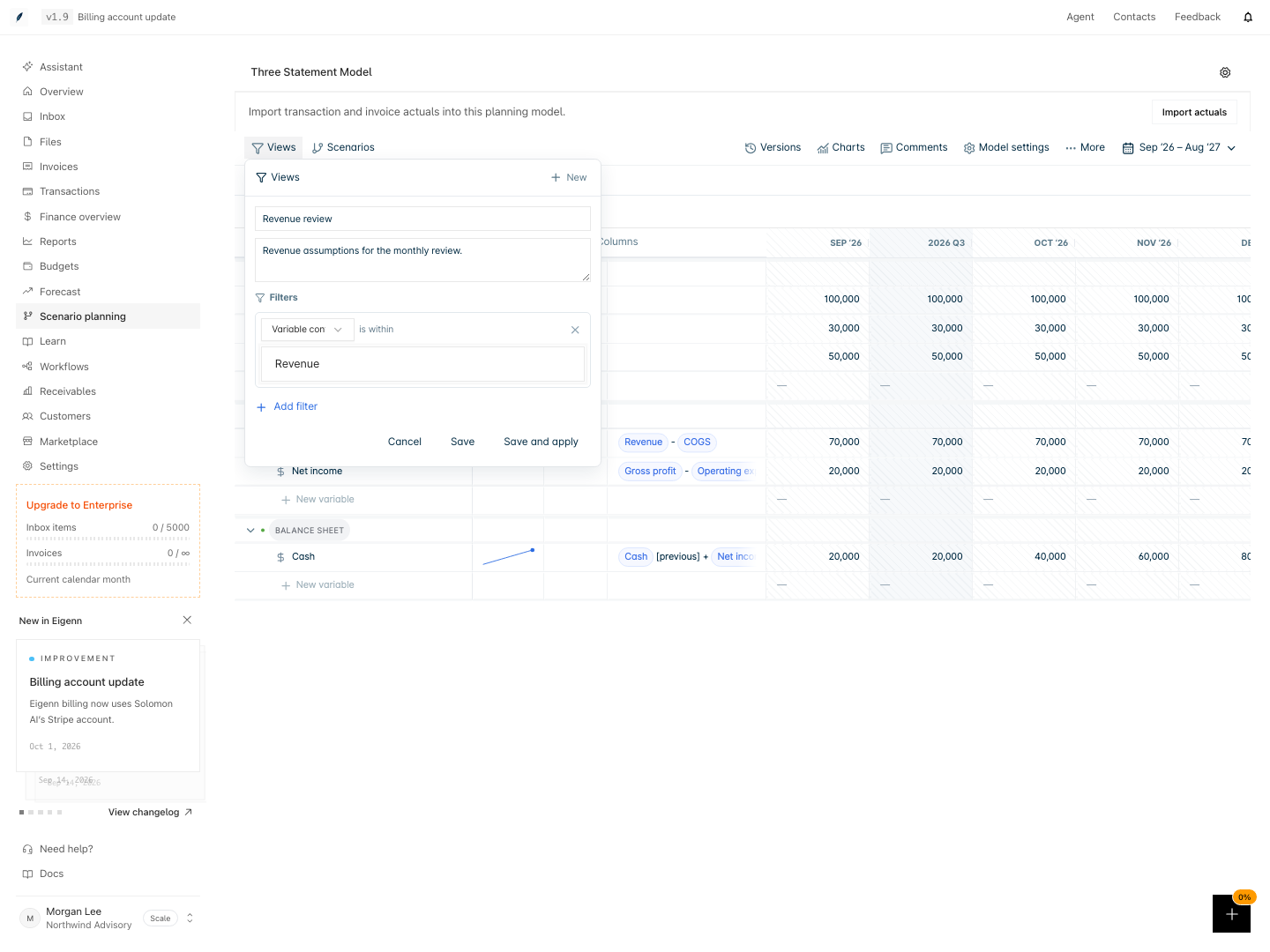
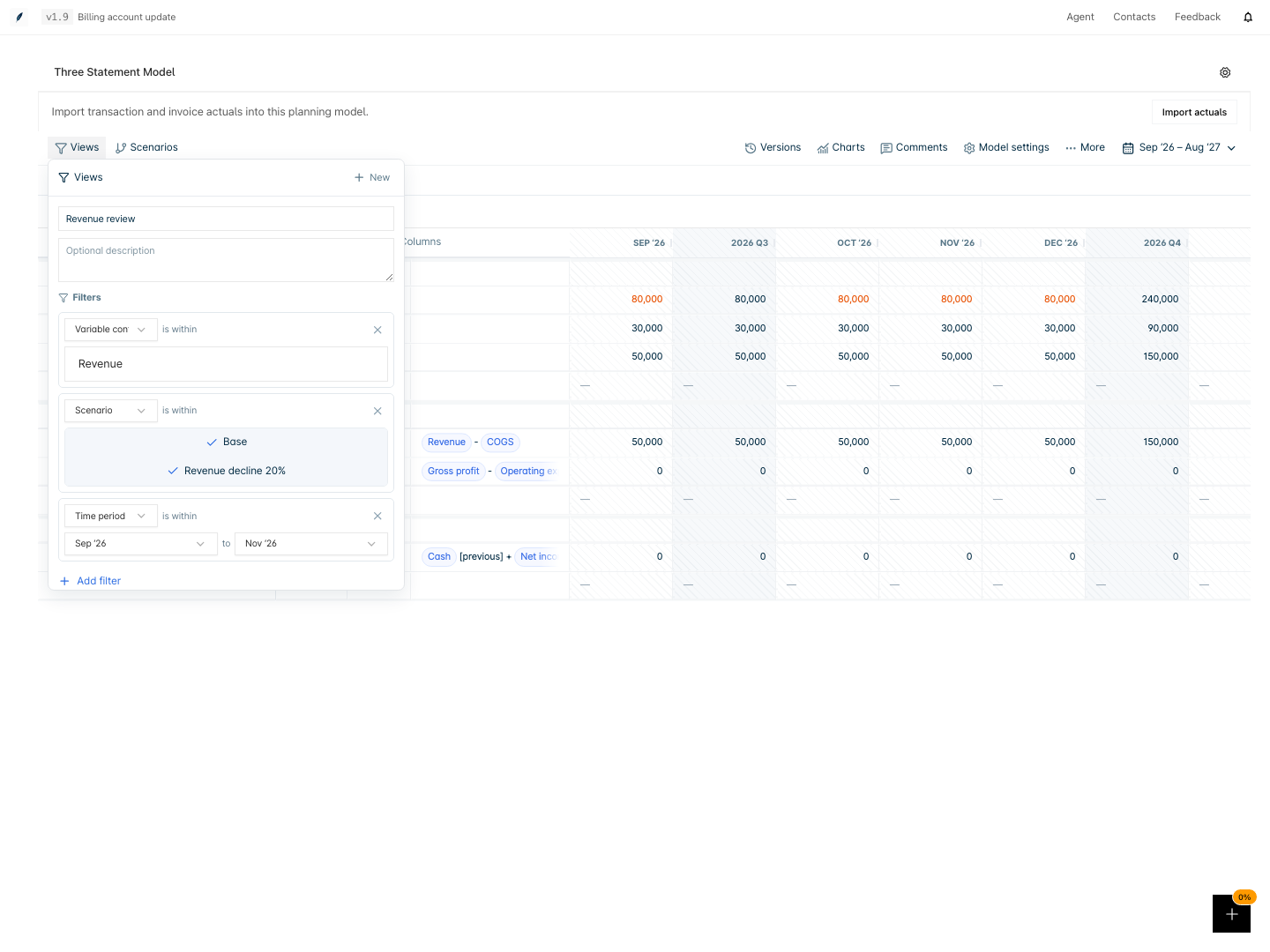
The Revenue review combines three rules. Every rule must match.
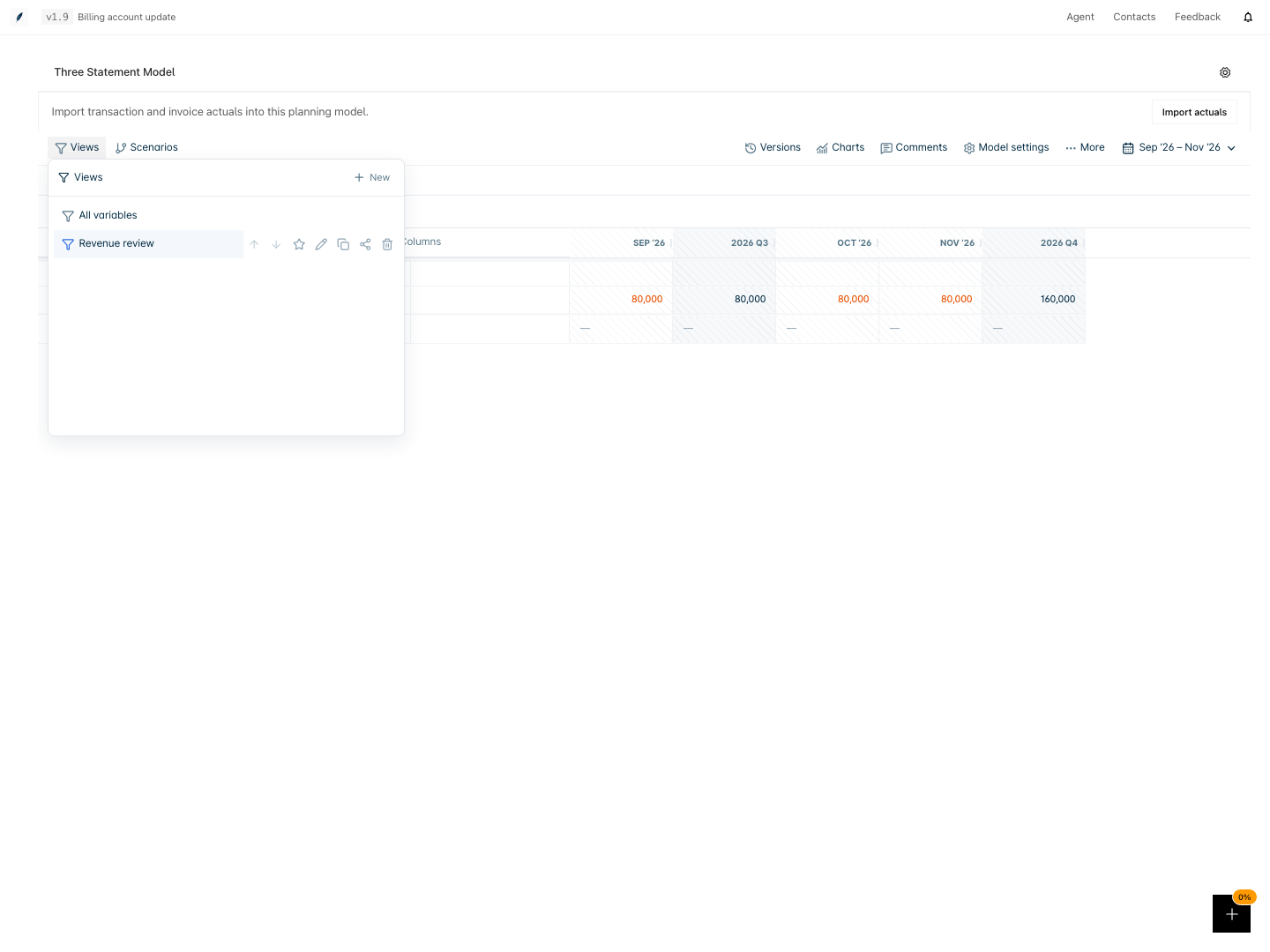
The saved view contains the selected revenue row and period window.
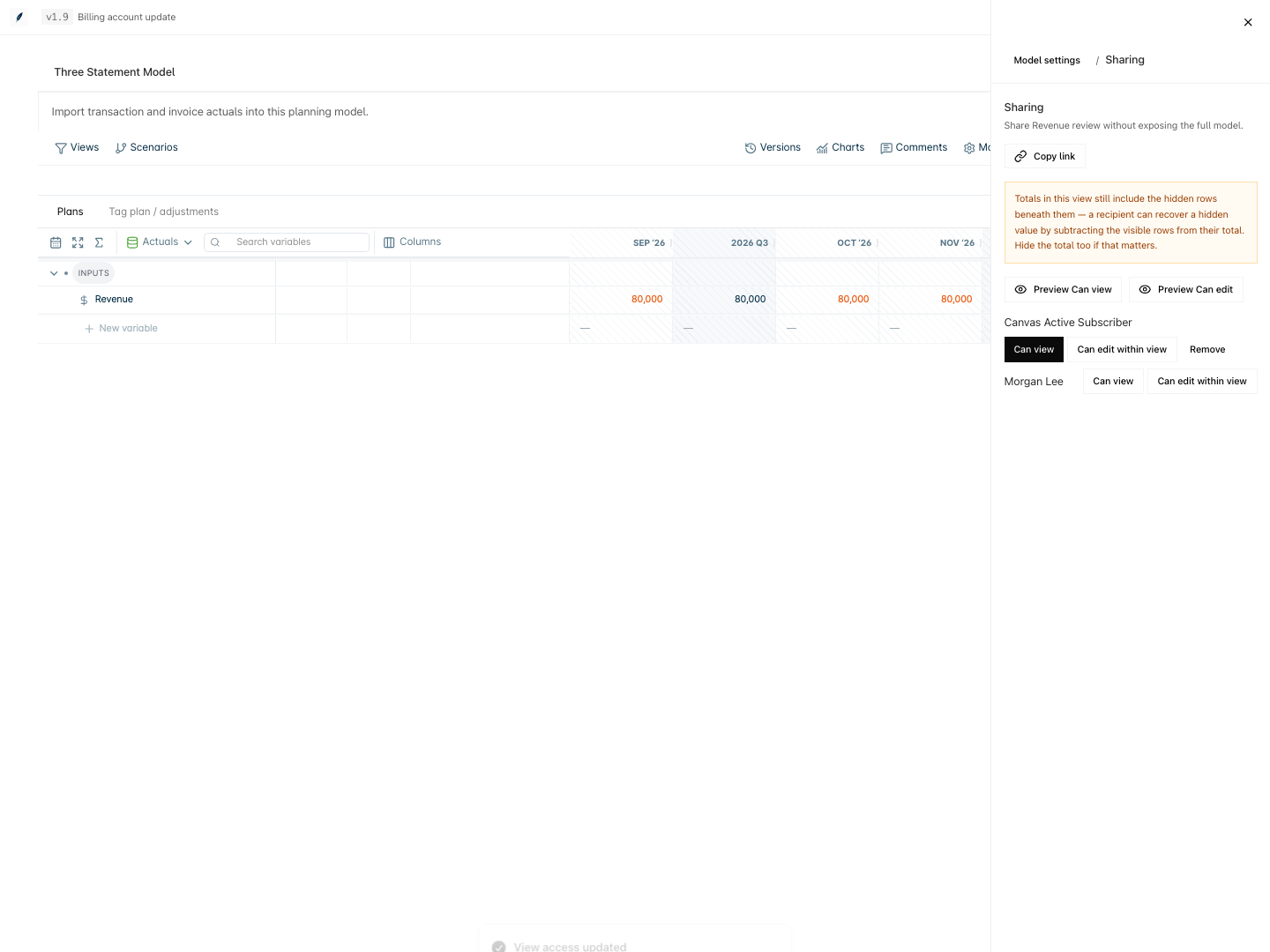
Owners choose view-only or scoped edit access for each teammate.
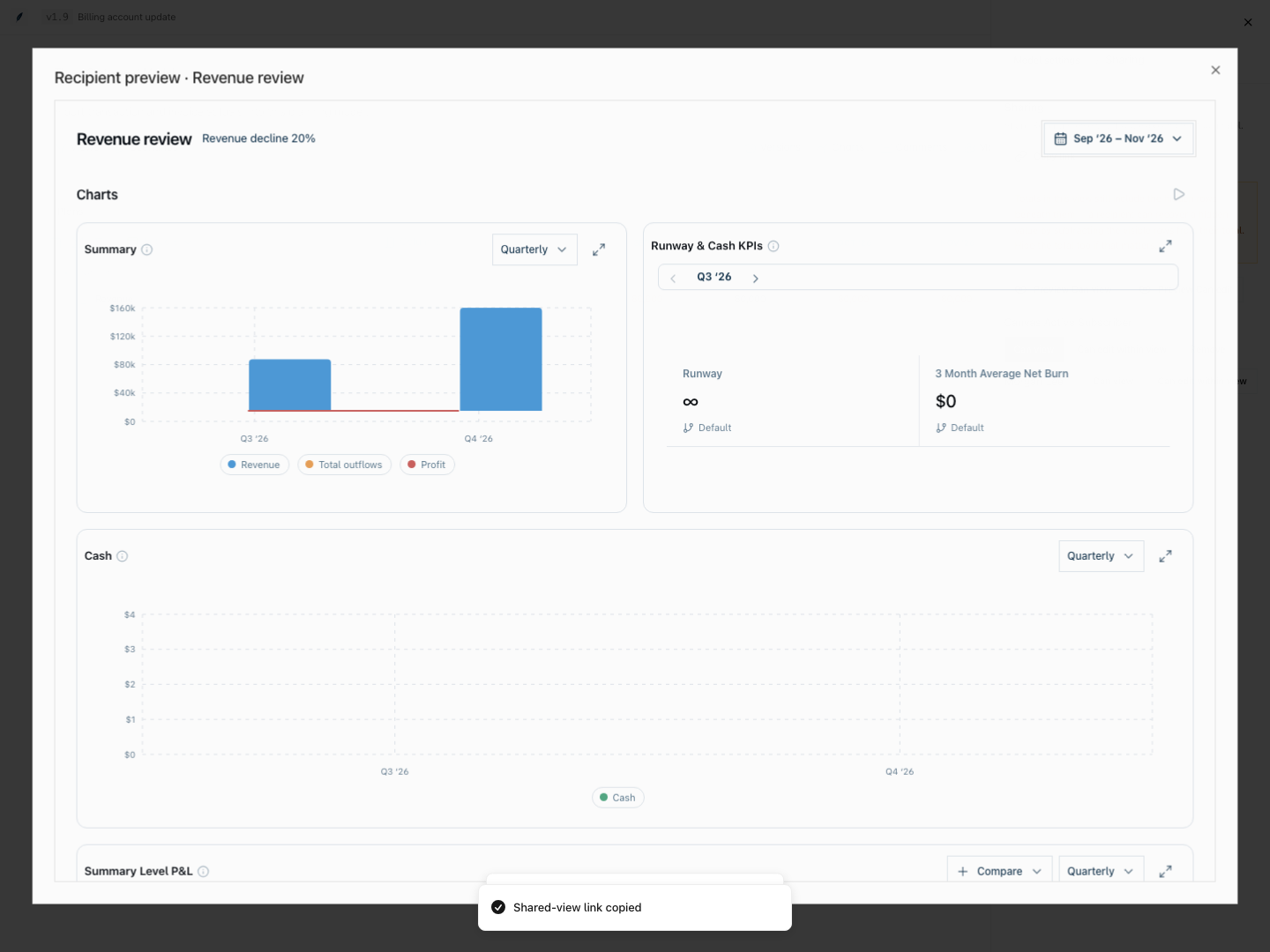
The recipient preview shows the saved scope before the owner sends its link.
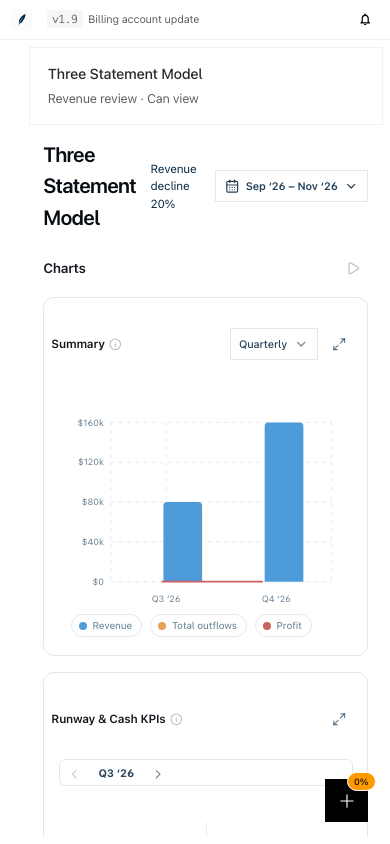
Recipients can read the shared dashboard on a narrow screen.
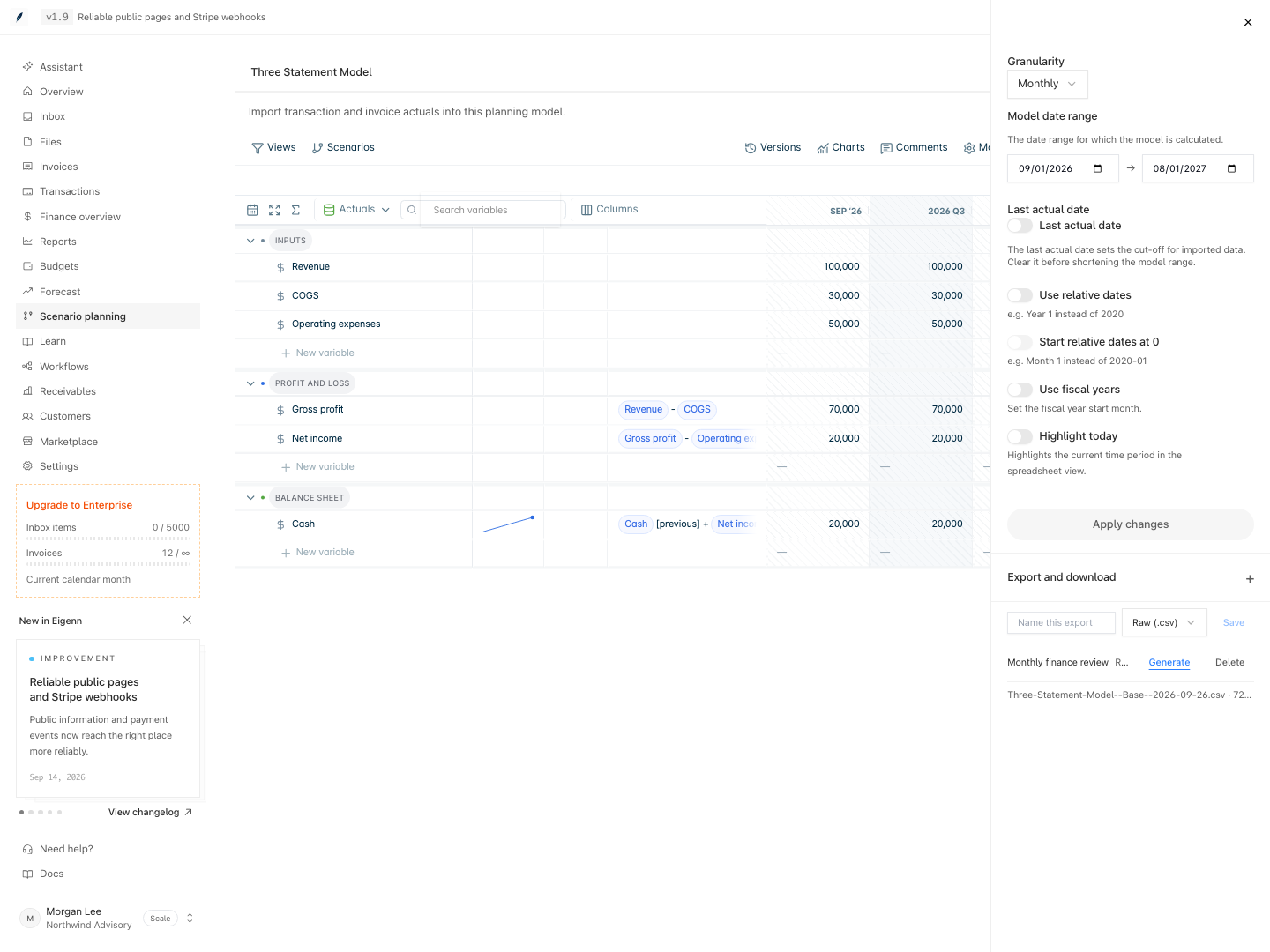
Model settings with a saved CSV export definition and its successful generation history.
Shown with synthetic data in a local workspace.
Verification
- Create a filtered view, reload the model, and confirm its name, description, and filters persist.
- Set a default and reopen the model. Confirm the default's scope is applied.
- Duplicate, edit, and reorder views. Reload to confirm the changes remain.
- Delete the active view and reload. Confirm it stays deleted and the initial presentation returns.
- Choose a presentation (grid, chart, saved view, or export) and verify that only the chosen parts of the model are visible as expected.
- Share a saved view and confirm, by accessing the link as a different user, that only the view-scoped data and granted access level (view or scoped edit) are available.
- Export a model and confirm the generated file contains the intended data, correct scope, and specified format.
- Save an export definition, generate an export, and verify that each exported file reflects current model content at the time of creation.
- Review export run history and confirm that queued and completed exports display their generation time, status, and downloadability.
- Update a formula or value in the source model, then open a previously exported file to confirm the export does not update.
- Attempt to export all linked models as a non-owner to confirm access is denied; repeat as a workspace owner to confirm all permitted linked models are exported.
Related
Related Pages
Planning Versions and Collaboration
Save and restore model history, attach comments to rows, propose scenario changes, and control who can review or edit planning work.
Plans and Adjustments
Group forecast initiatives, attribute changes to plans, and compare their direct effects by variable and period.