Account Preferences
Manage your profile, appearance, regional formats, workspace currency access, MFA devices, and account deletion.
Summary
Account settings combine your personal preferences with shortcuts to workspace administration. Open Settings → Account. Expand Account in the settings sidebar to move among Profile, Security, Date & locale, Currency, Bank connections, Teams, Organizations, and Support.
Capabilities
You can update your display name, avatar, and email address; select date and time formats, timezone, and locale; set your appearance preference; change the base currency (if allowed); manage workspace bank connections; view and modify MFA devices; manage organizations, teams, and submit support requests; and permanently delete your account along with related workspace membership.
Prerequisites
You must have a valid Eigenn account and be signed in to access Account settings. Workspace ownership or elevated permissions are required to change the base currency. Changing some identity elements (like sign-in email) may require additional steps outside Eigenn if using a hosted identity provider.
Concepts
Account settings are divided between personal and workspace controls. Personal settings (e.g. avatar, locale) affect your user profile and experience, while workspace controls (e.g. base currency, bank connections) depend on your role and the currently selected workspace. Email changes require verification and synchronize the hosted sign-in identity before the local address changes. Some controls save immediately; currency selection is staged until you select Save. Account deletion removes your user and may trigger workspace cleanups and membership changes.
Workflow
General Account Settings
Avatar
Select your avatar to open the file picker. Eigenn stores the upload in the account avatar area. Eigenn then saves the returned URL on your user profile.
Your avatar appears in the collaborative product areas that show user identity. The current picker does not give guidance about file type or size. Use a standard web image format, and confirm the result after the upload.
Display name
Enter 1 to 32 characters. Select Save. Eigenn shows the name to your teammates and in shared work.
Enter a valid new email and select Send verification. The current address stays active until you open the link sent to the new address while signed in as the same user. The link expires after 24 hours. Use Resend link or Cancel change in the pending banner. Resending replaces the previous token.
Confirmation updates the WorkOS sign-in identity before the local profile. An address already used by another account is rejected. External Google, Apple, GitHub or company identity-provider accounts are separate; confirm your intended sign-in method before retiring the old address.
Appearance
Select the light, dark, or system theme. Eigenn stores the appearance preference in browser theme storage. A different browser or device can keep a different preference.
Date and Locale
Open Settings → Account → Date & Locale.
Locale
The selector shows countries. It stores the country code that you select on your profile. Eigenn uses that value where it formats data in the product.
The selector does not open a different language route. It also does not translate every interface label. The locale in the page URL controls the current localized route.
Timezone
Turn on Use device timezone to save the browser's current IANA timezone. Eigenn also marks automatic synchronization on. When you turn on Use device timezone, Eigenn changes the stored timezone at that moment.
Eigenn stores the automatic-sync flag. Eigenn does not watch continuously for later changes to the device timezone. Open this page again if you travel or if you change the system timezone. Then toggle the setting, or select a fixed timezone.
Turn off Use device timezone to select a fixed timezone manually.
Time format
Select the 12-hour or the 24-hour display. The invoice and schedule views that use the user context read this preference.
Date format
Select one of these formats:
dd/MM/yyyyMM/dd/yyyyyyyy-MM-dddd.MM.yyyy
Eigenn uses this preference in the invoice, transaction, Inbox, search, and export paths that load the user context. Other paths that format dates also use it. A public customer page can use its own date format.
Week start
Turn on Start week on Monday for calendar controls that start on Monday. Turn it off for Sunday. Invoice schedules and some calendar or widget paths read this preference. Not every chart or third-party picker reads it.
Base Currency
Open Settings → Account → Currency. Base currency is a workspace value, even though it appears inside Account navigation. Only a workspace owner can change it.
- Select the new currency; selection alone does not save it.
- Review the notice that saving converts existing transactions and balances.
- Select Save.
- Wait for Transactions and account balances updated before relying on converted totals.
Save first updates the workspace currency, then starts the conversion job. A job failure can leave the saved currency ahead of the converted values. Contact support with the failure before relying on totals or repeatedly changing currencies.
Exchange-rate refresh and historical conversion are operational processes. After the job completes, compare some typical balances. Do this before you use the converted totals for a decision.
Bank Connections
Settings → Account → Bank Connections is workspace-scoped. It lists and manages the bank connections of the active workspace, not a personal bank profile. Read Bank Connections before you reconnect or delete an account.
Personal Security
Open Settings → Account → Security. On that page you can:
- List the enrolled MFA factors
- See the factor type and the enrollment date
- Create a TOTP authenticator
- Delete a factor when the policy permits it
The current page does not show recovery codes, passkeys, trusted sessions, or a device-revocation list. Read Security and Access for the workspace MFA policy.
Organizations, Teams, and Support
- Organizations lists the organizations that you own and their identity-administration controls.
- Teams lets you switch workspace, leave a workspace, and manage workspace membership. Your role controls what you can do.
- Support sends an authenticated ticket that Eigenn links to your profile email.
Teams and Organizations documents the organization and team behavior.
Delete Your Account
The Danger Zone on Settings → Account → Profile permanently deletes your user account.
- Review the workspaces that you own alone.
- Export the records that you must keep.
- Transfer ownership when another operator must keep a workspace.
- Cancel or review platform billing separately.
- Select Delete account.
- Enter
DELETEand confirm the permanent action. A server failure remains visible in the dialog.
Account deletion finds the workspaces that you own alone. It deletes the user and queues external cleanup for those workspaces. It also deletes your membership in other workspaces through database relationships.
The dialog requires the word DELETE, not your email. It does not ask for a new MFA challenge. Access to an unlocked session is therefore sensitive.
Behavior specification
Troubleshoot
My email changed in Account but sign-in still uses the old address
Check whether the verification banner is still pending. Open the latest link while signed in to the same account. If verification fails, request another link or contact support. An external social-login or company identity may need its own administrator-managed change.
Locale changed but the interface language did not
The selector stores a country code that Eigenn uses to format your data. It does not replace the current localized URL route.
Device timezone did not update automatically after travel
Open Date & Locale again. Toggle Use device timezone off and then on, or select a fixed timezone. The stored auto-sync flag does not watch the browser continuously.
Base currency changed but balances did not
Selection alone does not save. After Save, wait for conversion completion. If the job fails, contact support; the saved currency may already have changed.
I cannot delete my last MFA factor
A workspace MFA policy applies to your membership. Create and confirm another authenticator before you delete the old one.
Diagrams
Rendering diagram…
Screenshots
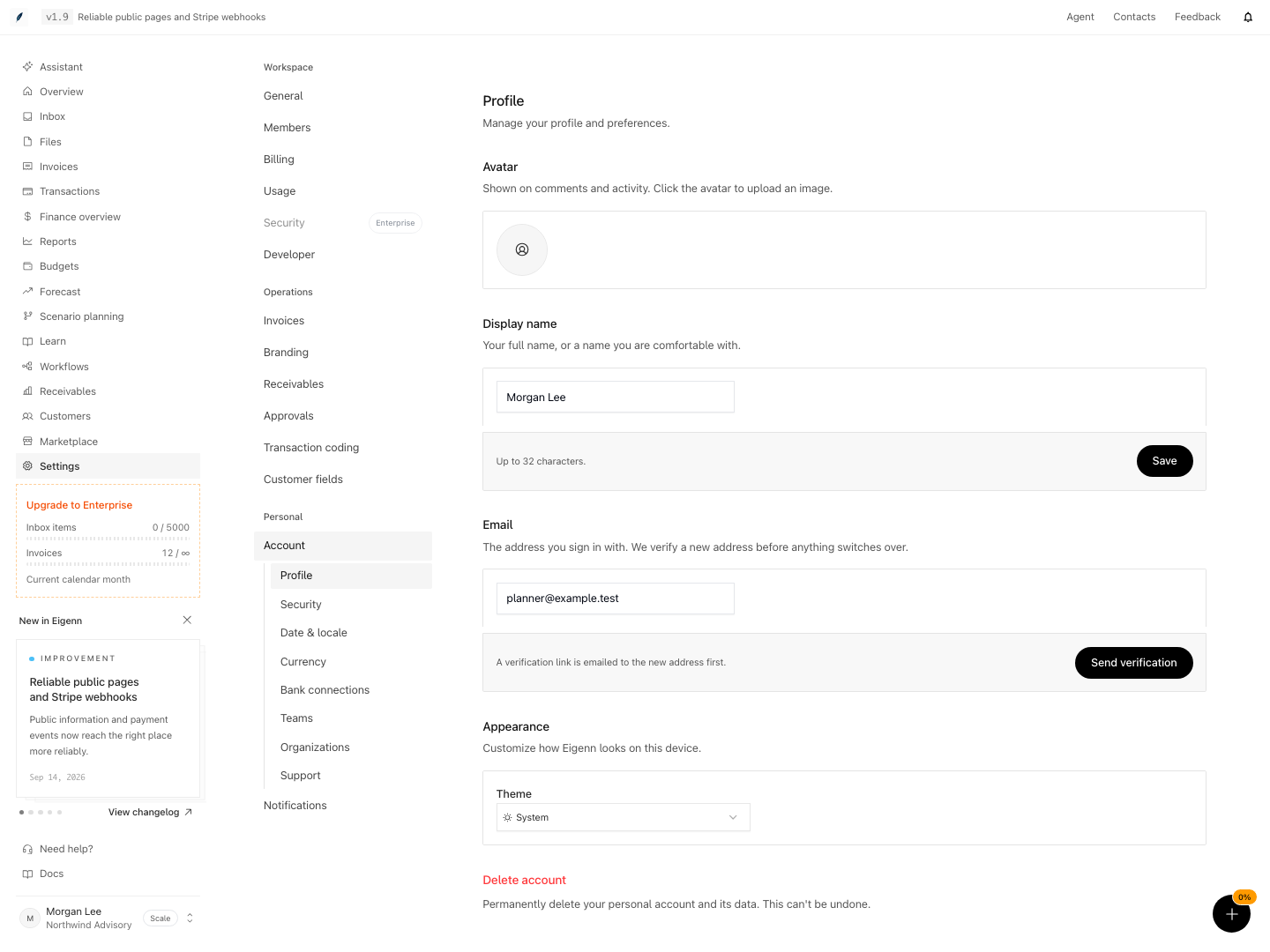
Profile settings for display name, email verification, and appearance.
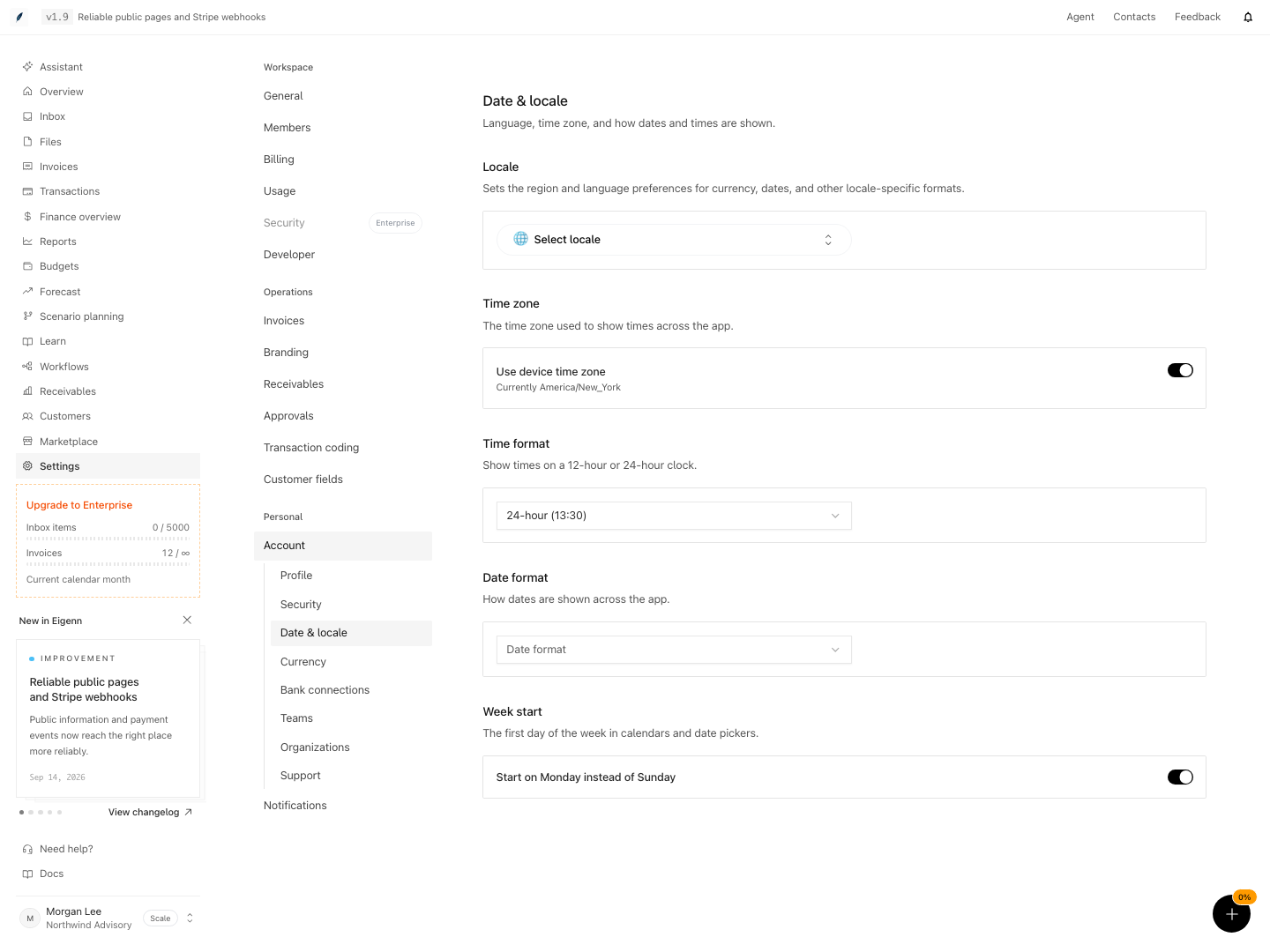
Account date and locale preferences for time zone, date format, and calendar settings.
Shown with synthetic data in a local workspace.
Verification
Confirm the Result
After you change your personal settings, do these checks:
- Reload Account and confirm the name, the email, and the avatar
- Open a page with many dates and confirm the expected date and time formats
- Check the active workspace before you confirm the base currency
- Confirm that at least one MFA factor is still usable
- Sign out and test the intended authentication method before you lose access to an old email or device
- Save a display name or avatar in a disposable account. For email, confirm that the old address remains until the verification link succeeds, then reload Profile.
- Update date format, timezone, and locale. Visit pages that display dates, such as invoice or schedule views. Dates and times should follow your selected preferences.
- Change base currency (workspace owner only), then check balances before and after confirming the update. Balances should recalculate after job completion.
- Add or remove an MFA factor in Security. The enrolled list should update accordingly, subject to workspace policy.
- Delete your account. Attempt to log in again. You should not be able to access Eigenn with that user.
- For a disposable account, verify the new address and confirm the intended sign-in method; canceled or expired links must not change the address.