Planning Time and Actuals
Configure model periods, fiscal and relative date displays, the actuals boundary, source refreshes, and forecast roll-forward.
Summary
Time settings determine which periods a planning model calculates and where observed actuals stop. Review them before you build formulas or compare scenarios.
Capabilities
You can set the model's time range and granularity, configure the start of fiscal years, use relative or calendar dates, import and update actuals data from connected sources, move the actuals boundary as new data arrives, and visually highlight key periods.
Prerequisites
Scenario planning requires Scale or Enterprise. Use a workspace Owner account for full-model workflows; other teammates open only saved views shared with them. Changes also require active billing access. See Planning access.
You need at least one planning model created and must have access to relevant data sources. Ensure permissions exist to edit model settings and, if importing actuals, to access and refresh those sources.
Concepts
Model Timeline
Open Model settings to configure:
- granularity
- start period
- end period
- last actual date
- relative dates
- fiscal-year display
- current-period highlighting
Supported granularities are:
- daily
- weekly
- monthly
- quarterly
- yearly
Choose the smallest granularity that the decision needs. A 13-week liquidity model needs weekly periods. An annual operating plan usually needs monthly or quarterly periods.
Last Actual Date
Last actual date is the cut-off for imported data.
- Periods through the boundary are treated as actual periods.
- Periods after the boundary are forecast periods.
- Uncertainty analysis begins with the first forecast period by default.
- Forecast formulas should continue after observed actuals end.
Clear the boundary before shortening the model range when the current boundary would fall outside the new range.
The boundary is a model setting. It does not edit the underlying transaction, invoice, or accounting record.
Relative Dates
Turn on Use relative dates when the model represents a sequence rather than a fixed calendar.
Examples include:
- Month 1 through Month 24 for a new product
- Year 1 through Year 5 for a long-range plan
- Cohort age rather than calendar month
Use Start relative dates at 0 when the model convention starts with Period 0.
Relative dates change the display. They do not change the model's underlying period order.
Fiscal Years
Turn on Use fiscal years and select the fiscal-year start month when the organization does not report on a January-to-December year.
Confirm the fiscal setting before you compare:
- annual totals
- quarterly plans
- budget and actual periods
- versions created under an earlier calendar setting
A version can be marked Not comparable when its saved time structure no longer matches the live model.
Highlight Today
Turn on Highlight today to mark the current period in the spreadsheet view. This is a visual aid only. It does not move the last actual date or refresh data.
Choose the Right Boundary
Use this rule:
- The last actual period should be the latest period whose source data is complete enough for the planning decision.
- The first forecast period should be the next period after that boundary.
Do not move the boundary forward only because the calendar changed. Move it after the source period has been reviewed.
Workflow
Set the Model Date Range
The start and end periods define the range for which the model calculates.
Before changing the range:
- Check linked sources.
- Check formulas with time windows.
- Check saved views and charts.
- Check the last actual date.
- Save a named version before a large change.
Dates are aligned to the selected granularity. Changing from monthly to quarterly can move visible period starts to quarter boundaries.
Import and Refresh Actuals
A planning model can import or link supported actuals, including transaction-category and invoice data.
Use Import actuals when the model has no imported actuals. Use Refresh actuals or the source controls after the connected records change.
After each refresh:
- Confirm the refresh succeeded.
- Check the latest source refresh time.
- Compare one known source period with the grid.
- Confirm the last actual date.
- Review dependent formulas and outputs.
- Run calculation when the model is in manual mode.
A successful refresh confirms that the planning source completed. It does not prove that the upstream records are complete.
Roll Actuals Forward
Use the roll-forward control when a newly closed period should move from forecast to actual.
A careful roll-forward should:
- Refresh every required source.
- Verify the new actual period.
- Save a version of the pre-close forecast when needed.
- Move the last actual date to the new period.
- Recalculate the model.
- Review forecast changes after the new actuals.
The roll-forward can include linked sources and linked models. Review the listed scope before you apply it.
Behavior specification
Troubleshoot
The model has a gap between actuals and forecast
Check the last actual date and the first period where formulas begin. Confirm the source supplied every expected actual period.
Actuals overlap forecast assumptions
Check whether the assumption begins before the boundary. Move the assumption or correct the source mapping rather than overwriting actuals.
Shortening the range fails
Clear or move the last actual date first. Also check formulas, views, or exports that depend on periods outside the new range.
A roll-forward changes more than expected
Review the selected source and linked-model scope, restore the pre-roll version when necessary, and repeat the roll-forward with the correct scope.
Relative dates make a shared view confusing
Use a specific saved-view label and explain the sequence in the view description or a comment.
Diagrams
Rendering diagram…
Screenshots
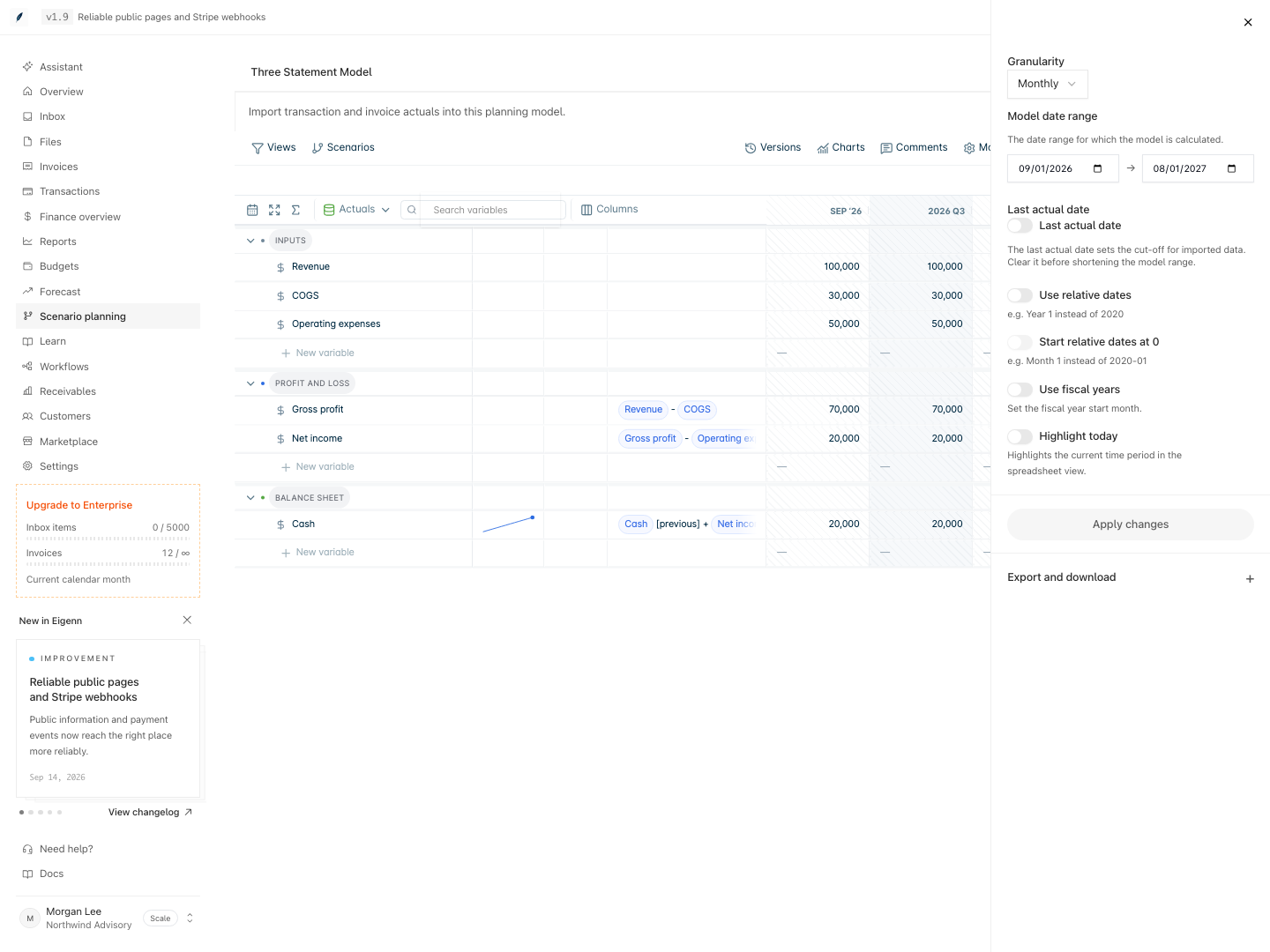
Model time settings for monthly periods, the actuals cutoff, relative dates, and fiscal years.
Shown with synthetic data in a local workspace.
Verification
- Open model settings and set time granularity and range. Confirm the grid displays the correct period structure.
- Set or clear the actuals boundary. Add or refresh imported actuals, then verify the split of periods between actual and forecast and that refreshed values match at least one source record.
- Change display to use fiscal years or relative dates. Check period labels and confirm the expected visual effect.
- Perform roll-forward with new actuals. Confirm the last actual date advanced, the period status updated correctly, and outputs reflect the latest actuals.
- Alter date range or granularity and verify that saved views and dependent calculations are consistent and updated accordingly.
- For each troubleshooting case, follow prescribed checks (e.g., for gaps, overlapping assumptions, or failed range changes) and observe that correct remedies restore expected period status and outputs.