Planning Data and Dimensions
Connect planning actuals, monitor refresh state, and organize reusable model categories across the workspace.
Summary
Data and Dimensions provide the shared structure behind scenario-planning models. Data sources supply actuals. Dimensions organize repeated categories such as department, entity, cohort, region, or vendor.
Use these pages when many models need the same source records or when a model needs a consistent breakdown that operators can compare.
Capabilities
Planning Data Sources
The Data page groups planning sources by provider connection. You can search, filter, switch between grid and list views, refresh one source, or refresh the visible sources together.
Each source can show:
- the provider or connection
- the dataset it supplies
- ownership or sharing context
- refresh status
- the last refresh time
- an error or recovery state when a refresh fails
The page continues to check refresh state while a source is refreshing.
Available Source Types
Current planning datasets include:
| Source | Planning dataset |
|---|---|
| Xero | Profit and loss and balance-sheet statements as planning actuals |
| QuickBooks | Invoice actuals from imported QuickBooks invoices |
| Bank transactions | Monthly transaction-category rollups |
| CSV import | Transaction-category actuals from an imported CSV |
| Stripe | Invoice actuals from imported Stripe invoices |
Fortnox can be connected for invoicing, but its planning datasets are not available from this surface yet.
The catalog also shows planned sources such as Google Sheets, Excel uploads, payroll, CRM, database, and analytics providers. A source marked Coming soon cannot supply a planning dataset yet.
Prerequisites
Scenario planning requires Scale or Enterprise. Use a workspace Owner account for full-model workflows; other teammates open only saved views shared with them. Changes also require active billing access. See Planning access.
To use planning data and dimensions, users must have workspace access with permissions to connect data sources and manage models. At least one scenario planning model must exist before adding or managing dimensions. Provider-backed actuals additionally require the relevant authenticated connection; manually entered inputs and dimensions do not require a bank connection.
Concepts
Dimensions
A dimension is a named category with members. Examples include:
- Department with Sales, Product, and Operations
- Entity with Parent, UK, and US
- Region with North America and Europe
- Cohort with acquisition months or customer groups
- Vendor with recurring suppliers
A dimension belongs to a model. The workspace Dimensions page lets you find and manage dimensions across the team's models without opening every model first.
Data, Dimensions, and Models
Use this sequence for a reliable model:
- Connect or import the source.
- Refresh and verify the planning dataset.
- Define the dimensions that the calculation needs.
- Import or link actuals in the model.
- Map values to the correct variables and members.
- Review the actuals boundary.
- Build assumptions and formulas after the source structure is stable.
This order keeps data-quality problems separate from modeling problems.
Workflow
Open the Planning Hub
Select Scenario planning, then use:
- Data for planning sources and refresh status
- Dimensions for reusable model categories and their members
- Models to use those sources and dimensions in calculations
A data source and a dimension are not the same thing. A source supplies values. A dimension supplies a structure for grouping or slicing values.
Add a Planning Source
- Open Scenario planning → Data.
- Select New.
- Choose a category or search the catalog.
- Select an available source.
- Complete the provider or import steps.
- Return to Data.
- Confirm that the source appears under the expected connection.
- Refresh it once and check the result.
A provider connection can exist elsewhere in Eigenn without automatically creating every planning dataset. Confirm the dataset on the Data page before you use it in a model.
Refresh Sources
To refresh one source, use its refresh action. To refresh the current result set, use the refresh icon labeled Refresh all data sources.
The refresh-all action applies to the visible sources after search and filters. Sources already refreshing are not queued again.
After a refresh:
- Wait for the success or failure message.
- Check the source's last refresh value.
- Open a model that uses the source.
- Compare one known period with the source record.
- Refresh the model or its actuals when necessary.
A refresh success means the planning source completed its update. It does not prove that every upstream provider record is correct or complete.
Understand Refresh Failures
When a source fails:
- read the error message
- confirm that the provider connection is still authorized
- check whether the underlying import or sync has data
- retry the individual source
- avoid changing formulas only to hide a missing actual
When several sources fail during a refresh-all action, Eigenn reports the affected sources. Retry them individually so you can isolate the provider or dataset that needs attention.
Browse Dimensions
Open Scenario planning → Dimensions.
Use:
- All for every dimension you can access
- Yours for dimensions that you created
- Shared for dimensions created by another teammate
- Unused for dimensions that no model variable currently uses
- Search dimensions to search by dimension or model name
Each row shows the dimension, member previews, the owning model, and whether the dimension is in use.
Create a Dimension
- Select New.
- Choose an icon and enter the dimension name.
- Choose the model that will own the dimension.
- Leave Dimension selected.
- Select Create.
- Open the dimension detail page and add its members.
New dimensions are flat lists of members. Hierarchy is shown as coming soon and cannot be selected. You can still create flat members for a cohort-like category, such as signup month or acquisition group.
Maintain Dimension Members
Open a dimension to:
- review its members
- add a member
- rename a member
- remove a member when it is no longer needed
- confirm which model owns the dimension
Before you remove or rename a member, check formulas and source mappings that use it. A label change can alter how a reader interprets historical output even when the underlying calculation still resolves.
Find Unused Dimensions
The Unused tab identifies dimensions that are not currently referenced by a model variable.
An unused dimension can be:
- a draft that is not ready
- a structure saved for future work
- a duplicate
- an abandoned category that should be deleted
Confirm the owning model and intended future use before you delete it.
Behavior specification
Access and Sharing
Planning sources and dimensions are workspace-scoped, but actions can depend on ownership and role.
- A teammate can see shared sources and dimensions when workspace access permits it.
- A dimension still belongs to one model, even when it appears on the workspace Dimensions page.
- Removing a provider connection can make a source unavailable to every model that depends on it.
- Sharing a saved model view does not grant permission to manage the underlying source or dimension.
Diagrams
Rendering diagram…
Screenshots
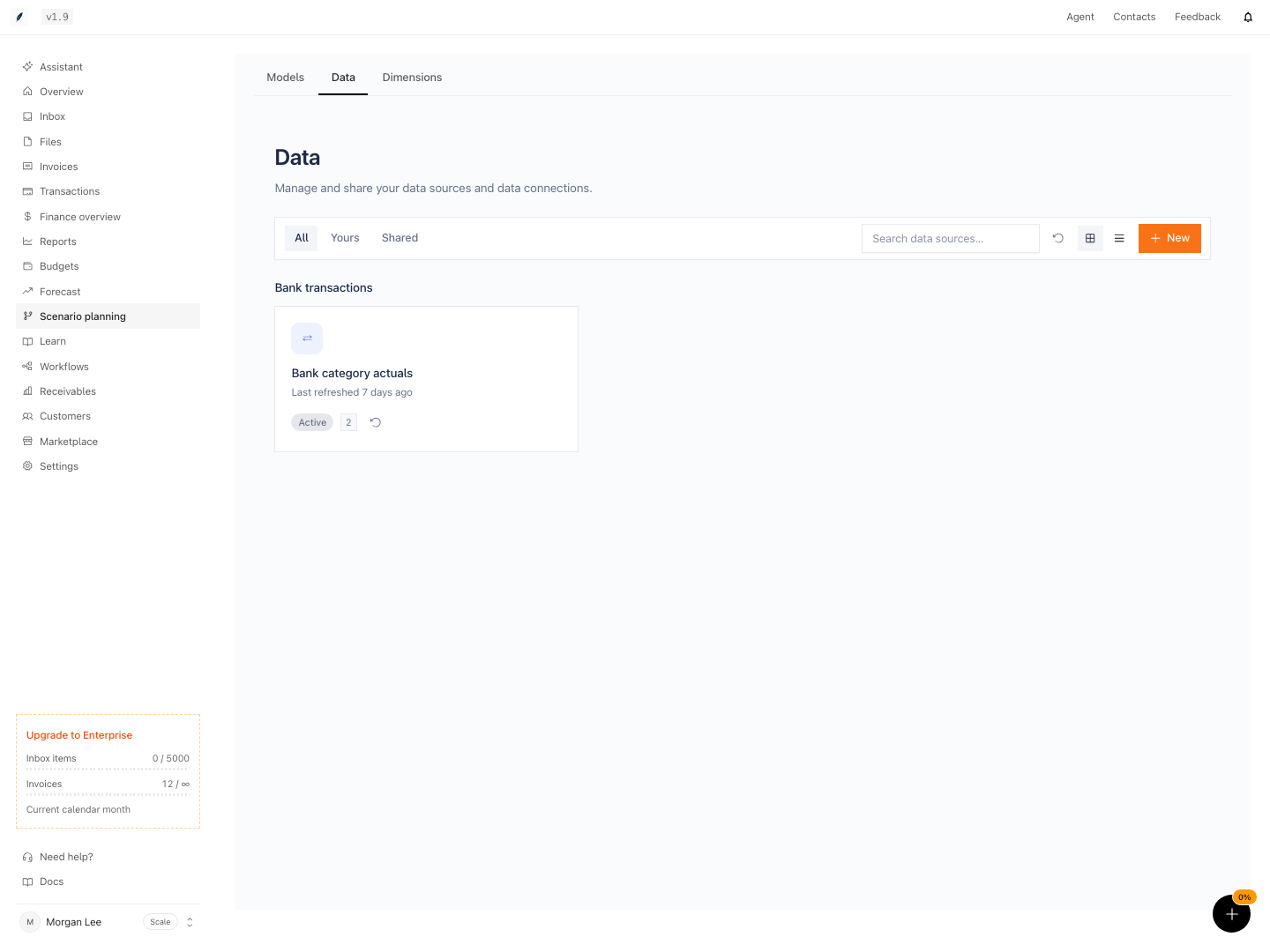
Shown with synthetic data in a local workspace.
Verification
Troubleshoot
A connected provider does not appear in Data
The provider can be connected without a supported planning dataset. Open New and check the source's availability and dataset description.
Refresh all data sources says there are no sources to refresh
Clear search and filters. Also check whether every visible source is already refreshing.
A dimension appears under Shared instead of Yours
The creator determines the tab. Ownership of the model and creation of the dimension are separate facts.
A dimension is marked unused but you expected a model to use it
Open the owning model and confirm that a variable references the dimension. A dimension with members does not count as used until the model structure links to it.
Actuals do not align with dimension members
Check the source mapping, member labels, model time range, and actuals boundary. Correct the mapping before you change formulas.
- Add a new data source and confirm it appears in the Data page under the correct provider and connection. Expected: Source is visible and lists expected metadata (provider, dataset, connection context).
- Refresh a source; wait for status update and verify the last refresh time changes without errors. Expected: Success or failure state and timestamp update appear clearly.
- Create a new dimension, assign members, and confirm the dimension is linked to a model. Expected: It appears in the relevant filter tabs (Yours/All) and members display as configured.
- Remove or rename a dimension member; observe that changes propagate (or absence is reflected) in models where the dimension is used. Expected: Labels update or members become unavailable as intended in every referencing model.
- Use the Unused tab to find dimensions not referenced in models, then confirm by checking corresponding models for variable mappings. Expected: The dimension is unreferenced and not used in any variables.
- Attempt to share a model and check that the recipient cannot edit or delete underlying data sources or dimensions. Expected: Sharing restricts management rights as described.