Document Processing and Extraction
Understand how Vault files move from upload to searchable context, structured financial fields, human verification, and transaction suggestions.
Summary
Document processing turns a stored file into usable workspace context. Eigenn classifies supported files, produces searchable text and summaries, adds tags, extracts structured financial fields when possible, and proposes transaction matches for eligible documents.
Eigenn shows the process so that you can check it. The file status, extraction status, confidence, field evidence, corrections, and match decisions stay visible. Eigenn does not hide them behind a single “AI complete” state.
Capabilities
What General Processing Adds
For supported files, general processing can add:
- A generated title
- A summary
- Searchable text
- Language and document-type context
- Tags that Eigenn generates automatically
- An index for semantic search
Supported processing formats include:
- Common image formats
- CSV, plain text, and Markdown
- Microsoft Word, Excel, and PowerPoint formats
- OpenDocument text, spreadsheet, and presentation formats
- RTF
Eigenn converts HEIC/HEIF images to JPEG for image processing and removes the original object and document record after successful conversion. Keep an original elsewhere when you need that format. Eigenn routes other image formats through image classification. A format outside the supported processing set can stay in the Vault without generated context.
Prerequisites
Prerequisites
Before you use the processed data:
- Upload the file to the correct workspace under Files.
- Keep the source document available for comparison.
- Use a role with write access to edit extracted fields or resolve matches.
- Connect transaction data for transaction suggestions.
- Give the background process time after the file upload finishes.
Workspace Owners and Members can make document changes when their role permits them; custom Member roles need Manage documents. A document access list can further restrict reading or editing. Seeing another document in the workspace does not grant access to a restricted file. Bulk operations skip documents you cannot edit, so check the returned result and remaining queue.
Concepts
Processing Lifecycle
The file-processing state and the financial-extraction state connect to each other, but they answer different questions.
File-processing status
| Status | Description |
|---|---|
| Pending | The file waits in the queue for processing. |
| Processing | Eigenn checks, reads, classifies, or indexes the file. |
| Ready | General file processing is complete. You can use the file. |
| Failed | General processing did not complete successfully. |
While a job runs, Progress can show a percentage and the current stage. If detailed progress is not available, the interface still shows a Processing indicator that pulses.
Extraction status
Use the Extraction status Vault filter to distinguish:
- Pending
- Extracted
- Verified
- Edited
- Failed
- Skipped
- Needs review
A file can be Ready at the file level while structured extraction shows Skipped or Needs review. Ready means that you can use the file. It does not guarantee that Eigenn extracted every financial field.
Limits and Edge Cases
- Upload completion and process completion are separate. The success toast confirms storage before Eigenn guarantees every background result.
- Vault accepts up to 25 files per batch and 100 MB per file. Eigenn rejects an empty file.
- Eigenn can store an unsupported processing format without a summary, extracted fields, or generated tags.
- Structured extraction applies to recognized financial documents that have usable text. A non-financial document can show Skipped and no Extracted Data panel.
- Image classification and structured financial extraction are separate capabilities. An image can get a title or summary without structured fields.
- Scanned or low-text files can need a check even when the preview looks correct.
- Suggested matches need enough extracted context and available transaction data.
- Verify visible affects every document that the review section shows now.
- Link visible and Dismiss visible affect every suggestion that the match section shows now.
- When you correct extracted fields, Eigenn does not change the pixels or text in the original file that you uploaded.
Workflow
Find Process Details
- Select Files in the primary sidebar.
- Open a file, or open its action menu and select View details.
- Check File Information → Status and Progress.
- Check Summary, Extracted Data, Suggested matches, Tags, and Related Files when those sections appear.
- For a cross-document queue, select Files → File workspace.
- Check Review queue, Suggested matches, Status center, and Audit trail.
Structured Financial Extraction
For recognized financial documents, Extracted Data can include:
- Document type
- Counterparty
- Amount and currency
- Tax amount
- Issue date
- Due date
- Statement or service period
- Invoice or receipt line items
- Statement transactions and balances
Not every field appears on every document. Empty or irrelevant fields stay out of the view.
The document-type badge shows the detected category. Before human verification, the panel can show an overall confidence percentage. Individual fields can also include evidence such as confidence, validation state, validation issues, source path, and extraction source.
Review warnings
Eigenn can set Needs review for conditions such as:
- A low text signal
- No readable text sample
- A need for OCR
- An unsupported extraction format
- A MIME type that does not match the file extension
- Validation issues in extracted totals or fields
These warnings do not automatically mean that you cannot use the stored file. They mean that a person needs to compare the source. That person then adds or corrects the details.
Confirm or Correct Fields
- Open Extracted Data.
- Select Verify / Edit.
- Check Counterparty, Amount, Currency, Tax amount, Issue date, and Due date.
- Correct the values that do not match the source.
- Select Save.
When you save a correction, Eigenn marks the extraction as edited. Eigenn records the current user as the person who confirmed it. Eigenn records the changed fields. Eigenn then refreshes the search representation of the document.
The panel can show:
- Activity for extraction and correction events
- Versions for recent document versions
- Field-level before-and-after details for recorded corrections
Check Line Items and Statement Rows
When the extraction contains invoice or receipt line items, check:
- Description
- Qty
- Unit price
- Amount
When it contains statement transactions, check:
- Date
- Description
- Amount
- Balance
Compare totals with the source document before you use the data in a decision. A high confidence value gives support. It is not a substitute for a check against the source.
Resolve Transaction Suggestions
Eligible invoices, receipts, and expenses can get suggested transaction matches when an amount and issue date are available.
- Open Suggested matches.
- Compare the transaction name, date, amount, currency, and confidence.
- Select Link for the correct suggestion.
- Select Dismiss for an incorrect suggestion.
For a queue-based check, open Files → File workspace → Suggested matches. You can resolve one suggestion at a time. You can also use Link visible and Dismiss visible after you check every item in the visible set.
Work the Review Queue
When extracted data needs attention, Files → File workspace → Review queue lists the visible documents and their status, document type, and confidence.
- Select Repair failed to retry the visible failed or needs-review extractions that are eligible for repair.
- Select Verify visible to confirm the visible queue entries.
- Use Audit trail to confirm that Eigenn recorded the changes.
- Use Export CSV to download extracted rows in Extracted, Verified, Edited, or Needs review states.
The review, matching, and audit previews each request up to four entries. CSV export includes readable matching rows, capped at 50,000; it is not limited to the preview rows. A repair request queues processing and does not itself prove successful extraction.
Use bulk verification only after you examine the visible set. It is an operational shortcut, not an automatic validation step.
Behavior specification
Eigenn monitors each file through separate file-processing and extraction statuses. Supported files progress from Pending to Ready with intermediate Processing states. For eligible financial documents, the system extracts fields with confidence scores and flags items needing review. Users may edit or verify extracted data directly and resolve transaction matches, with all actions recorded in audit trails. Unrecognized or unsupported files remain in Vault without extracted fields or context. Bulk and visible-set actions apply only to the currently displayed queue or list.
Diagrams
Rendering diagram…
Screenshots
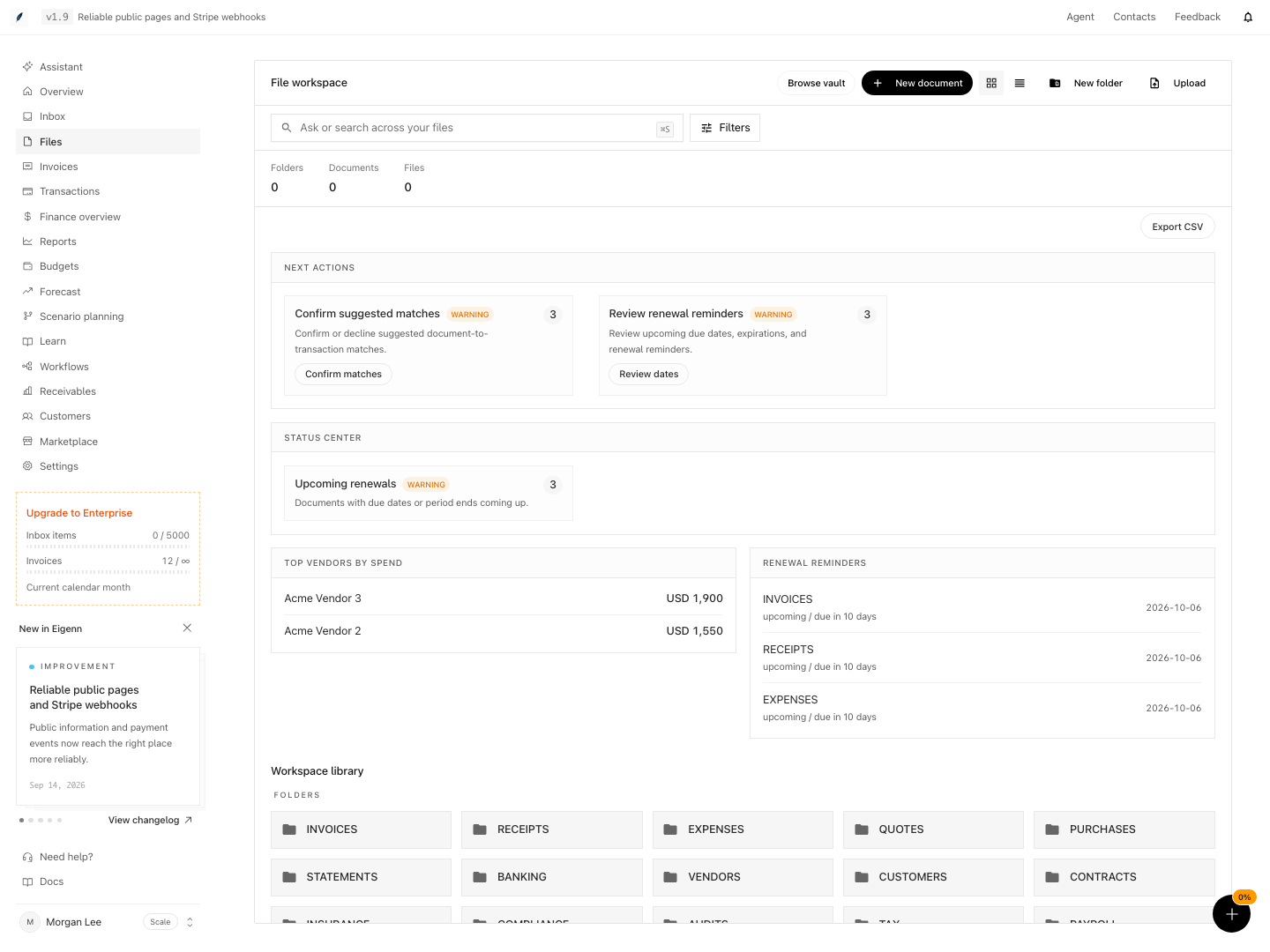
Shown with synthetic data in a local workspace.
Verification
Confirm the Result
The process is complete enough for use when:
- File Information → Status shows Ready
- The preview opens and the file name, size, and type are correct
- The summary and tags describe the source accurately, when they appear
- Extracted Data agrees with the source, or you corrected it and it shows Edited; bulk confirmation uses Verified
- A resolved suggestion shows Linked or disappears from the pending match queue
- Activity or Audit trail records the human correction or bulk action
For a non-financial or unsupported file, success can mean that the file is Ready. You can preview it, search it by its stored metadata, and download it. Not every file needs structured fields.
Troubleshoot
Status remains Pending or Processing
Refresh the file details. Check if Progress changes. Confirm that the upload completed and that the file is not empty. If the status does not change, copy the Storage Path. Give the file name and the upload time when you contact support.
The status shows Failed
Open Files → File workspace → Review queue. Use Repair failed when the document appears there. Then examine the individual document again. If repair does not resolve it, convert the source to PDF or another supported format that contains text. Then upload a new copy.
The file is Ready but Extracted Data does not appear
The file can be non-financial, unsupported for structured extraction, image-only, or skipped on purpose. Check Summary, Tags, File Information → Document Type, and the Extraction status filters. Use the original file as the source of truth when no structured panel appears.
Extracted Data says Needs review
Read the review reasons. Compare each displayed field with the source. Select Verify / Edit. Save the corrections. For a scanned PDF with no readable text, a cleaner text-based PDF can produce a better result.
A field has low confidence
Read the evidence detail beneath the field. Check validation issues, the cited source path, line-item totals, and currency. Correct the field. Do not depend on the overall confidence badge.
No transaction suggestions appear
Confirm that the document is an invoice, receipt, or expense with an amount and issue date. Confirm that the workspace has relevant transaction data. You can still reconcile receipt work manually from Inbox and Approvals.
- Select a recently uploaded file and check File Information → Status: it must show Ready when processing is complete.
- Verify the presence of a generated title, summary, and tags when expected for supported file types.
- For financial documents, compare Extracted Data fields (amount, dates, counterparties) with the original document; mismatch should be correctable via Edit → Save.
- If transaction suggestions exist, confirm at least one can be linked or dismissed and the action is reflected in Suggested Matches.
- After human verification or correction, confirm the extraction status updates to Verified or Edited and that the changes appear in Activity or the Audit Trail.
- Download an export (CSV) and confirm correct inclusion of recently verified or edited records.
- Confirm that an empty file is rejected before upload. A stored unsupported file can lack extraction or fail processing; do not expect Ready for every unsupported format.
- Intentionally upload an unsupported format and verify it is stored but lacks automated summary and extraction.