Configure Approval Policies
Define a satisfiable approval chain, test it with a low-risk action, and verify the request through execution.
Summary
This guide creates an approval policy for a sensitive action and verifies that the chain works from request creation through execution.
Capabilities
Approval policies allow organizations to specify sensitive actions that require approval, set thresholds and currencies for those actions, define multi-step sequential approver chains, assign approver roles and backup personnel, and trigger the execution of requests only after all approvals are met. Failed executions and rejections are handled to prevent unauthorized progress.
Prerequisites
Before You Start
- Use a workspace Owner or a custom role with Manage approvals. Workspace write access must be active.
- Identify the exact action type that needs governance.
- Decide the amount and currency boundary.
- Confirm the approvers and backup approvers.
- Use a low-risk representative action for the first test.
Concepts
1. Map the Real Process
Write the approval sequence before you configure it.
For each step, record:
- the responsible role
- any named approvers
- the minimum number of distinct approvals
- the backup person when an approver is unavailable
Use multiple steps only when approval must happen in order.
Workflow
2. Open Approval Settings
- Select Settings.
- Select Approvals.
- Review the existing Approval Chains.
- Confirm that another policy does not already cover the action.
- Select New policy.
3. Choose the Action Type
Select the sensitive action that the policy will gate.
The action type becomes fixed after creation. Confirm it before you save. If you choose the wrong action, create a new policy rather than trying to reinterpret the existing one.
4. Set the Threshold
Enter Threshold amount when only actions at or above a value need approval.
Choose the currency that the threshold uses. Select No currency only when the action is not currency-specific or when any currency should follow the same non-monetary control.
Examples:
- Invoice write-offs at or above 5,000 USD
- Payment settlements at or above 10,000 GBP
- Every invoice cancellation, with no threshold
5. Configure the First Step
Choose:
- Any member or an approver role
- optional Specific approvers
- Min approvals
- Timeout (hours) and On timeout (Escalate to owners or Reject request)
A step must be satisfiable. If you name one approver, do not require two approvals. If you choose a role, confirm that enough active people have that role.
6. Add Ordered Steps
Select Add step when a second group must approve after the first.
Example:
- A finance member validates the source record.
- A workspace owner gives final authority.
Any rejection settles the request as Rejected. A later step cannot approve early, and the requester cannot approve their own request.
7. Save and Enable
- Review the action type.
- Review the threshold and currency.
- Review every approver and minimum count.
- Select Save policy.
- Confirm that the policy appears in the list.
- Confirm that it is enabled.
Record the policy owner and review date in the team's operating process.
8. Run a Low-Risk Test
Create a representative action that should match the policy without causing material harm.
Confirm:
- the action type matches
- the amount meets the threshold
- the currency matches
- the request appears in Approvals
- the correct first step is active
Do not begin the first test with the largest or most urgent real action.
9. Complete the Chain
For each step:
- Open the request.
- Review the action and source context.
- Confirm it appears in Awaiting you and review its current step/deadline.
- Approve with an eligible person.
- Confirm the next step activates only after the minimum is met.
Use a rejection test in a safe environment or with a harmless request when the team needs to verify halt behavior.
10. Verify Execution
Open Workflows → Approvals → Awaiting you for eligible reviews and My requests for your pending asks. You can delegate an eligible current step or cancel your own pending request. Policy requests use Pending, Approved, Rejected, Expired and Cancelled; they do not use the Assistant proposal queue's Claim, Done or Undo lifecycle.
After final approval, check the bound workflow execution or invoice action. Workflow requests attempt to resume their bound pause. Direct invoice operations may require you to retry with the approved request available. Verify the business result separately; Approved alone does not prove it happened.
Behavior specification
11. Review the Policy
After the test, confirm:
- the intended requests match
- lower-risk requests do not match unexpectedly
- every step has available approvers
- notifications and operating ownership are clear
- the queue contains enough source context for a decision
- failure and undo behavior are understood
Review the policy whenever roles, team membership, payment authority, or action ownership changes.
Troubleshoot
Save policy remains disabled
A step can be incomplete or unsatisfiable. Compare Min approvals with the named approvers and eligible role members.
The test request does not appear
Check the action type, enabled state, threshold, and currency. Confirm that the selected product action supports approval policies.
The chain stops at one step
Check whether the minimum approvals were met and whether a rejection occurred. Confirm the next step has eligible approvers.
Execution fails after approval
Open the request and read the failure. Fix the downstream record, permission, provider, or workflow issue before you retry.
Diagrams
Rendering diagram…
Screenshots
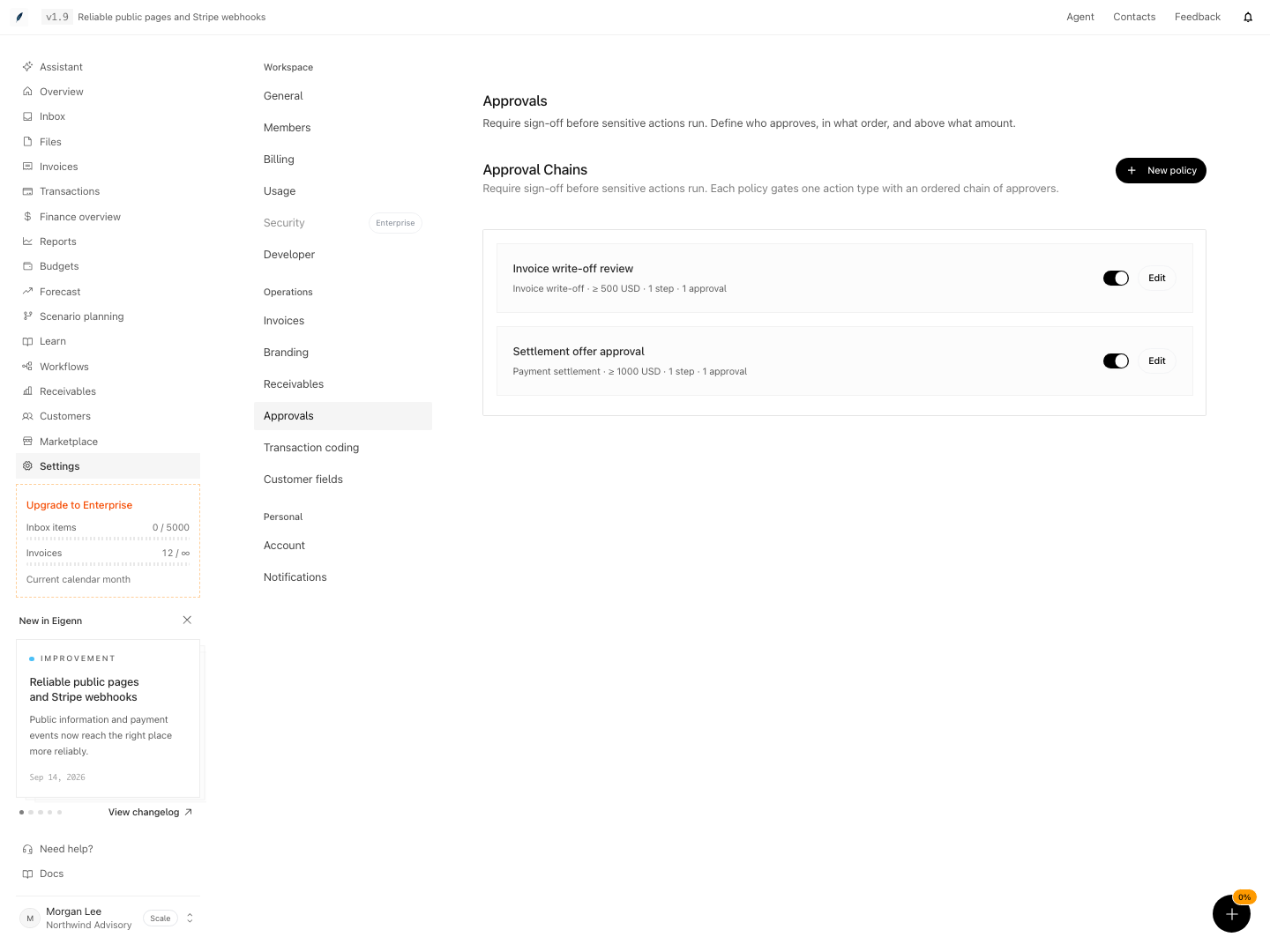
Approval policies for invoice write-offs and settlement offers, including thresholds and review steps.
Shown with synthetic data in a local workspace.
Verification
- Log in as a workspace owner and verify that you can access and modify approval settings. Expected: policy management follows Manage approvals; viewing a queue does not grant decision authority.
- Create a new approval policy for a distinct action type with set threshold and currency. Expected: Policy can be saved, appears in the list, and is enabled.
- Initiate a test action matching the policy's type and threshold. Expected: The action appears in Approvals with the first step active.
- Use eligible accounts to approve each step sequentially, meeting the minimum number for each. Expected: Each step activates in order, and the action does not progress if a step is incomplete.
- Test a rejection at any approval step. Expected: The request is halted and does not reach subsequent steps or execution.
- After all steps approve, inspect the bound execution or source operation and its outcome; the approval request alone does not prove execution.
- Review the policy after test execution to ensure only intended requests are gated and approvals are only assigned to eligible persons. Expected: No lower-risk requests unexpectedly require approval and all notifications behave as anticipated.
Related
Related Pages
Compare and Share Planning Scenarios
Build a focused alternative case, compare it with the base, save a review view, and share the right level of access.
Configure Assistant Operations
Give Assistant business context, create goals, watchers, and scheduled work, and keep a person in control of consequential actions.