Tone Profiles and Experiments
Set communication tone, understand delivery analytics, and compare two profiles without a claim beyond what the experiment measures.
Summary
Tone Profiles define how eligible payment communications sound. Tone Experiments compare two profiles on real, eligible workflow traffic. They summarize customer assignments and recorded payment conversions.
Neither feature sends a message by itself. The workflow communication path resolves tone when it has a template and an available profile. Experiment assignment also requires customer context. AI configuration is needed for transformation, and delivery still depends on the saved collection opt-in, invoice state, contact permissions, and provider configuration.
Capabilities
Tone Performance Analytics
The page shows:
- Communications — total tracked communications associated with an explicitly linked tone profile
- Sent — tracked communications that Eigenn records as sent now
- Delivered — tracked communications with delivered status
- Delivery rate — delivered count divided by total tracked communications
- Deliveries by tone profile — delivered count grouped by linked profile
- Weekly send volume — communications currently in Sent state, grouped by creation week and linked profile
Sent and Delivered are current-state counts: a communication that moves from Sent to Delivered stops contributing to Sent. They are not cumulative delivery milestones or payment-conversion metrics. A zero-population delivery rate is shown as unavailable, not a measured 0%. The page now uses all available performance data and a weekly timeline. It does not give a visible date filter.
Analytics attribution follows the profile that you link directly to a communication template. Some communications use a team default without a direct template link. Others get an experiment override at send time. Deliveries by tone profile can attribute these to a different profile than the one actually used. Changing a template's linked profile can also change historical grouping because the report reads the current link. The weekly chart can show separate bars with the same week label for different profiles.
What Experiment Results Mean
The details view shows:
- Assignment count
- Conversion count
- Overall conversion rate
- Conversion rate for A and B
- Customer names for each variant, falling back to IDs when names are unavailable
- Created, started, and completed times
A conversion uses the saved converted outcome when present, falling back to paid only when converted is absent or null. The chosen value must be true. For example, converted: false does not count even if paid: true. The supported recovery-payment completion path records both as true for an already assigned customer while the experiment is running.
This is one outcome per assigned customer, not per invoice. A subsequent outcome replaces the previous one. The summary does not verify delivery, successful tone transformation, or whether the paid invoice was the one used for assignment. Assignment can happen before an AI failure or delivery refusal; reconcile those events separately.
The denominator is the assigned customers, not the delivered messages. The page does not show statistical significance, confidence intervals, time-to-payment, or average recovered amount. It also has no guard against a winner decision on a very small sample.
Not every invoice status change records an experiment outcome. Manual paid-state corrections and alternative payment paths can leave an assigned customer without a recorded conversion. Confirm the summary and the source payment records before you interpret the rate.
Prerequisites
Select a workspace you belong to. Owners and members can change tone profiles and experiments; viewers can read them. Access to these views does not establish permission to publish a recovery workflow, edit an invoice, or send a message. Check those permissions and channel setup separately.
Before You Start
- Connect and test the communication channels that the workflow uses.
- Create or find a payment-reminder template for the workflow communication path.
- Confirm that customer records and invoice context are available to that workflow.
- Set up the AI provider of the workspace if you expect text transformation.
- Read the necessary language and the prohibited phrases with qualified legal or compliance owners.
Concepts
How Eigenn Chooses a Profile
For a template-based workflow communication:
- Eigenn prefers a profile that links directly to the template.
- If the template has no profile, Eigenn can use the team default.
- An applicable customer-segment rule can adjust the profile or its settings.
- An active experiment can replace that choice with the A or B profile of the customer.
If no profile is available, Eigenn uses the original template. If the AI provider is unavailable or transformation fails, Eigenn also uses the original template content. It does not block the communication.
This precedence applies to the workflow communication path. The experiment replaces the chosen profile but can retain template or segment overrides, so review the effective content rather than the profile name alone. Recovery steps that you create in Settings → Receivables do not show a template selector. Do not assume that they use tone profiles.
Experiment Lifecycle
Draft
When you create an experiment, Eigenn stores these values:
- Name
- Optional description
- Variant A profile
- Variant B profile
- Traffic percentage for variant A, with the rest for B
The two profiles must be different. A new experiment starts as Draft and does not affect communication until you select Start experiment.
Running
Only one tone experiment can run for a team at a time. When you start another, Eigenn returns a conflict until you pause or complete the current experiment.
When Eigenn prepares an eligible communication with customer context:
- Eigenn assigns the customer to A or B by the traffic split.
- The assignment remains fixed for that customer in that experiment.
- The assigned profile becomes the tone choice for eligible messages while the experiment runs.
Traffic split applies to customer assignment, not to a guaranteed message count. Small samples and repeat messages to the same customer can produce an uneven observed split.
Paused
Select Pause. Eigenn then does not select the experiment for new eligible communication. A pause also removes it from the automatic active-experiment lookup for payment outcome records. Eigenn can omit a payment that arrives during the pause from its conversion summary. Pausing does not recall messages already queued.
Use Start experiment to resume a paused test. Existing customer assignments remain, but the displayed started time is reset to the restart time. Record pause intervals separately when interpreting results.
Completed
Select Mark completed at the end of the measurement window. Then choose Variant A wins or Variant B wins.
Winner selection is manual. It records the chosen variant. It does not make that profile the team default and does not update templates. Roll out the winner separately in Tone Profiles and any template configuration. Once chosen, the UI shows a winner badge instead of buttons to change it. Completed experiments have no restart control here.
Workflow
Open Tone Profiles
- Open Receivables.
- Select Tone Profiles.
- Read the performance summary at the top.
- Manage profiles under Your Tone Profiles.
Create a Tone Profile
- Select Create Profile.
- Enter a name of 1–100 characters that describes the intended use.
- Choose a quick-start template or Custom configuration.
- Review Tone Settings.
- Review Content Rules.
- Select Save Profile.
- Read the profile.
- Use Set Default if you want it as the team fallback.
Eigenn does not make a new profile the default automatically.
Quick-start choices
| Quick start | Initial style |
|---|---|
| SaaS Friendly | Warm, customer-centered, and conversational |
| B2B Firm | Direct, professional, and action-oriented |
| Fintech Regulated | Neutral, formal, and prefilled with compliance-oriented language rules |
A quick start replaces tone settings and content rules in the open form. Review any earlier edits before saving. Choosing Custom configuration does not reset the existing configuration; it leaves the current values available to edit.
Tone settings
Choose an Empathetic, Neutral, or Firm preset, then adjust:
- Formality from casual to formal
- Empathy from direct to compassionate
- Urgency from gentle reminder to high priority
- Reading level from grade 1 through grade 18
- Brand voice description
Content rules
Set these values:
- Blocked phrases
- Necessary disclaimers
- Optional maximum character length
These rules check transformed content. They are not a legal guarantee. They are not a hard delivery gate for every path. If a transformed body breaks the configured rules, the tone step can fall back to the original template content. The communication can still proceed. Read the original template as carefully as the generated version.
Manage Your Profiles
- Select the edit icon to change the name, quick-start-derived configuration, tone settings, or content rules.
- Select Set Default to replace the current team default.
- Select the delete icon and confirm to permanently remove a profile.
You cannot undo a profile deletion. Template links are cleared and eligible messages can use a remaining team default, or the original template if none exists. Deleting the default does not automatically choose a replacement. Experiments using either variant profile, their assignments, and linked segment rules are removed with the profile. Choose a replacement. Update the active use. Preserve the experiment results before you delete the profile.
Open Tone Experiments
- Open Receivables.
- Select Tone Experiments.
- Create a new experiment, or select View details on one that exists.
Behavior specification
Experiment Safety and Limits
- Create at least two profiles before you start.
- Use profiles that differ in one hypothesis when possible.
- Keep the experiment active through the payment-observation window if automatic conversion attribution matters.
- Do not edit or delete variant profiles during an active experiment.
- Do not treat delivery rate as collection conversion.
- Do not treat a higher raw conversion rate as conclusive without enough assignments and a suitable review period.
- Delete opens Delete this experiment?. Confirm Delete to remove the experiment and assignments, or Cancel to preserve them.
- Eigenn permits a 0% or 100% traffic split. That split stops a useful two-sided comparison.
Diagrams
Rendering diagram…
Screenshots
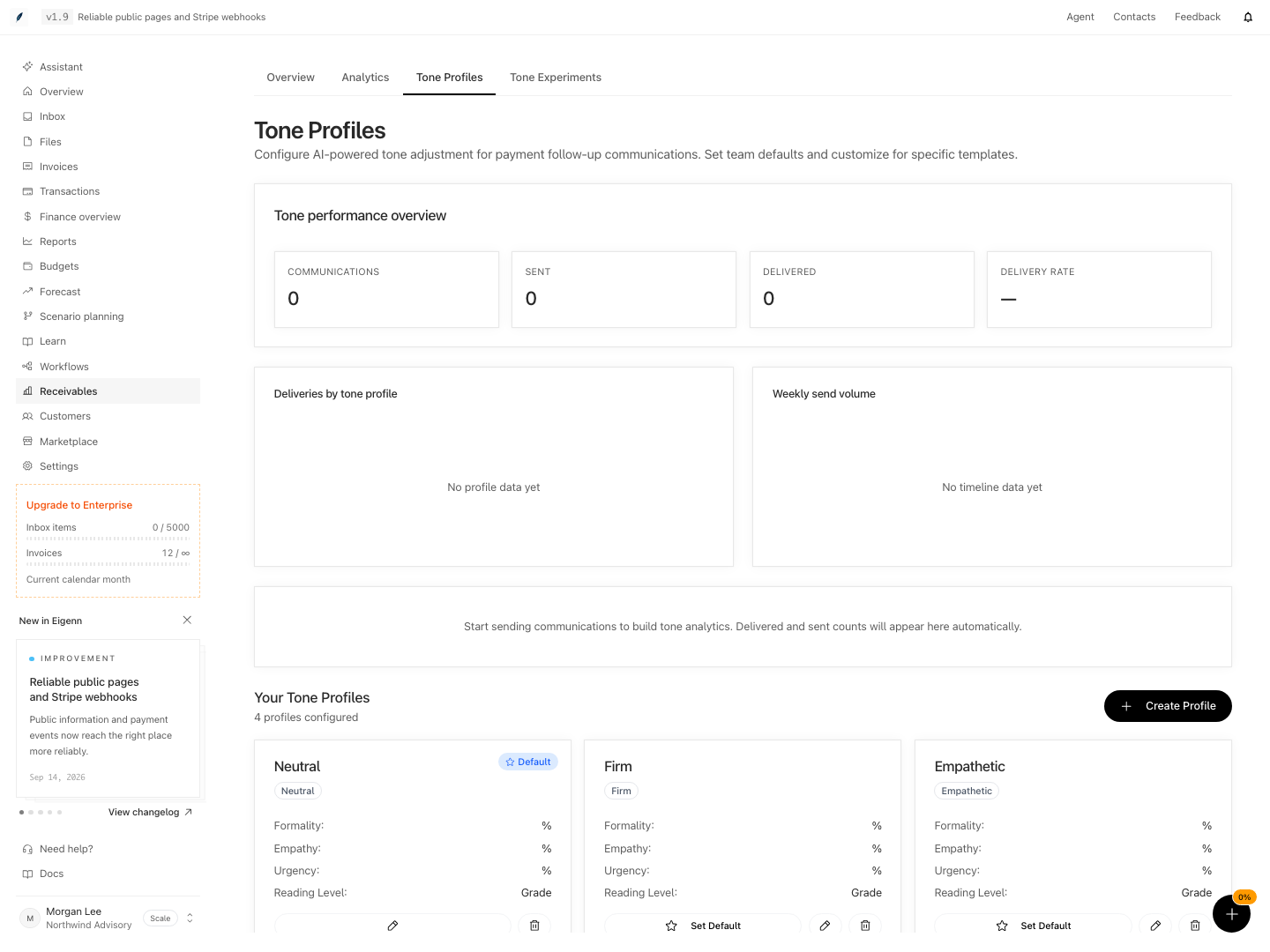
Shown with synthetic data in a local workspace.
Verification
Troubleshoot
A profile saved but messages did not change
Confirm that the message comes from the template-based workflow communication path. Confirm that the template-specific or default profile is available. Then confirm that you set up the AI provider. On a failure, Eigenn uses the original template.
Tone analytics show no profile data
The analytics include only the communications with templates that reference a tone profile directly. The profile groups can omit a default-only or experiment-overridden use.
An experiment has no assignments
Confirm that it shows Running. Confirm that no other experiment runs. Confirm that Eigenn prepares eligible template-based workflow communications with customer context. An experiment or an Auto-chase policy alone does not create assignments.
Assignments exist but conversions remain zero
Confirm that the assigned customers paid through a path that records an experiment outcome while the experiment ran. A paid invoice status alone is not enough evidence that Eigenn updated the experiment summary.
The observed traffic split is uneven
Assignment is random and sticky by customer. Small samples, repeat communications, and customer-level rather than message-level assignment can produce an uneven split.
The profile that won did not become default
Winner selection only records the experiment decision. Open Tone Profiles and select Set Default. Then update any template-specific profile separately.
- Create and link a profile to a payment template, trigger a controlled workflow, and inspect the actual content. Confirm fallback behavior separately from successful transformation.
- Run an experiment with two profiles (A and B), trigger qualifying communication, and confirm in analytics that customers are assigned to variants.
- Observe delivery and assignment counts in analytics after sending messages.
- Mark an experiment as completed and set the winning variant; check that the default or templates do not change automatically.
- On a disposable fixture, cancel the experiment deletion dialog and confirm the record remains. Confirm deletion only after reviewing its assignments and dependencies; profile deletion can also remove linked experiments.