Transaction Categories and Rules
Build a reporting taxonomy and automate repeat transaction decisions with deterministic rules.
Summary
Categories organize transactions for reporting. Rules apply repeatable category, GL code, tag, owner, and exclusion decisions. Several matching rules can contribute to one transaction; conflicts resolve separately for each field.
Prepare the category model first. Preview a rule before saving it, then check persisted transactions after applying it.
Capabilities
- Create parent and child categories with colors, descriptions, tax attributes, and reporting codes.
- Exclude categories from reports that honor category exclusions.
- Build rules from transaction fields and preview their proposed field changes.
- Pause, resume, duplicate, delete, and run rules against recent unsynced transactions.
- Read the Why this coding explanation in transaction details.
Prerequisites
Use the intended workspace. Owners and members can make changes; viewers have read access. Workspace billing restrictions can also prevent writes.
Prepare matching and near-miss transactions, target categories, existing tags, and active workspace members. Confirm tax conventions with the person responsible for your accounts. Keep some examples without manual coding: a manually overridden field is protected from ordinary rule application.
Concepts
Categories
A category has a required name and can store a color, parent, description, tax type, tax rate, reporting code, and Exclude from Reports setting. The table shows tax and reporting attributes and exclusion state. Search by name and expand parents to see children.
The editor offers top-level parents with one level of children. A category with children cannot change parent. For example, Software can contain Infrastructure, Collaboration, and Security; People can contain Payroll, Contractors, and Benefits.
System categories show a System badge and cannot be deleted. Custom categories can be edited or removed. Check linked transactions and children before removal; it is not a replacement-category workflow.
Internal Transfer is supplied as an excluded system category, and its table exclusion control is disabled. Category exclusion and a transaction's own internal/excluded state are separate settings. Do not assume assigning this category changes the transaction's status.
Reporting exclusions
Category exclusion affects queries such as profit reporting that check this setting. It does not delete transactions, and it is not a guarantee that every total changes: the transaction ledger summary uses its own exclusion rules.
Review the specific report before and after changing a category's exclusion. Use the table exclusion control to include a category again. The current edit form omits a false exclusion value, so switching it off there can leave the saved exclusion unchanged. The form also omits cleared optional text and zero tax rates; reopen the category to check what persisted.
Conditions
The current builder joins conditions with AND: each must match. It does not offer OR or nested groups, although the underlying engine can evaluate stored condition trees.
| Field | Builder comparisons | Behavior |
|---|---|---|
| Description, Name, Merchant, Counterparty | contains, does not contain, equals, starts with, ends with, regex | Text and regex matching are case-insensitive. |
| Currency, Account type, Frequency, Day of month | Text comparisons | Use the stored value; day of month comes from the transaction date. |
| Recurring, Has attachment | Text comparisons are displayed | Enter true or false; the evaluator compares these boolean fields by value, regardless of the displayed text operator. |
| Amount | equals, greater than, greater than or equal, less than, less than or equal | Uses signed amounts; expenses are normally negative. |
| Direction | equals | Money in includes zero and positive amounts; Money out is negative. |
| Account | equals | Use the stored bank-account identifier, not its display name. |
The builder rejects incomplete values, invalid regular expressions, and nonnumeric amounts. Missing text behaves as an empty string: a negative condition or a regex that accepts empty text can still match it.
Actions
A rule needs at least one action. The builder can set one category, one GL account code, one owner, add one selected tag, choose Exclude from analytics, or mark a transaction ready to sync. It cannot remove tags, clear an owner/category, or reverse exclusion.
A GL action records a code; it does not post a journal entry. Exclude from analytics sets the transaction's internal flag and excluded status. Mark ready to sync changes its Books state when required coding is present; this action does not send it to an accounting provider. A category is required for automatic readiness, and a connected ledger integration also requires a GL code.
Which rule wins
For each field, a manual override wins over rules. Among matching rules, Eigenn chooses:
- The rule with more predicates (conditions).
- The lower numeric priority when predicate counts are equal.
- The older rule when both counts and priorities are equal.
Priority is an integer from 0 through 1,000. Specificity is a count, not a judgment about how narrowly a phrase matches. Changing priority cannot make a one-condition rule beat a two-condition rule for the same field.
For example, merchant contains “AWS” plus amount below -500 can set Infrastructure, while a one-condition AWS rule sets Software for other matches. A different matching rule can still assign an owner. Tags from matching rules accumulate rather than following a first-match rule. Account coding defaults supply a lower-precedence starting point.
Workflow
Create a category
- Open Transactions → Categories.
- Select Create, enter a name, and choose a color if needed.
- Choose a top-level parent or leave it unassigned.
- Add a description and any tax type, rate, and reporting code.
- Choose the reporting exclusion and save.
- Reopen the category and check the saved fields and intended report.
You can also type a new name in a transaction's category selector and choose its create option. Inline creation supplies a generated color. Use Categories for the remaining attributes. Clearing a parent in the current edit form can leave the previous parent unchanged; check after saving.
Create and preview a rule
Open Rules from Transactions. Enter a name, optional reviewer note, priority, conditions, and actions. Quick starts provide software-merchant, large-expense, income-deposit, and internal-transfer examples; adjust their values before use.
- Keep Enabled off while preparing the definition.
- Add the smallest useful condition set and at least one action.
- Select Preview matches before saving.
- Review matches, field changes, and fields blocked by manual edits.
- Save with Create rule when the definition is ready.
Saving does not run a historical backfill. An enabled rule can participate in subsequent syncs and CSV imports, so choose its state deliberately.
Preview limits
The preview walks unsynced history and includes the draft alongside all enabled rules. Counts describe that combined rule set, not the draft alone. It returns at most 100 detail rows, even when the counts cover more transactions.
The current UI always previews the draft at priority 100, regardless of the priority selected for saving. Changing only priority does not refresh the preview definition. A preview can therefore disagree with saved-rule precedence.
Preview compares category and GL values with their stored values. Other field changes can show an empty previous value even when one exists. It does not merge account defaults or show a complete simulation of tags, splits, readiness checks, and write validation. Tag-only or readiness-only effects can produce matches without visible changes. Use preview as a review aid and check persisted results after a real run.
Library and backfill
Library metrics show total, active, paused, backfill-ready, and multi-condition rules. Search covers names, descriptions, condition summaries, and visible actions. Filters include Active, All, Backfill, Specific, and Paused; sorting includes priority, specificity, name, and creation date.
Run workspace rules runs all enabled rules and applicable account defaults. A row's play control also runs the enabled workspace rule set; it does not isolate that row's rule. A paused rule does not participate even if you press its play control. A readiness-only rule does not get the builder's backfill-ready classification.
Both library actions scan at most 2,000 unsynced transactions, newest date first. They provide no date-range selector or continuation control. Repeating the action can revisit the same window; it does not reliably advance to older history. Already-synced rows are excluded.
The workspace message reports scanned and updated counts. The row play message reports matches across enabled rules, not only that row's rule. Updated counts include field writes even if the value was already present. Neither message proves every requested tag, category, or readiness action succeeded.
Pause, replace, or delete
Pause excludes a rule from later enabled-rule runs. It does not undo previous changes. To change conditions or actions through this library, create a replacement; there is no in-place definition editor.
Duplicate immediately saves a paused copy with the same definition and priority increased by one, capped at 1,000. It does not open an editable draft. A long original name can make the added “ copy” suffix exceed the name limit.
Delete has no confirmation. It attempts to clear recorded winning fields and reapply remaining rules to affected transactions, then removes the rule. This is not a complete undo: tags and splits are not restored, excluded status is not reset, and synced rows are not recoded. The clearing step can affect fields on multiple affected rows, including later manual values; do not rely on ordinary manual-override protection during deletion. A capped rerun or a failure partway through can leave incomplete restoration. Pause first and review affected records before deleting.
Behavior specification
- Names allow 1–120 characters and descriptions up to 500. Priority ranges from 0 to 1,000.
- Bank sync and CSV import apply enabled rules to the transactions each batch adds or changes, in the same database write that saves the batch. If applying the rules fails, the batch is not saved and the job retries it, so a saved batch has been through the rules. Recurring sync logs a rule failure and continues; a successful recurring sync is not proof that coding succeeded.
- Ordinary rule application honors recorded manual field overrides and skips synced transactions. It can combine actions from several rules.
- Rule category writes do not clear stored tax amount, rate, and type through the coding engine. Direct manual category changes use a different path that clears these fields. Review tax treatment after either operation.
- Runs are not one atomic ledger-wide change. Earlier writes can remain if a later operation fails.
- Removed categories are skipped at write time, and tags outside the team are ignored. Preview does not guarantee these writes will succeed.
- Readiness records queue state, not successful export or external posting. Check Books and the destination separately.
Diagrams
Rendering diagram…
Screenshots
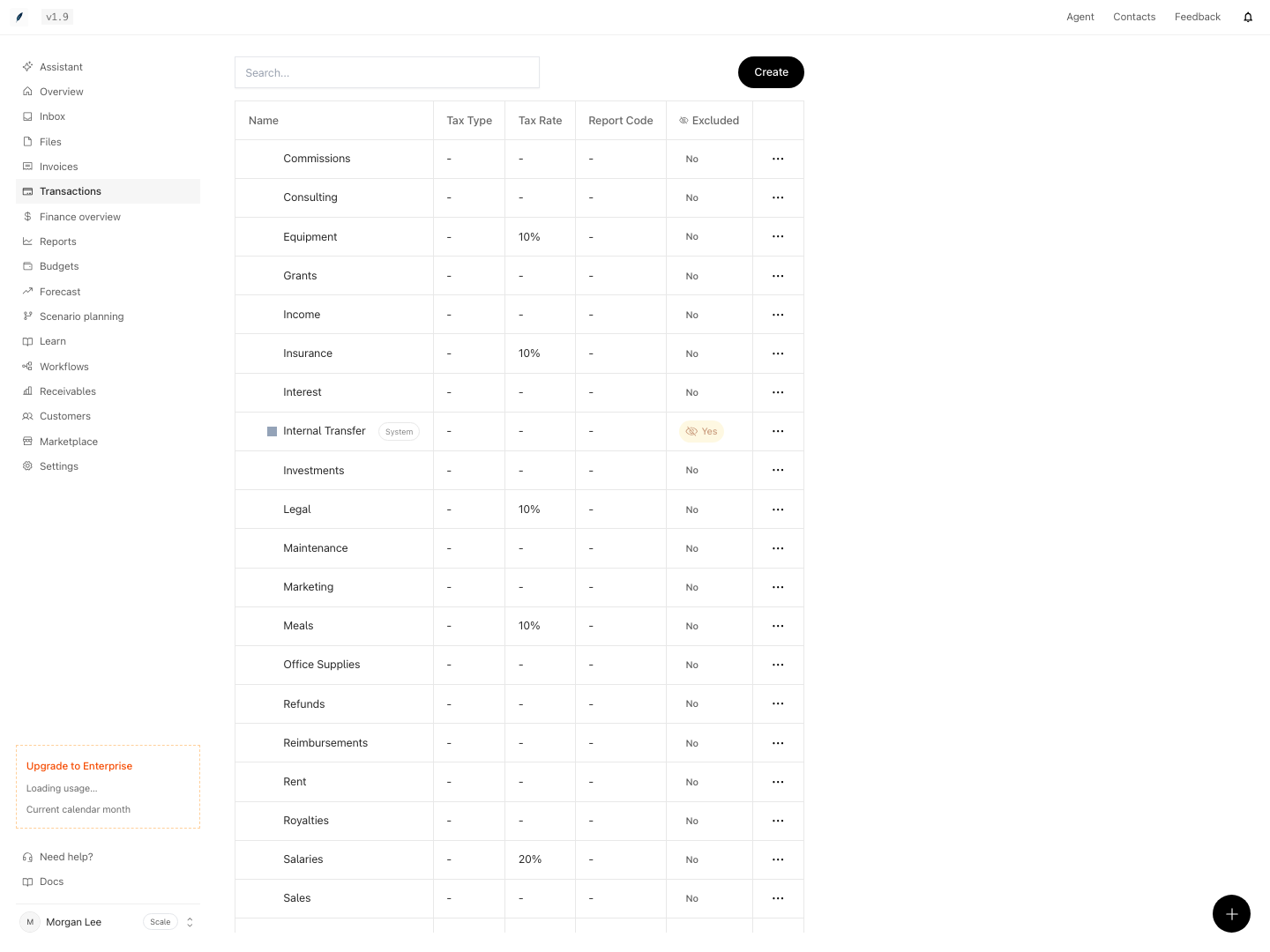
Shown with synthetic data in a local workspace.
Verification
Confirm the result
- Reopen created or edited categories and confirm parent, tax, and exclusion values persisted.
- Preview a draft with matching, near-miss, manually coded, and already-synced examples. Account for combined-rule counts and the priority-100 limitation.
- Enable and run the approved rule set. Reload matching records and inspect category, GL code, tags, owner, exclusion, tax, and Books state.
- Open Why this coding in transaction details. It records field claims from the latest application, not a complete history of every action. You may see raw reasons such as
manual_overrideornewer_rule; the latter means the newer rule lost to an older rule. - Check new bank data after sync and review the relevant reports separately.
Troubleshoot
- No match: check the actual populated source field, signed amount, enabled state, and whether the record is already synced or outside the recent window.
- Unexpected winner: compare condition counts first, then priority, then creation age. Check manual overrides and account defaults.
- Preview has matches but no changes: the combined set may already have the same field values or only add tags/change readiness. Preview does not list every action.
- Older transactions unchanged: repeated library runs do not page through history. Use carefully scoped manual corrections or contact Support for a historical run.
- Tax looks wrong: rule writes retain stored transaction tax values. Review those values and the category settings; do not assume the rule recalculated tax.
- Rule deletion gave an error: reload the rule and affected transactions before retrying. Some cleanup may already have occurred.
Related
Tone Profiles and Experiments
Set communication tone, understand delivery analytics, and compare two profiles without a claim beyond what the experiment measures.
Transaction Coding
Define the chart of accounts and coding dimensions, restrict which values apply where, and flag spend that a person must review.