Transactions
Review, categorize, reconcile, enrich, and export cash activity from one central ledger.
Summary
Transactions is the Eigenn ledger for money that moves into and out of the business. It combines synced and manual transactions with receipt matches, categories, tags, owners, recurring-charge context, tax details, and review state.
Use this page to answer three questions:
- What moved, through which account, and in which currency?
- Does the transaction have the category, receipt, owner, and reporting treatment it needs?
- Which transactions still need a decision before you can trust the books or the finance reports?
Capabilities
What the Transactions Page Includes
Summary and working set
The summary strip covers the current transaction set. It shows:
- money in
- money out
- net movement
- transaction count
- review-queue count
- recurring count
- a reviewed percentage and short owner-focus prompts
The summary covers the matching set, while the loaded-row count describes the pages currently in memory. Money figures exclude internal and status-excluded rows; those rows can still contribute to the count. The reviewed percentage is calculated from the review queue, not a signed approval or proof of accounting-system sync.
For mixed currencies, use the per-currency footer in a filtered view with no active selection. That footer sums original amounts, including analytics-excluded rows. The top cards use the workspace’s base currency. Foreign-currency rows without a matching base conversion are left out of the money totals and counted as not yet converted. The cards wait for a configured base currency; row counts and original-currency footer totals can still include rows omitted from the money totals.
Choose a Tab
- All is the main ledger. It respects the active search, filters, and sort.
- Review loads transactions that still need attention. It deliberately ignores the filters that you set on All. This keeps the full review backlog visible.
- Uncategorized separates One by one and By merchant review for rows without a category. Its backlog excludes archived, excluded, and exported rows.
- Books shows ready and failed accounting-sync states; unreviewed rows are excluded. In the ungrouped ledger it ignores All filters; its badge counts ready rows, not every row in the tab.
- Subscriptions shows active bank-detected recurring streams, latest charges, and a possible price-increase indicator. It is separate from manually marking a ledger row recurring; that mark does not create a detected stream or cancel a subscription.
The Review badge is queried from saved transactions. A transaction enters that queue when it has a pending receipt-match suggestion. A transaction also enters that queue when it has no attachment and no completed mark. The normal Review ledger hides archived and excluded rows. Its badge counts pending, posted, and completed rows; exported rows can still appear in the Review table when unfulfilled or carrying a suggestion, so the badge can differ from the table. Refresh after changes before deciding that work is missing.
Search and filters
The search box accepts plain search text and natural-language requests such as “Software and taxes last month.” The filter menu supports:
- date range and amount range
- status: Matched, Needs review, Pending, Archived, Excluded, or Exported
- attachments: Has receipt or Missing receipt
- source: manual or bank connection
- type: income or expense
- assignee, category, tag, and account
- recurring cadence: all, weekly, monthly, annually, or irregular
Active filters appear as removable chips. Submitting a new search replaces the previous filter set; inspect the resulting chips before selecting rows. If generated search fails or produces no structured filters, the text remains a literal search. Clear filters clears browsing filters; it does not turn Review or Books into All.
Matched and Has receipt both include rows completed without an attachment. Needs review and Missing receipt use the unfulfilled condition and are not identical to the Review tab. Status choices are not a union: unfulfilled/fulfilled filters take precedence, then Excluded, Archived, Pending, or Exported. Prefer one status at a time when checking a specific state.
Save a view to retain filters, sort, visible columns, and grouping. The active tab is not saved, so select All when reopening a browsing view. Grouping by merchant, category, account, or assignee uses the full browsing filter set, including search, statuses, tags, and amounts. It does not inherit the Review or Books queue restrictions. Clear grouping to work the Review or Books queue. Groups show up to 200 results and use workspace-base-currency amounts. Foreign rows without that conversion do not contribute to money totals when a base currency is configured.
Ledger columns and inline changes
The table can show date, description, amount, tax amount, category, counterparty, GL code, Books state, tags, account, method, assignee, reconciliation status, receipts, and row actions. Use the column control to hide optional columns. You can sort the date, description, amount, category, counterparty, tags, account, method, assignee, and status-related columns where available.
You can change categories, GL codes, tags, and owners directly in the table. A row also flags pending or recurring activity. The possible-duplicate indicator compares only loaded rows with the same signed amount, currency, and normalized counterparty/name within five days; it is advisory and does not scan the complete history.
Prerequisites
Before You Start
You need an Eigenn workspace and at least one account for manual creation or CSV import. The account can come from a connected institution. You can also create a manual account from an account selector.
Owners and Members can make changes while workspace billing permits writes. Viewers have read access. A visible control does not override these permissions.
Useful preparation includes:
- the date range or account that you intend to examine
- receipts or invoice files for unreconciled expenses
- the categories and tags that your reporting process uses
- a clear owner for transactions that need follow-up
See Bank Connections when the ledger does not have a source yet.
Concepts
Where Transactions Fits
These product areas use the same financial data for different jobs.
| Product area | Use it for |
|---|---|
| Transactions | Examine and keep individual ledger rows with their categories, tags, owners, receipts, notes, splits, and reconciliation state. |
| Overview and Reports | Read aggregate financial metrics, charts, budgets, and forecasts. Older Finances → Bank links now redirect to Finances → Reports. They do not manage bank connections. |
| Settings → Account → Bank Connections | Connect an institution, choose accounts, check connection health, sync or reconnect, and remove an account or connection. |
If a bank feed is stale, start in Settings → Account → Bank Connections. If a single row needs explanation or correction, start in Transactions.
Workflow
Work a Transaction
Click a row or choose View details from its action menu. The detail sheet includes:
- source, status, method, counterparty, merchant, bank account, balance, base amount, and FX rate
- category, owner, and tags
- a suggested receipt or invoice match when one is available
- Receipts & attachments, Split, Behaviour settings for tax and recurrence, selected enrichment details, and notes
- accounting dimensions, accruals, policy flags, coding history, and comments; see Transaction Coding
- the source's internal transaction identifier and processing state
Use the arrow keys while the detail sheet is open to move to the previous or next loaded transaction.
Categorize and organize
Choose a category in the row or detail sheet. The detail-sheet flow can suggest the same category for similar transactions. You can also create a category from the detail-sheet selector. Then add current or new tags and assign a team member. A category change clears stored tax overrides, so recheck the tax values afterward. Cancelling the similar-transaction prompt leaves the original category change in place.
For a repeatable policy, create a deterministic rule. Do not accept the same similarity prompt every month. See Transaction Categories and Rules.
Reconcile with a receipt or invoice
Use Attach receipt from the row menu, or open Receipts & attachments in the detail sheet. You can:
- upload a PDF or supported image
- search for an attachment that already exists
- select an invoice file
- confirm or decline a suggested match
Selecting an invoice first checks its PDF and saves the attachment, then marks the invoice paid using the transaction’s calendar date. A missing PDF or failed attachment prevents the paid update. A later paid-update failure can leave the attachment saved, so check both records after an error. Marking paid records the remaining balance as a manual payment; attaching a PDF is not the same as confirming a suggested bank-payment reconciliation. Confirm that the invoice and payment belong together before selecting it.
Eigenn shows an attached file or a manually completed transaction as Matched. An unfulfilled row with a suggestion shows Suggested match; without one it shows No receipt. A pending suggestion still needs a confirm or decline decision, even when the other fields look complete.
Split across categories
Open Split to divide one transaction across many categories. You can give a category to each part or leave a part uncategorized. Use at least two non-zero parts with the same sign as the transaction. Their sum must equal the transaction amount to the cent before Save splits becomes available. Clear removes the split allocation; it does not delete the original transaction.
Control reporting treatment
The Exclude from analytics switch in the detail sheet marks the transaction as internal. Use it for movements such as transfers between accounts. Check the relevant report after changing it; an attached receipt or completed status alone does not make a movement internal.
This differs from the row or bulk Exclude action:
| Control | Result |
|---|---|
| Exclude from analytics in transaction details | Keeps the row in the normal ledger. Omits it from analytics money calculations that honor the internal flag; row counts and raw-currency footer totals can still include it. |
| Exclude in row or bulk actions | Changes the transaction status to excluded. The default ledger then hides the row until you apply an excluded-status filter or include the row again. |
| Exclude from Reports on a category | Sets the category exclusion used by supported reports. It does not remove ledger rows or universally change every summary. |
Add Transactions
On the desktop Transactions layout with no selected rows, open More transaction actions, then Add transactions, to choose one of four workflows:
- Connect account starts the bank-connection flow.
- Import & backfill uploads historical transactions from CSV.
- Create transaction adds one manual transaction.
- Upload receipts starts receipt ingestion to find matches.
A manual transaction needs a description, amount, currency, account, and date. It can also include a category, owner, attachment, internal/reporting treatment, and note. Only manual transactions, including CSV imports, show full edit and direct-delete actions in the ledger. The add/column controls are currently hidden in the narrow layout; use a desktop-width view if the menu appears empty.
Bulk Actions and Export
Select rows to make one change across a working set. The header checkbox first selects loaded rows, then fetches matching IDs up to 10,000. It can select rows you have not scrolled to. If that fetch fails, a toast says only loaded rows were selected. Read the final selection count before acting. Bulk actions can:
- set a category
- add or remove shared tags
- exclude or include rows
- archive or unarchive rows
- assign an owner
- mark rows completed or uncompleted
- set weekly, monthly, or annual recurring cadence
- move archived, excluded, or exported rows back to review
Delete is available only when every selected row is manual. Bank-fed rows keep source traceability. To remove a bank-fed row, you must delete its account or connection. That deletion destroys every associated transaction; use classification or exclusion for a single-row decision. Bulk deletion accepts at most 100 selected IDs in one request.
Mark ready and Mark synced update a separate Books state, for at most 5,000 selected IDs per request. Mark ready skips rows whose saved splits do not balance. Mark synced records a manual sync state; it does not itself send an entry to an accounting provider. Already-synced rows cannot be moved backward by these controls. Check the reported updated/skipped counts.
Move to review changes archived, excluded, or exported status to posted. It does not remove receipts, clear categories, or resolve/create suggestions, so it does not guarantee that a row will appear in Review.
Export works on selected rows and creates a ZIP containing CSV, Excel, or both, plus available attachments. Choose at least one format and a delimiter for CSV. You can request delivery to an accountant with Send via email and a valid address. Workspace export settings save before the job is requested.
Rows are marked exported after the job is queued, before file generation or email delivery completes. They remain visible in All. Wait for the ready notification, open the ZIP, and compare its rows and attachments with the selection. Exported status alone does not prove that the file or email succeeded.
Behavior specification
States and Limits
- All, ungrouped Review, and ungrouped Books load additional pages as you scroll; filtering no longer loads 10,000 full rows at once. The 10,000 cap applies to the matching-ID select-all operation.
- Summaries cover the full query result; loaded and selected counts can be smaller. Clear grouping before using queue-specific behavior.
- Detail-sheet receipt uploads accept PDF and supported images up to 3,000,000 bytes each. Page-level receipt ingestion allows up to 25 files of 5,000,000 bytes each. The row-menu uploader is a separate path and does not run the detail-sheet tax-processing request.
- CSV import accepts one CSV file up to 5 MB. The file needs a header and at least two data rows. Map Amount, Date, and Description, then choose or create the destination account.
- An accepted CSV job is not proof that every source row imported. Invalid rows can be skipped, and prior batches can remain after failure. Compare saved rows and balances before retrying. Each saved batch already has the enabled transaction rules applied and is queued for the same categorization, receipt matching, and internal-transfer detection as synced transactions; a retry skips the rows that were saved. See Connect Transaction Records for preview, mapping, and duplicate limits.
- You can edit and delete a manual transaction directly. You cannot directly edit the source fields of a bank-fed transaction.
- The default ledger hides excluded and archived rows. Use the status filter to find them.
- On a bank-fed transaction, you can still change the category, owner, tag, note, split, attachment, or analytics treatment. This does not change the provider's source record.
Diagrams
Rendering diagram…
Screenshots
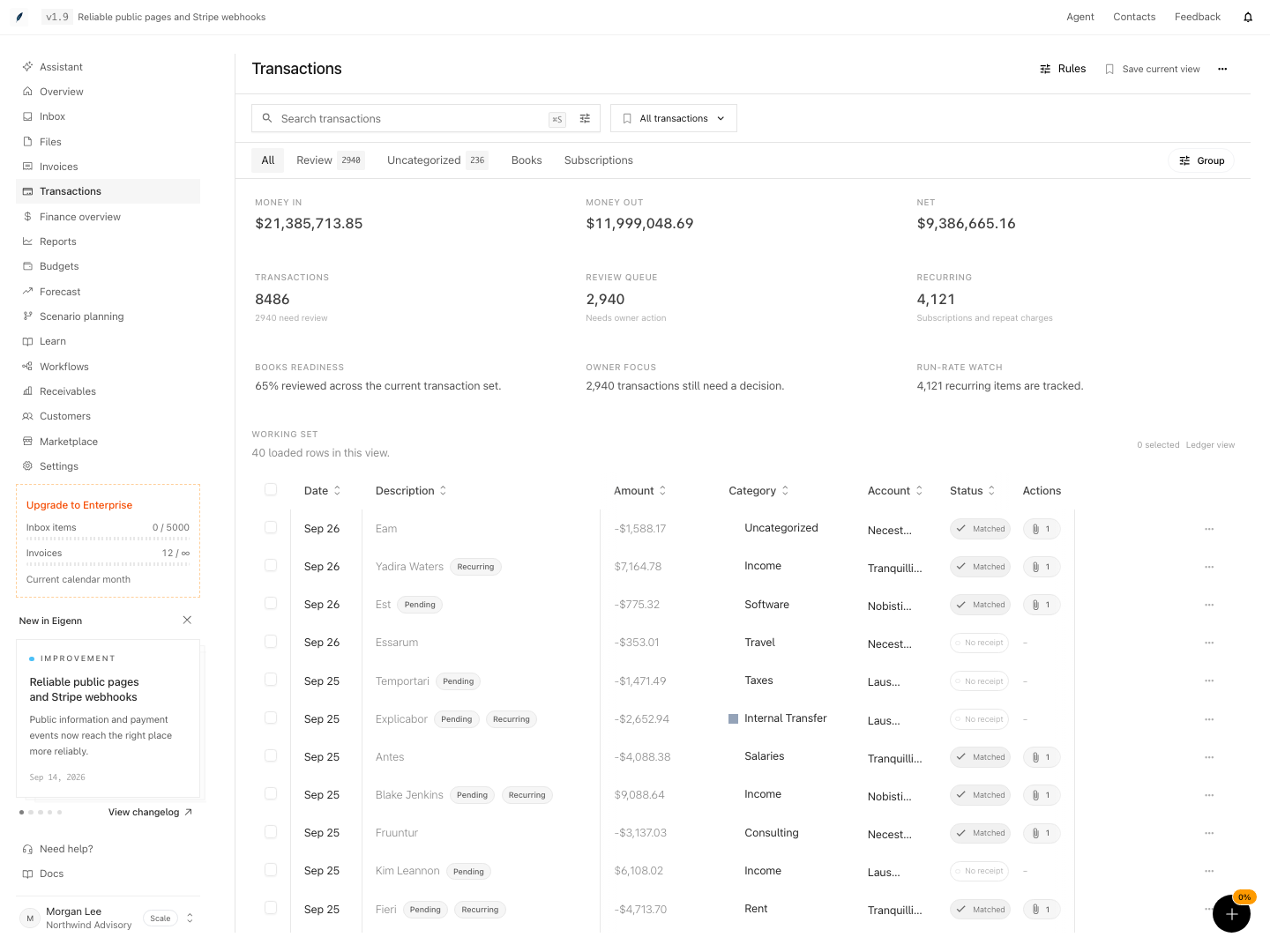
Shown with synthetic data in a local workspace.
Verification
Confirm the Result
Before you leave the page, confirm that:
- the intended account, date, amount, and currency are visible
- the category and reporting treatment are correct
- the row has an attached receipt, a resolved match suggestion, or a deliberate completion without a receipt
- split amounts equal the original transaction amount
- the right owner and tags are present
- the transaction no longer appears in Review when it needs no further action
Troubleshoot
The Review count does not decrease
Open the transaction. Then look for a pending suggested match. Mark as completed answers the no-receipt condition. A separate pending suggestion still needs a confirm or decline decision.
A transaction disappeared
Clear the filters. Return to All. Then check the archived, excluded, and exported status filters. Also confirm that nobody removed its bank account in Settings → Account → Bank Connections.
A bank transaction will not show Edit or Delete
Full edit and direct delete work only on manual rows. Categorize, tag, assign, attach, complete, or exclude a bank-fed row instead. If you remove its bank account or connection, Eigenn also deletes every associated transaction.
A receipt upload fails
For the detail sheet, use a PDF or supported image within 3 MB. A filename already present after name cleanup can be silently skipped, rather than rejected with an error. Check the saved attachment list before renaming and retrying. Upload, attachment creation, and extraction are separate; a visible file does not prove tax extraction succeeded.
The totals look wrong in a multi-currency view
Filter to one currency context and use the footer’s per-currency breakdown with no rows selected. The footer uses original amounts. The top summary and grouped money values use the workspace base currency and omit foreign rows that lack a matching conversion. Review the not yet converted count before relying on the money totals; excluded rows can still contribute to ledger and footer counts.
Synced data is stale
Go to Settings → Account → Bank Connections. Examine the connection state. Then run a manual sync or reconnect. See Connect Transaction Records.
- Filter the ledger by account and date. Confirm the correct set of transactions is loaded and accurately displayed.
- Add a manual transaction with required details (description, amount, account, date); confirm it appears promptly with an editable state.
- Select a transaction, attach a PDF or image receipt, and confirm the row shows as Matched.
- Use the split transaction feature, allocate valid amounts, and verify the Save action is enabled only when the split sums match the original amount.
- Apply filters (such as 'pending' or 'no attachment') and verify the ledger reflects correct filter chips and results.
- Export selected transactions in CSV or Excel format; open the file and ensure all chosen rows and fields are present.
- Mark an unfulfilled transaction as completed, resolve any separate suggestion, and refresh Review. Check both its badge and rows, including the exported-row count difference.
- Attempt to delete a bank-fed transaction and verify the system does not permit direct deletion, only for manual transactions.
- Check detail-sheet file-size rejection, duplicate-name skipping, and page-level ingestion limits separately. Verify saved files and invoice state after an attachment failure.
- Change the status to excluded and confirm the row is hidden from the default ledger until the excluded-status filter is applied.
These acceptance checks remain pending for this page. Source review and successful documentation rendering do not establish verified application behavior.