Notifications and Branding
Control personal alert channels, save workspace brand values, and confirm a custom email-sending domain.
Summary
Notifications are personal to you in the active workspace. Branding is a workspace configuration that the whole team shares. The email footer, attribution choice, and verified sending domain affect supported customer-facing emails.
The notification center includes personal alerts and shared workspace alerts. You can mark visible alerts read or archive them individually, as a selection, or with the bulk controls. Shared alerts have one read/archive status for the workspace, so changing one affects other members too. Your actions do not change another member's private alerts.
Capabilities
Users can turn notification channels on or off for various event categories, update branding text in customer email footers, show or hide the Eigenn attribution, and configure a custom subdomain for outgoing customer emails. Owners and members can change these settings; viewers have read-only access.
Prerequisites
You must be an owner or member of a workspace to change notification preferences or branding settings. Only workspace owners can add, verify, or remove a custom email domain. Make sure you have access to your DNS provider to add required records for domain verification.
Concepts
Notification preferences determine where you are alerted about workspace events, with separate channels possible for each event type. Branding affects the content and appearance of customer-facing emails and includes options like footer text and sender domain. A verified custom domain changes the visible sender address for customer emails.
Workflow
Notification Preferences
Open Settings → Notifications. Eigenn groups events into product categories. Each row displays only the channels that are available for that event.
Current configurable groups include activity such as:
- new transactions, payment matches, reconciliation review, disputes, payout failures, and budget alerts
- invoice paid, overdue, scheduled, sent, reminder, cancellation, refund, and recurring-series events
- new, matched, cross-currency, and needs-review Inbox items
- Vault alerts
- customer messages
- the assistant's Daily Money Briefing
Eigenn generates the available list from the product's notification registry. The list can change when Eigenn adds or removes product events.
Available channels
The page can render In-app, Email, and Push. The current configurable events use in-app, and email for selected events. No current settings event shows a push toggle.
If you save no preference, the page uses the event's configured default. Some events start off; the switch is not universally on.
Change a preference
- Expand a notification category.
- Find the event.
- Turn the available channel on or off.
- Wait for the switch to save the change.
The switch updates optimistically and then reloads the server value. If the save fails, it rolls back.
Eigenn scopes notification choices to your user and the active workspace. Owners and members can save their preferences. Viewers can read the page, but the server rejects their preference writes.
Onboarding Emails
The separate Onboarding emails card controls tips for your first days in Eigenn. Select Stop onboarding emails, then confirm Onboarding emails are off. This is a signed-in account preference, separate from workspace event channels; Viewers can use it too. The card currently has no re-enable control. A load or save failure shows an error rather than confirming an opt-out.
Branding Settings
Open Settings → Branding. The page has two cards.
Email Branding
| Field | Effect |
|---|---|
| Email Footer Text | Up to 1,000 characters, rendered in the footer of emails that your customers receive |
| Show "Powered by Eigenn" | Whether the Eigenn attribution line appears in the email footer |
Both values apply to generated customer emails, including invoices, invoice reminders, and export notifications.
Owners and members with the required workspace permission can save this card. Custom Member roles need Manage settings. Viewers cannot.
Custom Email Domain
The second card manages the sender domain. See the procedure below.
Earlier releases also offered primary and accent colors, an email logo URL, an email header color, an invoice logo position, and a raw custom-domain text field. Those fields saved a value that no email or PDF rendered, so Eigenn removed them. Invoice colors belong to the invoice template. The sender domain belongs to the Custom Email Domain card.
The Company logo under Settings → General is a separate workspace identity value. It does not appear in customer emails.
Confirm a Custom Email Domain
Use the Custom Email Domain card at the bottom of Branding.
Only a workspace owner can add, confirm, or remove a domain.
- Enter a subdomain such as
mail.example.comorinvoices.example.com. - Select Add Domain.
- Add every displayed DNS record at your DNS provider.
- Wait for DNS propagation.
- Select Verify Domain.
- Confirm the badge changes to Verified.
Root domains such as example.com are not accepted. A workspace can have one custom sending domain at a time.
A verification try has a 60-second cooldown. DNS propagation can take up to 72 hours. A successful verification shows the sender address as invoices@your-subdomain.
Eigenn uses the custom domain only after the workspace has a confirmed sending-domain record. When you save the domain text alone, you do not change the sender. Email continues to use the default sender.
Remove a Custom Domain
- Open Settings → Branding.
- Find Custom Email Domain.
- Select Remove Domain.
- Confirm removal.
Eigenn clears the workspace record even when provider cleanup must finish later. Future emails use the default sending domain. You can add another subdomain after that.
Behavior specification
How Preferences Affect Delivery
The current delivery behavior differs by channel:
| Channel | Current behavior |
|---|---|
| A notification email for the team checks your saved preference before it sends | |
| In-app | Turning off a personal event suppresses new per-user activity. A shared team-level activity can still appear while any member has that event enabled |
| Push | Push delivery handlers exist, but the current Settings registry shows no push choices |
Invoice and recovery emails to your customers are operational communications, not personal team-alert preferences. When you turn off your own invoice notification, you do not cancel a message that a workflow sends to a customer.
Diagrams
Rendering diagram…
Screenshots
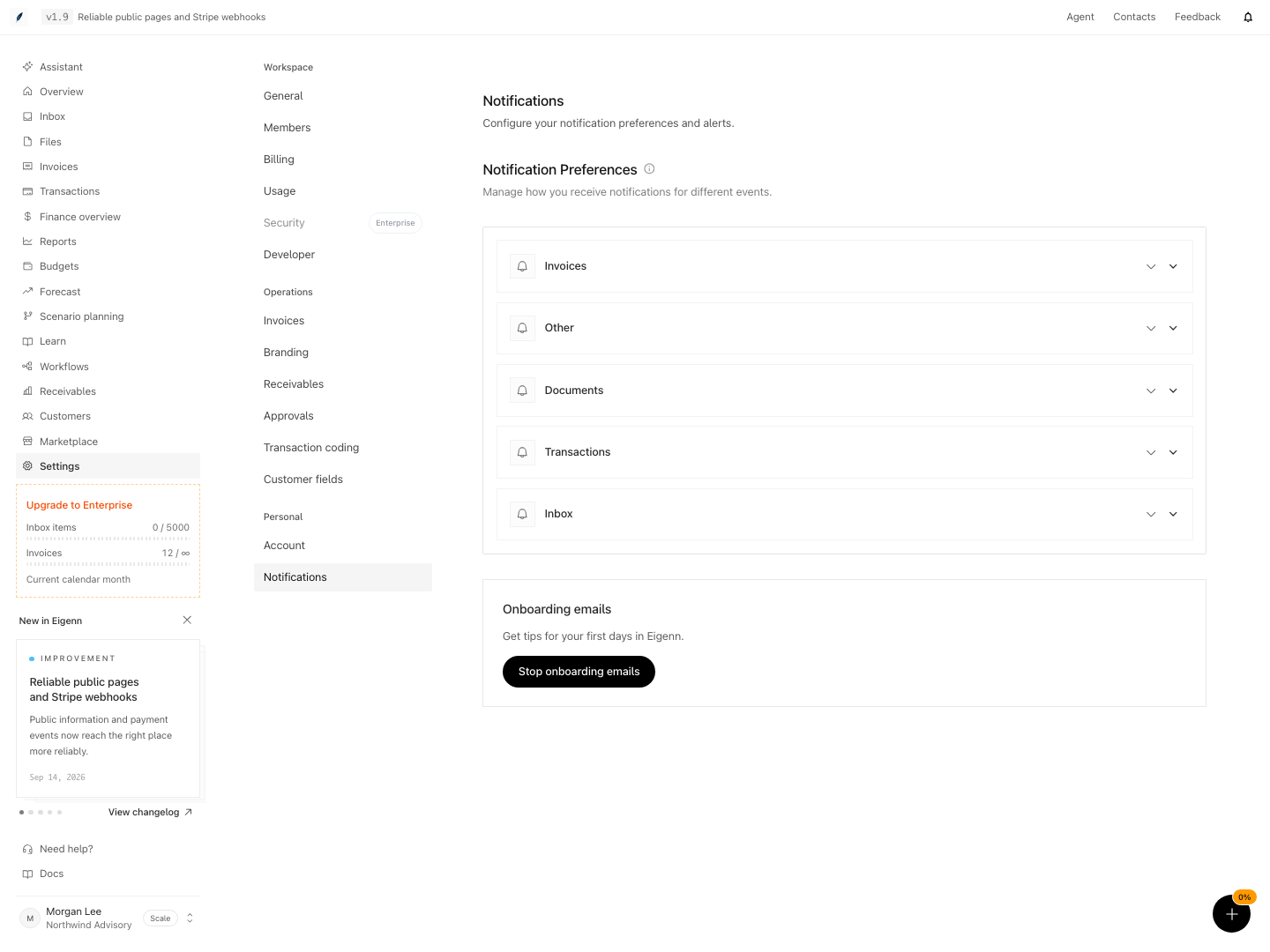
Shown with synthetic data in a local workspace.
Verification
Confirm the Result
After you change notifications or domain configuration:
- Reload Notification Preferences. Confirm that the switches stay in the expected state.
- Trigger a safe event for the team. Confirm that Eigenn delivers only the expected email channel.
- A disabled personal in-app event should not create a new per-user activity. Existing activities remain; shared team-level activities can still appear if another member enables the event.
- Confirm that the custom-domain badge shows Verified, not only Pending.
- Examine the From domain of a real email.
- Send a real customer email and read its footer to confirm the footer text and the attribution choice.
Troubleshoot
A notification switch turns back on
The server rejected the save, or the save failed. Confirm that you are an owner or a member of the active workspace. Then try again.
An in-app item still appeared after I disabled it
Check whether it is an existing activity or a shared team-level event. Personal opt-out suppresses new per-user rows, but a shared activity remains visible while any member wants it. Use notification-center status controls to manage existing items.
A custom domain is added but email still uses the default sender
Complete every DNS record, then reach Verified. Eigenn sends from the custom domain only after verification succeeds.
I cannot select Verify Domain
Wait for the 60-second retry countdown. DNS providers can take much longer to publish the records.
I cannot find brand colors or a logo setting
Branding covers the email footer and the sender domain. Invoice colors and logo belong to the invoice template. Set them there, then check the generated PDF.
- Reload the notification preferences page and verify your changes to toggles persist as saved.
- Trigger a safe team notification event and confirm that email delivery matches your selected channels.
- Disable a personal in-app event and check that a new per-user activity is suppressed. Test shared team events separately; another member's enabled preference can keep the shared row visible.
- Add a custom domain and wait for DNS propagation, then use the Verify button and confirm the Verified badge appears.
- Check the From address of a sent email to confirm use of the custom domain after verification.
- Send a test customer email and review the footer for correct content and attribution display choices.
- Remove a custom domain and confirm future messages use the default sender again.