Customers
Use the customer ledger to check relationship health, invoice exposure, revenue concentration, and follow-up work.
Summary
Customers is the team-scoped ledger for the people and organizations that you bill. It connects contact information to invoices, projects, collections exposure, relationship activity, and follow-up work. Your team can then move from a portfolio signal to the correct customer record.
Capabilities
What Customers Helps You Do
- Create and keep billing contacts.
- See recent, first-time, repeat, paid, and unpaid customer groups.
- Compare paid revenue with open and overdue exposure.
- Find customers by their details, tags, or country.
- Open the related invoices or projects from the ledger.
- Add a note, task, or invoice without a rebuild of customer context.
- Check at-risk customers and accounts-receivable aging.
- Apply tags and country updates to many customers at one time.
- Save filters, sorting, and visible columns as personal or shared views.
- Save dynamic customer segments, refresh their membership, and export a membership CSV.
Prerequisites
Before You Start
- Sign in and select the team whose customer ledger you want to manage.
- Confirm that you have write access before you create, edit, or delete records. Viewers can read team data, but Eigenn refuses their write requests.
- Prepare at least a customer name and valid primary email.
- Decide if the billing email differs from the relationship contact.
- Check the customers that exist before you create another record. The form does not block duplicate names or email addresses.
Concepts
Understand the Table
| Column | Description |
|---|---|
| Name | Customer record and logo derived from the saved website when available |
| Contact person | Relationship contact saved on the customer |
| Primary customer email | |
| Customer Since | Time since Eigenn created the record |
| Location | Saved city and country |
| Invoices | Count with a link to the customer's invoices |
| Projects | Count with a link to the customer's Tracker projects |
| Revenue | Paid invoice amounts only |
| Outstanding | Unpaid and overdue invoice amounts. Eigenn excludes draft and scheduled invoices |
| Last Activity | Most recent creation timestamp among linked activities, invoices, notes, and tasks; changing an existing task or receiving a payment does not necessarily update it |
| Engagement | A 0–100 signal based on recent activity, invoice payment mix, invoices, and projects |
| Tags | Customer tags. Select one to open the transactions that have that tag |
There is no customer Status column or stored Active, Inactive, or Archived lifecycle state. Use the column control in the header to choose visible columns. Invoice and project counts include all linked statuses; Revenue and Outstanding use the narrower definitions above. Outstanding and overdue amounts deduct recorded amountPaid from each open invoice and floor each balance at zero. They are not gross face-value totals.
Workflow
Read the Portfolio Summary
The top of Customers groups relationship and collections signals.
Relationship signals
- Most active — ranks invoice count plus tracked hours over the past 30 days. All invoice statuses count. The tile shows the winner's invoice count, not the full score. The current query can repeat tracked hours when invoices and time entries join, so treat the ranking as a shortcut rather than an audited activity total.
- Inactive — counts customers with no invoices created and no total tracked time in the past 30 days. Notes and tasks do not make a customer active for this metric.
- Top revenue — selects the largest raw invoice total for one customer/currency group among paid, unpaid, and overdue invoices created in the past 30 days. Despite the label, this is invoiced value, not collected cash. Currency groups are ranked without exchange-rate conversion.
- New customers — counts records created in the past 30 days.
These four tiles use their own rolling windows. Customer search, tabs, and filters do not redefine their populations.
Collections signals
- Outstanding — unpaid and overdue invoice amounts
- Overdue — amounts on invoices marked Overdue
- At-risk — the count of returned payment-timing records, capped at 100; an error currently displays zero and None paying late
- Avg days to pay — the paid-invoice timing metric, rather than a DSO calculation; zero or unavailable days displays a dash
Expand Collections to check the at-risk customer list and accounts-receivable aging. The current browser keeps the expanded or collapsed state. At-risk uses the reporting date window, not the customer-created filter. Its current timing source measures issue-to-first-successful-payment even where the UI says days late; see Receivables Analytics before interpreting that label.
Summary cards are operational shortcuts, not a substitute for the invoice ledger itself. Open the customer or invoice records before you act on a large amount or a risk classification.
Segment the Customer List
Use the tabs above the table to answer common portfolio questions:
| Tab | Included customers |
|---|---|
| All | Every customer in the active team |
| First time | Exactly one invoice, including draft, scheduled, or canceled invoices |
| Repeat | Two or more invoices across all statuses |
| Recent | Created within the previous 30 days |
| Unpaid | At least one unpaid or overdue invoice |
| Paid | At least one paid invoice |
The groups can overlap. A customer with one paid invoice and one overdue invoice appears in Repeat, Paid, and Unpaid.
The quick shortcuts give Recent, Repeat customers, Unpaid invoices, and Paid customers views. They use the same group rules and keep any other active search, tag, country, or date conditions. All clears the tab selection, not those other filters.
Search, Filter, and Sort
Search
Enter text in Search customers or filter and submit it. A single word uses keyword search. Two or more words request generated name, country, tag, or customer-group filters; the input shows Building filters… while this runs. Review the resulting chips and tab before acting. A failed or empty generation falls back to the submitted keyword text.
Keyword search matches name substrings and indexed name, contact, primary email, phone, and address terms. Numeric-leading searches use the name match only, so a phone number is not a reliable exact lookup. Billing email and custom fields are not part of this search index.
Deleting the search text or pressing Escape with a nonempty prompt resets the customer filter state, not just the text. Use Reset or remove individual chips when you need to control which conditions remain.
Filter
Open the filter control to select:
- One or more tags
- One or more countries from the first 100 customer records used for the lookup
- A customer-created date range, with 7-, 30-, and 90-day presets or a custom range
When you select many tags, Eigenn matches customers that have any selected tag. Eigenn does not need every selected tag.
Country filtering matches the saved country name or country code. The chooser is not a complete country directory: a country absent from the first 100 lookup records may be missing. Use customer search and review its saved country when an option is unavailable.
Date bounds include both endpoints and use the customer creation date in UTC. They do not filter invoice dates, recent activity, or the summary tiles. Search, date, country, tags, and tab conditions combine; within tags and within countries, any selected value can match.
Sort
Select a sortable table heading. Eigenn cycles through low-to-high order, high-to-low order, and the default newest-created order. Sortable fields include name, contact, email, customer age, invoice count, project count, revenue, outstanding balance, last activity, engagement, and tags.
The list loads more customers as you scroll. When you select all rows, Eigenn selects only the rows on the pages that it loaded. It does not always select every customer in a large team.
Save a View or Dynamic Segment
- Apply the filters, sorting, and column visibility you want to reuse.
- Open the All customers saved-views menu and choose Save current view…. At least a filter, sort, or hidden column is needed to enable saving.
- Enter a name of 1–120 characters that is unique for this team's customer list. Choose Shared with team if teammates should see it; new views start personal. Pin to sidebar adds a shortcut for users who can see the view.
- Select Save view, then use its submenu's Apply view to restore the saved filters, sort, and visible columns.
Edit… changes the name, sharing, and pin options. It does not replace the saved filters with your current screen. Save a new view to capture changed filter criteria. The creator or a team Owner can edit or delete a view, subject to write access; deletion asks for confirmation. Shared views are readable by team members, including Viewers, while personal views are visible only to their creator.
Choose Save as dynamic segment… when actual filter conditions are present; sorting or hidden columns alone do not define membership. A segment stores a calculated customer membership and shows its count in the menu. Creation attempts an initial calculation and queues background work, so View saved does not prove that membership is already current. Use Recalculate segment to refresh it before relying on the count.
Apply view runs the saved criteria against current customers. Export CSV uses the last calculated membership, so its results can differ until recalculation. The export includes customer ID, name, email, country, country code, and matched date, with a limit of 10,000 customers. The UI warns when it truncates the export.
Any writer who can see a segment can recalculate it; a Viewer can apply a visible view and export visible segment membership but cannot recalculate or save. A newly matching customer creates a segment-entry event that can start a configured workflow. Recalculation is not just a visual refresh when those workflows are enabled. Review that automation before creating a segment or changing customer data to match it.
Open and Act on a Customer
Select the customer's name to open the full record. Select a normal contact or address cell to open the compact details sheet.
The row action menu includes:
- View details
- Edit customer
- Chase overdue when the customer has an overdue amount
- Add Note
- Create Task
- Create Invoice with the customer preselected
- Copy Email
- Copy ID
- Delete
The row-menu Delete action opens Delete customer? and requires confirmation. The full record and edit sheet also confirm deletion. Scheduled, unpaid, or overdue invoices, active or paused recovery sequences, and any Tracker project block single or bulk deletion. If any selected customer is blocked, the bulk request deletes none of the selected records.
Bulk Actions
Select customer checkboxes to open the bulk toolbar.
Tags
Choose Tags. A tag is checked only when every selected customer already has it. Checking it adds it to all selected customers; clearing it removes it from all of them. Repeating an addition does not create another association. Confirm the resulting chips after a zero-change result rather than assuming that every write succeeded.
Country
Choose a country to replace the country and country code on every selected customer. Eigenn keeps the other fields.
Lifecycle organization
There is no bulk Status operation. Use tags, tasks, notes, invoice state, and saved filters to organize follow-up. A tag such as do-not-chase does not by itself stop reminder delivery or an active recovery sequence.
Delete
Bulk deletion asks for confirmation. It then permanently removes each selected customer that belongs to the active team. Eigenn ignores a selected ID from another team. Eigenn does not delete it.
Behavior specification
Billing restrictions
Customer creation, editing, deletion, contacts, tags, and payment-method changes require writable billing as well as the appropriate role. With No active plan or another read-only billing state, you can read existing records, but the create and edit sheets show a billing restriction. Create Invoice from customer detail follows the same rule. See Billing and Usage for recovery steps.
Empty and No-Result States
- No customers offers Create customer for the team's first record.
- No results means the active search or filter conditions match no customers. Sorting alone does not remove rows. Use Reset in the search/filter control or remove the applied chips, then add one condition at a time. The empty-state Clear filters action does not clear every filter key, so check for remaining tag, country, date, or tab chips.
Important Boundaries
- Eigenn isolates customer records, searches, metrics, and writes to the active team.
- Eigenn lets you save duplicate customer names and emails. Compare the records that exist before you create one.
- The list's Revenue uses paid invoice face amounts. The full record's Collected Revenue uses successful same-currency payment records for one currency group. They need not agree after a partial payment or manual status correction.
- Engagement and risk are signals that Eigenn derives. They are not contractual customer statuses.
- Customer deletion is permanent. Eigenn keeps linked invoices, but they lose their customer association.
Diagrams
Rendering diagram…
Screenshots
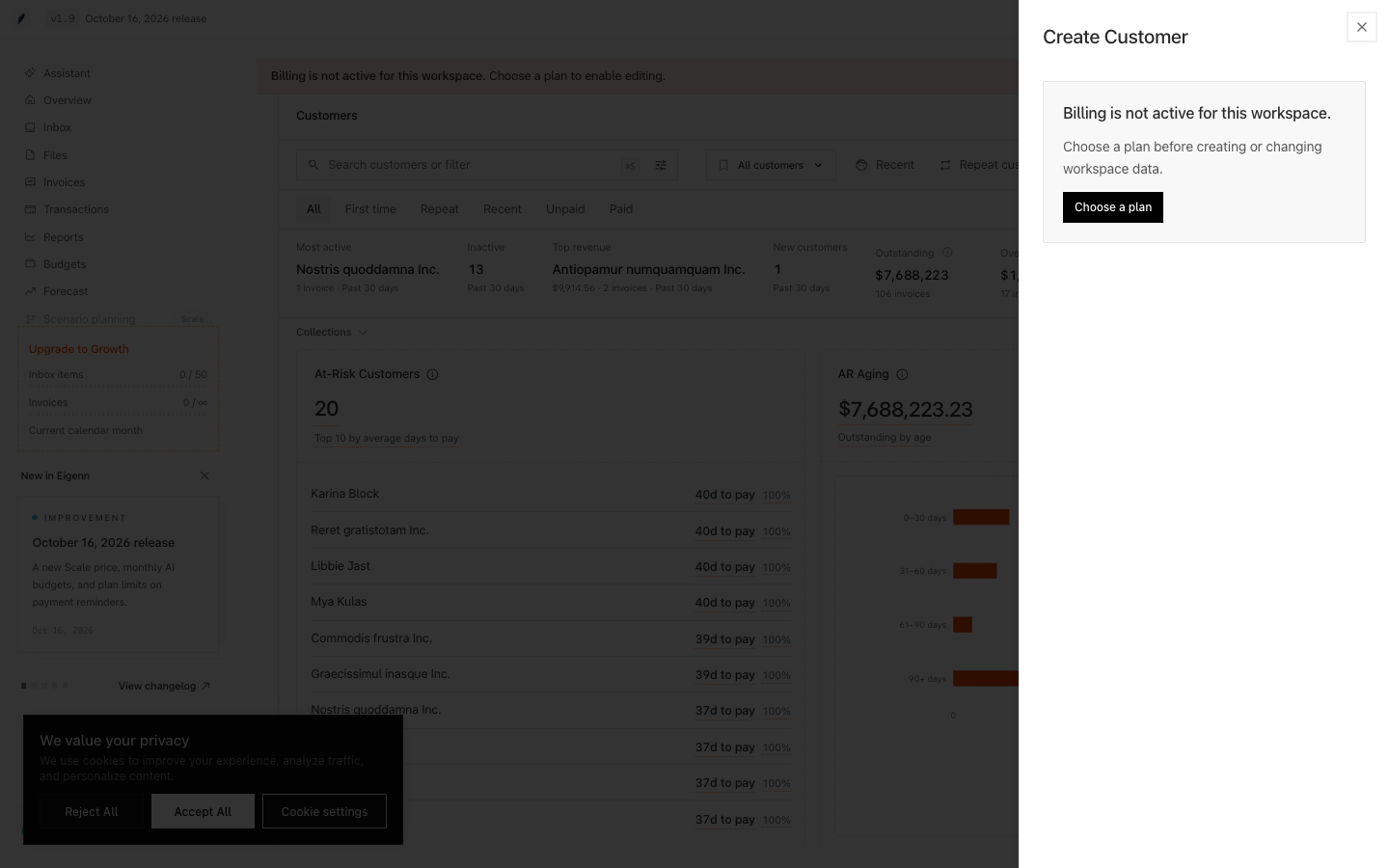
Shown in an isolated local workspace with synthetic records.
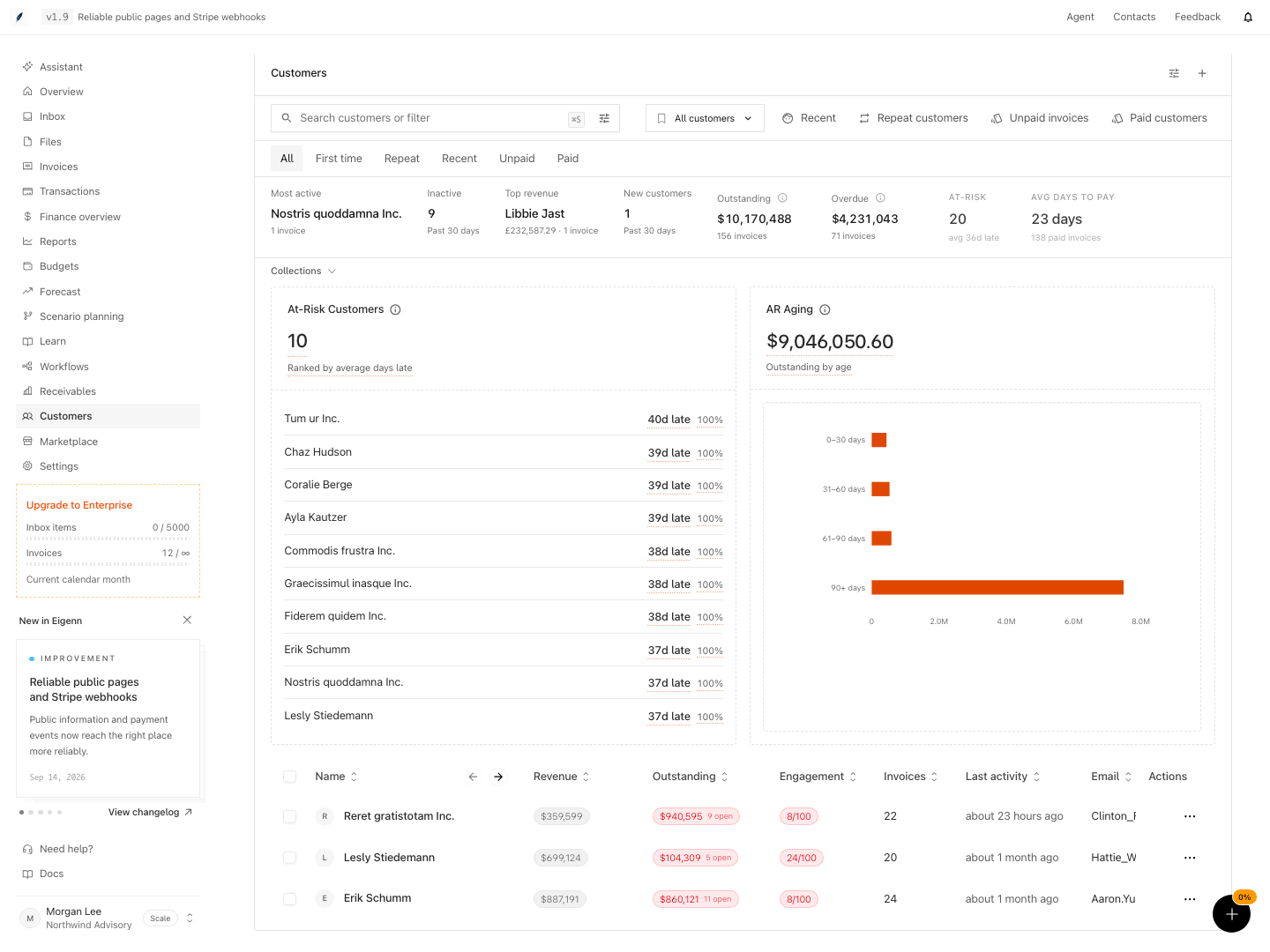
Shown with synthetic data in a local workspace.
Verification
Troubleshoot
A customer does not appear
Confirm the active team. Select All. Clear the search and the filters. Scroll to load more rows. Then check if Eigenn deleted the record.
Paid and Unpaid both include the same customer
This result is correct when the customer has at least one paid invoice and another unpaid or overdue invoice.
There is no archive or status action
Eigenn has no customer lifecycle status control. Record the convention in tags and notes; deleting the customer is permanent and also removes related operational context.
A country filter returns no rows
Clear the country filter and check the other active conditions. Search for the customer and review the saved country name and code. The chooser only samples the first 100 customers, so a missing option does not prove that the team has no customers in that country.
Revenue differs from the customer record
The list's Revenue includes paid invoice amounts. The full record's Collected Revenue uses successful payments in a matching invoice currency and shows one currency group. Top revenue is different again: it ranks recently created paid, unpaid, and overdue invoice amounts.
- Sign in and ensure you have selected a team with customer data. You should see the customer portfolio summary at the top of the Customers page.
- Attempt to add a customer using a name and email; confirm the new customer appears in the list after submission.
- Select tabs such as 'Recent', 'Unpaid', or 'Paid' and verify customers shown match the description (e.g., only recently added customers shown under 'Recent').
- Search for part of a customer's name or email and confirm only matching records display.
- Apply tag or country filters and verify that only customers with those tags or from those countries appear. Clear the filter to restore all records.
- Click a customer row to open details. Issue an 'Add Note' or 'Create Task' command and confirm it attaches to the record.
- Select multiple customers and open the bulk toolbar. Assign a tag and verify that all selected customers have the tag.
- Delete a customer individually and check they are removed from the active team. Bulk delete a set and confirm only those selected from the team are deleted.
- Try to edit or delete a customer with Viewer access and confirm write actions are blocked.
- Apply customer-created dates and confirm the table changes while fixed-window summary tiles keep their populations. Check that draft invoices count toward First time and Repeat.
- Submit a multiword search, review its generated chips, and test keyword fallback with generation unavailable. Reset and verify all conditions are cleared.
- Save and apply a personal view with filters, sort, and hidden columns. Share it and check another user's read access. Confirm Edit changes metadata, not captured criteria.
- Create a synthetic dynamic segment with external workflow delivery intercepted. Recalculate, inspect membership, and compare its CSV with the current filtered list. Confirm Viewer export is allowed while recalculation is denied.
A customer’s settled invoice history can improve the date score of suggested payments. Open an unpaid invoice to review the explanation. The history never reduces a stronger generic date score or confirms a payment automatically. See Invoices.