Customer Records
Review a customer's billing history, relationship context, follow-up work, files, and payment signals in one record.
Summary
A customer record connects relationship details to the financial work that your team does for that customer. It is the place to answer questions such as: Which amounts remain unpaid? What did the customer pay? Who owns the next follow-up? Which notes and files explain the account?
Customer records belong to the active team. When you change teams, Eigenn changes the customer ledger. A customer ID from another team does not open or change a record in the current team.
Capabilities
Current Limitations
- The full record loads up to 10 non-draft invoices, 20 activity entries, 25 each of emails, notes, tasks, and files, and 10 payment methods. These tab counts describe loaded records, not lifetime totals. There are no load-more controls for the activity, email, note, task, or file lists here. Use the invoice workspace for the full invoice history.
- MRR and ARR normalize active recurring-invoice schedules; they are not collected-cash totals.
- Eigenn does not convert mixed-currency customer totals into a shared base currency.
- Add to List does not create a list membership now.
- The website link adds HTTPS to a stored domain that has no protocol. Email and phone links open the device's configured mail or phone application.
Prerequisites
Owners, Members, and Viewers can read the active team's customer records. Owners and Members can make changes when the workspace permits writes; Viewers cannot. Select an existing customer in the correct team before reviewing related records.
Concepts
What a Customer Record Includes
The full record has three main areas:
- Customer header — name, primary contact, tags, and actions to create an invoice, edit the record, or delete it
- Financial summary — Collected Revenue, estimated MRR and ARR, an invoiced-versus-collected cash view, a benchmark strip, and a spend-over-time chart
- Relationship workspace — activity, invoices, emails, notes, tasks, files, contact information, address, payment methods, and customer-level actions
Select a customer name in Customers to open the full record. When you select a non-interactive cell in the customer table, Eigenn opens a compact details sheet first. Select Open full page for the complete workspace.
Understand the Financial Signals
Collected Revenue
The full record's Collected Revenue card and right-hand summary add successful payment records linked to paid, unpaid, or overdue invoices. Each payment must match its invoice currency, ignoring letter case. Failed and pending payments do not count; changing an invoice to Paid without a successful payment record does not add collected revenue.
For customers with several invoice currencies, this summary uses the currency with the most paid, unpaid, or overdue invoices, breaking ties alphabetically. It does not convert or combine currencies. Check the displayed currency and related payment records before comparing it with the customer list. The count below the card counts eligible invoices in that group, including unpaid and overdue invoices; it is not a count of paid invoices.
The compact sheet's Lifetime revenue uses the same successful-payment total, despite its all paid invoices subline. The customer list's Revenue column instead adds paid invoice face amounts. Outstanding adds unpaid and overdue invoice balances after deducting recorded amountPaid, floored at zero per invoice. The overdue indicator uses invoices marked Overdue, rather than rechecking every due date.
MRR and ARR
MRR normalizes positive active recurring-invoice schedules to a monthly amount. One-time paid invoices do not contribute. Weekly and biweekly amounts use 52/12 and 26/12; quarterly, semiannual, and annual amounts divide by 3, 6, and 12. Custom schedules use 30.44 divided by their day interval. ARR is twelve times MRR.
The displayed recurring-invoice count is the number of eligible schedules in the currency group with the largest monthly amount. Other currency groups are excluded. With no eligible schedules, MRR and ARR are zero. Check the active schedules and contract terms before using the result as committed future revenue.
Invoiced vs Collected
This full-page panel uses all-time paid, unpaid, and overdue invoices. It is hidden when the invoiced total is zero.
- Invoiced sums tax-inclusive invoice amounts in the customer’s dominant invoice currency.
- Collected sums successful payments whose currency matches those invoices, ignoring letter case. Its payment count counts those payment records.
- Outstanding sums unpaid and overdue invoice balances after deducting recorded
amountPaid, floored at zero per invoice. It is not simply Invoiced minus Collected. - % collected divides Collected by Invoiced. The headline can exceed 100%, while the bar stops at 100%.
The panel uses the same dominant invoice currency as Collected Revenue and excludes other currencies. Both its Invoiced and Collected figures include tax; the monthly chart below instead excludes tax and VAT. Reconcile source records when comparing these different measures.
The bank-matched subline totals successful payments with reconciliation links. It counts the full payment for each link, so a payment linked to more than one transaction can be counted more than once. Inspect the actual matches; all bank-matched is not an independent check of transaction amounts or settlement.
Invoiced Over Time
The chart groups paid, unpaid, and overdue invoice amounts, minus stored tax and VAT, by issue month. Creation date is the fallback when an issue date is missing. Months without invoices show zero.
It opens with the current calendar month and the preceding 11 months. The 3-, 6-, 12-, and 24-month shortcuts include the current month. Custom dates expand to complete starting and ending calendar months. Changing this range changes only the chart, not the other customer metrics.
The chart has no currency selector. It uses the customer’s dominant invoice currency and excludes other groups. Review other invoice currencies separately; this chart is not a converted portfolio total.
Payment Health and Peer Comparison
The compact sheet's Payment health tile shows a score and on-time rate when the customer has paid, unpaid, or overdue invoice history. Past payment is not required. Without eligible invoices, the tile remains visible with — and no payment history; a query that has not returned can show the same placeholder.
The score combines payment timing, recent invoice volume, invoice recency, and overdue/outstanding exposure. Its bands are Healthy at 80 or above, Moderate from 50 to below 80, At risk from 30 to below 50, and Critical below 30. These are operational signals, not credit ratings.
On-time rate divides paid-on-time invoices by all eligible invoices, including unpaid and overdue invoices. Paid date falls back to the invoice update date. Avg days late averages paid-invoice lateness across all eligible invoices, with unpaid invoices and invoices without a due date contributing zero. It is not an average of late payments alone. The score uses invoice statuses and dates, not proof of successful captures.
The full page shows a peer comparison only when at least three customers in the team, including this one, have eligible invoice history. It compares health score, on-time rate, and average days late against that entire cohort. Ahead of counts strictly worse values; ties are not ahead. A value equal to the median receives better than typical, and the denominator includes the customer itself even though the heading refers to other customers. No external industry cohort is used.
Review Contact and Account Details
The right side of the full record can show:
- Primary and billing email
- Phone and website
- Billing address and tax or VAT number
- The general note saved on the customer form
- Tags
- The stored payment-method type and the last four digits, with the default marker
- Invoice count and collected revenue
- Custom field values, when the team has defined them
- Customer age
Custom fields are read-only in this panel; change values under Edit → General → Custom fields. Payment methods are read-only in this record. Add, replace, or remove a payment method through the payment flow that created it.
Data and Deletion Boundaries
A customer deletion is not an archive operation. You cannot undo it from the product.
Deletion is blocked by scheduled, unpaid, or overdue invoices, active or paused recovery sequences, and any Tracker project. Once those dependencies are resolved, deletion removes the customer, tag associations, notes, tasks, uploaded-file records, payment-method links, and remaining linked recovery instances with their communications. Invoices, recurring definitions, collection cases, and promises remain with their customer link cleared. General history and invoice snapshots can retain customer details. Customer deletion does not clean up stored file objects; see Customer Lifecycle.
Invoice and operational history can outlive the customer link. Check the record before deletion. Export or reassign the context that your team must keep.
Workflow
Work Through the Record Tabs
Activity
Activity shows up to 20 recent team events that reference this customer. If no events are returned, the UI constructs a creation entry from the customer's creation date; that fallback is not proof of a saved audit event.
Use the timeline to confirm that the relationship history belongs to the correct customer. Do not use it as a complete audit log of every external conversation.
Invoices
Invoices shows up to 10 paid, unpaid, overdue, scheduled, or canceled invoices with amount, currency, status, issue date, due date, and paid date when available. Drafts are excluded, and Latest invoices labels this loaded subset. Select an invoice to open its details.
Select View All to open Invoices with this customer’s filter already applied.
Emails
Emails loads the latest 25 communications linked to the customer's recovery instances, then displays that subset oldest first by sent time or creation time. It shows a recipient, recorded state, channel, timestamp, and a two-line body preview. Related reply and forward subjects provide thread context; the tab is not a complete conversation archive.
A manual invoice reminder that is not linked to a recovery instance may be absent. This tab is a communication history, not an email composer. Send or schedule supported messages from the related invoice or receivables workflow.
Notes
Use Notes for the internal context that must remain with the customer:
- Enter the decision, exception, or relationship detail, up to 2,000 characters.
- Select Save note.
- Confirm that the note appears with its author and timestamp.
Eigenn deletes a note immediately from the note list. Copy important information to another location before you delete the note.
Tasks
Create customer-specific work with a title of up to 200 characters. A description of up to 2,000 characters and a due date are optional. The form has no assignee field; record the responsible person in the task description or note. A task moves through this cycle:
- To do
- In progress
- Done
- Back to To do when you select the task again.
The action button always advances to the next state. Eigenn deletes a task immediately. Confirm the task before you select Delete.
Files
The Files tab combines two file types:
- Customer files that you upload directly to the record
- Invoice files that belong to the customer
Drag one or more files onto the upload area, or select files from your device. The page shows the upload progress. The page refreshes the list when storage upload and file-record creation succeed. Files upload independently: a failed batch can still leave some files saved. Check the list before retrying the whole batch, and do not treat upload progress alone as proof that every record was saved.
Open a customer-uploaded file for details and supported previews, or use its open/download action. Only deletion requires confirmation. You can open or download invoice files from this tab. But you manage them with the related invoice. You cannot delete them as customer uploads.
The upload control does not show a file-size or file-type limit. A storage or policy rejection shows as an upload error. Try again only after you check the file and your team's storage access.
Behavior specification
Customer Actions
| Action | Result |
|---|---|
| Create Invoice | Opens invoice creation with this customer selected |
| Edit | Opens the customer form with the current values |
| View Details | Opens the compact customer sheet |
| Chase overdue | Opens the customer's overdue invoices for supported reminder and collection actions |
| Add to List | Shows a beta notice now. It does not add the customer to a saved list |
| Delete | Permanently removes the customer record after confirmation on the full page |
The compact sheet, full-page sidebar, and customer list show the chase action when the customer has a positive amount on invoices marked Overdue. The action opens a filtered invoice list; it does not send a message. Compose email in the customer actions opens your device's mail application and does not guarantee a message will be recorded in Eigenn.
Diagrams
Rendering diagram…
Screenshots
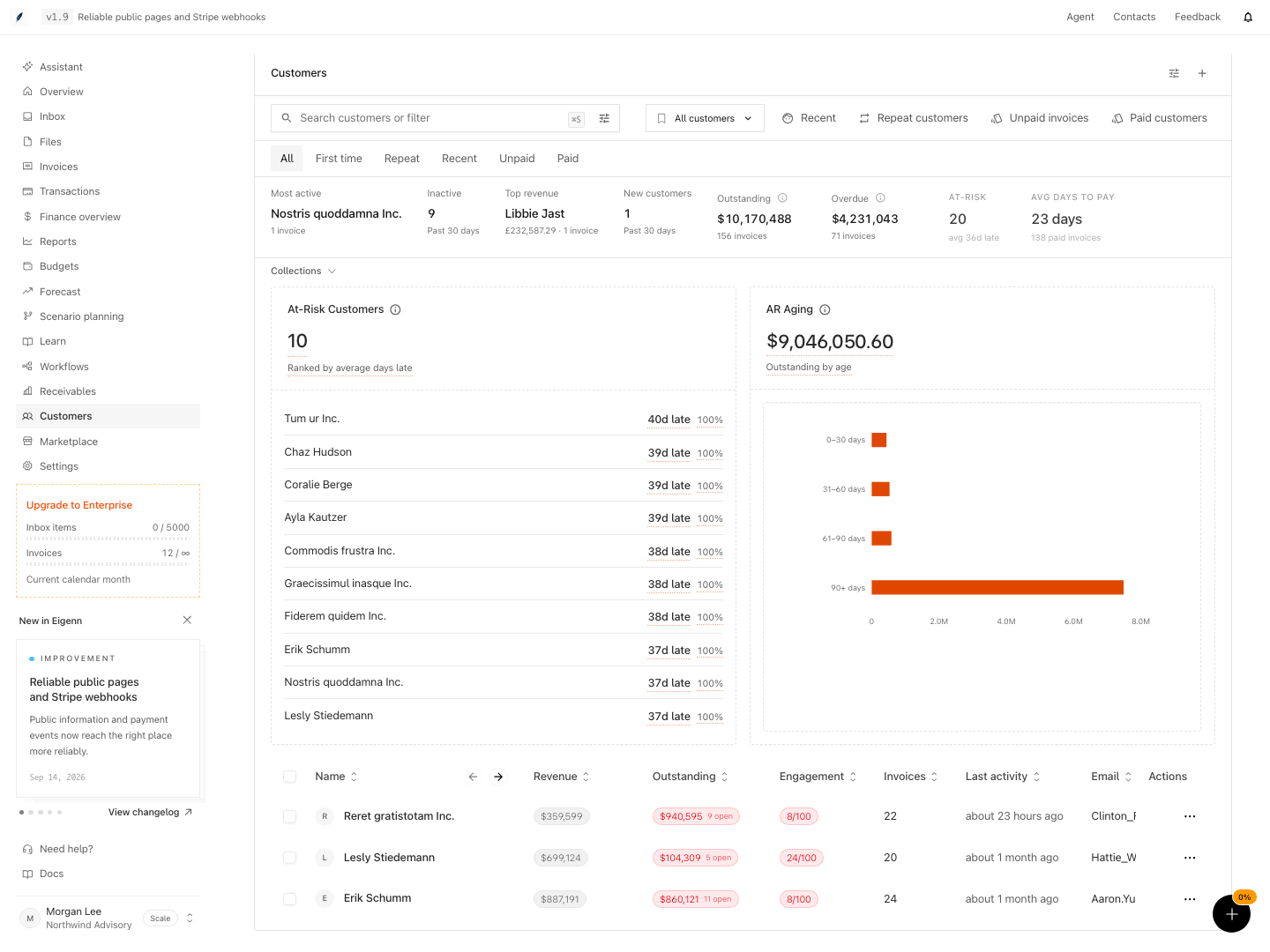
Shown with synthetic data in a local workspace.
Verification
Troubleshoot
The customer record is not found
Confirm that the correct team is active. Confirm that the customer is not deleted. You cannot open customer records across team boundaries.
A financial total does not match collected cash
Compare the successful payment records with the invoice statuses and currency shown on Collected Revenue. The customer list uses paid invoice amounts, so a manual status correction or partial payment can make the two views differ. The full-record summary only shows one currency group.
MRR or ARR looks too high
Review active recurring-invoice schedules, their amounts, currency, and frequency. One-time invoices do not contribute. Annual schedules divide by twelve before entering MRR.
An email does not appear
The tab shows the recorded collection communications, not every message in an external mailbox. Review the related invoice activity and the connected email account.
A file upload failed
Confirm that the correct team is active. Try again with a safe filename. Review the team's storage availability. A successful storage upload must also create the file record before the file appears in the list.
- Open your team workspace and select a customer: The correct customer record, with all sections, loads.
- Check Collected Revenue against successful same-currency payments on paid, unpaid, and overdue invoices. Confirm its single displayed currency group; compare the customer list's separate paid-invoice definition.
- Inspect each tab against its loaded-record limit. Confirm drafts are absent from Latest invoices and View All preserves the customer filter.
- Add a note or file and confirm its presence with author/timestamp or filename displayed.
- Delete a note, task, or customer-uploaded file and verify it is removed from the list.
- Use the Create Invoice or Edit action and verify the forms open with the correct customer context.
- Delete the customer record; after confirmation, confirm the record and its direct notes, tags, tasks, files, and links are removed while invoices remain with the customer field cleared.
- Switch teams and confirm you cannot access the previous team's customer records; confirm a Viewer cannot save notes, tasks, or files.
- Use synthetic taxed and mixed-currency invoices to compare Collected Revenue, Invoiced vs collected, and Invoiced Over Time. Check their different amount and currency bases; the chart range must not change the other metrics.
- Compare a customer with only unpaid invoices and one with no eligible invoices. Confirm the former can have payment health and the latter shows the placeholder. With at least three scored customers, check median ties and strict percentile ranking.
- Fail one file in a controlled multi-file upload and inspect which files persisted before retrying.