Transaction Coding
Define the chart of accounts and coding dimensions, restrict which values apply where, and flag spend that a person must review.
Summary
Transaction coding records a GL code and dimensions such as department, location, class, or vendor. Saving these values does not itself post a transaction to an external ledger. Settings → Transaction Coding holds four sections that answer one question in sequence:
- Which accounts and dimension values exist?
- Which of them are allowed on a specific transaction?
- Which spend must a person look at, whatever the coding?
Coding is separate from categories. A category drives Eigenn reporting. A GL account drives the accounting ledger. See Transaction Categories and Rules for categories.
Capabilities
Use the four settings sections to maintain a chart of accounts, manage dimension values, define save-time coding constraints, and run spend-policy checks. Transaction details also show dimensions, policy flags, accrual schedules, comments, and an explanation of rule claims. Receipt-verification state is separate from attachment counts; its current integration limits are described below.
Prerequisites
Prerequisites
- A team workspace.
- Owner or Member access, with workspace writes permitted by the billing state. Viewers have read access.
- A connected accounting provider, if you want to import the chart of accounts instead of typing it.
Concepts
Chart of accounts
The chart lists the GL accounts that a transaction can be posted to. Each account holds a code, a name, and optional account type, currency, and external ID.
The GL picker uses active accounts from your workspace chart. If there are none, it uses the built-in standard chart, including when every custom account is archived. It also includes codes already present on transactions. A code without a known account name can appear as not in chart. This is a warning, not a guarantee that an external ledger will accept it.
Import from a connected provider
Eigenn shows an Import from button for each connected provider that can list a chart of accounts. QuickBooks Online and Xero support this import. The other accounting providers have no such endpoint, so Eigenn hides the button rather than offering an import that always fails.
The result reports imported and archived accounts. Accounts without a code are skipped, and duplicate codes collapse to one account. Import refreshes accounts by code and can overwrite names, account types, currencies, and active states.
A completed import archives active workspace accounts absent from the returned list, including manually added accounts or accounts imported from another provider. Review this before switching providers. The 200-page ceiling suppresses archiving when it truncates a run. A repeated provider cursor currently ends the read without marking it truncated, so that protection does not cover every incomplete response. Recheck the chart after an unexpected archival count.
Add an account by hand
- Open Settings → Transaction Coding.
- In Chart of accounts, enter a Code and a Name.
- Enter an Account type if you use one.
- Select the add control.
Adding an existing code updates that account and reactivates it. The manual form supplies code, name, and optional account type; saving an imported code there can clear its imported currency and external ID.
Select Archive to deactivate an account or Restore to reactivate it. Archiving keeps existing transaction codes. A code already in use can still appear in pickers, and archiving every account brings back the standard-chart fallback. Archiving is not a universal block on coding to that number.
Dimensions
Dimensions fill the pickers on every transaction. Eigenn supports four:
| Dimension | Typical use |
|---|---|
| Departments | The team that owns the spend |
| Locations | The site or region |
| Classes | The reporting class in your accounting system |
| Vendors | The supplier, where you code it explicitly |
Each value holds a display Name and a stable Code. If the code is blank, Eigenn derives it from the name: lowercase ASCII letters and digits, with other character runs replaced by hyphens and edge hyphens removed. Supply a code explicitly if that would produce an empty value. Match the code to your accounting system; Eigenn does not validate it against the provider here.
To add a value, select the dimension tab, enter the name and optional code, then submit. Adding the same dimension/code updates its name. Use the remove control to delete a value. Deleting an option does not recode transactions that already hold that value. Transaction detail pickers currently cover Department, Location, and Class; the Vendors settings tab does not add a vendor picker to that sheet.
Coding constraints
A constraint restricts one target field when transaction source conditions match. The condition builder uses rule fields such as merchant, amount, direction, and account; it does not offer category, GL code, or department as condition fields.
Single-transaction updates validate changed coding fields against constraints. Current dimension pickers still show the active dimension list without constraint filtering, so a displayed option can fail when saved. Bulk updates and rule-engine writes do not use this same validation path. A constraint is not a ledger-wide enforcement guarantee.
Create a constraint
- Enter a Name.
- Select the target field: GL account, Category, Department, Location, or Class.
- Build the condition that decides when the constraint applies. The condition uses the same fields and operators as transaction rules.
- Enter the allowed values as a comma-separated list.
- Turn on Require a value to reject clearing the target field when its condition matches.
- Create the constraint.
Which constraint wins
More than one constraint can match the same transaction. Eigenn applies the most specific one and ignores the rest.
Specificity is decided in this order:
- The constraint with more condition predicates wins.
- On a tie, the constraint that permits fewer values wins.
Eigenn does not combine matching constraints. If both specificity measures tie, the current query does not define a further ordering; avoid equally ranked conflicting constraints.
Allowed values are exact, case-sensitive codes or category slugs, not display labels. Without a matching constraint, this validator adds no restriction. Required-field checks run only when that target field is included in a single-transaction update; editing an unrelated field does not force missing coding to be completed. The evaluator does not load bank-account type or attachment presence for these saves, so do not depend on those condition fields to enforce a constraint.
Spend policies
A spend policy raises a flag when a transaction meets a condition. Policies do not block the transaction. They mark it for a person.
Each policy holds a name, a condition, a flag kind, and a message that the reviewer sees. If you leave the message blank, Eigenn uses a summary of the condition, so a flag never appears without a reason.
Supported flag kinds:
| Flag kind | Meaning |
|---|---|
| Over limit | Spend above an amount that you set |
| Out of policy | Spend that breaks a written spend rule |
| Personal charge | Spend that looks personal rather than business |
| Suspected fraud | Spend that needs an urgent look |
| Missing receipt | Spend without acceptable evidence |
| Possible duplicate | Spend that repeats another charge |
Flag kinds are labels for your conditions. Choosing Possible duplicate does not compare transactions for duplicates, and Suspected fraud does not run a fraud detector.
Use the row switch to enable or disable a policy. Disabling skips both raising and clearing its flags; existing open flags remain. Deleting a policy removes all of its flags, including resolved and dismissed records. Use that control only when you intend to remove that history.
Run a check
Select Check transactions now to evaluate every enabled policy across the workspace ledger. The sweep walks in batches of 2,000 rather than stopping after one batch. It includes synced transactions. The message counts newly inserted flags and cleared open flags, not all matching transactions.
This is an on-demand check; the current bank-sync path does not call the policy sweep. The sweep does not load attachment presence or bank-account type. Has attachment therefore behaves as false in this path, regardless of uploaded receipts; do not use it as a reliable missing-receipt policy until that integration is available. A failure can leave earlier flag changes saved. Reload transaction details after a sweep to check the result.
The sweep both raises and clears flags. When a transaction no longer meets a policy condition, Eigenn deletes the still-open flag for that policy. A flag that outlives its cause trains reviewers to ignore flags.
Eigenn clears only open flags. A flag that a person already resolved, dismissed, or acknowledged stays as a record.
Resolve a flag
Open the transaction and read the Policy flags section. Select Resolve when you corrected the underlying problem. Select Dismiss when the flag does not apply. Both actions change the flag status and keep it visible in the transaction record without those action buttons. One flag is stored per transaction and policy regardless of status, so a later sweep does not reopen or duplicate a resolved, dismissed, or acknowledged flag for the same policy.
Receipt verification
The receipt checker compares parsed Inbox records linked to a transaction. A directly attached file alone is not such a record. The current settings and detail surfaces do not expose a receipt-check or manual-verification control, and bank sync does not automatically invoke this checker. An attachment count is not proof that it ran.
When invoked, the checker requires an amount within one cent by magnitude, no mismatch when both currencies are known, and either a date within five days or a matching merchant/counterparty name. Merchant comparison normalizes text and accepts a contained name of at least three characters; it is not a duplicate-receipt detector.
The default scan covers up to 2,000 joined rows, linked receipts first and then newest transactions. It does not walk the whole ledger. Multiple linked Inbox records can evaluate the same transaction more than once, so the result is not an “any matching receipt wins” guarantee. Missing parsed amount/date/merchant data yields a missing state.
Automatic checking preserves manually verified records. A manual unverified state is not protected in the same way. The receipts column can show verification state and its note when present; otherwise it displays attachment count or no attachment.
Workflow
Coding on a transaction
The transaction detail sheet shows the coding surfaces together:
- Policy flags raised against the transaction
- Dimensions pickers for department, location, and class
- Accrual window
- Why this coding, showing rule claims for each field
- Comments for the discussion about it
Coding precedence
Three layers can set a coding field. They apply in one order:
- Account default is the floor. It applies when nothing else claims the field.
- Transaction rules outrank the account default.
- A recorded manual override outranks both during ordinary coding runs. Rule deletion uses a separate cleanup path; see the rule guide before treating deletion as an undo.
The bank-account editor exposes a default GL code. The underlying default map can also carry category coding, but this editor does not offer that field and saving its GL default replaces the map. Defaults are applied during coding runs, not immediately to all history when the account is saved. See Bank Connections.
Coding trail
The Why this coding section shows field claims from the latest application, including winners and matched rules that lost. It is not a complete history of tags, readiness, or every past run.
Matching rules resolve each field separately: more predicates win, then lower numeric priority, then older creation time. Different rules can contribute different fields. Raw reasons such as manual_override and newer_rule may appear; newer_rule means that the newer rule lost a tie to an older rule.
See Transaction Categories and Rules for preview and run limits.
Accruals
An accrual window produces a monthly allocation schedule for a charge. This screen stores the window and shows the derived schedule; it does not itself post adjusting entries or establish that reports and external ledgers use that schedule.
Choose Covers from and Covers to, then select Spread. Eigenn allocates the signed amount across calendar months by inclusive day count. Amounts round to cents, and the last period takes the remainder.
The date inputs do not load the saved window when you reopen the sheet; inspect the schedule before assuming it is unset. Select Clear to remove a window with a visible schedule. A reversed window can be saved but produces no schedule and no Clear control; enter a valid replacement window to recover.
Behavior specification
Limits
- Policy sweeps walk the ledger in 2,000-row batches; the separate receipt checker defaults to one capped scan.
- Chart imports archive absent codes after a completed read; the page-ceiling safeguard does not cover repeated-cursor termination.
- A constraint applies to one target field. Restrict several fields with several constraints.
- Eigenn applies only the most specific matching constraint per field.
- Dimension pickers cover department, location, and class. They are not currently filtered by coding constraints.
- Coding settings are team-scoped. Confirm the active workspace before you edit.
Diagrams
Rendering diagram…
Screenshots
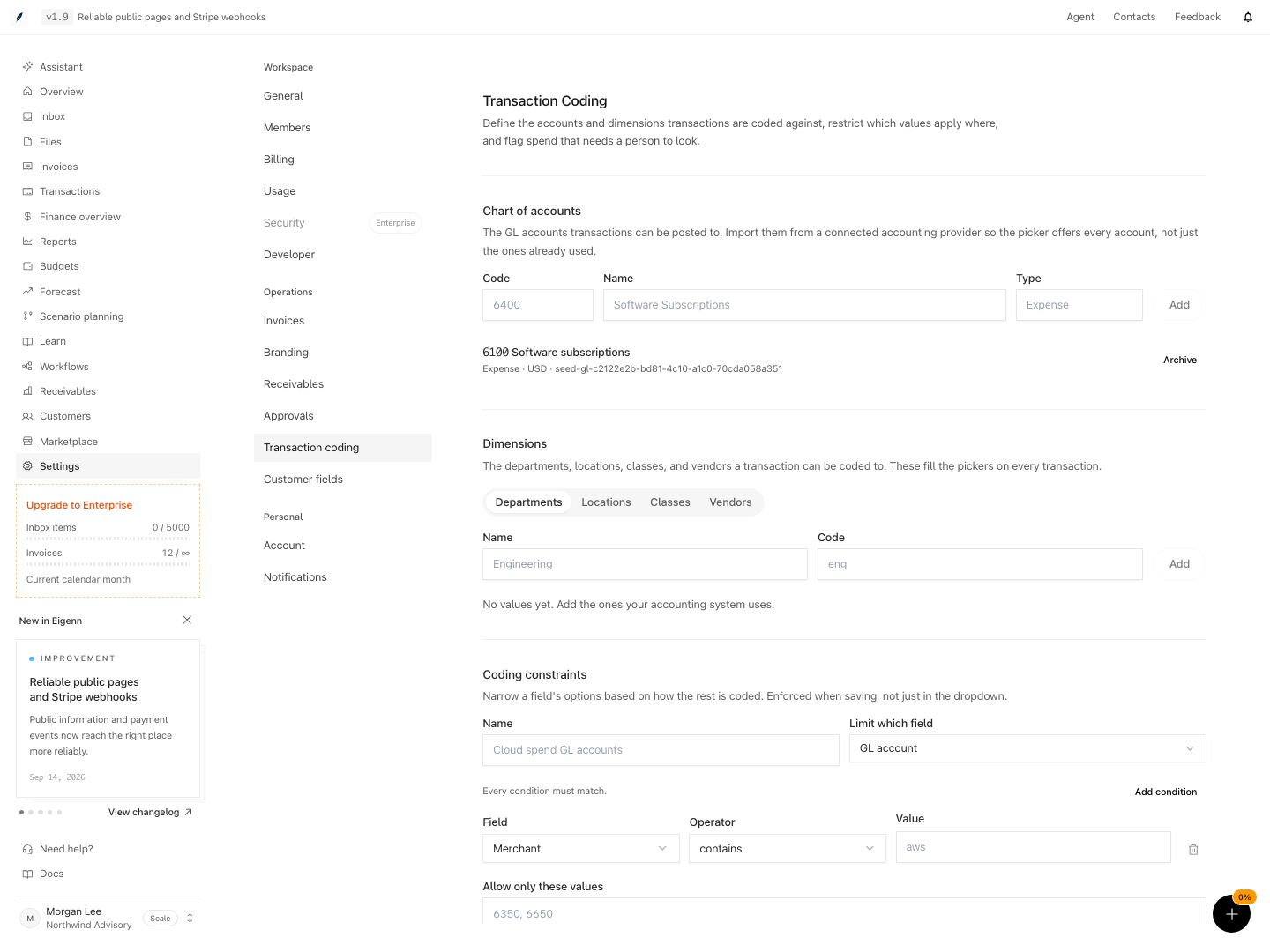
Transaction coding settings with a chart of accounts, dimensions, and coding constraints.
Shown with synthetic data in a local workspace.
Verification
Confirm the result
- Reopen the chart after adding, importing, archiving, or restoring accounts. Check active codes and unexpected archival counts, including manually maintained codes.
- Reopen dimension settings and a transaction. Confirm the stored code, display name, and picker options.
- On a single transaction, test a matching constraint with an allowed value, a disallowed value, and a cleared required field. Check the saved value after each attempt. Do not assume bulk or rule writes enforce the same checks.
- Create a policy with a known match and near miss, then select Check transactions now. Reload details and inspect its flag message.
- Change an open flag's transaction so it no longer matches and rerun. Confirm only that policy's open flag clears. Resolve another flag and confirm a later sweep leaves its resolved status intact.
- Save an accrual window across two months, inspect the day counts and signed total, reopen the sheet, and clear the schedule when finished.
- Distinguish attachment count from stored receipt-verification state; neither proves a successful provider export.
Troubleshoot
The chart list is empty but GL options exist: the picker falls back to the standard chart when no active workspace accounts exist and also includes codes already in use.
An archived code is still offered: in-use codes remain available, and archiving every account activates the standard fallback. Check the destination's account status before exporting.
There is no import button: the UI offers import only for connected providers that support account listing. QuickBooks Online and Xero currently support it; add accounts manually otherwise.
A constraint did not filter the dropdown: current dimension pickers show the full active list. Test the single-record save path. Check the condition, exact allowed code, and more-specific constraints; bulk and rule writes follow different paths.
A flag did not clear: the policy must be enabled and the transaction must stop matching. Only open flags clear automatically. Resolved, dismissed, and acknowledged flags remain, and disabling a policy does not clear its open flags.
A policy reported zero new flags: existing flags for the same transaction/policy are not inserted again. Check stored statuses rather than reading the message as zero matching transactions.
Accrual inputs look blank: they do not initialize from the saved window. Read the displayed schedule. A reversed window produces no schedule; choose a valid start and end and save again.