Save and Share Assistant Work
Preserve an exact Assistant answer, publish a canvas safely, and manage chats, pins, and active shares.
Summary
This guide keeps important Assistant work available after the original conversation and shares only the result that another person needs.
Capabilities
You can pin exact Assistant answers as records, organize them via canvases, share canvases with others, revoke shares, and manage access to saved work. The workflow helps maintain data integrity and compliance when sharing sensitive information.
Prerequisites
Before You Start
- Confirm the active workspace and customer context. Owners and Members can create or revoke shares; Viewers cannot. Workspace write access must be active.
- Remove information that the recipient should not receive.
- Decide whether the work must be reproducible, collaborative, or public.
- Re-run the analysis when source data or assumptions changed.
Concepts
1. Choose the Right Surface
Use:
- Recent chats to continue a conversation
- Pinned answers to keep an exact answer
- My canvases to manage pins and active snapshot links together
- a native Eigenn document when the work needs a longer edited narrative
A chat, pin, shared canvas, and document have different retention and access behavior.
Workflow
2. Confirm the Answer
Before you save it:
- Check the workspace.
- Check the date range.
- Check the source records or attachments.
- Read the assumptions and limitations.
- Confirm that the answer supports the intended decision.
Do not pin or publish an answer only because it is well written. Confirm the underlying records.
3. Pin the Answer
From the Assistant canvas, choose the pin action.
Then:
- Open Assistant → Pinned answers.
- Find the new item.
- Confirm the title and summary.
- Confirm the pinned time.
- Open it and compare it with the answer that you intended to keep.
The pin is a frozen snapshot. It remains unchanged when finance records update.
4. Find It in My Canvases
Open Assistant → My canvases.
Use search to find the title or summary. The item appears under Pinned.
A pin can remain after its source chat expires. When the chat still exists, use the source-chat link to continue the discussion. When it does not, treat the pin as a standalone historical reference.
5. Share a Canvas
When the Assistant canvas supports sharing:
- Review the full canvas.
- Remove private or unnecessary detail.
- Create the share.
- Open My canvases.
- Find the item under Shared.
- Copy or open the share URL.
- Test the URL in a signed-out browser context.
A public share should contain only information approved for that audience. Anyone with the public URL can read the frozen payload without workspace membership until you revoke it. Tool provenance is removed; private business details in the payload are not automatically redacted.
6. Send the Right Context
When you send the link, include:
- what question the analysis answers
- the source period
- whether the result is observed, forecast, or scenario-based
- any important limitation
- the decision or response that you need
Do not describe a shared snapshot as live when it will not refresh.
7. Continue the Conversation
Use Recent chats when the operator needs the original conversation rather than only the saved output.
Select Resume on the correct row. Confirm the title, latest-message time, and message count before you continue.
Delete a chat only when it should disappear from your list. A pin created from the chat can remain separately.
8. Revoke a Share
When a shared canvas should no longer be public:
- Open Assistant → My canvases.
- Find the item under Shared.
- Select the revoke action.
- Confirm the item no longer appears as active.
- Test the old URL.
- Tell prior recipients when the link formed part of an operating process.
Revocation stops access through that share URL. It cannot remove a copy that a recipient already downloaded or recorded.
9. Remove Old Pins
Open Pinned answers or My canvases, then select Unpin.
Unpin work when:
- it is obsolete
- it duplicates a newer reviewed answer
- its context is no longer interpretable
- the team should use a maintained document or model instead
Keep a pin when it is evidence for a past decision and its date and assumptions remain clear.
Behavior specification
Review Checklist
A safe saved or shared answer has:
- the correct workspace
- a clear title
- a known source period
- explicit assumptions
- no unnecessary private detail
- the right retention surface
- a tested link when shared
- a named owner for later review or revocation
Diagrams
Rendering diagram…
Screenshots
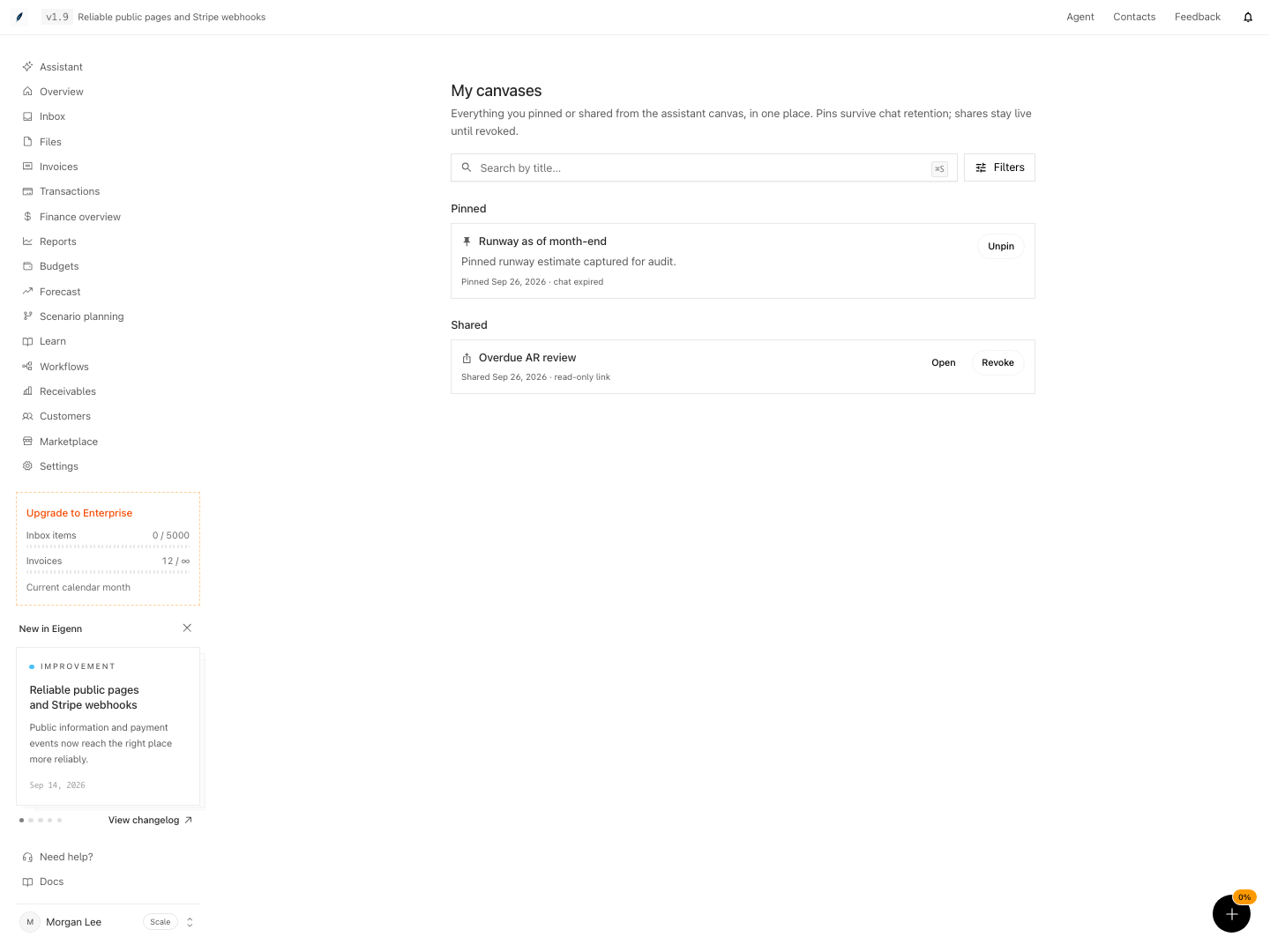
Saved assistant canvases with pinned results and shared read-only links.
Shown with synthetic data in a local workspace.
Verification
Troubleshoot
The pin does not appear
Refresh Pinned answers and My canvases. Confirm that the pin action completed in the same workspace.
A pin says the chat is not in the recent list
The gallery checks the latest 100 chats. An older chat may still exist, so the label does not prove expiration. The frozen snapshot remains available; start a new analysis when you need current data.
A shared URL exposes too much detail
Revoke it immediately. Create a new canvas with the unnecessary detail removed, then test the replacement link.
A recipient cannot open a workspace link
A workspace link requires access. Publish an approved canvas when the recipient should not join the workspace.
- Pin an Assistant answer and confirm it appears unchanged in Pinned answers and My canvases.
- Share a canvas, then open the shared link in a signed-out browser to check access.
- Revoke a shared canvas and verify the original share URL is inaccessible.
- Unpin an obsolete answer and confirm it no longer appears under Pinned answers or My canvases.
- Test that the right chat, pin, or canvas is accessed from the intended workspace.
- Check that shared content contains no unintended private or sensitive information.