Configure Assistant Operations
Give Assistant business context, create goals, watchers, and scheduled work, and keep a person in control of consequential actions.
Summary
This guide sets up the operational layers around Assistant. Start with business context. Then add goals, watchers, and scheduled work. Turn on Autopilot only after the approvals process works.
Capabilities
Assistant operations allow the assignment of business context, the creation and tracking of financial goals, monitoring of supported business metrics, configuration of automated notifications and scheduled queries, setup of human-involved approval workflows, and enrollment of narrow, capped Autopilot actions to streamline processes while keeping control.
Prerequisites
Prerequisites
- You can sign in to an Eigenn team workspace.
- The necessary bank, accounting, invoice, payment, or communication apps have a current connection.
- Your team chose an approvals owner.
- You know which outward actions, if any, can run before Assistant asks you.
Changes to Autopilot and Collections Autopilot policies require Manage settings permission. Other mutations require a writable workspace and the applicable role; Viewers cannot approve actions. Background automation must also be enabled for the deployment.
Concepts
Assistant operations separate different layers of business automation: business context (background info), goals (key targets), watchers (metric alerts), scheduled prompts (automated queries), approval workflow (required for consequential actions), and Autopilot (select actions can execute automatically within strict limits). Each layer builds accountability and clarity across the automation flow.
Workflow
1. Add Business Context
Open What I know about your business in the Assistant operation pages.
- Enter Industry.
- Choose the month under Fiscal year starts.
- Enter Base currency.
- Describe Primary goals and Focus areas.
- Add permanent context under Notes.
- Choose Save.
- Wait for Business profile saved.
Use facts that are stable across many conversations. Keep one-off scenario assumptions in the prompt or forecast instead of the business profile.
2. Create the First Goal
Open Goals.
- Choose New goal.
- Enter a label such as “Keep runway above 6 months.”
- Enter the metric name, for example
runway. - Choose the direction and target.
- Add a due date when the goal has a deadline.
- Choose Create goal.
Use the status selector to mark the goal Active, Met, Missed, or Archived as it resolves. At this time, the visible progress bar shows status. It does not show a metric percentage that Eigenn calculates continuously.
3. Create a Supported Watcher
Open Watchers.
- Choose New watcher.
- Describe what the alert means for the business.
- Enter a supported metric such as
runway,runway_projected,cash_projected,breach_probability,overdue_ar,promises_at_risk, ordso. - Choose is below, is at or below, is above, is at or above, or equals.
- Enter a numeric threshold.
- Choose Daily, Weekly, or Monthly.
- Choose In-app, Slack, or Email. Slack requires an installed workspace connection; email uses the watcher creator or an eligible workspace fallback recipient.
- Choose Create watcher.
Use Pause when the rule is temporarily irrelevant. Use Delete when the rule must no longer exist.
You can also create a daily Runway watcher from the eye icon on Overview. That control pre-fills the current value. It appears only for supported metrics.
4. Create a Scheduled Prompt Carefully
Open Scheduled runs.
- Choose New scheduled run.
- Give the run a clear name.
- Write a self-contained prompt with its time range and the output that you want.
- Leave Agent (optional) blank unless you know the supported agent identifier.
- Choose Hourly, Daily, Weekly, or Monthly.
- Choose the requested delivery channel.
- Choose Create scheduled run.
Use Pause, Enable, and Delete to control the saved run.
Current scheduled prompts record a queued request for the period. They do not yet produce a completed background Assistant response. Slack or email result delivery is not available from this path. Use the row's last status and Approvals to distinguish a recorded request from completed work.
Document-linked schedules are a separate path: they refresh supported data blocks in the saved page, record block outcomes in the audit, and finish ok or failed. They do not generate a new free-form Assistant answer. A saved schedule alone does not prove its worker is enabled.
5. Establish the Human Approval Loop
Open Inbox → Approvals before you turn on Autopilot.
- Filter to Open.
- Select a proposal.
- Read its plain-language action, amount, source context, and cash impact.
- Choose Claim to take ownership.
- Choose Approve or Reject.
- Confirm that approved work reaches Done or Failed.
- Test Undo on a reversible, non-production example while its undo window is open.
Assign a person to check Approved items that did not advance. Approval records intent. A separate process runs the action.
Decide from SMS or WhatsApp
A member who linked a phone for SMS or WhatsApp can ask Assistant questions by text. When an answer proposes actions, it ends with a numbered list. Reply APPROVE 2 or REJECT 2 to decide the second item. When the list has one item, YES or NO also works.
- A number refers only to the list in Assistant's most recent answer to that phone. Each new answer replaces the list, and an answer without a list retires the earlier numbers. Ask follow-up questions after you decide, not before.
- When a listed action was already decided elsewhere, for example in Approvals, the reply is That number isn't pending anymore. Nothing else is decided.
- The decision runs as the linked member, so their role must allow approving and rejecting actions: a narrower team role, such as Support, needs Decide Approvals.
Decide anything that is not in the latest list in Approvals.
Drive Assistant with an API key
The REST POST /chat endpoint lets an API key or OAuth token talk to Assistant. The caller approves its own tool calls there, so approval is not what limits it: an action that saves data runs only when the key holds the write scope of the area it changes, such as customers.write for a customer note. Without that scope, the action reports INSUFFICIENT_SCOPE and saves nothing. See Authentication for the scopes each area needs.
6. Examine Action Bundles
Open Action Bundles when a projected cash-floor watcher creates grouped work.
- Read the total cash impact and runway preview.
- Examine every line independently.
- Use Approve all only when every line is acceptable.
- Otherwise use Approve or Drop on individual lines.
- Return to Approvals to follow execution status.
The runway preview can be absent when the burn history is not enough, or when the business is net positive. Never infer a zero impact from a missing preview.
7. Set Up Autopilot Last
Open Autopilot.
- Leave Enable autopilot off while you draft the policy.
- Enter exact, comma-separated action identifiers under Allowed actions (comma-separated action ids).
- Set Max amount.
- Keep a cap unless a reviewed reason exists to remove it.
- Set a positive whole-number Undo window (minutes).
- Turn on Enable autopilot.
- Choose Save.
Start with one reversible action. Autopilot examines an action only when the policy is on. The identifier must be an exact match. When a cap is set, Eigenn must know the estimated amount and that amount must be within the cap. The action must not be irreversible.
An empty Max amount means no monetary cap. It does not weaken the exact allowlist or the irreversible-action block.
8. Confirm the Audit Trail
Open Autopilot audit after the first autonomous action.
Confirm that the entry includes:
- a clear summary,
- the action identifier,
- the reason,
- any failure state, and
- whether the undo deadline remains open.
Use Approvals for the real Undo control. The audit page is read-only.
Behavior specification
Assistant should use supplied business context to tailor recommendations. Alerts and proposals must be triggered only for supported metric thresholds, respecting approval workflow before executing consequential actions. Autopilot may execute only actions that match the exact allowlist and amount cap, and only when reversible. All autonomous and approval actions must be auditable, with undo available within defined timeframes.
Diagrams
Rendering diagram…
Screenshots
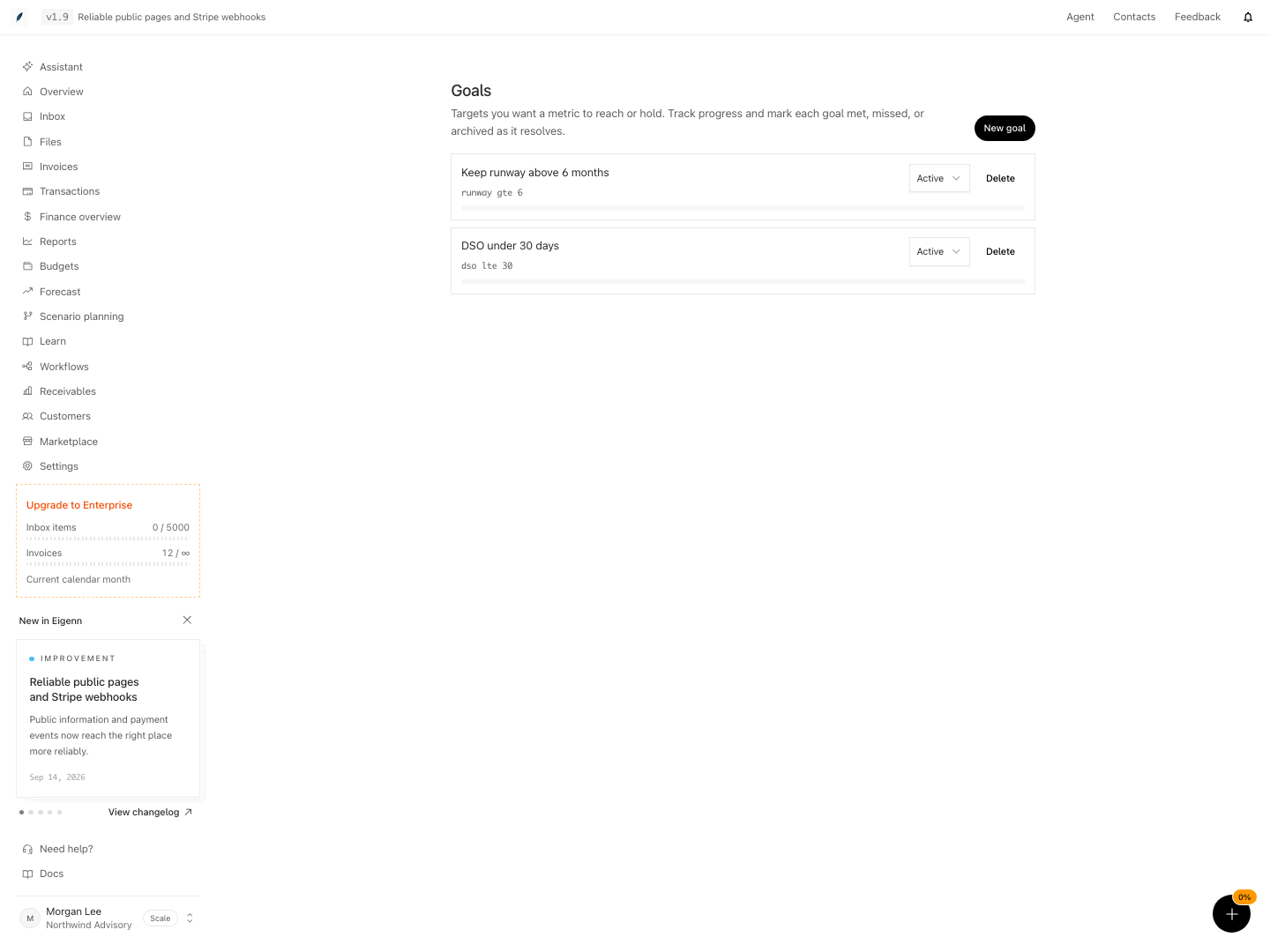
Shown with synthetic data in a local workspace.
Verification
9. Run a Controlled Acceptance Check
Before you decide that the configuration is complete:
- Ask Assistant a read-only question that uses connected data.
- Create one supported watcher with a threshold that you can safely observe.
- Confirm that a crossing appears in Approvals at most one time for its period.
- Approve or reject a harmless proposal.
- Confirm that the status reaches a terminal state.
- Confirm one allowlisted reversible action and its audit entry when Autopilot is on.
- Check that an unlisted or over-cap action still waits for human review.
Confirm the Result
The setup of Assistant operations is complete when:
- you saved stable business context,
- goals and watchers use recognized metrics,
- the approvals queue has a named operator,
- the team understands that scheduled prompts record queued requests, not completed work,
- Autopilot is narrow, capped, reversible, and tested, and
- the team confirms terminal status and audit evidence, and does not assume completion.
Troubleshoot
Assistant data is stale
Confirm that Marketplace shows the integration as connected. Run the supported refresh or sync workflow of the feature that owns the data. Then check that feature's page.
A metric name saves but never evaluates
The Watchers form accepts text. Proactive checks can evaluate only supported metrics. Replace the name with a canonical metric that this guide lists.
A watcher selected Slack or Email but only appears in Approvals
Confirm that the workspace has proactive processing turned on. Email alerts go to the watcher creator, with a workspace owner or active member as the fallback. Slack alerts use the workspace's installed Slack connection. Each threshold crossing also creates an approval so operators can review the proposed action.
A scheduled run has no completed answer
At this time, scheduled prompt runs record queued requests. Read Approvals. Do not treat the saved schedule or the queued status as delivered output.
A text reply says the last reply had nothing to approve
Assistant's most recent SMS or WhatsApp answer to that phone had no numbered list, so a number or a bare YES has nothing to point at. A follow-up question asked after a list arrives causes this too, because its answer replaces the list. Decide the action in Approvals.
Autopilot stays inactive after a save
Confirm that Enable autopilot is on. Confirm that at least one exact action identifier is present. Confirm that the amount is within the cap. Confirm that the action is reversible. Ask support to confirm that the workspace has proactive processing turned on.
Undo does not appear
Undo appears only for Done or Executing actions with an unexpired undo deadline. You cannot undo an action without a window, an expired action, or a non-executed proposal.
An approval is stuck
Check Approved, Executing, and Failed. Execution is separate from approval. Contact support when an approved item does not advance and proactive processing must be active.
- Log into Eigenn and check that you can enter and save business context with no errors.
- Add a goal and watcher using supported metrics; verify both accept values and appear in their respective lists.
- Configure a scheduled prompt and confirm that a queued request appears under Approvals but no completed answer is generated automatically.
- Approve or reject a proposal from the Approvals page and check the final status is marked appropriately.
- Enable Autopilot for a single reversible action; trigger its execution and verify an audit log is created showing the correct details.
- Attempt to trigger an unlisted or over-cap action via Autopilot and confirm that it is held for manual approval.
- Validate the undo function appears only on eligible actions after approval and within the undo window.
- Use the Troubleshoot guidance to confirm that integration, metric support, delivery channels, and proactive processing are functioning as described.