Overview
Review the owner brief, urgent finance work, business pulse, and preloaded forecast scenarios from one decision-focused page.
Summary
Overview answers a practical owner question: what must the team do next to make more money, lose less money, and plan before cash gets tight? Overview combines current balances with period-based data for revenue, profit, burn, health, forecast, and actions. It then links each issue to the page where you can resolve it.
Capabilities
The Overview page enables owners to monitor business health by summarizing key financial metrics such as revenue, profit, cash balance, burn rate, and runway. It highlights urgent action items, provides direct links to relevant work areas, and offers embedded tools for forecasting and scenario stress testing.
Prerequisites
Prerequisites
- Sign in to an Eigenn workspace.
- Connect bank accounts before you use Cash or Runway.
- Sync transactions and invoices before you review revenue, profit, receivables, or action items.
- Add enough historical activity to make burn, runway, prior-period comparisons, and business health meaningful.
Concepts
Overview organizes financial review around actionable insights. It uses current balances alongside period-based reporting to surface the most urgent tasks and summarize the overall health of the business. Priority queues, pulse cards, action panels, and integrated forecasting help owners focus on next steps and understand potential outcomes.
Workflow
Open Overview
Select Overview in the primary sidebar.
Choose the Reporting Period
Use Reporting period before you read the page. The presets are:
- Last 4 weeks
- Last 3 months
- Last 6 months
- Last 12 months
- Month to date
- Year to date
- All time
- Custom range
Custom range adds the From and To date fields. Your selection updates the period-based reports across the page.
All time now starts on January 1, 2020.
Cash balance is a current account total, not a historical period total. The selected period still affects the average burn below it. It also affects the other report and forecast calculations.
Read the Page in Order
1. Owner brief
Owner brief leads with the highest-priority open action when one exists. It also shows the overall business-health score and the weakest of these signals:
- Revenue growth
- Expense control
- Cash flow
- Profitability
When no action is open, the brief shows the weakest signal. When Eigenn cannot score health, the brief shows not scored yet. It then makes data coverage the first issue to resolve.
2. Do these first
Do these first shows up to three of the highest-priority action items. Select an item to open its authoritative work area.
| Issue | Destination |
|---|---|
| overdue invoices | Invoices |
| broken payment promises, failed payments, missing autopay, or risky terms | Receivables |
| over-budget activity | Reports |
| bank connection errors | Settings → Account → Bank Connections |
| card expiry | Customers |
If Eigenn returns no item, the page shows Nothing urgent is blocking cash right now. This is an action-queue state. It is not a guarantee that every ledger record is correct.
3. Business pulse
The four pulse cards are:
- Revenue for current-period revenue and change from the same period last year
- Profit for current-period profit and change from the same period last year
- Cash for current connected-account balance and average monthly net burn or net inflow
- Runway for estimated months at the current burn
When the same period last year is zero or unavailable, Revenue or Profit shows No figure for the same period last year instead of an invalid percentage. With no completed month, the burn detail describes this month so far.
Runway guidance uses these page thresholds:
| Runway | Page guidance |
|---|---|
| 3 months or less | Cash is tight. Stress-test delays and expense cuts now |
| more than 3 and up to 6 months | Watch cash before you hire, spend, or extend terms |
| more than 6 months | Runway is healthy. Stress-test major commitments first |
| no net burn | No runway countdown for this period |
| unavailable | Runway is unavailable; check source data |
Use the eye icon beside Runway to create a daily watcher. Select a comparator and a threshold, then select Create watcher. Alerts from this control go to Approvals.
4. Decision panels
Overview organizes the next layer into three decision panels.
Make more money
This panel shows next month's revenue projection, or — when a projection is unavailable. It can include up to two receivables actions. Select Work receivables to open Invoices.
Lose less money
This panel shows current-period spending, calculated as revenue minus profit. It also shows over-budget or bank-connection issues. Select Review spend to open Budgets.
Plan what may be coming
This panel shows projected revenue over the next six months, monthly growth, and runway guidance. Select Run stress test to open the forecast workbench with a combined-downside scenario already applied.
The scenario changes only the view that you use to plan. It does not change your ledger and does not run a financial action.
5. Forecast Before You Commit
This section shows the count and the amount of the invoices that are unpaid now beside two choices:
- Test those payments arriving late opens Forecast with a slow-collections scenario applied.
- Open forecast workbench opens the full forecast page without that preloaded delay scenario.
Use these controls before you hire, add spend, change payment terms, or make another material commitment.
Recommended Review Workflow
- Open Overview.
- Set the reporting period and confirm the dates.
- Read Owner brief before you act.
- Open each item under Do these first. Confirm the source record.
- Compare Revenue, Profit, Cash, and Runway for contradictions or missing data.
- Work the decision panel that fits your issue.
- Run the preloaded stress test before a material commitment.
- Return to Overview. Confirm that the queue shows the work that you completed.
Behavior specification
Limitations
- Overview summarizes records. It is not the ledger, the invoice register, or the bank-connection manager.
- The priority queue shows at most three items even when more are open.
- Decision panels show at most two actions in each supported action bucket.
- A failed metric query shows an unavailable state with Retry. Missing projections show —; missing health coverage shows not scored yet. A successful empty result can still show zero or no actions. None is an all-clear.
- Runway depends on cash and burn history. New or net-positive teams can have an unavailable or non-comparable runway result.
- The page's forecast is a six-month projection. Forecast assumptions and detailed results live in Forecast.
- Check multi-currency decisions in the detailed account and report views. Do not use a single summary total.
Diagrams
Rendering diagram…
Screenshots
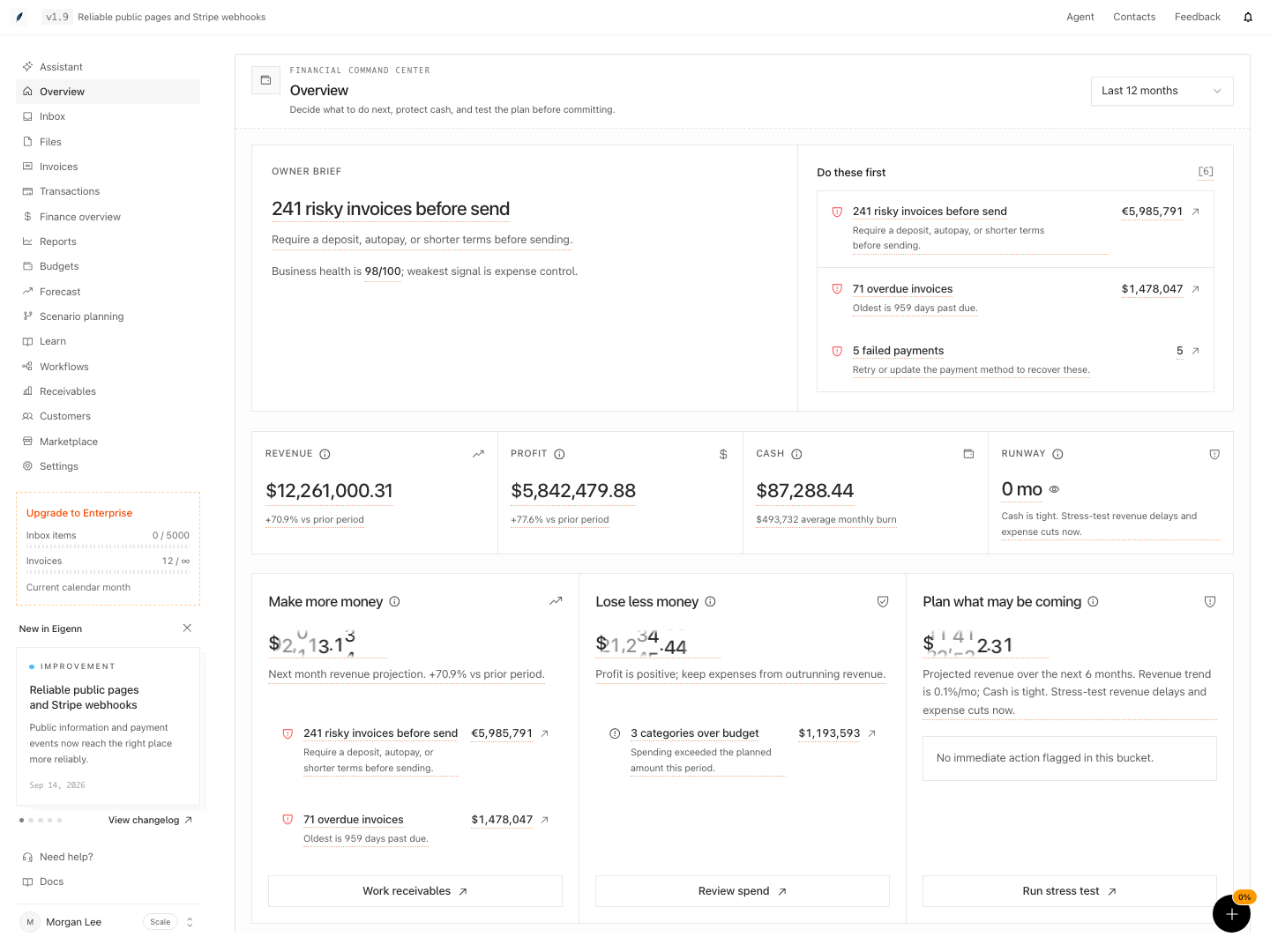
Owner overview with priority actions, business health, cash, and runway.
Shown with synthetic data in a local workspace.
Verification
Confirm the Result
An Overview review is complete when:
- The period matches the decision that you make
- Cash and runway have current bank data
- You confirmed the top action in the page that owns it
- Receivables and spend owners know their next actions
- You tested a material commitment in Forecast
- A watcher or a named owner covers each unresolved threshold
Troubleshoot
Cash is zero or Runway is unknown
Open Settings → Account → Bank Connections. Confirm that at least one account has a current connection. Then check Forecast for enough burn history.
Revenue or Profit has no prior-period signal
The comparison window is the same dates one year earlier, and its value is zero or missing. Confirm that those dates contain synced transactions before interpreting the percentage.
Business health is not scored yet
Add or sync the source revenue, expense, cash-flow, and profitability data. Overview does not invent a score without enough coverage.
Do these first is empty but I know work exists
Open the page that owns the work. The queue includes only the supported action categories. It also depends on the selected period and on synced report data.
The stress test opens with unexpected values
Run stress test preloads a combined-downside preset by design. Test those payments arriving late preloads a slow-collections preset. Review the Forecast controls before you interpret the result.
A Runway watcher does not alert
Confirm that the watcher is on. Confirm that the value crossed the threshold. Current watcher alerts appear in Approvals. If the watcher never evaluated, ask support to confirm that proactive Assistant work is on.
- Open the Overview page and confirm your workspace and bank accounts are connected; banking balances appear under Cash.
- Set the Reporting period, then verify that page-wide reports update to match the selected dates.
- Check the Owner brief: Confirm it highlights the top open action, or displays 'not scored yet' if data coverage is incomplete.
- Review each item under 'Do these first' and follow the links to source records; verify their current status matches.
- Check Revenue, Profit, Cash, and Runway values and ensure no important metric is missing or contradictory.
- Complete one action per decision panel and confirm this is reflected both in the panel and the action queue.
- Run a stress-test scenario and observe that projected results and guidance update accordingly.
- Return to Overview, confirm completed actions are removed from the queue, and that unresolved items are tracked either by a watcher or a named owner. Expected outcome: All key financial signals display valid, current data; urgent actions link to accurate records; forecast scenarios work as described.