Export and share
Export a planning model to a CSV or Excel file, save an image of a chart, and share a saved view with a teammate.
Use an export when a reviewer or another system needs a file. Use a chart image for a slide or a message. Use a shared saved view when a teammate needs the live model, limited to a scope that you choose.
An exported file and an image are point-in-time copies. They do not change when the model changes.
1. Export the model to a file
- Go to Scenario planning → open a model.
- Select More → Export.
- Under Format, select one of these:
- Raw values (.csv): one row for each value. This is the default.
- Raw values (.xlsx): the same rows in a workbook.
- Formatted values (.xlsx): rows like the model, with time as columns.
- Under Version, keep Current version or select a named version.
- Under View, keep All values or select a saved view.
- For a raw format, select the Columns to include: Scenario, Dimension item, Currency, Cell state, Formula text, and Non-sum aggregate rows.
- Select Generate.
The menu shows the size of the file before you generate it. After the export, it shows the file name and the number of rows. The file downloads.
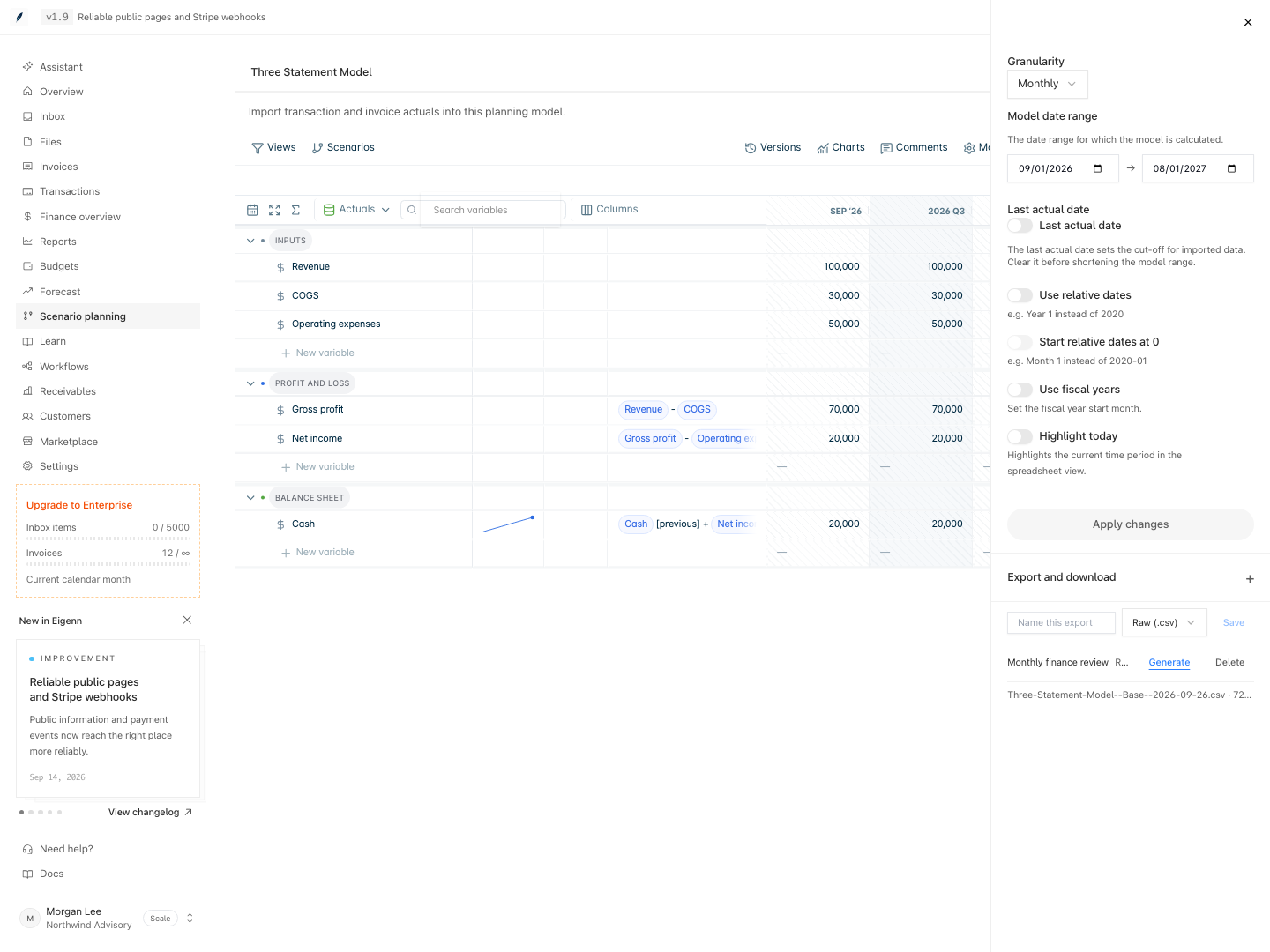
A large export runs in the background. Find it later in Model settings → Export and download.
A saved view can filter the items of one dimension. If another dimension has no link to it, the menu shows a warning. Rows broken down by that other dimension export in full.
2. Save an export to run again
- Select Model settings.
- Open Export and download.
- Enter a name in Name this export.
- Select a format.
- Select Save.
To run a saved export, select Generate next to its name. Each run reads the current model. Select Delete to remove the saved export. The list under the saved exports shows recent runs with the file name, the row count, and the status. Select Download to get a stored file again.
3. Save an image of a chart
- On the Charts page, select the more actions button (⋮) on a chart card.
- Select Download → Image to save a PNG file. Or select Copy → Copy image to copy it.
The file name comes from the card name. Table cards have no chart image. For a table card, Eigenn shows "This card has no chart to export."
4. Share a saved view
Only model owners can share a saved view. To create or change access, the workspace needs the Scale or Enterprise plan.
- In the model, select More → Share.
- Select the saved view.
- Select Preview Can view or Preview Can edit to check what the teammate sees.
- Next to the teammate, select Can view or Can edit within view.
- Select Copy link and send the link.
A Can view teammate opens the Charts page and cannot change it. To stop access, select Remove next to the teammate.