Scenario Planning
Build formula-driven operating models, compare scenarios, import actuals, and share focused planning views.
Summary
Scenario planning is the workspace for models that need more structure than a single forecast assumption. It combines a model library, a formula-ready grid, reusable scenarios, connected actuals, dimensions, comments, versions, uncertainty analysis, and controlled sharing.
Use Finances → Forecast when you need the standard cash and runway workbench. Use Scenario planning when you need to build a custom operating model, define its calculation logic, or compare many business cases in one grid.
Capabilities
Scenario planning allows users to create and organize planning models, structure formulas and assumptions, import and refresh actual financial actuals, manage dimensions, run scenario comparisons, conduct uncertainty analyses, share focused grid views, collaborate via comments and proposals, and export model data and results.
Prerequisites
Comments and contextual review controls are available only when the planning context dock is enabled for the workspace. Source-detail inspection and manual calculation have separate rollout controls; their absence does not indicate missing model data.
Scenario planning requires Scale or Enterprise. Use a workspace Owner account for full-model workflows; other teammates open only saved views shared with them. Changes also require active billing access. See Planning access.
To use scenario planning effectively, users need a workspace account with appropriate access, at least one planning model configured, and access to relevant financial data sources for import. Users should also have designated model owners and proper sharing permissions to collaborate or edit.
Concepts
Where the Work Lives
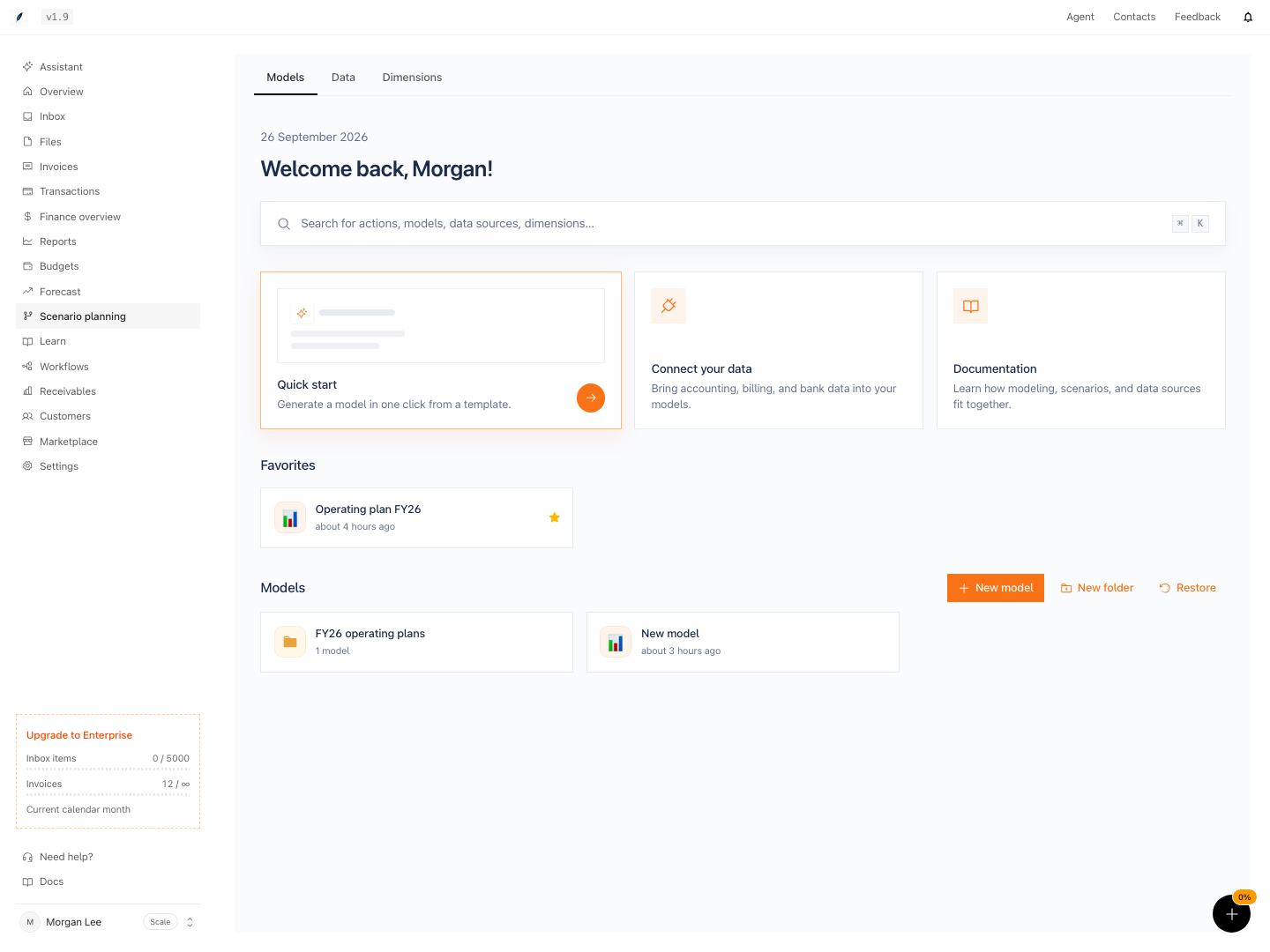
Scenario planning has three top-level areas:
| Area | Primary job |
|---|---|
| Models | Create, organize, open, duplicate, move to trash, restore, and search planning models. |
| Data | Manage the planning data sources that supply actuals. |
| Dimensions | Manage reusable categories such as department, entity, cohort, region, or vendor. |
Opening a model takes you to its planning grid. The model keeps its own time settings, variables, formulas, scenarios, saved views, comments, versions, and source links.
Workflow
Create and Organize Models
Open Scenario planning → Models.
You can:
- create a model from the model wizard
- start with a blank model
- choose an available finance, operating, SaaS, headcount, consolidation, receivables, or stress-test template
- create folders and move models into them
- mark models as favorites
- search models and folders
- duplicate a model before you make a structural change
- select Move to trash and restore the model later
- permanently delete a model from the trash when it is no longer needed
Available templates include Three Statement Model, Headcount plan, P&L and Runway, 13-Week Cash Flow, Receivables & DSO, Budget vs Actuals Variance, SaaS Metrics, Multi-currency Consolidation, and several focused stress models. A template marked as unavailable cannot be created yet.
A model created from a template is still editable. Check every imported assumption and formula before you use the output in a decision.
Work in the Planning Grid
The grid supports:
- editable inputs
- formulas
- variable creation and management
- number and display formats
- variable calculation settings
- source inspection and refresh
- saved views
- comments
- version history
- scenario comparison and scenario changes
- proposed changes and proposal review
- export
The model name, date range, active scenario, and saved view establish the context for the grid. Confirm them before you edit a value.
Workspace owners can create a focused view from Views, then save it for later or use Save and apply. The menu also lets owners duplicate, reorder, delete, and set the model's default view. See Planning views and exports for filters, sharing, and the full workflow.
Inputs and formulas
Use an input for a value that a person owns, such as price, headcount, conversion, or a growth assumption. Use a formula when the value should be calculated from other variables.
A useful model separates:
- imported actuals
- explicit assumptions
- calculated outputs
- scenario overrides
Do not replace an imported actual with an assumption only to make the model match an expected answer. Keep the source record and the planning judgment distinguishable.
Time settings
Model settings control the planning timeline and display. Check the start period, period frequency, actuals boundary, and forecast range before you add formulas. A formula can be correct while still answering the wrong date range.
Import and Refresh Actuals
A planning model can import transaction and invoice actuals. Select Import actuals when the model has no imported actuals. Select Refresh actuals after the source records change.
The model can also link focused sources such as transaction-category actuals or invoice actuals. A source refresh updates the planning data. It does not change the source transaction or invoice.
After a refresh:
- Confirm the source reports success.
- Check the actuals boundary in the model.
- Compare one known source period with the grid.
- Recalculate or review dependent variables when the model does not update automatically.
Use Scenarios
Scenarios let you change selected assumptions without rewriting the base case.
Use the scenario controls to:
- select a scenario
- compare a scenario with the base or another scenario
- reset scenario overrides
- apply a stress shock
- merge selected overrides into another scenario or the base
- promote a scenario to the base
Scenario merge and promotion are high-impact operations. They are owner-controlled. Before a promotion or merge, Eigenn creates a recovery version so the prior state remains available in version history.
- Merge copies only the selected overrides into the target and leaves the source scenario intact. Existing target overrides win unless you explicitly choose to overwrite the conflict.
- Promote applies eligible input overrides to the base and removes the promoted scenario. Overrides on calculated rows are skipped rather than replacing their formulas.
- After promotion, another scenario continues to use its own overrides but inherits the new base anywhere it has no override. Shared views that show those base-backed rows can change as a result.
A scenario in a planning model is separate from:
- a saved scenario under Finances → Forecast
- a named budget version under Finances → Budgets
They can represent the same business question, but they do not update one another automatically.
Run Formula Uncertainty
Use Formula uncertainty when the model contains ranges or probability formulas.
- Select Run simulation.
- Choose a variable.
- Choose a period.
- Review P10, P50, and P90.
Eigenn runs the active model 200 times. Shared drivers stay correlated across formulas during each run. The percentile values describe the modeled distribution. They are not confidence guarantees and do not replace a review of the assumptions.
If the model contains no ranges or probability formulas, the simulation has no variables to report.
Save Views and Share Focused Access
A saved view keeps a useful presentation of the model. Create one when a teammate needs a stable slice of the grid rather than the full working model.
A model owner can share a saved view with a teammate as:
- Can view
- Can edit within view, when that teammate is eligible to edit
There is no separate Can comment choice in the current sharing panel. Older comment grants are imported as Can view.
Select Copy link to copy the saved-view URL. Sharing a saved view does not expose every model view automatically. Review the selected variables, periods, and scenario before you share it.
Only model owners can manage saved-view sharing.
Comment, Propose, and Review
Use comments to keep a question or decision attached to a model row. You can create a comment, reply, and resolve the thread.
When proposal controls are available, a teammate can propose a model change without silently replacing the current value. Review the proposal, the affected variable, and the resulting projection before you accept it.
Use version history when you need to understand how the model changed over time or restore context after a large edit.
Export a Model
Planning exports can be generated directly or saved as reusable export definitions. A saved definition keeps the export shape so you can run the same output again.
The export area can show:
- saved export definitions
- generation status
- run history
- downloadable completed runs
An export is a point-in-time result. It does not stay synchronized after a model changes.
Behavior specification
Access and Governance
Model capabilities depend on workspace access and model ownership.
- Model owners manage high-impact scenario operations and saved-view sharing.
- Editors can change the model when their access allows it.
- Commenters can discuss a shared view without changing its calculations.
- Viewers can inspect the shared result.
Before you rely on a model, confirm its owner, source freshness, active scenario, actuals boundary, and latest reviewed version.
Diagrams
Rendering diagram…
Screenshots
Verification
Troubleshoot
The model opens with no useful values
Check whether the model is blank, whether the expected source is linked, and whether actuals were imported. A blank model starts with minimal structure by design.
A source refreshed but the grid still looks stale
Confirm the refresh completed, then compare the source period with the model's actuals boundary. Reopen the model when the source query completed after the grid loaded.
A scenario change did not apply
The server can reject a stale or unauthorized merge, promotion, or shock. Refresh the model, confirm your role, and retry from the latest version. Do not assume that a closed panel means the change succeeded.
A teammate cannot open a shared view
Confirm that the saved view still exists and that the teammate has an active share grant. Copy a new link after you verify the selected view.
The uncertainty panel has no results
Add a supported range or probability formula, then run the simulation again. Ordinary fixed-value formulas do not produce uncertainty bands.
- After importing or refreshing actuals, check that the source reports a successful update and the expected actuals boundary appears in the grid.
- Open a model and confirm the planning grid reflects the model's current date range, active scenario, and saved view.
- Use scenario controls to promote or merge a scenario, then review that changes are reflected only as intended, with a recovery version created.
- Attempt to share a saved view with a teammate and check that their permissions and access align with the configured role (view, comment, or edit).
- Run formula uncertainty and ensure percentile results are produced if probability formulas exist; no results should appear if only fixed-value formulas are used.
- Attempt to comment, propose a change, or review a proposal, ensuring tracked history and thread resolution is visible.
- Export a model, then confirm the downloaded file matches the selected export definition.
Related
Explore Scenario Planning
Use the focused pages when you need more detail:
| Task | Page |
|---|---|
| Structure variables, formulas, and calculation behavior | Planning Models and Formulas |
| Configure periods, fiscal display, and the actuals boundary | Planning Time and Actuals |
| Connect actuals and manage dimensions | Planning Data and Dimensions |
| Add probability formulas and interpret simulation ranges | Planning Uncertainty |
| Save history, comment, and review proposed changes | Planning Versions and Collaboration |
| Build charts and views, share access, and export files | Planning Views and Exports |
Related Pages
- Planning Models and Formulas
- Planning Time and Actuals
- Planning Data and Dimensions
- Planning Uncertainty
- Planning Versions and Collaboration
- Planning Views and Exports
- Create Your First Planning Model
- Build a Driver-Based Planning Model
- Compare and Share Planning Scenarios
- Budgets and Forecast
- Plans and Adjustments