Configure Receivables Controls
Save team collection preferences, build the active recovery sequence, and test Auto-chase with a controlled invoice.
Summary
This guide sets up Receivables Controls. Do not confuse the saved policy preferences with the active Auto-chase sequence. Complete the upper settings cards for team intent. Then build and test the recovery policy that schedules messages.
Capabilities
You can set your team's receivables and collection reminder preferences, configure quiet hours, create, activate, deactivate, or delete recovery policies and add or remove steps within the saved limit, and test the Auto-chase workflow using controlled invoices before enrolling real accounts. New policies allow ten steps; older policies can retain a lower limit. Manual reminders remain invoice actions, outside this settings page. All configuration is team-specific and reflects current operational needs, subject to approval and verification by your team.
Prerequisites
Saving Autopilot Policy or Payment Follow-up Timing requires manage-settings. Policy steps use the separate recovery-workflow permissions below. Starting invoice Auto-chase requires a writable workspace and invoice write access; a custom member role needs edit-invoices. Stopping an existing sequence remains available without active billing, subject to write permission.
Prerequisites
- You can open Settings → Receivables for the correct team.
- You have recovery-workflow write permission, plus publish permission to activate or change an active policy. Policy deletion requires delete permission and, for an active policy, publish permission.
- The team approved its reminder, late-payment, escalation, and customer-contact policy.
- A test customer has a valid email, phone, or in-app account for the channel that you test.
- A controlled unpaid or overdue test invoice exists.
- You connected and set up the necessary delivery providers.
- You do not enroll a production invoice until the test is complete.
Concepts
Record the Policy Decision
Before you edit the page, write down:
- whether collection is manual or automated
- which invoices are eligible
- the permitted communication channels
- intended delays between messages
- who examines disputes and sensitive accounts
- whether the law and the contract permit fees
- what evidence must exist before escalation
The current page does not enforce every saved preference. This decision about operations stays important.
Understand the Editor Limits
Before you test, confirm that you can accept these current limits:
- you can activate, deactivate, or delete policies and remove steps
- you cannot rename policies, edit existing step values, or reorder steps here
- you cannot select the template, sender, fee rule, tone profile, timezone, or policy quiet hours here
- new steps request an invoice attachment for email; verify the actual document
- the In-app choice currently records a send result without delivering a notification
Prepare changes on an unused inactive policy where possible. Removing a step changes the list that running sequences read and does not renumber the remaining steps. Deactivation prevents new enrollment but does not stop existing sequences. Delete is restricted when recovery instances reference the policy; retain history by deactivating it instead.
The default Autopilot Collections value is off. Confirm the saved value after refresh and verify the controlled result before relying on automated outreach.
Workflow
1. Decide the Automated-Send Stance
Open Settings → Receivables.
Leave Autopilot Collections off until the configuration and controlled-message checks below are complete and you have reviewed the message content with a controlled test.
The switch is the master opt-in for automated collection messages. Eigenn sends nothing automatically while it is off, whatever the recovery policy contains. Manual reminders, transactional email, and the separate automatic Invoice Reminders setting are unaffected. Review both automation controls when stopping automated outreach.
When you are ready to send:
- Set Autopilot Collections on.
- Select Save in Autopilot Policy.
- Refresh the page.
- Confirm that the value remains on.
Eigenn requires the value to be explicitly saved as on. An unsaved or unreadable setting pauses automated sends.
2. Save the Communication Window
- Set Enable Quiet Hours and the intended start and end time.
- Set Exclude Weekends.
- Select Save in Payment Follow-up Timing.
- Refresh the page.
- Confirm that the values remain.
The defaults are quiet hours from 21:00 to 08:00 and weekend exclusion on.
The team window applies only with Enable Quiet Hours saved on; Exclude Weekends alone does not restrict weekends. It uses the policy timezone or UTC, and the editor has no timezone selector. A customer-specific preference or policy-level quiet window takes precedence. The team window defers to its next permitted time; refusals under customer or policy windows do not automatically retry.
There is no late-fee card on this page. Late fees come from fee rules attached to a recovery policy step.
3. Prepare One Recovery Policy
Scroll to Recovery policies.
- Enter a precise name, such as
Test — three-step email sequence. - Select Create policy.
- Check the saved name and status. Names must be unique in the team.
- If another policy is active, the new one starts Inactive. Configure it before selecting Activate.
- Deactivate other policies before new enrollment if this policy should be the only choice.
When no policy is active, the new policy starts active immediately. Activating a policy does not deactivate others. Auto-chase selects the newest active policy and does not show a picker. Existing sequences stay attached to their original policy.
4. Add and Review Steps
For a controlled initial test, use a short sequence. For example:
- Add Day 0 · Email.
- Add Day 3 · Email only after you confirm the content and the delivery of the first step.
- Add SMS only after you confirm customer contact data and provider setup. Do not use the current In-app result as proof of customer notification.
Enter a non-negative whole number for Day. Eigenn numbers each step after the highest remaining number. Email steps request an invoice attachment; confirm that it arrives in the test message.
The Day value is a relative delay:
- Day 0 starts at enrollment time.
- A later Day 3 waits three days after the prior step.
- A later Day 7 waits seven more days after that.
It is not an absolute number of days after the invoice due date.
New policies allow ten steps. Existing policies retain their saved limit, shown when the form reports Step limit reached. Removing a middle step does not necessarily reopen an append position. Completion after the final configured step means its send was queued, not delivered or escalated to a collections case.
5. Test Auto-chase
- Confirm that Autopilot Collections is on. Enrollment alone sends nothing while the master switch is off.
- Open the controlled unpaid or overdue invoice.
- Confirm that the customer and the recipient are test-safe.
- Find Auto-chase overdue.
- Turn it on.
- Confirm that the switch stays on while the request waits in the queue.
- Refresh until the recovery step and next reminder date appear.
- Confirm that the date matches enrollment plus the delay of the first step.
If the first step is Day 0, check the delivery system immediately.
6. Confirm the First Communication
Confirm all of the items that follow before you expand the test:
- you selected the intended policy
- the message used the expected channel
- the recipient is correct
- the invoice attachment is correct
- the team approved the content
- the provider reports sent or delivered rather than only queued
- no duplicate communication exists
- the invoice shows the expected next step
The steps that you create in Settings do not select a template. No template is displayed, but its claim that no message can be sent is misleading: the sender can use fallback reminder content. A default tone profile or experiment does not necessarily affect this message.
7. Test Stop and Recovery
- Turn off Auto-chase overdue on the test invoice.
- Confirm that the sequence is not active.
- Wait past any immediate scheduled job.
- Confirm that the canceled sequence sends no customer message.
- Correct the policy before you enroll another invoice.
Stop acts on an active sequence; it does not recall an already dispatched message. A scheduled recovery check can still run and skip canceled work. A sequence marked completed can still have its final message queued, so completion alone does not establish that all delivery has finished.
Behavior specification
Auto-chase selects the newest active policy for new enrollment; existing sequences retain their original policy. Several policies can be active, so use the warning and badges to keep the intended choice clear. Deactivation is not cancellation. The saved outreach opt-in, invoice state, customer preferences, suppression, quiet windows, and channel configuration govern whether a queued communication sends. Review provider evidence independently of sequence progress.
Diagrams
Rendering diagram…
Screenshots
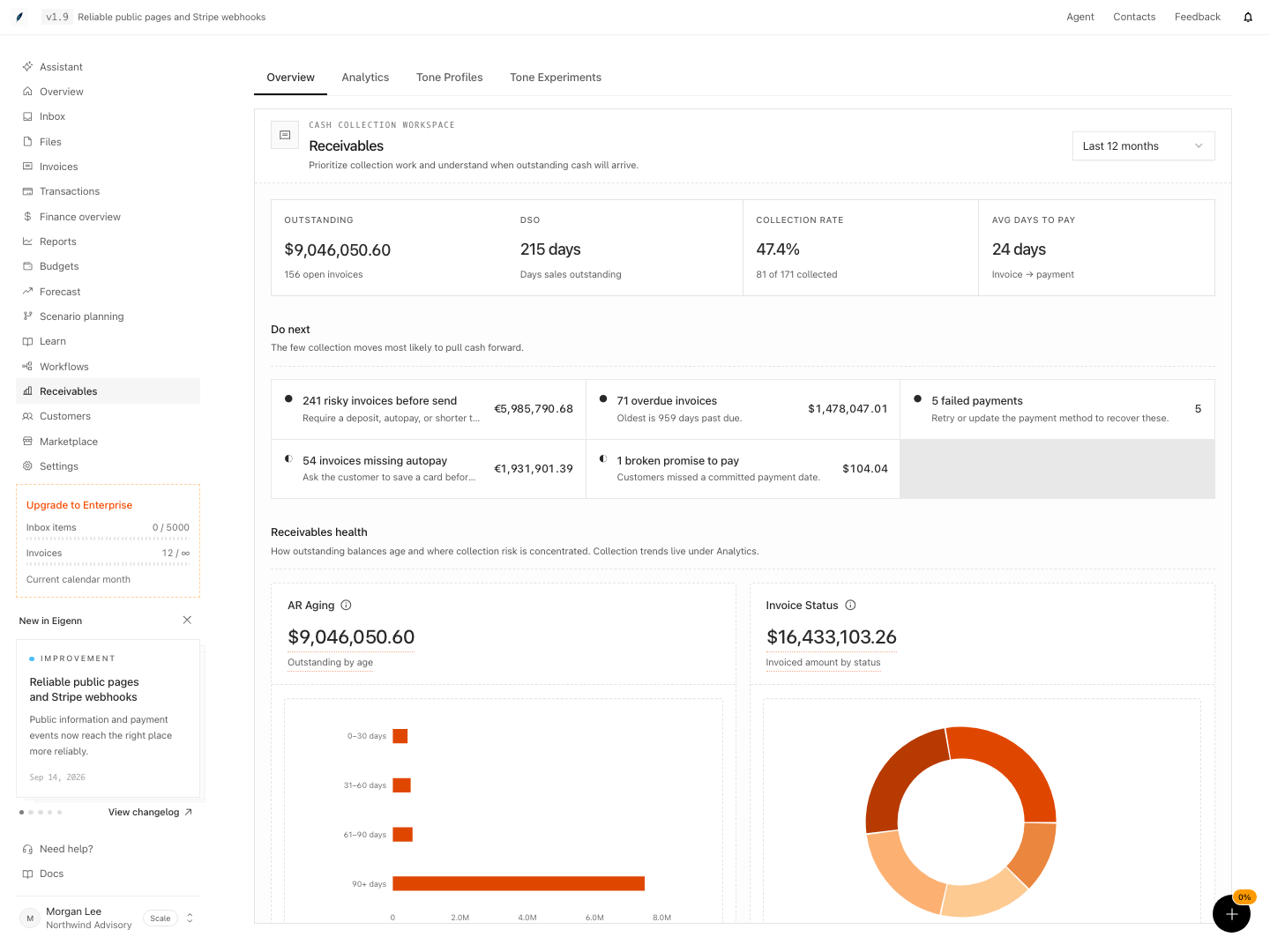
Shown with synthetic data in a local workspace.
Verification
Confirm the Result
Configuration is ready for a limited rollout when:
- the Autopilot Policy and Payment Follow-up Timing cards keep the values that you set, after a refresh
- Autopilot Collections is on only after the content and recipients were reviewed
- one intended policy is the newest active policy
- the policy has reviewed steps within its saved maximum
- the team understands that every delay is relative to enrollment or to the previous step
- you confirmed the channel prerequisites
- the test invoice starts, reports progress, and stops correctly
- the team approved the outbound content and the attachment
- provider delivery evidence is visible
- the team has an owner for failed sends, disputes, and escalation
Troubleshoot
I created the wrong policy
Use Deactivate for the unintended policy and Activate for the reviewed replacement. Stop or review existing invoice sequences separately. Delete only unused policies; an existing recovery instance blocks deletion. The newest active policy is chosen for new enrollment.
I added the wrong step
Use Remove step [number] on an unused policy, then add the corrected step at the end. Removal does not renumber surviving steps. Stop affected active invoice sequences before changing their shared step list.
Auto-chase says no active policy exists
Confirm that the policy creation succeeded. Confirm that the Active badge is visible for the current team.
Auto-chase starts but the sequence never appears
Confirm that the policy has at least one step. Confirm that the invoice has a customer. Wait for Eigenn to process the request. Refresh the page. Contact support if the sequence stays absent.
The invoice is enrolled but nothing was sent
Confirm that Autopilot Collections is explicitly saved as on. The switch is opt-in and fails closed, so an unsaved value pauses every automated send.
The communication ignored quiet hours
A customer preference or a policy-level quiet window overrides the team default. Check the customer record and the recovery policy before you change the team setting.
The test email or SMS failed
Check the customer address or phone, the opt-out state, the suppression state, and the provider credentials. Let the retries finish before you send a manual duplicate.
- After configuration, refresh the Receivables Controls page and confirm the values for Autopilot Policy and Payment Follow-up Timing match your selections.
- Ensure the Autopilot Collections switch is only on after content and recipients are reviewed.
- Confirm the newest active recovery policy appears with a clearly visible Active badge.
- Confirm steps fit the saved limit and use delays relative to enrollment or prior processing, not the due date.
- Confirm all test invoice data, communication channels, and message content are accurate and approved.
- Upon enrolling a test invoice, verify that Auto-chase becomes active, and the first communication is sent through the correct channel to the correct recipient.
- Stop Auto-chase on the test invoice, wait for scheduled jobs, and confirm that no additional messages are sent and the sequence is inactive.
- For common issues (such as missing steps, ignored quiet hours, or delivery failures), use the troubleshooting checks provided to confirm observed conditions against expected outcomes.