Invoice Products
Build a reusable catalog for consistent invoice line items, pricing, usage tracking, and product-level revenue review.
Summary
Invoice Products turns frequently billed goods and services into reusable catalog items. When you select a product on an invoice, Eigenn can fill its name, default price, and unit. Eigenn also keeps the relationship that product usage and revenue reports need.
Capabilities
What the Product Catalog Helps You Do
- keep names, prices, units, and currencies consistent across invoices
- make active products available as invoice suggestions
- separate active and inactive catalog items and keep the historical context
- review usage count, last use, related invoices, and product-level revenue
- configure product variants, SKU and inventory fields, or a bundle of products
- maintain customer-facing features, cross-sells, images, and internal metadata
Prerequisites
Before You Start
- Sign in and select the team that owns the catalog.
- Confirm that you have access to Invoices → Products for that team.
- Decide which currency and unit are the default for each product.
- The product can already appear on invoices as free-form text. Eigenn does not always link those older line items to the new catalog record.
Concepts
A product catalog is a reusable set of items each with a unique name within a team, default price, unit, and currency, and may include customer-facing details like features and cross-sells as well as internal metadata. Products can be active (suggested for invoices) or inactive (preserved for history). Catalog Usage counts selections, including selections on unsaved invoices. The product detail counts linked invoices. Revenue metrics use linked invoice line items, not the selection counter.
Workflow
Open the Product Catalog
- Open Invoices.
- Select Products in the section navigation.
- Use All, Active, Inactive, Popular, or Recent to change the catalog view.
- Use Search products... to match product names or descriptions.
Popular sorts active products by usage. Recent shows active products in the recent order. Inactive isolates products that no longer appear in normal invoice suggestions.
Create a Product
- Select Create Product.
- Enter a unique Name. This is the only product field that Eigenn needs.
- Add a Description when teammates or customers need more context.
- Set the default Price, Unit, and Currency.
- Add a Statement descriptor only when that billing description is correct for subscription payments.
- Optionally add a Marketing feature list for pricing-table presentation.
- Optionally add Metadata as internal key-value details.
- Leave Active Status on if you want the product in the invoice suggestions.
- Select Create product.
What to check
After the sheet closes:
- search for the exact product name
- confirm the displayed price, currency, and unit
- confirm the status badge says Active or Inactive as intended
- confirm that Usage is
0and Last Used is empty for a product that nobody selected on an invoice
Product names must be unique within the team. A conflict between names leaves the create or edit form open with an error.
Use a Product on an Invoice
- Open an invoice create or edit form.
- Set the invoice currency before you add items. A currency change later clears every line item.
- Focus the line-item description field.
- Search for the product, then select it from the suggestion list.
- Confirm that Eigenn filled the product name, price, and unit as expected.
- Adjust quantity, price, unit, or tax for this invoice when necessary.
Eigenn scopes the suggestions to active products in the invoice's current currency. The field first shows a small set of products. The list narrows as you type.
You can still type a custom line item. Text alone does not establish the catalog relationship that product analytics use. The current public invoice-create handler also drops the submitted product link; API-created invoices are not guaranteed to contribute to these reports. Select the catalog suggestion when usage and revenue attribution matter.
Configure Variants or a Bundle
Open the saved product and find Variants and bundles. Choose one mode; saving Bundle removes the variant configuration, and saving Variants removes bundle components.
For variants:
- Select Variants, then Add option. Enter an option name, such as Size, and comma-separated values.
- Add up to three options and select Generate variant matrix. The combined options can produce at most 100 variants.
- Review each variant's SKU and price. A blank variant price uses the product's base price.
- Turn on Track when needed and enter a whole-number inventory quantity of zero or more.
- Use Archive or Restore to change a variant's availability, then select Save catalog.
Option names, values, variant combinations, and SKUs must be unique within their respective lists. Each option accepts up to 25 values. A tracked variant with zero stock is shown as Out of stock in invoice suggestions and cannot be selected there. This check does not establish stock reservation or enforce that an invoice quantity is within the available stock.
For a bundle:
- Select Bundle and Add product.
- Choose at least two distinct product or product-variant combinations. Components must be active products from the same team; the bundle cannot contain itself.
- Set each component quantity above zero and no higher than 1,000. You can include up to 50 components.
- Enter Bundle price. Review Component value and Customer savings, then select Save catalog.
A bundle price becomes the parent product's default price. Use components in the same currency: the selector does not enforce currency consistency or convert component prices. Replace or remove unavailable components before saving. Invoice selection retains the selected variant or bundle details on the line; review its price and quantity before finalizing.
Manage the Catalog
The product table includes:
| Column | What it tells you |
|---|---|
| Name | Product name and optional description; select it to open the product record |
| Price | Default formatted price and unit |
| Unit | Default unit of measurement |
| Usage | Number of times that a user selected the catalog item |
| Last Used | Most recent recorded catalog use |
| Status | Whether the product is active or inactive |
Edit one product
- Open the row's three-dot menu.
- Select Edit.
- Change the supported fields.
- Select Save or Update.
- Search for the product again.
- Check the new values.
Update many products
- Select the checkboxes beside the products.
- Open Status in the bulk toolbar.
- Select Active or Inactive.
- Confirm that the selected rows move to the expected tab.
Delete products
- Select product checkboxes and use the bulk delete action.
- Review and confirm the deletion.
- Check the deleted and skipped results.
Bulk deletion skips a product when any invoice references it, whatever the invoice status. The single-row Delete action does not perform that reference check or show the bulk confirmation. Use Inactive for a product with history that you no longer offer on new invoices.
Review a Product Record
Select the product name to open its full record. The page can show:
- current price, unit, currency, and active status
- linked invoice count in the product detail; the catalog Usage column instead tracks selections
- estimated MRR and ARR from linked paid invoices
- Revenue Over Time, with quick ranges from the last 3 to 24 months or a custom month range
- product image
- pricing details
- up to three checkout cross-sells
- marketing features for customers
- invoices that contain the linked product
- product ID, description, statement descriptor, dates, and metadata
Add or replace an image
- Create the product first.
- Open the product record.
- Use the image control to upload a JPEG, PNG, or WEBP file no larger than 2 MiB.
- Check that the image appears after the update completes.
You manage images from the saved product record, not from the create-product sheet.
Review revenue and recurring estimates
- Revenue Over Time sums linked line-item price × quantity on paid, unpaid, and overdue invoices. It groups by issue month, falling back to creation month. It excludes drafts, scheduled invoices, and canceled invoices; it is not a cash-received total.
- Months without qualifying values are filled with zero. The chart can show an empty state when the total is zero.
- MRR first averages linked line amounts per customer with at least two qualifying paid invoices, then averages those customer averages. If no customer qualifies, it uses the latest qualifying paid invoice's linked line amount.
- ARR multiplies that estimate by 12. These estimates do not require a recurring series or normalize annual, quarterly, or irregular billing to months.
- Revenue by variant groups linked variant line amounts and quantities across paid, unpaid, and overdue invoices, separated by currency.
The product revenue chart and MRR/ARR calculations do not convert mixed invoice currencies. Keep currencies consistent and inspect the underlying invoices before using these estimates. They do not replace a contracted subscription schedule or an accounting report.
Manage cross-sells and features
- Select Edit Cross-sells to add, remove, or replace related products.
- Keep no more than three cross-sell products.
- Select Edit Features to keep the feature list for customers.
- Use Add Metadata for internal key-value details.
- Check each section after you save.
Behavior specification
Statuses, Edge Cases, and Limitations
- Active products appear in normal invoice suggestions; Inactive products do not.
- When you inactivate a product, Eigenn keeps its record and historical invoice relationships.
- Product price and unit are defaults. An invoice can override them and not change the catalog record.
- Product suggestions use the invoice currency. A product in another currency does not always appear until the currencies match.
- Free-form line items are not guaranteed to contribute to the catalog product's usage, MRR, ARR, or revenue chart.
- You can inactivate a referenced product, but you cannot safely bulk-delete it. Bulk deletion skips referenced items.
- Product revenue depends on linked line items and the selected date range. Months with no qualifying invoices are zero-filled; a zero total can show the empty state.
- Cross-sell presentation depends on the customer checkout experience. A relationship that you set up does not guarantee that every payment path displays it.
- Metadata is internal. Marketing features and cross-sells are the customer-presentation fields.
Diagrams
Rendering diagram…
Screenshots
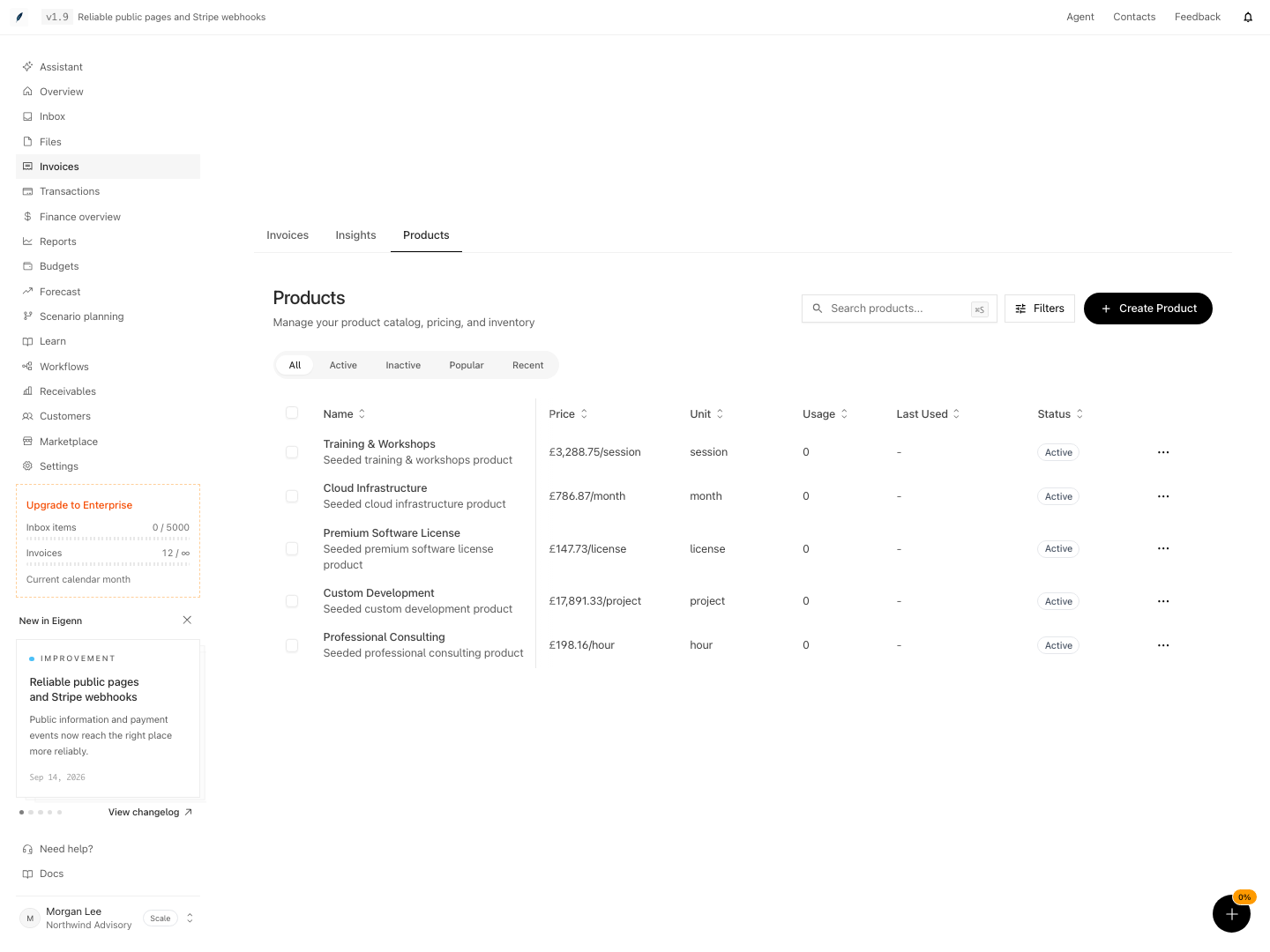
Shown with synthetic data in a local workspace.
Verification
Troubleshoot
Create product reports that the name already exists
Search All for the same name, and include the inactive products. Edit the record that exists, or choose a distinct name.
A product does not appear while I create an invoice
Check all three conditions:
- the product is Active
- the product currency matches the invoice currency
- you work in the same team that owns the product
Then focus the item field and type at least part of the product name.
The product selection did not fill the expected price or unit
Open the product record and check its current defaults. If the invoice already contains edited values, select the product again, or update the line manually. Then confirm the final total.
I cannot delete a product
An invoice can reference the product. Mark it Inactive to remove it from future suggestions and keep the historical reporting.
Product analytics are empty or lower than expected
Open the product's Invoices section. If the expected invoices are absent, their line items have no link to this catalog product. Also confirm that the invoice statuses and date range meet the conditions of the metric. MRR and ARR use paid invoices; the revenue chart also includes unpaid and overdue invoices.
Image upload fails
Use JPEG, PNG, or WEBP no larger than 2 MiB. Confirm that you are still in the correct team and retry from the saved product record.
The product page says I do not have permission
Confirm that you selected the correct team. If the error persists, ask a team administrator to review your access.
- After creating a product, search by name to confirm it appears with the correct price, currency, and unit, and has a status badge as intended.
- Apply a product to a new invoice and verify that the correct details auto-fill.
- Edit a product, save changes, and confirm that updated fields display in the product list.
- Inactivate a product and check that it no longer appears as a suggestion for new invoices.
- Attempt to bulk-delete referenced and unreferenced products and check that only unreferenced items are removed.
- Upload a product image and verify that it appears on the product record.
- For products with expected analytics, inspect the product record to confirm usage and revenue metrics reflect linked invoices.
- Save variants or a bundle, reopen the product, and confirm that the configuration persisted. Check an out-of-stock variant and an unavailable component before selecting an invoice item.
- Change invoice currency and confirm that existing line items clear and suggestions use the new currency.