Invoice Collection Workflow
Move from a receivables signal to a checked invoice action, a recovery sequence, and an updated cash expectation.
Summary
This workflow turns the Receivables dashboard into controlled collection work. Use Receivables to decide where attention matters. Then use the invoice and customer records to check the context and take the next action.
Capabilities
Use receivables views to triage invoices, then request a reminder, enroll in Auto-chase, record a settlement offer, or correct an invoice status. Review the recorded communication and payment states afterward. A saved offer, queued job, or accepted settlement does not prove delivery or payment.
Prerequisites
Prerequisites
- You are an Owner or Member of the active team and the workspace permits writes. Viewers can review records but cannot perform these actions.
- Invoice issue dates, due dates, statuses, customers, amounts, and currencies are current.
- You recorded the payments, credits, and adjustments against the correct invoices.
- Customer contact details and communication preferences are accurate.
- The team has an active recovery policy with at least one step before anyone uses Auto-chase.
- You connected the payment and communication providers for the channels that you plan to use.
- Disputed or relationship-sensitive accounts have a named human owner.
Concepts
This workflow is built on the principles of structured receivables collection using analytics, escalation based on policy, and precise communication tracking. It distinguishes manual versus automated recovery steps and emphasizes acting only where evidence supports the next step, with clear reconciliation between invoice records and real-world outcomes.
Workflow
1. Choose the Review Period
- Open Receivables → Overview.
- Choose the four-week, three-month, six-month, 12-month, month-to-date, year-to-date, all-time, or custom period that matches the review.
- Record current Outstanding and the period-based DSO, Collection rate, and Avg days to pay.
- Keep their date bases separate: Collection rate selects invoices issued in the period; Avg days to pay selects invoices paid in the period. Outstanding remains a current snapshot.
Use the same period when you move to Receivables → Analytics, then check each metric's date basis. Collection Effectiveness selects issue dates; Days to Pay selects invoice paid dates; Recovery Rate compares monthly cumulative invoice and captured-payment amounts. The same dates do not make these identical cohorts. The Collection Curve currently displays a fraction with a percent sign; verify the underlying counts before quoting its percentage.
2. Triage What Needs Attention
Read Do next in severity order:
- Open the oldest and largest overdue invoices first.
- Check the failed payments before you send another message.
- Confirm the risky terms before you send or escalate an invoice.
- Check broken promises against payment records and customer communications.
- Confirm the customer authorization before you treat missing autopay as a task.
Most alerts are current or unbounded counts, not selected-period cohorts. Overdue invoices, Broken promises, and Failed payments open the Overdue invoice list; Risky terms opens all invoices, and Missing autopay opens Customers. These destinations are starting points, not exact lists of every counted record.
3. Read Aging Before You Contact a Customer
- Find the largest non-zero AR Aging bucket.
- Compare DSO, Collection Curve, and Recovery Rate.
- Open Receivables → Analytics.
- Read Payment Lag as issue-to-first-successful-payment timing, despite its due-date label. Compare the average, median, and 90th percentile.
- Check that both boundary-date aging snapshots exist before reading Aging Movement. The current chart shows increases only, not decreases or net movement.
Prioritize invoices that combine high value, older age, failed payment evidence, or a broken promise. Do not use customer profitability or a risk rank alone to justify harsher treatment.
4. Open and Confirm the Invoice
- Open Invoices → Invoices.
- Select Overdue, or filter by customer, amount, due date, or status.
- Open the invoice details sheet.
- Open the full page when you need complete payment and activity history.
- Confirm these items:
- Customer name, email, phone, and billing contact
- Invoice number, currency, total, and due date
- Payments received, credits, adjustments, and amount remaining
- Prior reminders and communication outcomes
- Dispute, promise, settlement, and team-only note context
- Whether an active recovery sequence already exists
If the paid status and payment ledger disagree, reconcile them before you contact the customer.
5. Choose the Least Disruptive Valid Action
Send one reminder
Use Remind when one checked follow-up is correct and a sequence is unnecessary.
- Confirm the recipient and amount.
- Select Remind.
- Confirm with Send Reminder in the invoice sheet's dialog.
- Check the reminder date and the communication activity.
A recorded reminder or success toast means the request was queued, not that it was delivered or read. The worker can defer it during team quiet hours, skip a recipient who opted out, or skip an invoice that became paid or canceled. Check the communication state before you send again.
Start Auto-chase
Use Auto-chase overdue only for an unpaid or overdue invoice that must follow the active recovery policy.
- Confirm that Settings → Receivables Controls contains one intended active policy and at least one step.
- Turn on Auto-chase overdue.
- Wait for the recovery status to appear.
- Refresh and confirm an actual recovery instance, its step number, and next reminder date. Auto-chase started only confirms that the enrollment job was queued. The switch changes optimistically; it does not prove that enrollment succeeded.
The current policy editor's Day values are delays from enrollment and from the step before. They are not absolute days after the invoice due date. Read the dates that result before you depend on the sequence.
Stop Auto-chase
Turn the switch off when the invoice is in dispute, canceled, paid through another path, or must return to manual work. Check that the sequence is no longer active. A scheduled job can still wake up and skip canceled work. Stop does not recall a dispatched message, and a completed sequence can still have its final communication queued. If you switch off before the enrollment job creates an instance, Stop has no active sequence to cancel. Refresh after enrollment and stop any instance that appears; a stopped toast alone does not cancel that pending enrollment job.
Offer a settlement
Use a settlement only after you confirm the business decision and the customer context.
- In the invoice details sheet, enter a positive Settlement amount on an unpaid or overdue invoice with a currency. Check it against the remaining balance yourself; the control does not cap the offer at that balance.
- Select Offer. There is no separate confirmation dialog.
- Check the recorded amount and expiration date. The control sets expiry to 14 days from creation; it has no expiry picker.
- Arrange customer communication through your agreed process. Settlement offer sent means the offer was saved, not that Eigenn sent an email or SMS.
- The customer can review an unexpired offer under the public invoice's payment options and select Accept. Acceptance cancels other still-open offers for that invoice and records an internal comment.
- Confirm the resulting payment and adjustment separately. Acceptance does not charge or immediately mark paid, but it changes the amount requested by Pay Now and reminders to the agreed balance. Successful payments since acceptance count toward it. Settlement recomputation writes off the difference when that agreement is fully paid, and removes that write-off if a refund makes it unpaid. Check Auto-chase separately.
The owner sheet lists offers still marked Offered from its first 50 returned records; it does not filter that list by expiry. The customer's options exclude expired dates. An offer that disappears after acceptance is not payment proof. This control has no cancellation or editing action for an existing offer.
Correct the invoice status
Use Mark as paid, Mark as unpaid, or Cancel only when the evidence supports the change. Mark as paid books the remaining balance as a manual payment, and Mark as unpaid cancels that booking. Neither action charges/refunds a provider or repairs a bank transaction or external accounting record.
6. Confirm Delivery and Recovery State
After each action, check:
- Current invoice status and amount remaining
- Recovery state, current step, and next action date
- Reminder or communication state
- Customer contact and channel preference
- Payment-provider result for a failed or retried charge
- Invoice activity and communication history
For email, confirm that you set up the workspace email delivery service. For SMS, confirm that the customer has a phone number and that you set up the workspace SMS service. Do not treat a queued record as delivered.
7. Update the Cash Expectation
- Return to Receivables → Overview.
- Refresh after you update the source invoice.
- Check if the invoice stays in Do next and AR Aging.
- Update the relevant forecast or operating review when the expected payment date changes.
- Record the owner and next review date outside the customer message itself.
Use the invoice record as the source of truth for status and payment. Use Receivables to understand the effect across the business.
8. Close the Loop
Collection work is complete only when the record shows the intended outcome:
- Eigenn records the payment, and the balance agrees
- The invoice status is correct
- Auto-chase is complete or canceled when it must no longer run
- The communication history contains no unexplained duplicate or failed send
- The record shows every promise, dispute, or settlement decision
- The forecast shows material changes to the expected dates
Behavior specification
Billing restrictions
Read-only billing stops invoice emails, reminders, collections outreach, and assistant chases when they are processed. You can still stop Auto-chase, cancel a scheduled send, and pause a recurring series. After an Owner restores billing access, review each pending action; skipped messages and approved assistant chases are not guaranteed to replay automatically.
Important Limits
- Autopilot Collections under Settings → Receivables Controls governs automated recovery-policy sends. Automatic invoice reminders have a separate opt-in under invoice settings. Review both controls when you intend to stop automated outreach; manual reminders are explicit user actions.
- Quiet hours and weekend exclusion on that page are the team fallback. Weekend exclusion requires the team quiet window to be enabled. A customer preference or policy-level quiet window takes precedence.
- Late fees come from fee rules attached to a policy step, not from a settings switch.
- Recovery-policy steps created from Settings control the actual Auto-chase schedule and channel.
- Settings-created steps request invoice attachments for email. Steps can be removed, but the editor has no template, tone-profile, fee-rule, sender, edit-value, or reorder controls. No template does not prevent fallback reminder text from sending.
- New policies allow ten steps and start inactive when another policy is already active. Older policies retain their saved maximum. Activation does not deactivate other policies. Deactivation prevents new enrollment but does not cancel existing sequences.
- If more than one active policy exists, Auto-chase selects the newest active policy. The invoice control does not offer a policy picker.
- Tone experiments apply to eligible template-based workflow communications with an available profile and customer context. Do not assume that every Auto-chase message participates.
- Multi-currency receivables totals can combine raw amounts under one displayed currency label.
Troubleshoot
Auto-chase starts but no next reminder appears
Confirm that the active recovery policy has at least one step and that the invoice has a customer. Enrollment can fail after the queued-success toast if the policy is deactivated, has no steps, or the customer is missing. Refresh after the background job runs and inspect the resulting state before relying on the switch.
The reminder date is later than expected
The Day value is now a delay from enrollment for the first step and from the prior step for later steps. Eigenn does not calculate it as an absolute day after the original due date.
A message failed
Check the customer's email or phone, channel preference, suppression state, and provider configuration. Wait for the retries that you set up before you send a manual duplicate.
A paid invoice is still in recovery
Check the way that Eigenn recorded the payment. Some payment-completion paths close recovery automatically. A manual status correction can leave some recovery records unchanged. Turn off Auto-chase when the active sequence stays visible after a payment that you confirmed.
The action item remains after correction
Confirm the source invoice, payment, promise, or customer record first. Then refresh Receivables. Give the analytical view time to update.
Diagrams
Rendering diagram…
Screenshots
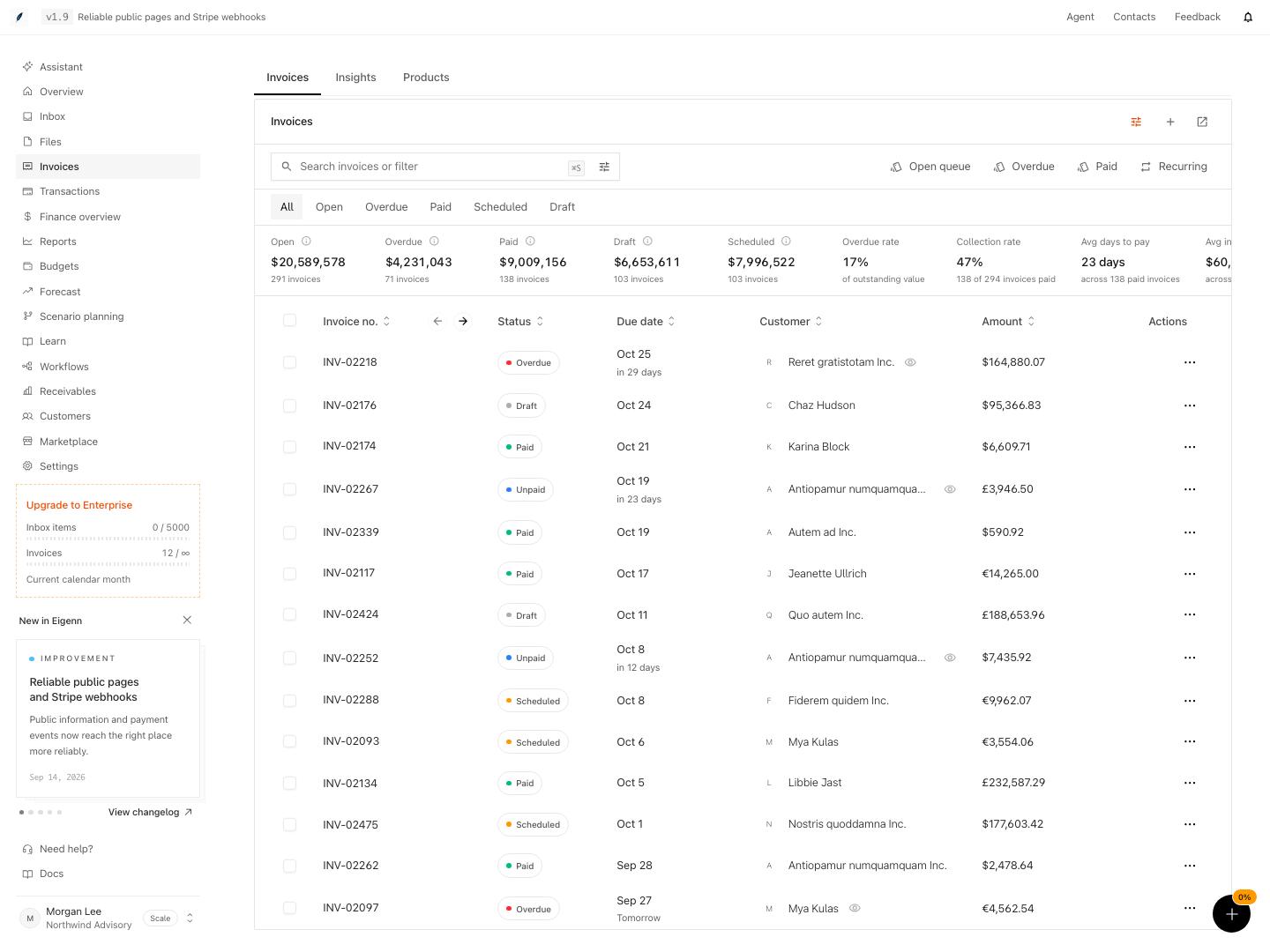
Shown with synthetic data in a local workspace.
Verification
- Review Receivables Overview and verify each metric against its own date basis. Keep current Outstanding separate from the selected-period metrics.
- Filter for overdue invoices and confirm that the summarized AR Aging buckets, DSO, and collection curves display as described.
- Open an invoice and check that amounts, payment history, and customer contacts are accurate and match recorded details.
- Test sending a reminder and confirm that the communication activity updates on the invoice but does not guarantee delivery.
- Activate Auto-chase on a suitable invoice; verify a recovery status and next action date appear, and steps match active policy setup.
- Change an invoice status (e.g., mark as paid); verify the status change, reconcile the separate payment ledger, and stop any recovery sequence that remains active.
- Save a settlement offer on a synthetic unpaid invoice. Confirm its 14-day expiry and absence of automatic delivery. Accept it from the public invoice options; verify competing open offers are canceled and the agreed amount governs Pay Now; confirm payment, settlement write-off and recovery state separately.
- With the enrollment worker paused, start and immediately stop Auto-chase. Resume the worker and check for a newly created instance; stop it if needed. After other actions, inspect their actual states and update the cash forecast yourself when expectations change. Expected outcome: Each verification yields results consistent with the described workflow, analytics, and data flow as documented.