Maintain Transaction Rules
Design, backfill, confirm, prioritize, and replace transaction rules without damage to your reporting intent.
Summary
Use transaction rules to repeat category, GL code, tag, owner, and exclusion decisions. Review the definition before enabling it, then inspect saved transactions after application. Several matching rules can contribute to one transaction.
The library's run controls apply enabled workspace rules to a recent window. They cannot test a paused rule in isolation or choose a historical date range.
Capabilities
This guide covers drafting, previewing, activating, running, inspecting, pausing, and replacing rules. It also explains the limits of priority, duplicate, and delete controls so you can plan historical corrections.
Prerequisites
Use an owner or member account in the intended workspace, with writes permitted by its billing state. Viewers can read but cannot make these changes.
Prepare:
- Transactions that must match and near misses that must not.
- Existing categories, tags, GL codes, and active members for the intended actions.
- Exact source field values and signed amounts.
- A record of the current coding for transactions you expect to change.
Include some records without manual coding. Ordinary rule application protects manually overridden fields, so a manually corrected example alone does not prove the rule can assign that field.
Concepts
Conditions, actions, and precedence
Each rule has a name, optional description, conditions, actions, priority from 0 to 1,000, and an enabled or paused state. The builder combines conditions with AND. It does not offer OR or nested groups.
For each field, a manual override outranks rules. Among matching rules, more conditions win; equal condition counts use the lower priority number; equal priorities use the older rule. Priority alone cannot override a more specific rule. Matching rules can add different fields, and their tags accumulate.
Exclude from analytics sets both the internal flag and excluded status. Setting a GL code records coding without posting to an external ledger. Marking ready changes Books state when required coding is present; it does not prove export succeeded.
Workflow
1. Compare source fields
Open a matching transaction and a near miss. Compare Merchant, Counterparty, Description, Name, Amount, Direction, and Account. Use the field consistently populated by your provider.
Text and regular-expression comparisons are case-insensitive. Missing text is treated as empty; negative comparisons and regex patterns can still match it.
| Intent | Example conditions |
|---|---|
| Expense larger than 1,000 in magnitude | Amount less than -1000 AND Direction equals Money out |
| Deposit of at least 5,000 | Amount greater than or equal to 5000 AND Direction equals Money in |
| Subscription payment | Amount equals -49 AND merchant contains the provider name |
Zero and positive amounts count as Money in. Negative amounts count as Money out. Account conditions require the stored account ID, not the display name. For Recurring and Has attachment, enter true or false; these fields compare boolean values even though the builder displays text operators.
2. Design a specific rule
For example, Merchant contains “Amazon Web Services” AND Direction equals Money out is more useful than Description contains “service”. Add conditions that distinguish the intended transactions. Avoid adding redundant conditions simply to win precedence.
The builder supports one category, one GL code, one tag, one owner, analytics exclusion, and readiness. It cannot remove a tag, clear category or owner, or reverse exclusion. Review all enabled rules that touch the same fields.
3. Set priority and preview the unsaved draft
- Open Transactions → Rules and turn Enabled off.
- Enter a descriptive name, optional note, and priority.
- Add every condition and select at least one action.
- Resolve validation messages and select Preview matches.
- Read matching and changed counts, field differences, and manual-override notices.
Use priority to distinguish rules with the same condition count. Lower numbers win only at that stage.
The preview includes all enabled rules plus the draft, walks unsynced history, and shows up to 100 detail rows. Counts belong to the combined set. The current UI previews at priority 100, not the selected save priority. Changing only priority does not update that preview definition.
Preview is not a complete write simulation. It omits account defaults, does not show tag-only or readiness-only effects as field changes, and can show an empty previous value for fields other than category and GL code. It does not guarantee that target categories, tags, or readiness requirements will pass during application.
4. Save, then enable deliberately
Select Create rule with Enabled off if you need further review. Saving a paused rule does not apply it. The current library cannot reopen its definition for editing, so keep the values you used if you expect to revise them.
When approved, enable the rule. It participates in future bank syncs and CSV imports inside each ingestion batch’s database write. A rule failure rolls back that batch for retry. Recurring sync uses a separate path that logs coding failure and continues, so a successful recurring sync alone does not prove every rule action succeeded.
5. Run enabled rules and inspect the recent window
Use Run workspace rules when you are ready for a real write. It applies enabled rules and account defaults to at most 2,000 unsynced transactions, ordered newest first.
The row play control also runs the enabled workspace rule set. It does not isolate the selected rule, and a paused rule remains excluded. Do not use that control as a paused-rule test. A readiness-only rule is not classified as backfill-ready by the library.
There is no date-range selection or continuation control here. Repeated runs can revisit the same recent rows. Filtering the transaction table does not scope a library rule run.
After the run:
- Reload representative matching and near-miss transactions.
- Inspect category, GL code, tags, owner, internal/excluded state, and Books state.
- Review stored tax values. Unlike direct manual category changes, rule category writes retain those values.
- Open Why this coding to inspect field winners and losing claims.
- Check newly ingested transactions after a later sync.
For records older than the window, use carefully scoped manual corrections or contact Support to plan a historical run. Synced records are excluded from coding runs.
6. Maintain the library
Metrics show total rules, active rules, paused rules, backfill-ready rules, and multi-condition rules. Use Active, All, Backfill, Specific, and Paused filters. Search includes rule names, descriptions, condition summaries, and visible actions; sorting includes priority, specificity, name, and creation date.
Review rules after category/tag changes, provider field changes, account changes, team departures, or unexpected report shifts. Confirm targets still exist. A missing category can be skipped, and removed or foreign tags are ignored at write time.
Replace a definition
The library lets you pause or resume a rule but does not edit its conditions or actions in place.
- Pause the old rule to stop future enabled-rule application.
- Enter a corrected replacement in the builder and preview it before saving.
- Save it paused while the definition is being reviewed.
- Enable the approved replacement, run the workspace rules, and inspect persisted results.
- Confirm its behavior on new sync data.
- Keep the old rule paused while reviewing the consequences of deletion.
Duplicate immediately creates a paused copy of the same definition. Its priority is one higher, capped at 1,000; it does not open an editor. Adding the “ copy” suffix can exceed the 120-character name limit.
Pause and deletion effects
Pause stops participation in enabled-rule runs, including runs launched from a row's play control. It does not revert previous changes.
Delete has no confirmation. It clears recorded winning fields and attempts to reapply remaining rules, then removes the rule. Treat this as a new mutation, not a restore point:
- It does not restore added tags or split allocations, and does not reset excluded status.
- Synced rows are not recoded.
- Clearing uses the affected fields across affected rows and can clear later manual values. Ordinary rule protection is not a deletion guarantee.
- The rerun is capped, and failure between steps can leave partial cleanup.
Pause during an investigation. Record the affected values and review the historical effects before deleting a rule. Check persisted rows after deletion rather than assuming they returned to their original state.
Behavior specification
| Limit or behavior | What to expect |
|---|---|
| Name / description | 1–120 / up to 500 characters |
| Priority | Integer 0–1,000; used after specificity |
| Builder conditions | At least one complete condition; AND only |
| Actions | At least one; several matching rules can contribute |
| Preview | Read-only, before save; combined enabled rules plus the draft |
| Library runs | Up to 2,000 recent unsynced rows; no history continuation control |
| Workspace success message | Scanned and updated counts, not proof of all requested effects |
| Row play success message | Matches across enabled rules, not only the selected rule |
| Failure | Earlier writes can persist; inspect state before retrying |
Updated counts include writes that set an already-present value. Tag effects and readiness can differ from transaction-field counts. The latest coding explanation records field claims, not a full action history or a delivery receipt.
Diagrams
Rendering diagram…
Screenshots
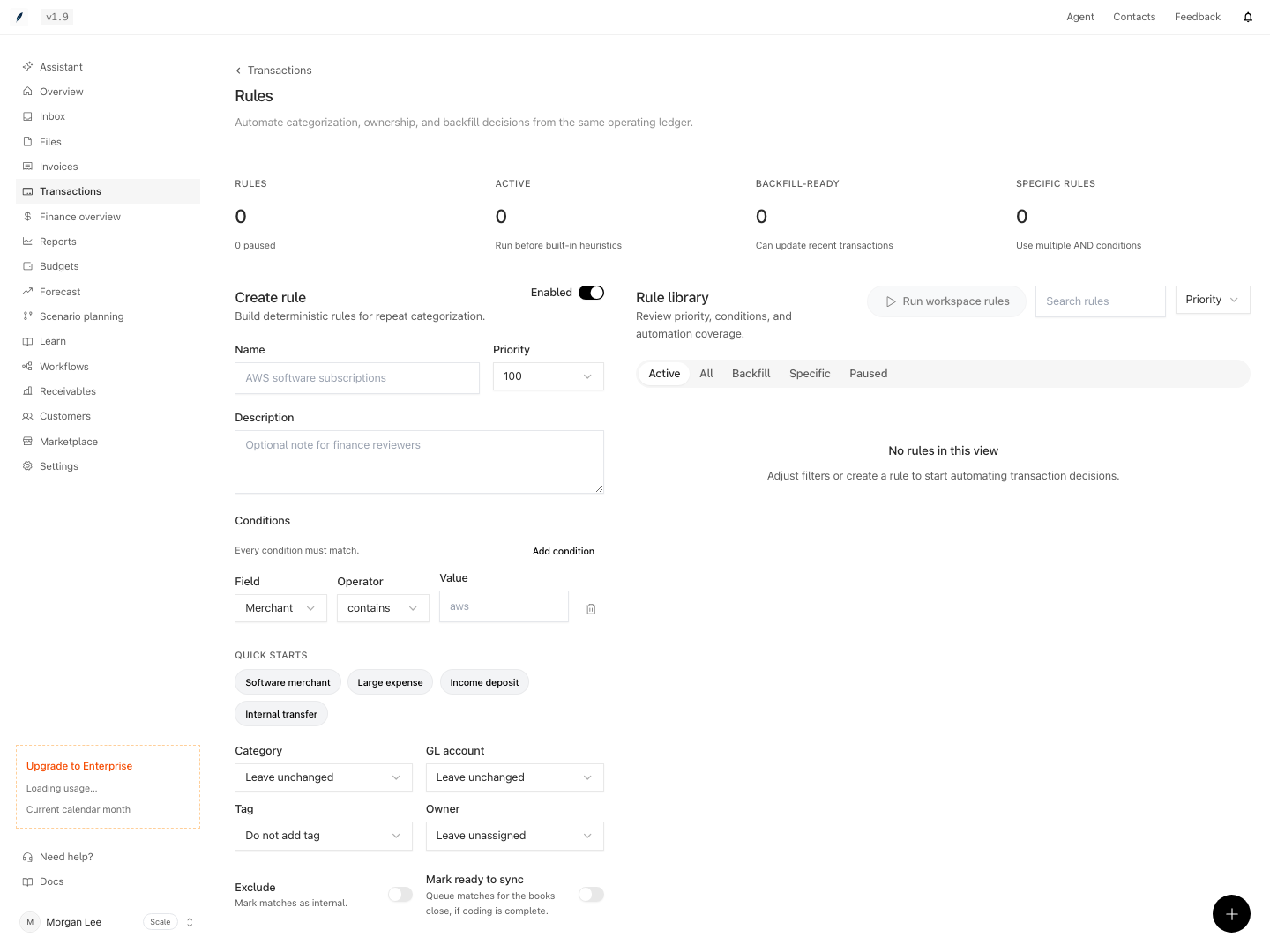
Shown with synthetic data in a local workspace.
Verification
Confirm the result
- Check matching, near-miss, manually overridden, and already-synced examples.
- Preview before saving, accounting for combined-rule counts and the priority-100 limitation.
- Confirm that the saved rule's enabled state and priority are the intended values.
- After a real run, reload the expected records and inspect every action separately.
- Read Why this coding for field conflicts.
manual_overridemeans a manual field blocked the rule;newer_rulemeans the newer rule lost a tie to an older rule. - Recheck tax values and reports, then confirm behavior after a new sync.
- After replacement, verify the old rule is paused and review deletion separately.
Troubleshoot
An active rule changes nothing: check populated source fields, signed amount, every condition, manual overrides, competing rules, synced state, and whether the row is within the recent window.
Preview differs from the saved rule: confirm priority, combined enabled rules, account defaults, and action types. Preview does not simulate all write-time validation.
A rule run changes too many rows: pause the suspected rule, inspect other enabled rules and account defaults, and correct affected records deliberately. Do not assume delete will undo the run.
A replacement loses: compare condition counts before changing priority. An older rule wins a tie only when condition counts and priorities are equal.
Old history remains unchanged: rerunning the library action does not advance a cursor. Plan a scoped correction with support instead of assuming repeated runs cover the ledger.