Approval Policies
Require ordered sign-off for sensitive actions by amount, currency, role, and named approver.
Summary
Approval policies define when a sensitive action needs sign-off and who must approve it. They are separate from the day-to-day Approvals queue.
Use Settings → Approvals to define the control. Use Workflows → Approvals to review a request that matched the control.
Capabilities
What an Approval Policy Controls
Each policy applies to one action type. The policy can define:
- a threshold amount
- a currency
- one or more ordered approval steps
- an approver role for each step
- specific named approvers
- the minimum number of distinct approvals for each step
- whether the policy is enabled
Approval policies can protect sensitive work such as invoice write-offs, payment settlements, invoice cancellation, workflow actions, and Assistant actions when the selected action type supports them.
Prerequisites
Access
Workspace owners and custom roles with Manage approvals can create, edit, enable, and disable approval policies. Other members can browse the policies when their access allows it, but the server rejects unauthorized changes.
Keep at least two workspace owners when approval governance is business-critical. A policy that depends on one unavailable person can delay operations.
Concepts
Threshold and Currency
The threshold determines when the policy applies.
- No threshold means the policy can apply at any amount.
- A threshold means the action must meet or exceed that amount.
- A currency narrows the monetary control to that currency.
- No currency avoids a currency-specific threshold.
Check the source action's amount and currency before you assume that a policy should have matched.
Approval Steps
Steps run in order. A later step does not begin until the earlier step has enough distinct approvals.
Each step can use:
- Any member
- a supported workspace role
- one or more Specific approvers
- Min approvals of one or more
Any rejection settles the request as Rejected. The requester cannot approve their own request. Role or named-approver eligibility and current-step matching are enforced; workflow-bound decisions also require namespace write access.
Build a satisfiable step
The minimum approvals cannot be greater than the number of eligible named approvers. For example, a step that requires two approvals but names only one person can never complete.
When you use a role, make sure the workspace has enough active members with that role. The settings page warns about a role or named-approver rule that cannot satisfy its minimum.
Each step also has Timeout (hours) (1–720, default 24) and On timeout: Escalate to owners or Reject request. Review the deadline and decision history rather than assuming an unanswered step is approved.
Multiple Steps
Use multiple steps when one group must review before another group.
Example:
- A finance member confirms the record and amount.
- An owner gives final approval.
Do not create many steps only to record awareness. Use comments, notifications, or review notes when a person does not need decision authority.
Workflow
Create a Policy
- Open Settings → Approvals.
- Select New policy.
- Choose the Action type.
- Enter Threshold amount, or leave it empty for any amount.
- Choose a Currency, or choose No currency when the action is not currency-specific.
- Configure the first approval step.
- Set each step's timeout and escalation/rejection behavior; add steps when approval must happen in sequence.
- Select Save policy.
- Confirm that the policy appears under Approval Chains.
- Confirm whether it is enabled.
The action type cannot be changed after the policy is created. Create a new policy when a different action type needs the same chain.
Enable, Disable, and Edit
- Disable a policy when the control must stop matching new work temporarily.
- Edit thresholds, currency, and steps when governance changes.
- Create a new policy when the action type changes.
After you change a policy, test it with a representative low-risk action. Confirm that the request reaches the correct queue and that every approval step behaves as expected.
New requests snapshot their approval steps. Editing a policy does not rewrite that saved chain. Older requests without a step snapshot use the policy steps.
Behavior specification
Approval Queue Behavior
Supported product actions can open policy requests; a blocked direct invoice operation may instead require an approved request before you retry it. A policy does not wrap every action automatically.
Open Workflows → Approvals:
- Awaiting you contains requests whose current step you may decide. Inspect source context, step, deadline and history; approve, reject or delegate when eligible.
- My requests contains your own pending requests. The requester or an Owner can cancel a pending request.
- Policy request states include Pending, Approved, Rejected, Expired and Cancelled. These are distinct from Assistant proposals in Inbox → Approvals, whose execution states include Done and Failed.
Final approval authorizes the bound operation; it is not proof of execution. Workflow-bound decisions attempt to queue continuation. Inspect that execution or the underlying invoice action for the final outcome. Delegation does not bypass workflow namespace access. Do not expect a generic Claim or Undo action on a policy request.
Diagrams
Rendering diagram…
Screenshots
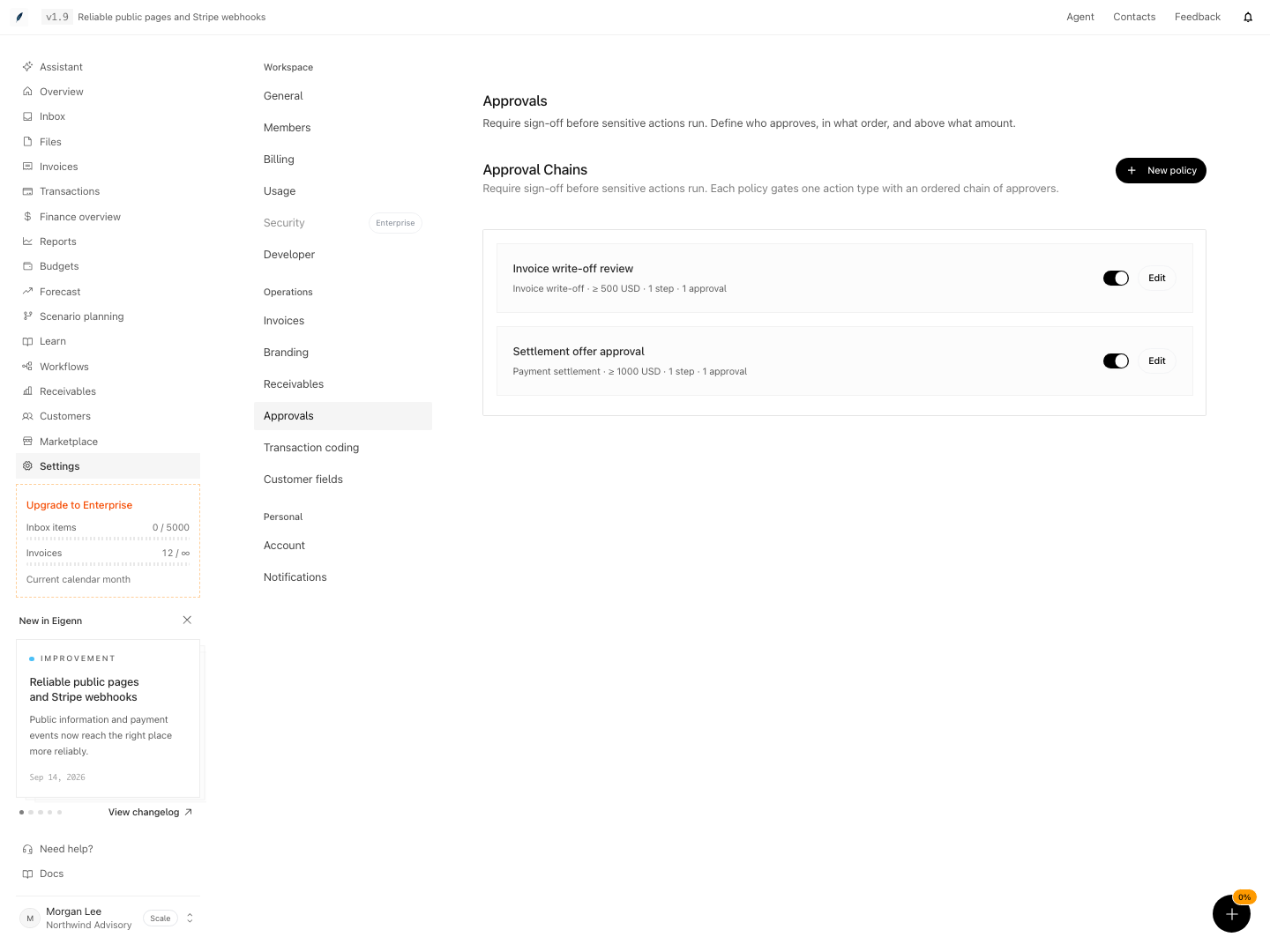
Approval policies for invoice write-offs and settlement offers, including thresholds and review steps.
Shown with synthetic data in a local workspace.
Verification
Governance Checklist
Before you enable a policy, confirm:
- the action type is correct
- the threshold and currency match the intended risk boundary
- every step has enough eligible approvers
- the order matches the real operating process
- the backup approvers are active
- the team knows where to review requests
- the first test request completed as expected
Review approval policies when roles, team membership, payment authority, or finance procedures change.
Troubleshoot
Save policy is disabled
Check each step. A minimum approval count can exceed the number of named approvers, or a required field can be incomplete.
A request did not enter Approvals
Confirm that the policy is enabled, the action type matches, and the amount meets the threshold in the selected currency. Also confirm that the action supports approval policies.
A request cannot advance
Check the active step, required role, named approvers, and minimum approval count. A rejection stops the request.
An approved request did not let a write-off, payment, or cancellation through
A direct write-off, recorded payment, Mark as paid, or cancellation on an invoice needs an approved request for that invoice under every enabled policy that gates it. Check that:
- the request is in the action's currency. A write-off, Mark as paid, or cancellation uses the invoice's currency, and a payment uses its own. Nothing converts between currencies, so a 1,000 JPY approval does not cover a 1,000 USD payment. A request without a currency covers only an invoice stored without one.
- the request's amount is at least the action's amount, or the request has no amount.
- the request has not been used. Each approved request carries out one action. An action that is refused or fails leaves its approvals unused, so you can retry it.
- each gating policy has its own approved request.
A non-owner can see the policy but cannot edit it
Browsing and management are separate permissions. Ask an Owner or a custom role with Manage approvals to make the change.
An approved request did not finish
Check the bound workflow execution or source operation. The policy request can remain Approved even when a downstream operation has not completed.
- Create a test policy for a specific action with threshold and multi-step approvals. Expect policy to appear under Approval Chains and be enabled.
- Perform an action that matches the policy. Expect the request to appear in the Approvals queue.
- Approve a request at each step only if sufficient eligible approvers are active. Expect subsequent steps to unlock as prior steps complete.
- Attempt to approve with fewer than the minimum required or by an ineligible user. Expect request to remain pending or blocked.
- Disable the policy, then perform a matching action. Expect no approval to be required.
- Edit threshold/steps in an enabled policy and repeat checks to ensure new rules apply.
- Check policy management with and without Manage approvals, and decisions with an eligible non-requester. Viewer access does not grant decisions.
- Attempt to progress a request post-approval during known system downtime or simulate approval for an unsupported action. Check the downstream execution separately; the approval request status is not an execution status.
- For troubleshooting, intentionally misconfigure a step (e.g. set minimum approvals higher than eligible approvers) and expect Save policy to be disabled or the step flagged for correction.
- Monitor completed requests to verify approval flows worked as intended compared to the policy design.