Planning Models and Formulas
Structure variables, inputs, formulas, dimensions, and calculation behavior inside a scenario-planning model.
Summary
A planning model turns business relationships into a calculation that can be reviewed, changed, and reused. It keeps assumptions, imported actuals, formulas, dimensions, scenarios, and outputs in one grid.
Use this page when you need to understand how a model is structured or why a value changes.
Capabilities
You can define business models as collections of variables, define how values are calculated or imported, create and manage scenarios, apply reusable breakdowns with dimensions, and link separate models for modular planning. The system ensures authoritative sources and enables clear traceability from assumptions to outputs.
Prerequisites
Scenario planning requires Scale or Enterprise. Use a workspace Owner account for full-model workflows; other teammates open only saved views shared with them. Changes also require active billing access. See Planning access.
Before building a planning model, be ready with an explicit decision to inform, a clear list of outputs, the main business drivers or assumptions, access to relevant actuals data if needed, and an optional set of dimensions if breakdowns are required. Understanding which variables will be inputs, formulas, or linked data helps streamline design.
Concepts
Core Model Elements
| Element | Purpose |
|---|---|
| Model | The complete planning workspace for one decision or operating plan. |
| Variable | A named row such as Revenue, Headcount, Price, or Ending cash. |
| Input | A value entered by a person or supplied by a source. |
| Formula | A relationship that calculates a variable from other values. |
| Dimension | A reusable breakdown such as department, region, entity, or cohort. |
| Scenario | A set of selected overrides applied without rewriting the base case. |
| Version | A saved snapshot of the model at a point in time. |
| Saved view | A focused presentation of selected model content. |
Keep these concepts separate. A scenario is not a version, and a saved view is not a frozen copy.
Inputs, Actuals, and Formulas
A reliable model distinguishes observed data from planning judgment.
- Use imported actuals for values already recorded in a connected source.
- Use inputs for assumptions owned by a person or team.
- Use formulas for relationships that should continue across periods.
- Use scenario overrides for alternative cases.
When a cell can resolve from several layers, connected data remains authoritative for imported periods. A scenario override supplies an alternative value where it applies. The formula supplies the calculated fallback.
Do not replace an actual with a manual input only to make the output match an expectation. Correct the source, mapping, boundary, or formula instead.
Use Formula Functions Carefully
The formula library groups every function into five categories:
| Category | Covers |
|---|---|
| Math | Arithmetic, advanced math, series, and statistics |
| Time | Period-aware references and windows |
| Finance | Finance calculations and finance ratios |
| Probability | Distributions used by uncertainty analysis |
| Other | Remaining planning helpers |
Use suggestions in the formula editor to confirm the accepted function name and parameters. A familiar spreadsheet function can have different parameter expectations in a planning model.
Probability functions such as normal, uniform, triangle, and sample return a stable central value in the ordinary grid. They draw different values only during an uncertainty simulation.
Workflow
Plan the Model Before You Build It
Start with a decision, not a spreadsheet layout.
- Write the decision in one sentence.
- Identify the outputs needed for that decision.
- List the assumptions that drive those outputs.
- Identify the actuals that should anchor the model.
- Add dimensions only when the decision needs a breakdown.
- Choose the time range and granularity.
A smaller model is easier to audit. Add detail after the first calculation path works.
Create Variables
Use names that describe the business concept and unit.
Good examples include:
- Active customers
- Average contract value
- Monthly payroll
- Gross margin percentage
- Ending cash
Avoid ambiguous labels such as Total, Other, or New variable.
For each variable, confirm:
- whether it is an input or formula
- its number format and unit
- the periods where it should calculate
- the dimensions that apply
- the source, owner, or rationale
- whether a scenario can override it
Group related variables into sections so a reviewer can follow the calculation from drivers to outputs.
Build Formulas
Open the formula editor from the variable or cell that should calculate.
The editor supports:
- references to other variables
- arithmetic relationships
- time windows such as
[previous],[this],[final], and[all] if ... then ... elseconditions, andblankto test for a missing value- mathematical, statistical, finance, and time functions
- aggregation across a window, such as
sum(Revenue[all]) - dimension-aware calculations with
by <Dimension> - probability functions for uncertainty analysis
- searchable formula templates
Formula templates insert a starting expression with placeholders. Replace each placeholder with the correct variable or value before saving.
Build formulas in dependency order. For example:
- Calculate customer count.
- Calculate average revenue per customer.
- Calculate revenue.
- Calculate direct costs.
- Calculate gross profit.
- Calculate operating cash movement.
This sequence makes the first upstream error easier to find.
Worked Revenue Chain
For a monthly subscription model, create these inputs first:
- Starting customers
- New customers per month
- Monthly churn rate
- Average revenue per account
Then add the formulas in dependency order:
| Variable | Formula |
|---|---|
| Customers | if Customers[previous] = blank then Starting customers else Customers[previous] * (1 - Monthly churn rate) + New customers per month |
| MRR | Customers * Average revenue per account |
| ARR | MRR * 12 |
[previous] reads the preceding model period. The first-period condition uses Starting customers because no preceding customer value exists. Select variable names from Formula Explorer so the references match the model exactly.
Test the chain by changing New customers per month. Customers, MRR, and ARR should all move in the expected direction. If they do not, check the first formula whose result stays unchanged.
Link Another Planning Model
Open the model source controls when one planning model should use variables from another.
- Select a team planning model.
- Select Add source.
- Wait for its materialization status to become available.
- Reference an attached variable as
Model.Variablein Formula Explorer. - Check the dependent output after the source model changes.
A model cannot link to itself, and a model already attached does not appear in the available-source list. Select Remove only after you check every formula that uses the source.
Use linked models to separate clear planning responsibilities, such as a headcount model feeding an operating plan. Do not split one calculation across models when it makes ownership or review harder.
Apply Dimensions
A dimension repeats a variable across meaningful members.
For example, a Headcount variable can use the Department dimension with Sales, Product, and Operations members.
Before applying a dimension:
- Confirm that the breakdown changes the decision.
- Confirm the dimension members.
- Decide whether the formula should calculate each member or an aggregate.
- Check source mappings.
- Review totals after the dimension is applied.
Do not create a dimension only to reproduce formatting from a prior spreadsheet.
Behavior specification
Understand Calculation State
The calculation bar can report:
- Up to date when the current model has calculated successfully
- Calculating while a calculation is running
- Stale when values are from the last successful calculation
- Failed when the latest calculation did not complete
Automatic mode recalculates as the model changes. When manual calculation is available, select Run calculation after a set of edits. A failed calculation keeps the last successful values visible, so confirm the status before using the output.
Diagrams
Rendering diagram…
Screenshots
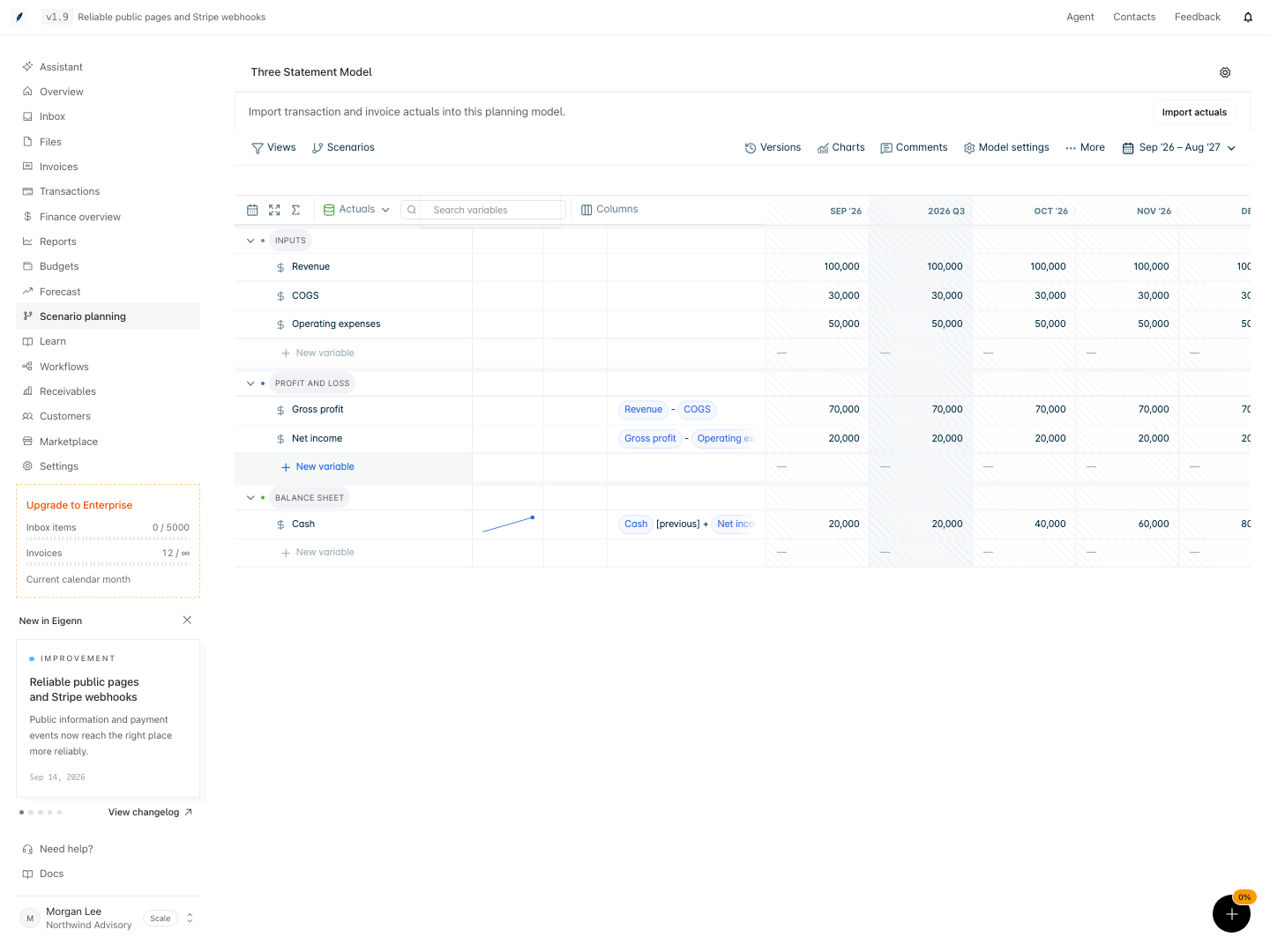
Three Statement model with revenue, expense inputs, gross profit, net income, and cash formulas.
Shown with synthetic data in a local workspace.
Verification
Check a Formula
Before you rely on a formula:
- Confirm every referenced variable exists.
- Confirm the units are compatible.
- Check the first forecast period.
- Change one driver and confirm the output responds.
- Check dimension totals when dimensions apply.
- Confirm no upstream row is stale or failed.
- Compare one result with a simple independent calculation.
A formula can be syntactically valid and still represent the wrong business relationship.
Troubleshoot
The formula editor reports an unknown variable
Check spelling, renamed variables, linked-model references, and dimension context. Select the variable from suggestions instead of typing an uncertain label.
The formula works in one period but not another
Check the model date range, actuals boundary, time references, and missing input periods.
The output does not change after an input changes
Confirm that the input is referenced by the output path, that the active scenario is correct, and that the model calculation is up to date.
A dimension total looks wrong
Check member mappings, aggregation behavior, and whether the formula is defined at the member or parent level.
The model is slow or difficult to explain
Remove unused variables and dimensions, break a large calculation into named helper variables, and keep only the detail needed for the decision.
- Confirm that entering or updating an input value changes all expected outputs in the correct direction.
- Review that all variables and formulas reference valid, correctly named sources with compatible units.
- Inspect the model to confirm that scenarios or dimensions are correctly overriding or aggregating values where intended.
- Change a scenario and verify outputs recalculate as expected across relevant dimensions and periods.
- Deliberately introduce an invalid reference in a formula and check that the calculation status indicates failure while prior valid values remain visible.
- Remove or alter a variable and confirm related dependent formulas are updated or flagged.