Run a Finance Operating Review
Move from source health to actuals, plan variance, invoice exposure, and scenario-backed decisions.
Summary
A finance operating review connects these six distinct records and does not collapse them into one number:
- source freshness
- observed cash and performance
- invoice and collection exposure
- budget plan versus actual
- cash-flow forecast
- stress-test decision
Run this review each week for decisions about operations. You can also run it at close, after you update the transactions and the invoices.
Capabilities
Share the output
- Use Reports Export CSV for the four-row variance dataset.
- Use Reports Print for a printable current view.
- Use a saved Forecast scenario name to preserve an assumption definition.
- A copied live finance URL needs workspace access.
- Public widgets and Assistant shared snapshots are separate restricted systems that share data.
- Budget and Forecast pages do not create public links.
Prerequisites
Participants and access
Invite the people who are responsible for the source records:
- founder or finance owner for decisions
- bookkeeper or operator for source and transaction quality
- collections owner for invoices and receivables
- budget owner for plan changes
Owners and Members can do the full workflow. Viewers can read most team finance data. Viewers cannot change budgets. Viewers cannot run a Forecast.
Concepts
Status guide
| Product state | Description |
|---|---|
| Overview Critical / Warning / Info | Rule-based action priority. |
| Budget Over / Under | Expense actual relative to plan. |
| Revenue Above / Below target | Revenue actual relative to plan. |
| Forecast Low / Moderate / High / Critical | Probability band for any negative-cash month. |
| Forecast Stable / Watch / High / Critical month | Monthly cash or net-pressure band. |
| > horizon | No modeled breach inside the selected horizon. |
| Not enough history | Not enough data for a forecast or calibration. |
| Scheduled baseline / Scenario in Run history | Persisted forecast-run type, not an accounting entry. |
Workflow
1. Establish the review boundary
Before you open the metrics, agree on:
- reporting period
- reporting currency
- accounts included in cash
- decisions the review must answer
Use the same period in Overview and Reports. Treat Cash Balance separately because it is current, not a period total.
2. Validate source health
- Open Settings → Account → Bank Connections.
- Confirm that each expected account has a connection and is on.
- Resolve any connection that needs attention.
- Open Transactions.
- Examine unusual or uncategorized entries that can affect reports.
Reports and Overview do not give one universal last-sync timestamp. Do not use a clean action queue as proof of a fresh sync.
3. Triage the owner view
Open Overview.
- Set Reporting period.
- Read the Owner brief.
- Examine the health score and the weakest signal.
- Open each Critical action in Do these first.
- Check Revenue, Profit, Cash, and Runway.
- Choose the relevant action from Make more money, Lose less money, or Plan what may be coming.
The page promotes at most three queue items. Use linked product areas for complete lists.
4. Review invoice exposure
Open Invoices → Insights for invoice-performance analysis. Then use Receivables for collection work.
Separate:
- invoiced amount from collected cash
- unpaid invoice value from current bank balance
- the expected collection dates from the observed payment status
If the collection dates are material to the decision, plan to use Model real payment behavior in Forecast.
5. Review actual financial performance
Open Reports.
- Use Grid to examine the KPI strip and the curated chart deck.
- Distinguish observed cards from Runway and Revenue Forecast.
- Select Table.
- Examine Revenue, Expenses, Profit, and Profit margin against the same period last year.
- Select Export CSV if the four variance rows need to leave the app.
- Select Print for a printable view.
CSV is not a raw export of every chart. The report URL and printed output do not grant public access to live workspace data.
6. Review budget variance
Open Budgets.
- Select Expense.
- Examine Budget vs Actual and Track & pace.
- Select Revenue and repeat.
- Use List for individual monthly targets.
- Use Grid to examine the annual category plan and the active budget scenario.
Interpretation:
- Expense actual below plan is favorable.
- Revenue actual above target is favorable.
- The pace is a linear month-to-date projection.
- Annual projection uses actuals through the current month and budget for future months.
Confirm whether the team sees Base plan or a named budget scenario. A budget scenario is a parallel plan version. It is not a forecast stress case.
7. Review baseline cash risk
Open Forecast.
- Choose 6, 12, or 24 months.
- Reset all assumptions.
- Confirm baseline Ending cash, Minimum balance, P10/P50/P90 runway, and Cash-negative odds.
- Check the model-health panel for the revenue and expenses series.
- Turn on Model real payment behavior when observed customer payment patterns must adjust collections.
If the page says Not enough history to forecast, the baseline is not decision-ready.
8. Test the decision
Apply the minimum assumptions needed:
- a decision to hire: Headcount change
- large purchase: One-time expense
- customer risk: Clients cancelling or Revenue shock
- collections risk: Collections delay
- cost pressure: Expense surge
- foreign exposure: FX shock
Compare Baseline, Active plan, and Defensive plan. Record:
- ending-cash difference
- P10 and P50 runway
- cash-negative odds
- first Watch, High, or Critical month
- mitigation that improves the result
Save the scenario when the team needs to return to exactly those inputs.
9. Close with a decision ledger
The finance pages do not create a single meeting record. To close the review, record these items in your team's working system or in the source Eigenn records:
- issue
- owner
- due date
- source record
- observed evidence
- budget impact
- forecast assumption
- decision threshold
Do not paste a projected number into an actual field. Keep the source link or saved scenario name with the decision.
Behavior specification
Troubleshoot
Team members see different numbers
Confirm the period, currency, accounts that are on, budget type, budget scenario, forecast horizon, and active assumptions. Most conflicts come from a comparison of different record types or scopes.
Budget and forecast disagree
Translate the plan difference into an explicit forecast driver. Eigenn keeps the two systems separate on purpose.
Invoice exposure is high but cash risk is low
Examine the collection-date assumptions. The current cash can cover the horizon. The baseline can also assume collection dates that need a delay or a behavior overlay.
A Viewer can open pages but cannot run the scenario
A Forecast run is a write-backed team operation. Ask an Owner or a Member to run it and save it.
Exported CSV is too small
The Reports export contains Revenue, Expenses, Profit, and Profit margin variance only. Use the exports from the source records for transaction-level or chart-level data.
Diagrams
Rendering diagram…
Screenshots
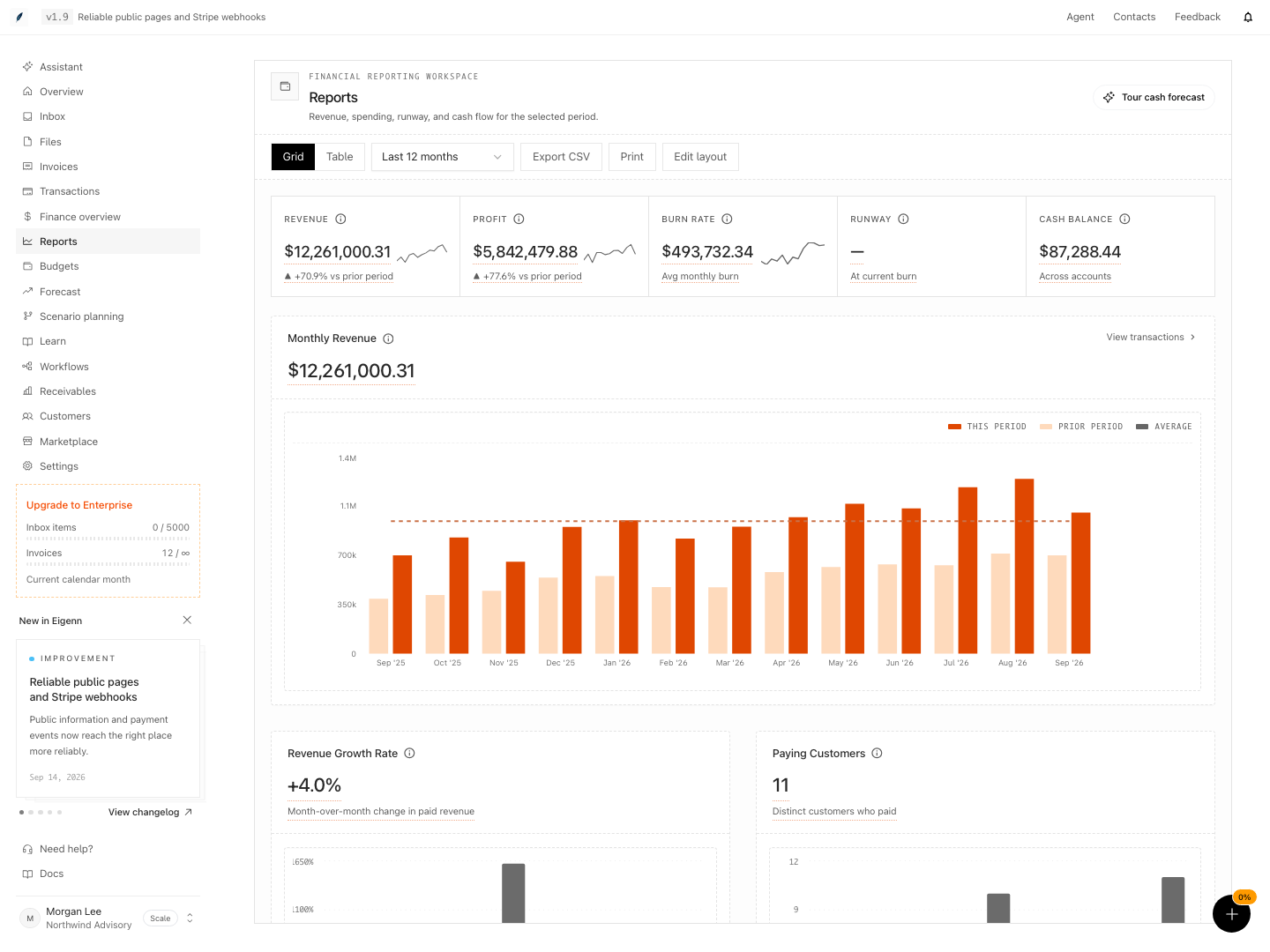
Shown with synthetic data in a local workspace.
Verification
Confirm the Result
The review is complete when:
- you know the source health
- the reporting period and currency are consistent
- every critical Overview item has an owner
- you separate the invoice exposure from the cash
- you understand the Reports variance
- you examined the Expense and Revenue budgets explicitly
- you know the active budget scenario
- Forecast baseline is usable
- you compared at least one relevant downside and its mitigation
- you labeled the observed, budget, forecast, and scenario figures correctly
- Open account settings and confirm all primary bank connections are present and active; each account expected for the review should show as "on".
- Open the main Overview and set the correct reporting period and currency; ensure displayed metrics correspond to the period agreed at the start.
- Check the Owner brief, open each critical action in its source page, and record an owner in your review log; Overview does not assign one automatically.
- In the Invoices section, verify that unpaid and collected invoice amounts are shown separately from cash balances.
- In Reports, compare Revenue, Expenses, Profit, and Profit margin variance rows to the same period last year and ensure correct figures are exported or printed when required.
- On Budgets, verify both Expense and Revenue tabs show actuals versus plan and that the selected scenario is correct.
- In Forecast, confirm that at least one baseline run exists with complete figures for Ending cash, Minimum balance, runway odds, and that model warnings are addressed.
- Test a scenario change (e.g., Collections delay) and confirm resulting risk metrics (ending cash, runway, etc.) update as expected.
- Check that a decision log is created, recording the details, source records, and links to any relevant Eigenn scenarios or evidence.
Related
Related Pages
Review, Restore, and Export a Planning Model
Preserve a decision point, preview or restore model history, prepare a focused review view, and generate a point-in-time file.
Run a Receivables Tone Experiment
Compare two tone profiles on eligible communication traffic, preserve a valid observation window, and roll out a reviewed winner manually.