Customer Fields
Define team-wide customer fields for business-specific data that should be comparable across customer records.
Summary
Customer fields let a workspace track business-specific data that does not fit the standard customer record. Define the fields once under Settings. Eigenn then shows the same field set on each customer.
Use customer fields for values such as account manager, contract tier, renewal date, customer segment, or a risk-review flag.
Capabilities
Supported Field Types
You can create:
| Type | Use it for |
|---|---|
| text | Names, tiers, external references, and short notes |
| number | Scores, quantities, limits, and other numeric values |
| date | Renewal dates, review dates, and contract milestones |
| boolean | Yes-or-no conditions such as strategic account or legal review required |
A new field starts as text. Change the type after you add it.
Choose the type that matches the value that operators will enter. A consistent type makes the field easier to compare and validate.
Prerequisites
Access and Governance
Customer field definitions affect the whole workspace. Coordinate changes with the people who manage customer records, receivables, and reporting.
Owners and Members of the active team can save definitions and customer values when the workspace permits writes. Viewers can read them but cannot save changes. These controls do not require a separate owner-only settings permission.
Review the field set periodically. Remove abandoned fields, correct unclear labels, and avoid many overlapping versions of the same concept.
Concepts
Where Customer Fields Live
- Open Settings → Customer fields to define the workspace field set.
- Open a customer record and select Edit. Under General → Custom fields, enter its values and select Update. The full record's Custom fields panel is read-only.
Field definitions belong to the workspace. Field values belong to the individual customer.
Choose Useful Fields
Good customer fields are:
- used across many customer records
- owned by a known person or process
- specific enough to interpret consistently
- stable enough to compare over time
- not already represented by a standard Eigenn field
Avoid fields that duplicate invoice status, payment status, risk calculations, or notes that already have a dedicated product surface.
Example Field Set
| Field | Type | Example |
|---|---|---|
| Account manager | text | Morgan Lee |
| Contract tier | text | Enterprise |
| Renewal date | date | 2027-01-31 |
| Health score | number | 82 |
| Legal review required | boolean | Yes |
Document the meaning of each field in the team's operating process, especially numeric scores and boolean flags.
Workflow
Add a Field
- Open Settings → Customer fields.
- Enter a field name, such as Account manager.
- Select Add, or press Enter.
- Choose the field type.
- Add any other fields that the workspace needs.
- Select Save changes.
- Wait for Custom fields saved.
- Open a customer and confirm that the new field appears in its details panel and edit form. Its value is blank until someone enters it.
Save up to 50 fields, with labels of 1–128 characters. Start each new name with a letter from A to Z. Eigenn derives a key by lowercasing the name, replacing other characters with underscores, trimming edge underscores, and keeping at most 64 characters. A name containing no letters or digits cannot be added; a key beginning with a digit fails when saving. Two names that normalize to the same key cannot both be added in the settings editor.
Adding, renaming, changing types, and removing rows only change the local draft until you select Save changes. The save replaces the workspace field set. Coordinate edits with teammates so one saved list does not overwrite another.
Rename a Field
Edit the field label, then select Save changes.
Eigenn keeps the field's stable key when the label changes. Existing customer values remain attached to that field.
Use a rename when the business meaning stays the same. Create a new field when the meaning or data type changes substantially.
Change a Field Type
Choose a different type, then save.
Before you change a type:
- Review the values already stored on customers.
- Confirm that they can be represented by the new type.
- Update the field during a coordinated maintenance window when many operators use it.
- Check representative customer records after the save.
A label or type change affects the shared definition for every customer. Changing the type does not convert or validate values already stored. Correct incompatible values through the customer edit form before relying on their display.
Remove a Field
Select the remove control beside the field, then select Save changes.
Removing a field hides it from the active field set. Eigenn keeps values that were already saved against its stable key. This protects historical data if the field returns later, but operators should not depend on hidden values as an active workflow.
Export or record important values before you remove a field from a business process.
Behavior specification
Enter and Clear Values
The customer form uses text, number, date, or on/off controls according to the definition. Number inputs accept decimals. The date control stores a date value; the details panel displays its stored text. There are no custom required-field, allowed-value, or numeric-range controls in the settings editor.
Blank text, number, and date inputs clear the saved value. The details panel shows — for an unset, null, or empty value. Boolean values display Yes or No. An untouched boolean starts unset even though its switch looks off; it does not become a saved No until you explicitly change it to false. The switch has no separate reset-to-unset control.
For existing customers, saving merges changed fields and keeps other stored values. A removed definition hides its values without erasing them. Re-adding a definition with the same original key restores their visibility. If you renamed a label before removal, reusing the newer label may generate a different key and will not restore the old values.
Understand Save Failures
A customer edit that changes both standard details and custom fields saves the standard details first. If the custom-field save then fails, the form reports Customer details were saved, but custom fields could not be saved. Try again. Review the already saved details and retry the custom fields; the error does not undo the first save.
A custom-field-only edit reports Custom fields could not be saved. Try again. when it fails. A definitions save reports Couldn't save custom fields. Correct invalid labels or keys and the field count before retrying.
Review Type Changes
Field types choose form controls; they do not guarantee that older values match. For example, changing a text field containing false to boolean can display Yes in the details panel because that text is nonempty, while the edit switch only recognizes a stored boolean true. Correct the value explicitly instead of treating the display as a conversion.
Diagrams
Rendering diagram…
Screenshots
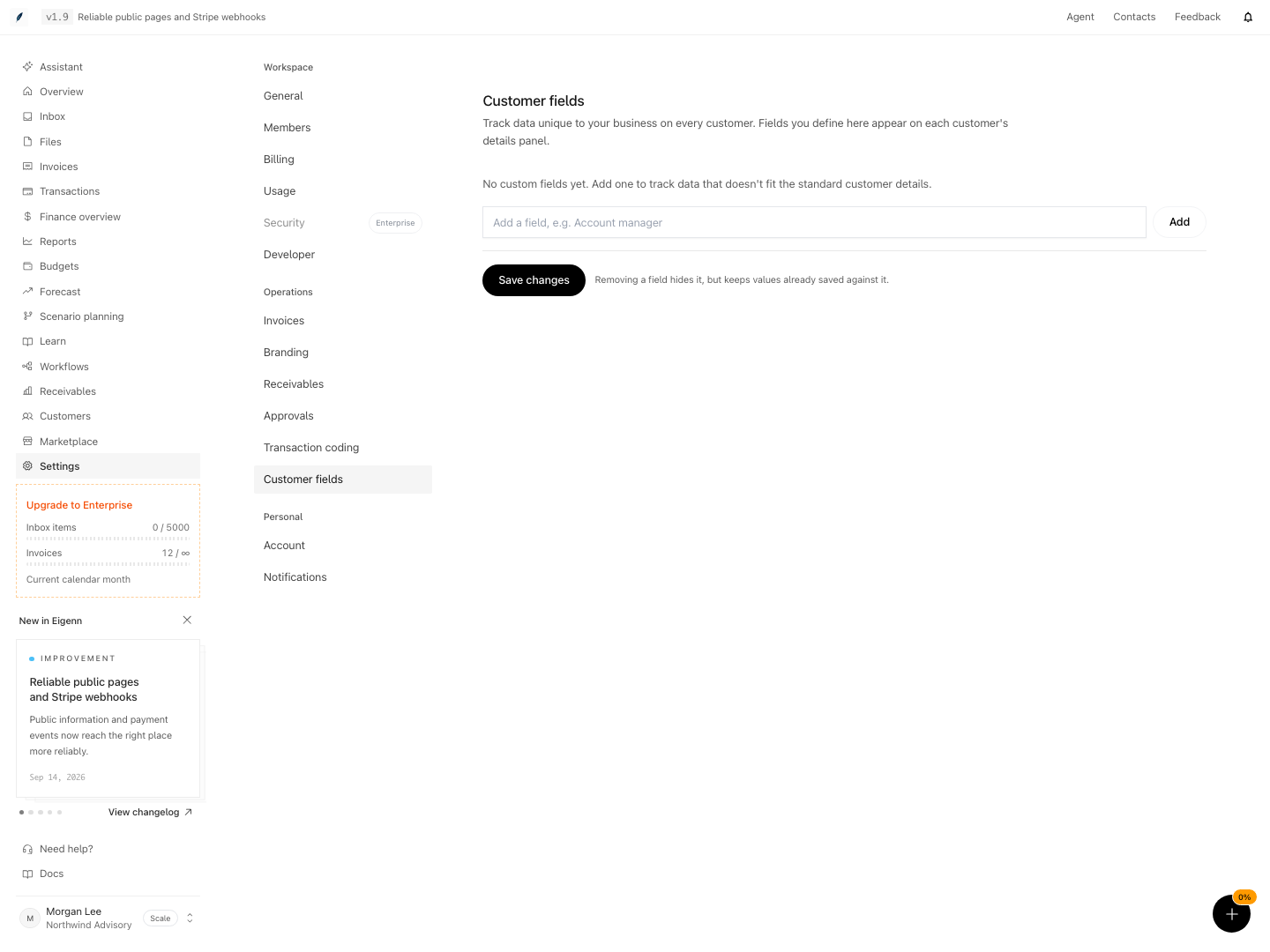
Shown with synthetic data in a local workspace.
Verification
Troubleshoot
Add says the field already exists
Choose a more distinct name. Field keys are normalized from the name, so punctuation or spacing alone may not make the key unique.
The new field does not appear on a customer
Confirm that you selected Save changes, then reload the customer record. Also confirm that you are in the same workspace where the field was created.
Existing values look wrong after a type change
Return to Settings, confirm the intended type, and inspect representative customers. Restore the prior type when the existing values cannot be interpreted safely.
A removed field still has data
Removal hides the field definition but keeps previously saved values. This is expected. Re-add the same field only when the workspace intends to use those values again.
A teammate cannot save field definitions
Confirm that the teammate is an Owner or Member of the active team and that the workspace permits writes. A Viewer cannot save definitions or customer values.
- Add text, number, date, and boolean definitions in a synthetic workspace. Save and confirm that they appear in a customer's edit form and read-only details panel.
- Enter values under General → Custom fields, select Update, and reopen the record. Clear a text value and confirm —; explicitly set a boolean false and confirm No.
- Rename a field and confirm that its saved value stays visible. On a disposable field, change an incompatible type and confirm that no automatic conversion occurred.
- Remove a definition and save. Re-add its original key and confirm the old value returns; do not reuse that key for a different business meaning.
- Verify that a Member can save and a Viewer cannot. Check that a numeric-leading name, overlong label, or more than 50 fields fails to save.
- In a controlled failure check, fail the custom-field save after standard details succeed. Confirm the partial-save message, then retry and reopen the record.