Receivables Controls
Turn on automated collection sends, set the send window, and build the recovery-policy steps that Auto-chase runs.
Summary
Receivables Controls has two configuration layers:
- The settings form decides whether Eigenn may send automated collection messages at all, and inside which hours.
- The Recovery policies section defines the step sequence that runs when an operator turns on Auto-chase overdue for an invoice.
Both layers must be correct. An active policy with steps sends nothing while Autopilot Collections is off.
Capabilities
You can save the team outreach switch and quiet window, create recovery policies, activate or deactivate them, delete unused policies, add steps, and remove steps.
The Settings editor does not rename policies, edit or reorder existing steps, select a template or sender, attach tone profiles or fee rules, set a policy timezone, or change an existing policy's step limit. New policies allow ten steps; older policies can retain a lower limit.
When an active policy already exists, a new policy starts Inactive. Otherwise it starts Active. Activation does not deactivate other policies. A warning appears when several are active; Auto-chase chooses the newest active policy. Keep one intended policy active before enrolling an invoice.
Prerequisites
Saving Autopilot Policy or Payment Follow-up Timing requires manage-settings. Policy steps use the separate recovery-workflow permissions below. Starting invoice Auto-chase requires a writable workspace and invoice write access; a custom member role needs edit-invoices. Stopping an existing sequence remains available without active billing, subject to write permission.
Before You Start
- Select the correct team before you change settings.
- Policy and step changes require recovery-workflow write access. Creating an active policy, activating one, or changing an active policy also requires publish access. Deleting a policy requires delete access and, while active, publish access. Being able to view Settings does not establish those permissions.
- Decide who owns customer-sensitive collection decisions.
- Confirm the channels that the team can deliver: email, SMS, or in-app.
- Use a controlled test customer and invoice before you enroll real overdue work.
- Read the applicable contract, consumer-protection, late-fee, and communication rules with qualified counsel.
Concepts
Team Settings
Autopilot Policy
Autopilot Collections is the master switch for automated collection messages. Eigenn sends an automated dunning message only when this switch is explicitly saved as on.
The control is opt-in and fails closed. A workspace that never saved the switch sends no automated collection message, even when a recovery policy is active and an invoice is enrolled. An unreadable settings record also pauses automated sends rather than permitting them.
The switch does not affect:
- manual reminders that an operator sends from an invoice
- transactional email, such as the invoice itself
- automatic invoice reminders, which have a separate opt-in under Settings → Invoices
Turn the switch on only after you review the recovery policy, the message content, and the customers who can receive it.
Payment Follow-up Timing
This card sets the send window for automated follow-up messages:
- Enable Quiet Hours, plus the start and end time of the quiet window
- Exclude Weekends
The form displays defaults of 21:00 to 08:00 with weekend exclusion on. The worker applies the team window only when Enable Quiet Hours is saved as on. Exclude Weekends alone does not apply a team weekend restriction while quiet hours are off. The team window uses the policy timezone, or UTC when none is set. This editor does not provide a timezone selector.
The team window is a fallback. It applies only when neither the customer's communication preferences nor the recovery policy defines its own quiet hours. A customer preference and a policy-level window both take precedence.
With the team window enabled and Exclude Weekends on, Saturday and Sunday are quiet days. Team-window deferrals are requeued for the next permitted time. Customer- or policy-window refusals instead fail the send without automatic retry; review those failures rather than assuming they will resume after the window.
Step limit and escalation
New policies allow ten steps; existing policies retain their saved maximum. The form shows Step limit reached when the next step number exceeds that maximum. Removing a middle step does not renumber surviving steps or necessarily free another position at the end.
A sequence normally becomes completed after its last configured step is queued. Completion is not delivery confirmation. The worker has a separate escalation path when a sequence advances beyond its configured maximum; completing an ordinary ten-step policy does not itself prove that a collections case was opened.
Channel Needs
| Channel | Necessary customer data | Necessary workspace service |
|---|---|---|
| Valid customer email or eligible billing contact | Configured email delivery provider | |
| SMS | Valid customer phone number | Configured SMS provider and sending identity |
| In-app | Customer record | Current sender records a result but does not deliver a customer notification |
If a customer turned off the selected channel, or Eigenn suppresses the recipient, delivery fails. Eigenn retries provider failures. Investigate the communication state before you send a second manual message.
Tone and Template Boundary
Steps that you create in this Settings card do not include a template selector. A step without a template shows No template. The recovery sender uses fallback reminder content when delivery is permitted. Treat the warning as missing customization, not a safeguard against sending. Do not assume that a team default tone profile or an active tone experiment changes every message from this simple policy.
Tone transformation uses the template-based workflow communication path and an available profile. Experiment assignment additionally needs customer context. Confirm the outbound content before you use the sequence with customers.
The default Autopilot Collections value is off. Confirm the saved value after refresh and verify the controlled result before relying on automated outreach.
Workflow
Open Receivables Controls
- Open Settings.
- Select Receivables; the page heading is Receivables Controls.
- Review the Autopilot Policy and Payment Follow-up Timing cards separately.
- Scroll to Recovery policies to manage the sequence used by Auto-chase.
Each settings card has its own Save button. When you save one section, you do not save unsaved changes in another.
Recovery Policies
The Recovery policies card is the configuration that Auto-chase uses.
Create a policy
- Enter a descriptive name such as
Standard customer reminder sequence. - Select Create policy.
- Confirm its name and Active or Inactive badge.
- If it is inactive, review its steps before selecting Activate. Deactivate other policies when you want only this policy used for new enrollments.
Policy names must be unique in the team. Creation is active only when no loaded policy is active; review the final list after saving, particularly if teammates are configuring policies at the same time.
Add a step
- Enter a non-negative whole number in Day.
- Choose Email, SMS, or In-app.
- Select Add step.
- Confirm that the numbered step appears under the intended policy.
The page assigns the next number after the highest remaining step. New steps request an invoice attachment for email; verify that the generated document is present. SMS and in-app choices do not provide an email attachment.
Change or remove a policy
- Select Deactivate to prevent new enrollments from choosing that policy. Existing sequences retain their policy and can continue; stop Auto-chase on the affected invoices separately.
- Select Remove step [number] to remove a step. Remaining numbers do not change. Running sequences read the current step list, so removal can change their next action or leave them without a step. Stop and review affected sequences before changing a live policy.
- Select Delete policy [name] and confirm Delete only for an unused policy. Steps are deleted with it. An existing recovery instance prevents deletion, including historical instances; deactivation is the way to retire a policy with history. The dialog's claim that enrolled invoices keep chasing after deletion does not override this restriction.
How Eigenn schedules Day
The Day label is compact. Eigenn schedules each step relative to sequence activity:
- The first step waits that many days after Auto-chase enrollment.
- Each later step waits that many days after Eigenn processes the step before it.
For example, take steps with Day 0, Day 3, and Day 7. Eigenn schedules them at enrollment, three days after step one, and seven days after step two. They are not necessarily due-date days 0, 3, and 7.
Behavior specification
What Auto-chase Does
When an operator turns on Auto-chase overdue on an unpaid or overdue invoice:
- Eigenn selects the newest active recovery policy for the team.
- Eigenn queues a recovery sequence for that invoice and customer.
- Eigenn schedules the first action from the enrollment time with the Day value of the first step.
- Each step queues one communication on its configured channel.
- The invoice details show the active step and next reminder date when the sequence record is available.
- The sequence becomes completed when its last step is queued, before delivery is confirmed. A queued final message can still send for an unpaid invoice. Canceling an active sequence prevents later sends after the sender observes that state; it cannot recall a message already dispatched. Paid, canceled, or fully paid invoices are rejected by the sender.
Eigenn permits only one active sequence for the same team and invoice at a time. Repeated enrollment reuses the active sequence rather than creating another. A queued enrollment is not proof that the sequence was created successfully.
Diagrams
Rendering diagram…
Screenshots
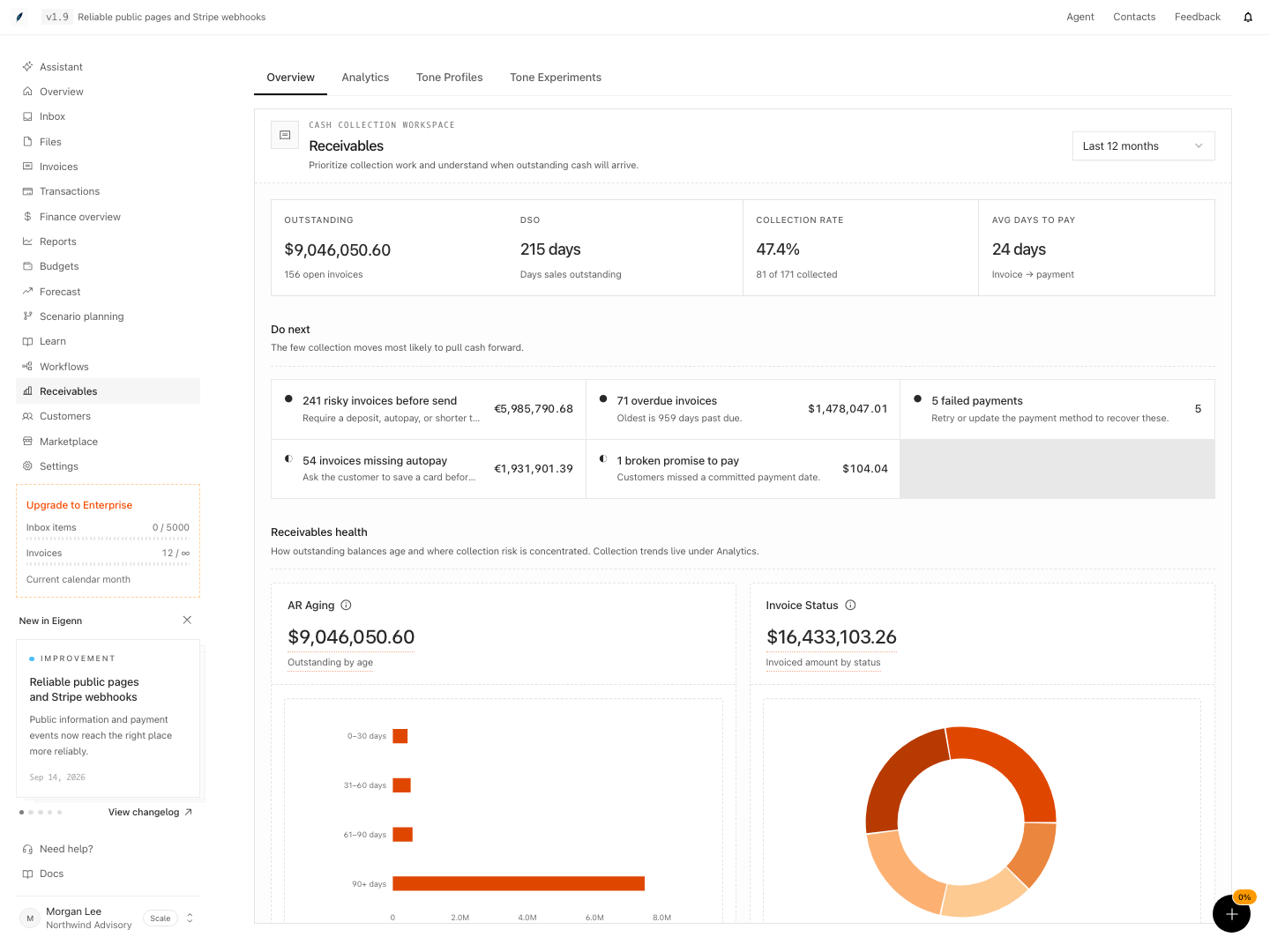
Shown with synthetic data in a local workspace.
Verification
Confirm the Result
After you set up the page, confirm these points:
- Autopilot Collections shows the intended state after a refresh, and the team accepts that on means Eigenn may send automatically.
- The quiet window and weekend exclusion match the hours the team agreed to contact customers.
- Exactly one intended policy is the newest active policy.
- The policy contains reviewed steps within its displayed limit.
- Step delays produce the calendar dates that you expect from enrollment.
- Customer contact data exists for every selected channel.
- A controlled invoice can start and stop Auto-chase.
- The invoice shows the expected next step and date.
- The first test communication reaches the intended recipient and contains approved content.
Troubleshoot
Auto-chase is enrolled but no message was sent
Confirm that Autopilot Collections is explicitly saved as on. The switch is opt-in and fails closed, so a workspace that never saved it sends nothing. Then confirm that the send time is outside the quiet window and, when weekend exclusion is on, not on a Saturday or Sunday.
Auto-chase reports that no policy exists
Create a recovery policy and confirm its Active badge. Add at least one step before you try again.
Auto-chase starts but never gets a next date
Confirm that the selected active policy contains a step and that the invoice has a customer. The start request can queue before the background sequence record appears.
Auto-chase used the wrong policy
Auto-chase now selects the newest active policy and does not show a picker. If many policies are active, contact the workspace administrator or support. Use Deactivate on the unintended policy if you have the required access. Existing sequences keep their original policy; review those separately.
I cannot add another step
Check Step limit reached and the highest remaining step number. Older policies can have a five-step limit; new ones allow ten. Removing a middle step does not renumber later steps. Prepare a reviewed replacement policy when a different sequence is needed.
Quiet hours or weekend exclusion did not apply
A customer preference or a policy-level quiet window takes precedence over the team default. Check the customer record and the recovery policy before you change the team setting.
A late fee was not added
Late fees come from fee rules attached to a recovery policy step, not from a settings switch. Settings → Receivables has no late-fee card. Leave the invoice unchanged and use a reviewed, legally valid fee workflow. Do not add a duplicate charge by hand.
A fee rule that applies once charges an invoice one time. A charge from a recovery policy step and a charge from a workflow's fee step both use it up, so the later one is skipped. A fee is rounded to the currency's smallest unit: whole yen for a JPY invoice, cents for USD.
- Refresh the Receivables Controls page: Autopilot should reflect your chosen on/off status.
- Confirm quiet hours and weekend exclusion match team agreements.
- Check that only one new policy shows as active.
- Verify the policy lists the intended steps within its saved limit. Check activation and removal on an unused test policy before editing live sequences.
- Enroll a test invoice and verify the calendar matches your expected step timing.
- Confirm required customer data exists for your chosen channels.
- Activate Auto-chase on the test invoice; invoice details should show the current step and next action date.
- Wait for the first scheduled step, and confirm message receipt and content matches team approval.