Scenarios
A scenario changes selected inputs of a model without rewriting the base case, so you can compare and stress alternatives in one grid.
In a plain spreadsheet, a what-if usually starts as a copy of the file or the tab. Each copy drifts. A fix in one copy does not reach the others. A comparison then mixes the drift with the assumption.
In Eigenn, a scenario lives inside the model. It stores only the cells that it changes. These cells are overrides. Eigenn calculates every other value from the base case. Two scenarios are two runs of the same rows, so a difference between them comes from the overrides only.
1. A scenario stores only the inputs it changes
To create a scenario:
- Click Scenarios in the model toolbar.
- Click the create button (+).
- Enter a Scenario name.
- Click Save scenario.
The new scenario starts as a copy of the active scenario and becomes active.
The menu marks the base scenario Default and shows the number of overrides in each other scenario.
When a scenario other than the base is active, a number that you type in a cell becomes an override for that period. Clear the cell to remove the override. When the base scenario is active, an edit changes the model itself.
Example: Revenue uses the formula Price * Customers. The Price increase scenario overrides Price only.
| Variable | Base | Price increase |
|---|---|---|
| Price | 100 | 110 (override) |
| Customers | 50 | 50 |
| Revenue | 5,000 | 5,500 |
If you change Customers to 60 in the base, both columns update: 6,000 and 6,600. The scenario keeps its price and follows the base for everything else.
2. Compare scenarios side by side
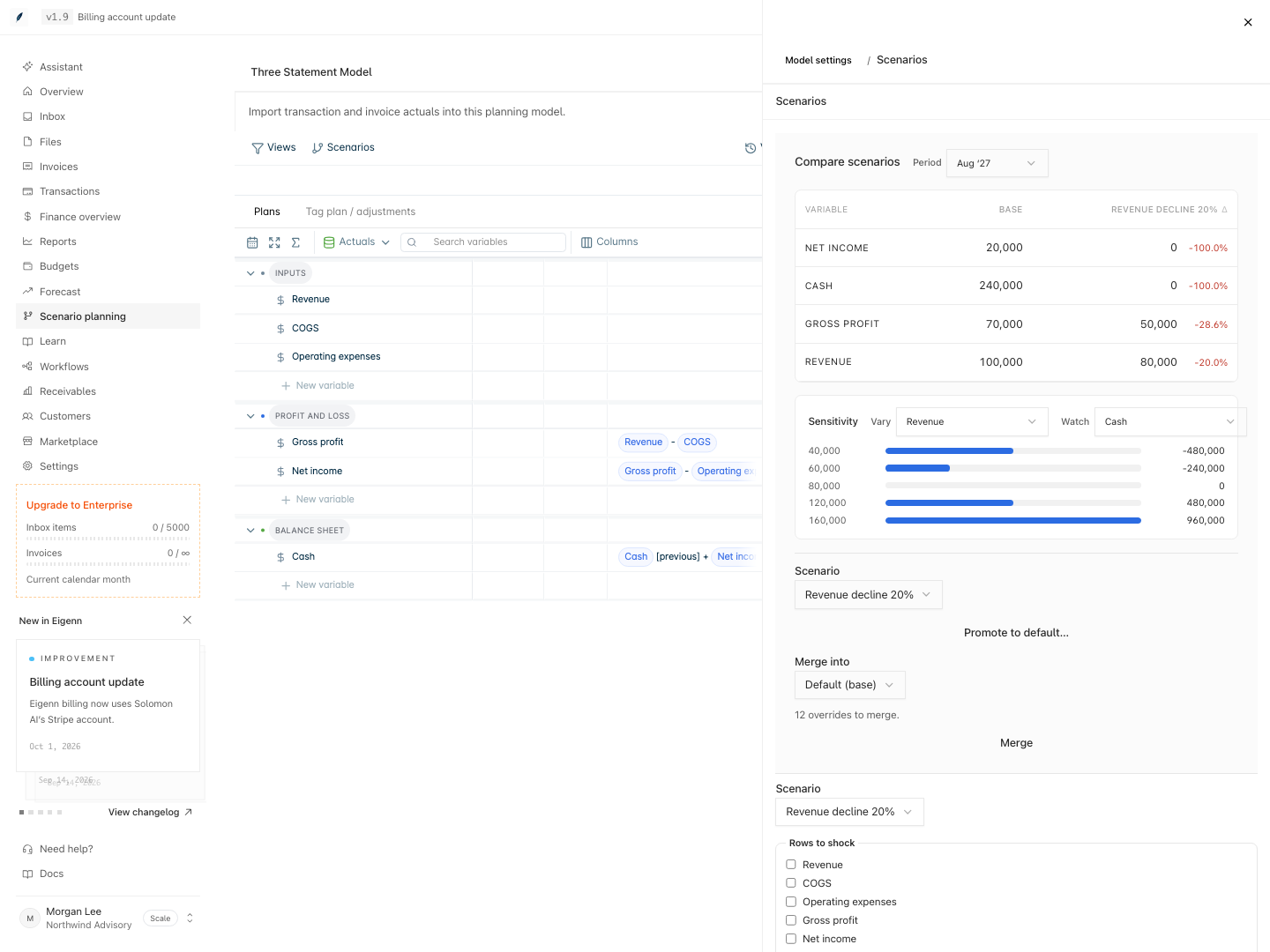
Click Model settings → Scenarios. The Compare scenarios table shows one column for each scenario. Choose a Period to read.
- The table shows only the rows that a scenario changes in that period.
- Each scenario cell shows its value and the change from the base as a percentage. When the base value is 0, the cell shows the change as an amount.
Under the table, Sensitivity shows how much one input moves one output. Choose an input in Vary and an output in Watch. Eigenn reads the input in the chosen period. It sets the input to 0.5, 0.75, 1, 1.5, and 2 times that value in every forecast period. It then shows the output in the chosen period for each value.
3. Shocks change many cells in one step
A shock applies one change to selected rows across a period window. Use the stress-testing controls in the same panel:
- Choose the Scenario. Shocks never change the base scenario.
- Select the Rows to shock.
- Choose a Shock: Percent (%), Add amount, or Set value.
- Enter the Value. For a percent shock, enter
-20for −20%. - Choose the Window: All forecast periods or a From period.
- Click Apply shock.
The Revenue drop −20% and Expense spike +15% presets fill the shock and the value for you.
A shock writes fixed overrides when you apply it. A later base edit does not scale a shocked cell again. Two shocks on the same cells compound. For example, −20% and then −10% gives −28%.
A shock skips actual periods. If the Last actual date later moves past an override, the actual value wins.
Choose a Cash row to read the lowest forecast value and the first negative period. For probability ranges such as breach odds, use the Forecast Workbench link.
4. Promote or merge a scenario to keep its result
Only a member with the Owner role can promote or merge. Before either action, Eigenn saves a named version of the model, such as "Before promoting Price increase".
- Promote to default… shows a preview first. Click Promote to write the input overrides into the base and remove the scenario. Eigenn skips overrides on calculated rows, so the base keeps its formulas. Other scenarios keep their own overrides and follow the new base for everything else.
- Merge into copies the overrides of one scenario into Default (base) or another scenario. Click Merge. The source scenario stays. The target keeps its own overrides unless you select Overwrite the target's existing overrides.
5. A scenario is not a version
A version is a saved snapshot of the model. A scenario is a live set of changes.
| Scenario | Version | |
|---|---|---|
| What it holds | Overrides on the live model | A frozen copy of the whole model, with every scenario |
| Changes after you save it | Yes, each edit changes it | No, you can only rename or delete a named version |
| Where you find it | Scenarios menu and Model settings → Scenarios | Versions → Version history |
| Use it to | Compare alternatives now | See or return to the model on a past date |
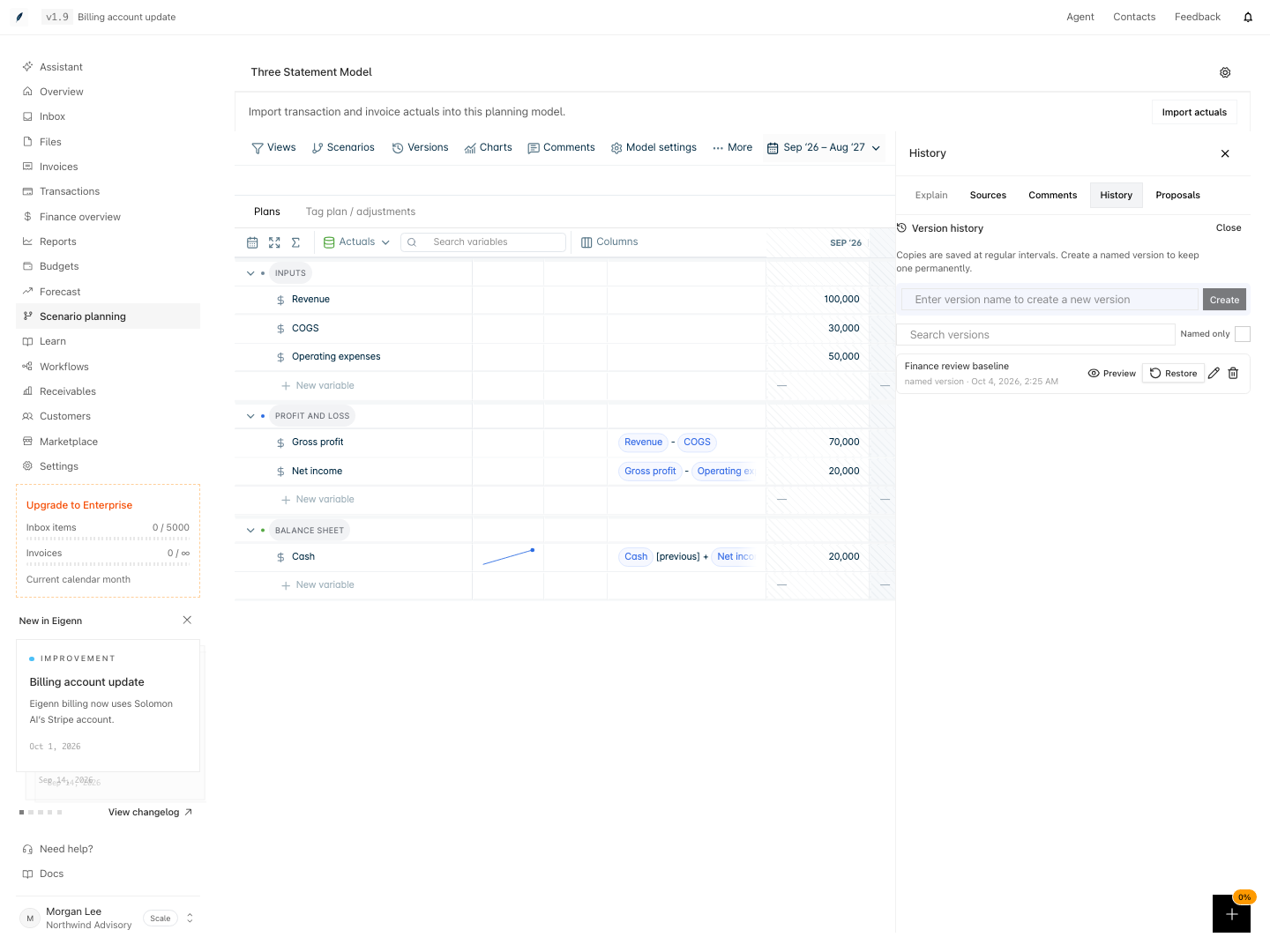
To save a version, click Versions. Enter a name in the version name field. Then click Create. Eigenn also saves copies at regular intervals. Click Preview to read a version without a change to the model. Click Restore, then Confirm restore, to replace the live model. Eigenn saves the current state first, so you can undo a restore.