Assistant Command Center
Use the Assistant home to check live business signals, ask grounded questions, run prepared workflows, and keep useful analysis.
Summary
Assistant is the home page where you examine the business and turn a question into a traceable next action. It combines a daily brief, finance widgets, specialist modes, connected-app context, saved conversations, and an analysis canvas.
Capabilities
Assistant lets you view a consolidated business briefing, interact with business and finance widgets for quick operational overviews, ask data-informed questions routed to the right tools, run prebuilt workflows in specialist modes, attach files or page data as context, maintain and pin useful analyses, and manage your chat and workflow history—all while ensuring actions are grounded in the latest synced data from your connected apps.
Prerequisites
Prerequisites
- Sign in to an Eigenn workspace with an active team.
- Connect the bank, accounting, payment, inbox, or customer apps that hold the records you want Assistant to use.
- Let recent syncs finish before you use cash, invoice, transaction, or runway figures.
- Keep the source finance pages available for your checks. Assistant can make mistakes. The product asks you to check important numbers.
Concepts
Assistant Command Center organizes your day-to-day work around actionable business data. Business briefings and dashboards surface key events, overdue actions, and financial signals. Widgets retrieve situational data in areas like cash, runway, invoices, and workflows, while specialist modes tune responses to different types of analysis or decision making. Prepared workflows automate complex, multi-step work and set the context for further queries. Canvas analysis lets you explore, save, and share results directly within the workspace.
Workflow
Open Assistant
Choose Assistant in the primary sidebar. Assistant is also the signed-in home page.
From another product page, press Command+J on macOS or Ctrl+J on Windows and Linux to open the quick Assistant. On the full Assistant page, the same shortcut opens Search what Canvas can do…, a searchable list of curated prompts. The shortcut does not open the prompt list when the cursor is in a form field.
What You See Before the First Message
Today's briefing
Today's briefing turns available workspace data into three possible groups:
- Needs attention for overdue invoices, proposed actions that wait for approval, and inbox items that wait for review
- Focus today for the highest-priority collections, runway, or approval work
- Highlights for recent invoice payments, healthy runway, or an all-current receivables position
Choose an item to send its prepared question to Assistant. When an item also has an open icon, use it to examine the product page that owns the item.
The panel shows only the information that its sources returned. A missing group does not prove that the business has no risk. It can also mean that the source has no data or did not load. The recent-payments highlight uses the paid invoices that Eigenn recently loaded. It is not a replacement for the invoice ledger.
Business command center
The Business command center contains twelve reusable widgets. When you select a widget, Eigenn starts the Assistant review that matches it.
| Widget | What it uses or starts |
|---|---|
| Cash balance | enabled cash-account balances in the workspace currency |
| Runway | fresh canonical forecast runway, with historical fallback |
| Open invoices | unpaid and overdue invoice totals |
| Overdue receivables | overdue invoice count and amount |
| Transactions | the number of transactions that need review |
| Inbox | pending document and inbox work |
| Forecast risk | the fresh canonical forecast breach-risk band; Not run when unavailable |
| App health | installed apps and connected banks; disconnected banks need attention |
| Collections queue | a prioritized collections query |
| Budgets | a plan-versus-actual query |
| Time tracked | a current-month time query |
| Notifications | a notification catch-up query |
The first eight widgets degrade independently. If one source is unavailable, its tile can show fallback copy while the other tiles continue to work. A displayed $0, 0, No data, or Not run can therefore mean either a genuine clear state or missing source data. Open the detailed page before you make a decision.
The cash tile excludes disabled accounts, credit cards and loans. It converts supported balances to the workspace currency; accounts without a usable conversion are excluded. Use Open finance view for account-level review. Open invoices includes unpaid and overdue invoices, not drafts. App health does not count every uninstalled catalog app as a failed connection.
Specialist modes
Choose a mode before you ask a question. A mode biases the request toward one kind of work.
| Mode | Best for |
|---|---|
| Autopilot | work that crosses finance, documents, Inbox, receivables, and workflows |
| Cash control | runway, burn, working capital, and payment schedules |
| Collections | invoice age, overdue invoices, promises to pay, and recovery work |
| Documents | file search, classification, comparison, and extraction |
| Workflows | automation drafts, run diagnosis, and job checks |
The selected mode applies to the next request. New chat resets the mode to Autopilot.
Business workflows
The prepared workflows send a complete first prompt. They also select their intended mode.
- Daily operator brief reviews cash, receivables risk, invoice pressure, inbox work, and next actions.
- Cash risk scan looks for runway risk, spend leaks, and payment-date opportunities.
- Collections playbook ranks overdue accounts and drafts a recovery plan.
- Document intake classifies recent documents and extracts finance fields and action items.
- Automation builder asks for constraints. It then proposes triggers, actions, approvals, and failure behavior before it creates an automation.
Prepared workflows can also scope relevant apps. Check the selected app chips before you send follow-up instructions.
Ask a Grounded Question
- Open Assistant.
- Check Today's briefing and the Business command center for stale or missing data.
- Choose the mode that matches the decision.
- Use Connected apps to scope the next request.
- Type a recognized app mention in the question as an alternative, for example
@gmailor@slack. - Enter the decision, time period, and output you need.
- Press
Enterto send. UseShift+Enterfor a new line. - Follow the active specialist and tool activity until the response finishes.
- Open the linked finance, customer, invoice, transaction, or workflow page to check material facts.
App scope limits discovery for that request to the apps that you select or mention. It does not connect an app. Use Marketplace or Connect more apps to complete setup. Eigenn ignores an unknown mention. Eigenn does not treat text inside an email address as an app mention.
Ask for Read-only Analysis
For a cash or runway review, include “read only” in your question. This limits the turn to reading and analyzing available data, including when you are a workspace owner. Assistant can read existing context without updating its working memory. Chat history is still saved.
Use Time tracked to ask how much time the workspace recorded this month, grouped by project. Check the reported period and project names against your time records. An empty result means no entries were found for that query; it does not establish that every external time source is connected.
Decline an Action
Select Decline when you do not want a proposed action to run. Assistant records your decision and shows The action was declined. No changes were made. If several actions await approval together, declining one stops that batch, including actions you approved in it.
Assistant then continues the original request using available read-only tools. If the result requires the declined action, it explains the prerequisite instead. When your AI allowance is exhausted, the decline is still recorded, but new analysis waits until allowance is available. You can also ask a follow-up in the same chat. Refreshing retains the decision and any completed analysis.
An older memory approval may ask you to decline it and request the action again. This happens when Assistant cannot safely identify the specialist that issued it.
Add Files or Page Context
Use Attach files or drag files into the composer. A message accepts up to five attachments in these formats:
- PNG, JPEG, WebP, GIF, or HEIC images
- PDF documents
Eigenn rejects other file types. Eigenn also rejects a file that has no recognized media type.
Type @page at the end of the composer to open the Pages picker. When you choose a page, Eigenn attaches the data blocks of that page as context. You cannot attach a page that has no data blocks this way.
Work With the Analysis Canvas
Structured results can open in Assistant canvas beside the conversation. Many analyses stay in a tabbed stack until you start a new chat.
Available actions depend on the result:
| Action | Result |
|---|---|
| Refresh | reruns a sourced analysis with the same saved inputs and adds the fresh result to the stack |
| CSV | downloads a tabular result; it is hidden for non-tabular analyses |
| Add to page | inserts the analysis into a workspace page |
| Keep on home | adds a sourced analysis to your personal Assistant command center |
| Pin | freezes a reproducible snapshot for later |
| Share | creates a read-only public snapshot link |
| PNG | captures the first chart in the canvas; a result with no chart has nothing to capture |
| prints the current analysis |
You can keep up to 12 personal analyses on the Assistant home. At the limit, remove a saved-canvas widget before you add another one.
When you close the canvas, Eigenn keeps its stack. Use Canvas (n) in the Assistant header to open it again.
Resume or Preserve Work
Use Chat history in the Assistant header for these tasks:
- Search stored chats by title.
- Move between conversations while the history panel stays open.
- Start New chat.
- Delete a chat that you no longer need.
Eigenn cleans up older chats automatically. Pin an important result or use All canvases → before its source chat expires. Pins survive chat retention. Shared canvas links stay available until you revoke them from My canvases.
Behavior specification
| Situation | Expected behavior |
|---|---|
| Read-only analysis | Available records can be read; working memory and business records cannot be changed by that turn. |
| No financial records or insufficient coverage | Review the explanation of missing data before relying on cash or runway figures. |
| A proposed action is declined | The batch is stopped; permitted read-only analysis continues and the decision remains visible after refresh. |
| An approved action is interrupted | Reopen the conversation and check its outcome before requesting it again. Resubmitting the same approval does not run the action again. |
| AI allowance is exhausted | New analysis is blocked with an allowance message; an outstanding decline can still be recorded. |
Limitations and Safety Boundaries
- Assistant needs an authenticated user and team context.
- Rate limits can temporarily stop new messages. The composer shows a message-limit warning or Message limit reached when applicable.
- Connected-app actions only run through apps installed for the team.
- An external or destructive connected-app action needs explicit confirmation.
- A custom widget reruns its saved analysis. It is not a dashboard tile that updates continuously.
- Public canvas shares are frozen snapshots. Later source changes do not update a link that you already made.
- Assistant responses and projections help you plan. Do not use them as financial, tax, or legal advice.
Diagrams
Rendering diagram…
Screenshots
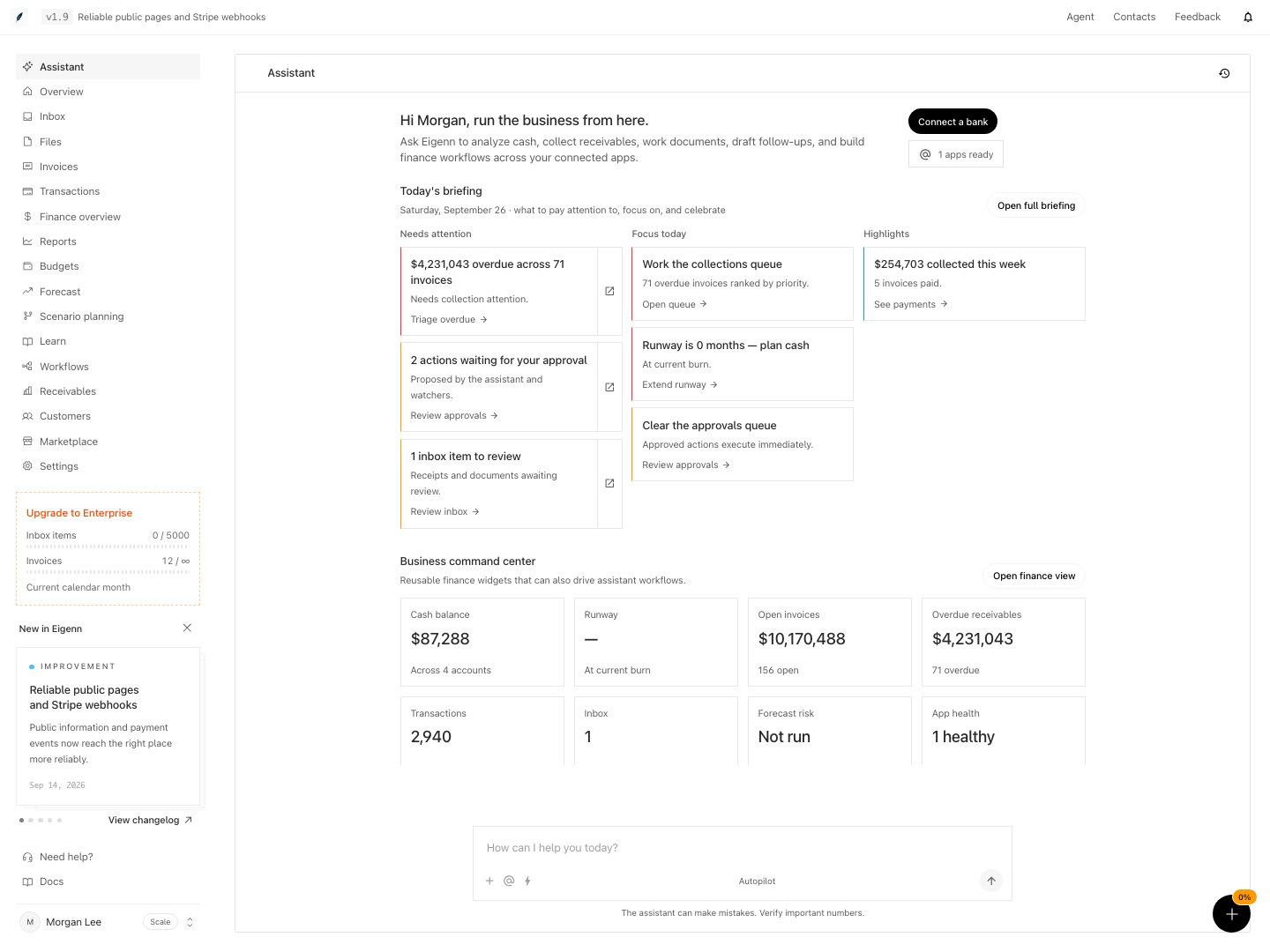
Assistant command center with the daily briefing, pending work, and financial summaries.
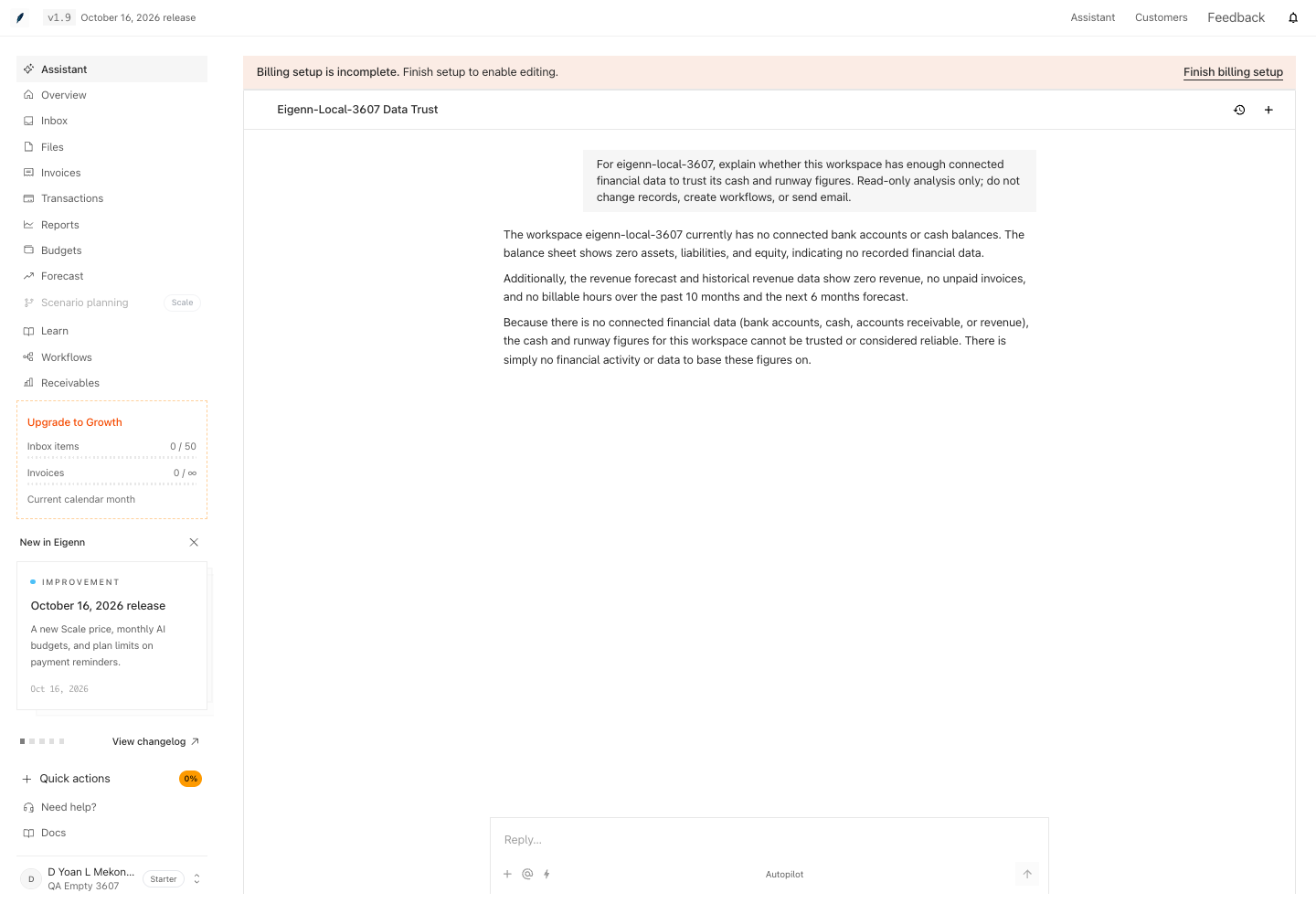
Read-only cash coverage analysis in an empty local workspace. No working-memory update was requested.
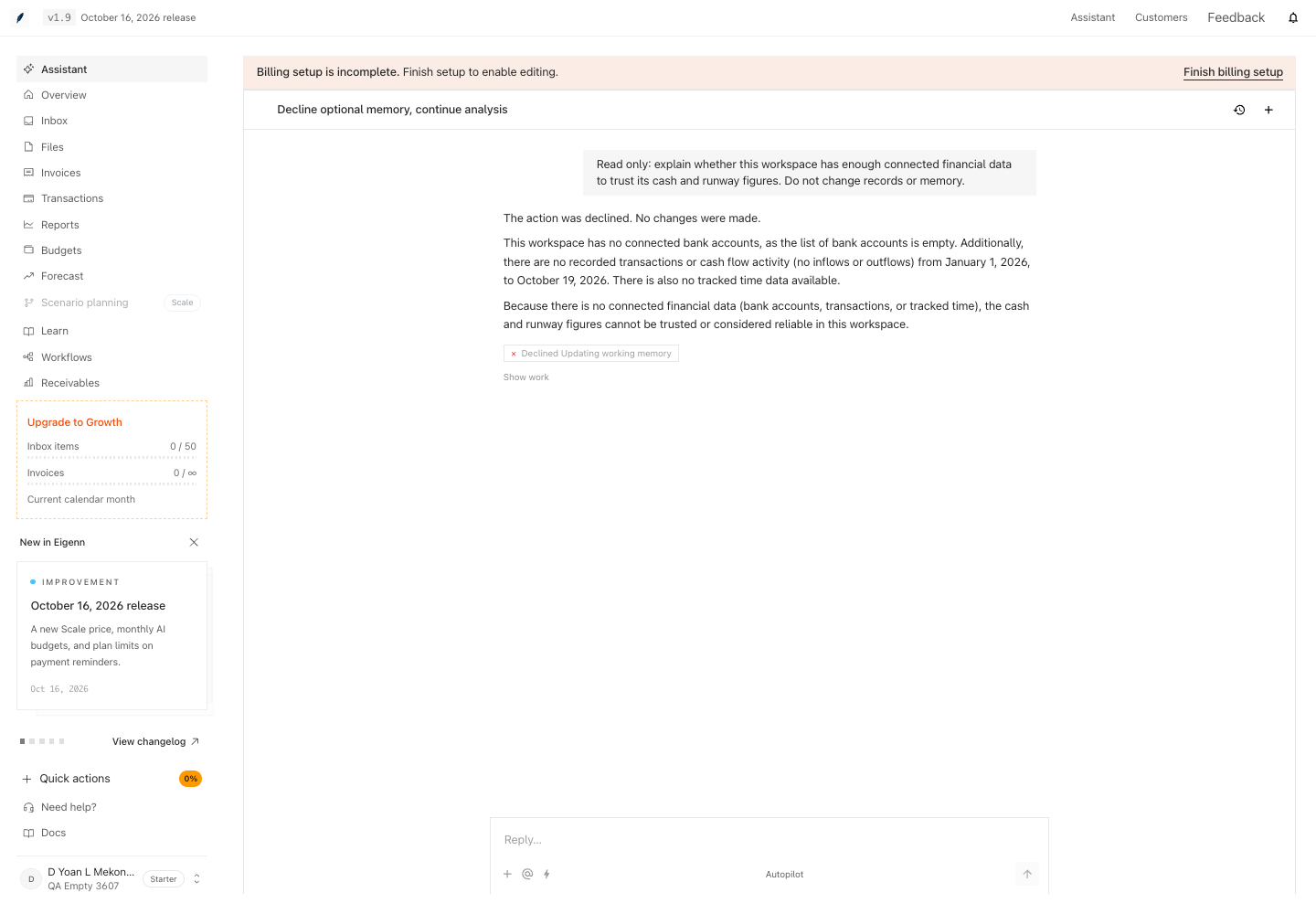
The declined action remains stopped while Assistant completes the read-only assessment in the same response.
Shown with synthetic data in a local workspace.
Verification
Confirm the Result
A useful Command Center review ends with:
- current source data, or a documented reason for an absent source,
- one clearly framed question sent in the right mode,
- material numbers checked against the records that own them,
- proposed actions reviewed in Approvals, and
- permanent analysis pinned, added to a page, or kept on the Assistant home when the team needs it again.
Troubleshoot
I declined an action and still need the analysis
Assistant attempts to continue with read-only analysis after recording your decline. If analysis cannot proceed, check the stated prerequisite or AI allowance. You can send a follow-up that states the analysis you want and includes “Read only.” The declined batch remains stopped.
A widget shows zero or no data
Open Marketplace and confirm the connection of the necessary app. Then check the detailed finance page for fresh records. The widgets fail independently. One absent value does not mean that the whole command center is unavailable.
Today's briefing does not appear
The panel hides when no source produced a usable signal. Confirm that invoices, bank data, Inbox items, and approvals exist and have synced.
Assistant asks me to connect an app
The app can exist in the catalog when your team does not have it installed. Use Connect more apps. Complete the authorization in Marketplace. Then select the app again.
Eigenn rejects an attachment
Send no more than five files. Use one of the supported image formats or PDF. Re-export a file that has an absent or unusual media type before you attach it.
A saved chat no longer opens
Chat retention can remove the transcript. A pin stays usable on its own. My canvases labels a source missing from its recent-chat list chat not in recent list. That alone does not prove deletion: the gallery loads only the latest 100 chats.
PNG or CSV is unavailable
CSV appears only for tabular analyses. PNG needs a chart that Eigenn can capture. Use Print, Pin, or Share for other result types.
- After connecting required finance and business apps and completing syncs, open the Assistant home. You should see the current business briefing and operational widget tiles populated with synced data.
- Confirm the briefing displays the groups supported by the returned data; it may show fewer than three.
- Select a widget, such as 'Cash balance', and verify the number displayed matches the latest balance in your connected bank account source.
- Change the specialist mode and submit a context-appropriate question. The response should reflect the focus of the selected mode.
- Attach up to five PNG, JPEG, WebP, GIF, HEIC, or PDF files and confirm they are accepted as message context; unsupported types are rejected.
- Open an analysis result in Canvas, use 'Pin' and confirm it appears in Pinned answers. Use 'Add to page' for a workspace page or 'Keep on home' for a personal home widget.
- Use Chat history to locate, reopen, and interact with a saved chat. Verify that pinned results remain accessible even when the source is absent from the recent-chat list.
- For a public canvas share, copy the link and view the frozen analysis; making changes in source data should not update this link.
- Try to run a destructive connected-app action (where applicable) and confirm you are prompted for explicit confirmation before it executes.
- Intentionally cause widget or workflow errors (e.g., disconnect an app or exceed file limit) and confirm the system displays the appropriate onboarding, error, or limitation messages instead of failing silently.