Onboarding and Support
Understand Eigenn's role-aware activation journey, live progress, product tours, and recovery paths.
Summary
Eigenn uses one activation journey from workspace creation to first business value. The onboarding route, activation hub, quick-actions guide, subscription guard, and Assistant all read the same team progress.
Capabilities
Product Tours
Eigenn includes versioned tours for cash forecasting, collections and dunning, the first invoice, the first workflow from a template, and guide/support recovery.
Tours support Next, Back, Skip, resume, and restart. Use Left Arrow, Right Arrow, and Escape from a non-editable control. Step changes are announced to assistive technology, focus returns when the tour closes, and the highlighted control remains operable.
Each tour has three steps and ends at a real product action. Missing or permission-gated controls show a useful destination instead of blocking the tour. Dismissed tours do not auto-launch again; reopen them from the Activation hub, guide, or a relevant empty state.
Ask for Support
Open Settings → Account → Support. Include the workspace, current URL, provider, exact error, timestamp and timezone, and whether another role sees the same result.
Do not include an MFA secret, verification code, OAuth token, API key, bank credential, financial value, or full card number. If you cannot authenticate, use the public Contact page.
Prerequisites
To begin the Eigenn activation journey, you need access to create or join a workspace. Depending on workspace policies, you may also require identity verification or to satisfy minimum security measures. Active or trialing subscription access is needed for full activation. Certain steps further require permissions to connect providers or complete milestone actions.
Concepts
User Progress and Team Progress
Identity and security are user-scoped. Billing, financial connections, sync readiness, activation milestones, first value, and product-tour state are team-scoped.
The legacy user onboarding flag remains available only for compatibility with the original guide. It is not the canonical completion signal for a workspace. Removing a connection or losing active access immediately changes live team progress.
Outcomes and First Value
Choose one outcome after workspace creation. The choice orders recommended work without hiding required setup.
| Outcome | Activation path | First-value evidence |
|---|---|---|
| Cash visibility | Bank ready → first forecast → cash-floor watcher | A forecast has run |
| Collections | Stripe ready → dunning policy → recovery workflow | A recovery workflow is live |
| Invoicing | Customer → invoice → payment or reminder | An invoice exists |
| Automation | Starter template → test run → publish | A workflow test has run |
The Activation hub celebrates first value from these live predicates. Clicking a checklist item does not manually mark it complete.
Roles and Delegated Work
Owners complete workspace access and provider connections. Invited members can enter the product while those tasks remain visible as Owner action. Members are not prompted to perform work their role cannot complete.
Recommended milestones can be completed by members with the relevant product permission. The hub groups work into required setup, first value, and delegated owner actions.
Active Workspace Access
Workspace access is complete when the latest subscription permits writes or an explicit grandfathered-access flag applies. A plan name alone is not enough.
Active, trialing, and past-due subscriptions inside the configured grace period permit access. Canceled, unpaid, paused, incomplete, expired-grace, and unknown states do not satisfy the owner billing stage.
Connection States
Connection health and initial sync are separate:
| State | Meaning |
|---|---|
not_started | No connection attempt exists |
in_progress | Authorization or provider setup is underway |
connected | Provider authorization exists but readiness is unresolved |
syncing | Authorization succeeded and initial records are still loading |
ready | The connection has synchronized usable accounts |
error | The provider disconnected or setup failed |
Connected or syncing data never counts as ready. Inactive billing, disconnected providers, and failed initial sync cannot produce 100% progress.
Workflow
The Activation Journey
The journey resumes at the first unmet stage:
- Join or create a workspace.
- Complete identity or security policy when the workspace requires it.
- Choose the first outcome to prioritize.
- Confirm active workspace access.
- Connect and synchronize the minimum data source for that outcome.
- Open the Activation hub and follow its one recommended next action.
- Complete a live business milestone.
- Reopen short product tours to learn adjacent features.
Eigenn preserves a safe local return destination across setup redirects. Login, MFA, checkout, and onboarding routes are never accepted as return destinations, which prevents setup loops.
Deferring and Resuming Connections
Close the connection wizard to enter the product without connected data. Eigenn snoozes the requirement for the current browser session. The requirement stays incomplete and returns in the next session.
Resume from Activation hub → Required setup → Connect a provider. The quick-actions trigger also shows setup urgency and opens the same live next action.
After successful connection setup, Eigenn opens the Activation hub with the first business action selected.
Provider Recovery
A provider request failure renders an explicit error instead of an empty directory. Your saved progress remains intact. Available recovery actions are:
- retry the current request;
- switch to the direct provider or another integration;
- check provider status;
- contact in-product support with the provider and timestamp.
OAuth or sync failure does not mark the connection ready and does not trap you in setup.
Behavior specification
Learn workspace
Open Learn from the sidebar to browse courses and lessons. Course overviews and lessons fill the available workspace width while keeping the app sidebar. On wide screens, lesson contents and private notes sit beside the lesson. On smaller screens, open Course and contents to navigate the lesson.
Rollout and Fallback
The unified journey is controlled by the team-level
guided-onboarding-v2 feature flag. A team override takes precedence over the
global value. When no enabled flag applies, Eigenn keeps the original guide and
billing flow as a fallback.
This lets the team compare activation cohorts while keeping a recovery path during rollout.
Diagrams
Rendering diagram…
Screenshots
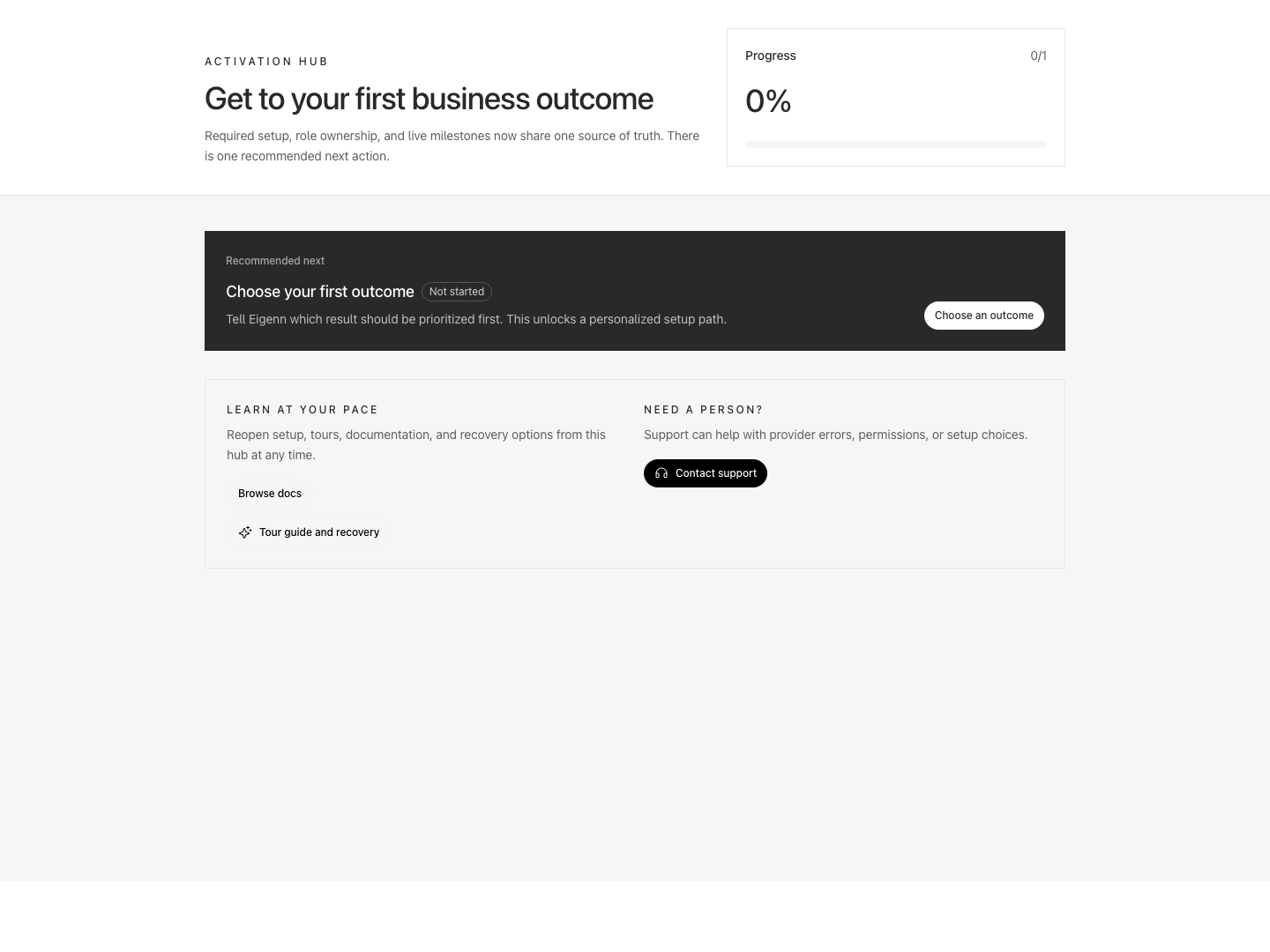
Activation hub recommending the first business outcome and linking to documentation and support.
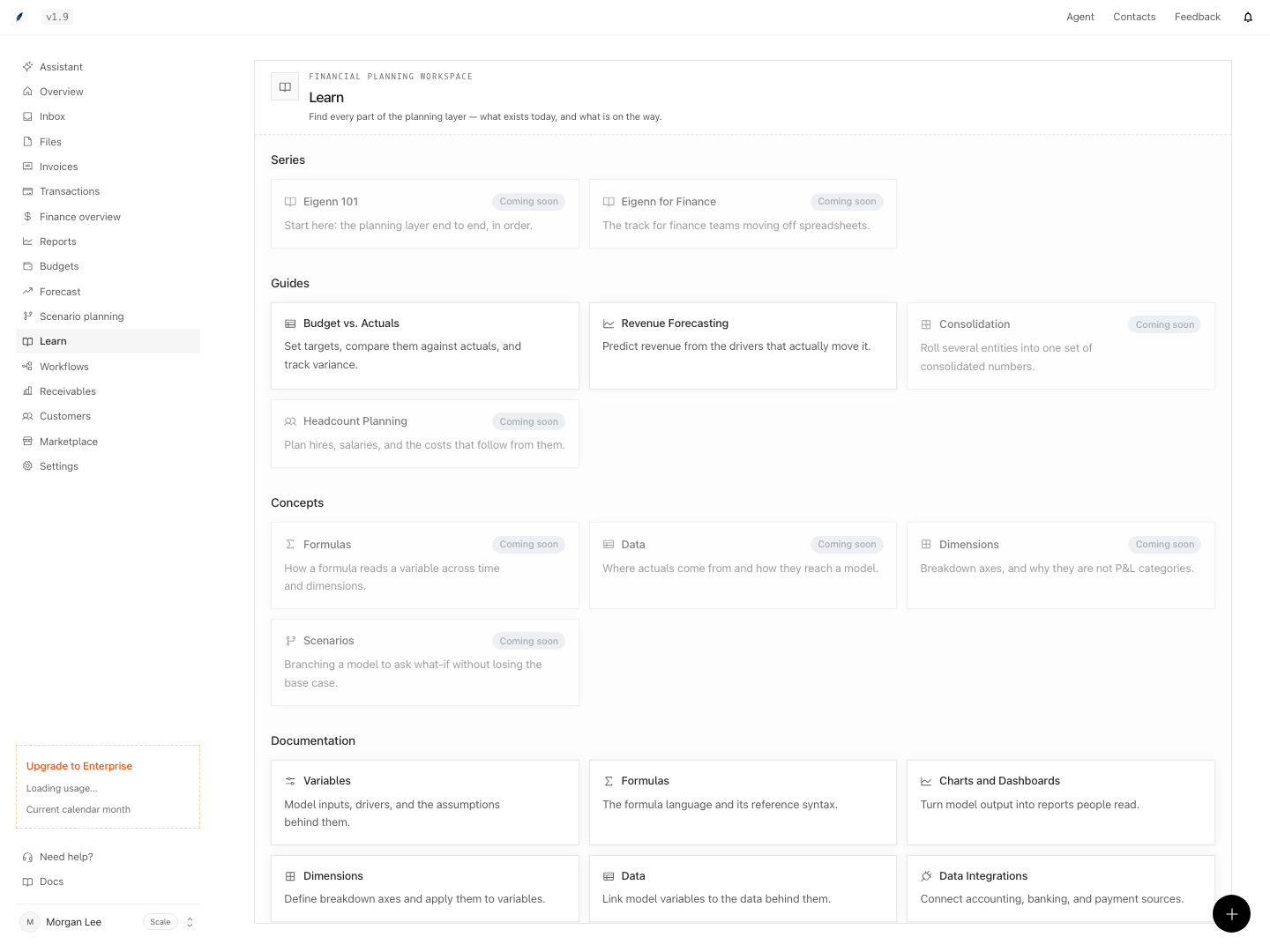
Planning learning resources with available guides and topics marked coming soon.
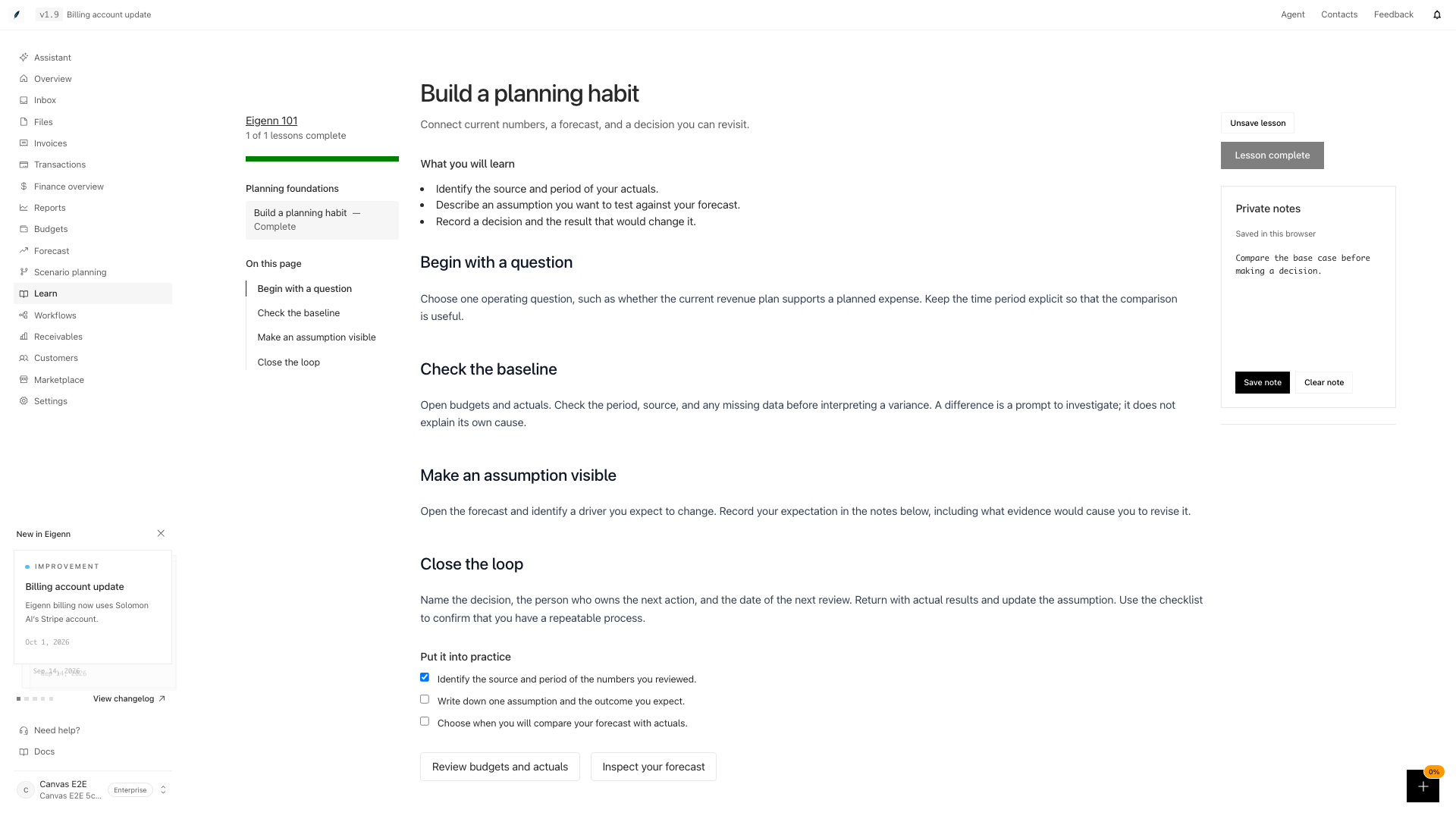
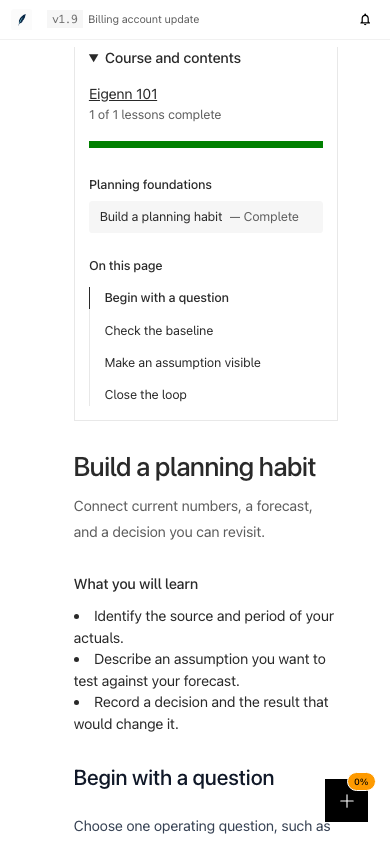
Shown with synthetic data in a local workspace.
Verification
- Join or create a workspace: You should see onboarding start with role-appropriate required steps.
- Attempt to skip provider setup: You should be able to enter the product, but the missing connection requirement will reappear in your next session.
- Connect a provider and synchronize data: The Activation hub should update to show the next action after a successful connection and sync.
- Remove a financial connection: Team progress should reflect immediate change, showing the requirement undone and blocking further milestone steps if necessary.
- Complete a milestone action, such as running a forecast or creating an invoice: The Activation hub should confirm milestone completion, and related checklists mark as done.
- Attempt a product tour with a permission-gated or missing control: The tour should redirect to a useful product destination rather than failing.
- Encounter a provider authorization or sync failure: An explicit error should display, and actionable recovery options should be presented.
- Request support through account settings: The support form should recommend including only permitted information and provide alternate contact if not authenticated.
- Switch team feature flag from modern onboarding to legacy: The interface should return to the original guide and workflow.