Settings Overview
Understand which settings affect you, the active workspace, billing, integrations, and the operations that your customers see.
Summary
Settings combines personal preferences with workspace administration. Before you change a value, confirm the active workspace. Also confirm whether the control affects only you or everyone who uses that workspace.
Capabilities
You can manage account and workspace profiles, upload logos, set notification and export preferences, enforce security settings, connect integrations, configure branding, and perform impactful actions such as deleting accounts or workspaces. Settings are scoped, and your membership role determines your ability to view or change each section.
Prerequisites
You must be a registered Eigenn user with access to a workspace. Certain actions, like workspace deletion or some policy changes, require owner-level permissions. Before making changes, confirm your current workspace and role to ensure you have the necessary access rights.
Concepts
Personal and Workspace Scope
Personal settings
These follow your user account:
- avatar
- display name
- profile email stored in Eigenn
- appearance on the current browser
- locale, timezone, date format, time format, and week-start preference
- enrolled MFA factors
- notification preferences for you in the active workspace
Eigenn stores notification choices per user and per workspace. When you switch workspaces, you can see a different preference set.
Workspace settings
These affect the selected workspace:
- company name, logo, email, country, and base currency
- export defaults
- invoice, receivables, transaction-coding, branding, and security configuration
- approval policies and customer-field definitions
- integrations and developer resources
- usage and plan state
Always confirm the workspace switcher before you edit a shared value.
Workflow
Open Settings
Select Settings in the app navigation. The top-level settings navigation includes:
| Area | What it controls |
|---|---|
| General | Workspace identity, contact details, country, export defaults, and workspace deletion |
| Account | Personal profile, appearance, locale, currency access, MFA devices, organizations, teams, and support |
| Billing | Current plan, hosted billing portal, plan changes, refund requests, and order history |
| Members | Workspace membership and roles |
| Notifications | Your event-and-channel preferences in the active workspace |
| Approvals | Ordered sign-off policies for sensitive actions |
| Integrations | Connected applications and provider configuration |
| Developer | API applications and developer credentials |
| Invoices | Workspace invoice defaults |
| Transaction Coding | Chart of accounts, coding dimensions, coding constraints, and spend policies |
| Receivables | Collection controls and recovery policies |
| Customer fields | Business-specific fields shown on every customer record |
| Branding | Saved brand values and custom email-domain verification |
| Security | Workspace MFA policy and audit-log configuration |
| Usage | Plan limits, activity, detail views, and CSV exports |
Some settings have their own product guides. Use this page to understand scope and permissions, then follow the linked page for the workflow.
General Workspace Settings
Open Settings → General to manage:
Account summary
The Account settings card shows your display name and email as read-only values and links to organization setup. Edit your personal profile under Settings → Account → General.
Company logo
Select the logo to upload a file. Eigenn stores the file in the workspace avatar area. Eigenn saves its URL on the workspace.
Company name
Enter 2 to 32 characters and select Save. This is the shared workspace name.
Company email and country
Enter a valid email address that you watch. Select the workspace country. Eigenn saves both values on the workspace. Do not assume that a change to the company email changes the sign-in address of a member.
Export settings
Choose the default transaction-export behavior:
- CSV on or off
- CSV delimiter: comma, semicolon, or tab
- XLSX on or off
- email delivery on or off
- default accountant email
You must select at least one file format. If you turn on email delivery, you must give a valid recipient. These defaults populate the transaction export workflow. You can check them when you create an export.
Delete team
Only a workspace owner can permanently delete the workspace. The confirmation warns that the action cannot be undone. Deletion removes the workspace record and queues best-effort cleanup for storage, bank connections, the custom email domain, the identity organization, and Stripe Connect resources.
A workspace deletion and a personal account deletion are not the same.
Behavior specification
Control appearance
Buttons, tab bars, date controls, and sheets use square corners. Text fields use subtle neutral borders. Keyboard focus and validation errors keep visible indicators in both light and dark themes.
Role Behavior
The active membership role is Owner, Member, or Viewer.
| Action type | Owner | Member | Viewer |
|---|---|---|---|
| Read team-scoped settings | Yes | Yes | Yes |
| Change General workspace fields | Yes | No | No |
| Change personal Account fields | Yes | Yes | Yes |
| Change personal notification preferences | Yes | Yes | No |
| Change workspace Security policy | Yes | No | No |
| Change approval policies | Yes | No | No |
| Change customer-field definitions | Yes | Depends on workspace permission | No |
| Add, confirm, or remove a custom email domain | Yes | No | No |
| Start a plan checkout, open billing portal, or schedule cancellation | Yes | Yes | No |
The interface does not consistently hide every control that a role cannot use. A save button can stay visible and then return a permission error. If a shared setting must be owner-only, use an owner account. Do not depend on the presence of the button.
Save Behavior
Settings pages use many save patterns:
- Save button — submit the card or section explicitly.
- Immediate selection — locale, date, time, week start, and notifications save when changed.
- Confirmation toast — Eigenn saves the base currency first. A separate Update action then starts the balance conversion.
- External handoff — checkout, billing management, integration authorization, and organization administration can open a provider-hosted page.
- Background job — imports, exports, sync, and cleanup can continue after the initial action succeeds.
Wait for a success state, then reload the page when the effect matters. An optimistic switch or form value is not proof that the server accepted the change.
Destructive and High-Impact Controls
| Control | Impact |
|---|---|
| Delete team | Permanently deletes the active workspace; owner-only |
| Delete account | Permanently deletes your user and sole-owned workspaces |
| Cancel subscription | Requests cancellation at the end of the current billing period; the workspace keeps its plan until then. There is no free plan to fall back to |
| Remove Domain | Stops use of the confirmed custom sender and returns delivery to the default sender |
| Remove bank connection | Stops that connection and reduces its usage count |
| Archive document | Removes the document from active storage views. The UI states that you can restore it |
| Change base currency | Changes the workspace reporting currency; the follow-up update job recalculates balances |
Capture the current values. Coordinate with other operators before you change a shared control.
Diagrams
Rendering diagram…
Screenshots
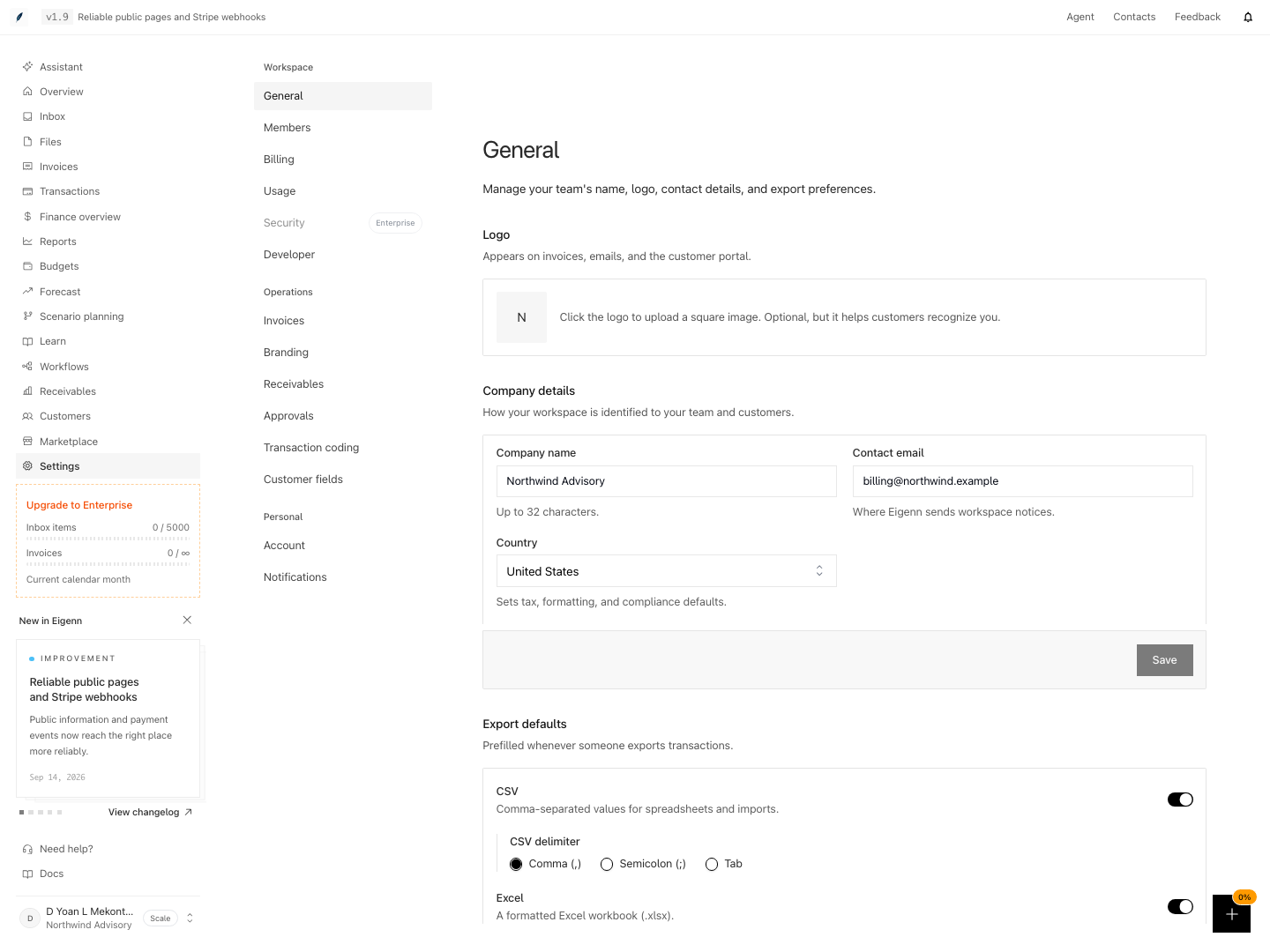
Workspace settings for company details, contact email, and export defaults.
Shown with synthetic data in a local workspace.
Verification
Troubleshoot
A save control is visible but fails
Check your role. Viewers cannot do team writes. Many pages need an owner even when you can read the page.
A setting changed in one workspace but not another
Eigenn scopes workspace settings and notification preferences to the active workspace. Switch back to the intended workspace. Then check the value again.
The form shows a new value but the product behavior did not change
You can save some policy and branding fields without a change to product behavior or to the output that your customers see. Read the relevant feature page for the exact applied-versus-saved behavior.
A background operation appears stuck
Refresh once and check the source page for sync or job status. If the state remains unclear, send the workspace, affected page, time, and provider through Settings → Account → Support.
- Check your role and confirm it matches your expected permissions by attempting to access a settings page (e.g., Owners should be able to change workspace fields, Members should not).
- Update a notification or export preference in your personal account and switch workspaces to verify the preference set is workspace-specific (the value should differ for each workspace).
- Change a workspace-level setting (e.g. company name) and reload the page to confirm the change is saved and visible to other workspace users.
- Attempt to save a workspace setting as a Viewer—expect a permission error or lack of change.
- Initiate a destructive action (e.g., delete team) as an Owner; ensure the system presents an irreversible action warning and the workspace is removed from your selection list after confirmation.
- Make a change that triggers a background job (e.g., export transactions) and check for completion status via confirmation toast or by refreshing the page.
- If a visible save control fails, confirm your current role; when switching workspaces, verify values are scoped to each workspace.