Developer API Setup
Create a least-privilege Eigenn credential, check it against public API v1, and prepare safe writes.
Summary
This setup produces a server-side credential for Eigenn's public API. Eigenn scopes an API key to the team. Eigenn shows the key one time only, when you create it.
Capabilities
Developers can create restricted API credentials for server-side use, configure allowed scopes, and authenticate with Eigenn's public API. Choose the production or staging-backed sandbox API URL in your integration. Keys support resource/action scopes and replacement-key rotation. Successful-response replay can help with retries, subject to the limits described below.
Prerequisites
Before You Start
- Select the team that the integration must get access to.
- Use a workspace owner account to create or revoke team API keys.
- Creating or editing a key requires effective Scale access or higher and billing write access. Scale allows five keys; Enterprise has no count limit.
- Reserve an unused key slot for replacement-key rotation. The current limit check can also block edits when all slots are occupied.
- Decide whether the integration needs production or sandbox.
- List the exact resources and actions that the integration needs.
Concepts
An API key is bound to its creator, team, and granted scopes. Select the environment through your API URL and credentials; the key name does not switch environments. The creator must remain a team member. A Viewer retains only read scopes, and a credential with no effective scopes is rejected.
An idempotency key replays a cached successful response; it does not guarantee that every failed or interrupted write had no effect. Key rotation means creating a new key and replacing the old credential. Editing an existing key only changes its name and scopes.
Workflow
1. Create a Restricted Key
- Open Settings → Developer.
- In API keys, select Create API key.
- Enter at least two characters for the name. Include the service and environment so you can recognize it later.
- Choose an access preset:
- All grants all public read and write scopes.
- Read Only grants every readable public scope.
- Restricted lets you select resource-specific read or write scopes.
- Change the default All selection to Restricted for a limited grant.
- Select only the necessary scopes.
- Select Create.
- Copy the key immediately.
Copy the full secret from the creation sheet before selecting I've copied it. It is not shown again. If you lose it, create a replacement.
The restricted selector offers None, Read, or Write for each listed resource, with one choice per resource. Write does not include Read. Some registered API resources are absent from this selector; do not assume it can express every scope combination. Choose a credential for the operation you need and confirm that operation before proceeding.
2. Store the Key
Store the credential in a server-side secret manager. Do not put it in:
- browser code
- a mobile application bundle
- source control
- build logs
- analytics events
- screenshots or support tickets
Use a separate key for each service and environment. Then you can rotate one credential without a disruption to unrelated integrations.
3. Choose the Base URL
| Environment | Base URL |
|---|---|
| Production | https://api.eigenn.io/v1 |
| Sandbox | https://api-staging.eigenn.io/v1 |
In the current public contract, the sandbox environment runs on the api-staging host. Do not use it as evidence of production state.
4. Confirm Authentication
A restricted key with users.read can call the current-user endpoint:
curl --request GET \
  --url https://api.eigenn.io/v1/users/me \
  --header "Authorization: Bearer $EIGENN_API_TOKEN" \
  --header "Accept: application/json"
A successful response returns the authenticated user profile, without the secret. Check a known team-scoped resource as well; a user profile alone does not confirm the intended team.
Interpret failures as follows:
- 401: the Authorization header or credential is absent, invalid, expired, or not bound to an accessible team
- 403: the credential is valid but lacks users.read or another required permission
- 429: wait for the Retry-After interval before you try again
5. Examine the Contract
Use the API Reference for interactive exploration or fetch the machine-readable document from:
https://api.eigenn.io/v1/openapi
Check each operation for:
- HTTP method and endpoint
- the necessary scope
- the necessary request fields
- status-specific response schemas
- pagination limits
- Idempotency-Key support
Do not infer an endpoint from a product page. Product capabilities such as workflow management can exist without a public API operation.
6. Prepare Writes
Before the first write:
- Test the same request in sandbox with representative data.
- Choose a stable idempotency key for the logical write.
- Keep the key at 128 characters or fewer.
- Check the response and persisted resource before starting dependent work. A server failure can occur after a write has saved.
- Log the status, the request ID when available, and the idempotency status.
For a disposable synthetic customer, the request shape is:
curl --request POST \
  --url https://api.eigenn.io/v1/customers \
  --header "Authorization: Bearer $EIGENN_API_TOKEN" \
  --header "Content-Type: application/json" \
  --header "Idempotency-Key: customer-acme-2026-07-11" \
  --data '{
    "name": "Acme Corporation",
    "email": "[email protected]"
  }'
The key needs customers.write. Customer upsert matches an explicit ID, not a name or email. Without an ID, repeated creates can produce duplicates. The current Customers API has a response mismatch that can return 500 after saving; use the list with a separate read credential or the customer screen to confirm persistence. Do not treat this example as a guaranteed successful round trip.
Replay stores only successful 2xx responses for 24 hours and does not compare request bodies. Keep the same request and key for a retry, use a new key for a different operation, and reconcile uncertain writes before repeating them. See Errors for failure handling.
7. Rotate Safely
- Create a replacement with the same or narrower scopes.
- Deploy the replacement to the service that uses it.
- Confirm a read and one safe write when necessary.
- In Settings → Developer, choose the old key's Delete action and confirm Delete key.
- Check 401 responses and integration health.
Deleting a key affects every integration using that key and invalidates its cached authentication record. Check that the old credential is denied after deletion. Keep credentials separate enough that rotation has a clear owner.
At the plan limit, you cannot assume a spare replacement key can be created or the existing key can be edited. Free an unused slot or resolve capacity before a no-downtime rotation. Owners can delete a key without the Scale creation/edit plan gate.
Behavior specification
Use only the scopes granted to the credential. An empty restricted selection can save a key that authentication later rejects. Editing name/scopes does not replace the secret or transfer its creator.
Idempotency headers are optional; use them for supported retryable writes, with reconciliation after uncertain results. Keep secrets out of logs, browser code, and support artifacts. Confirm both the new credential and deletion of the old one during rotation.
Diagrams
Rendering diagram…
Screenshots
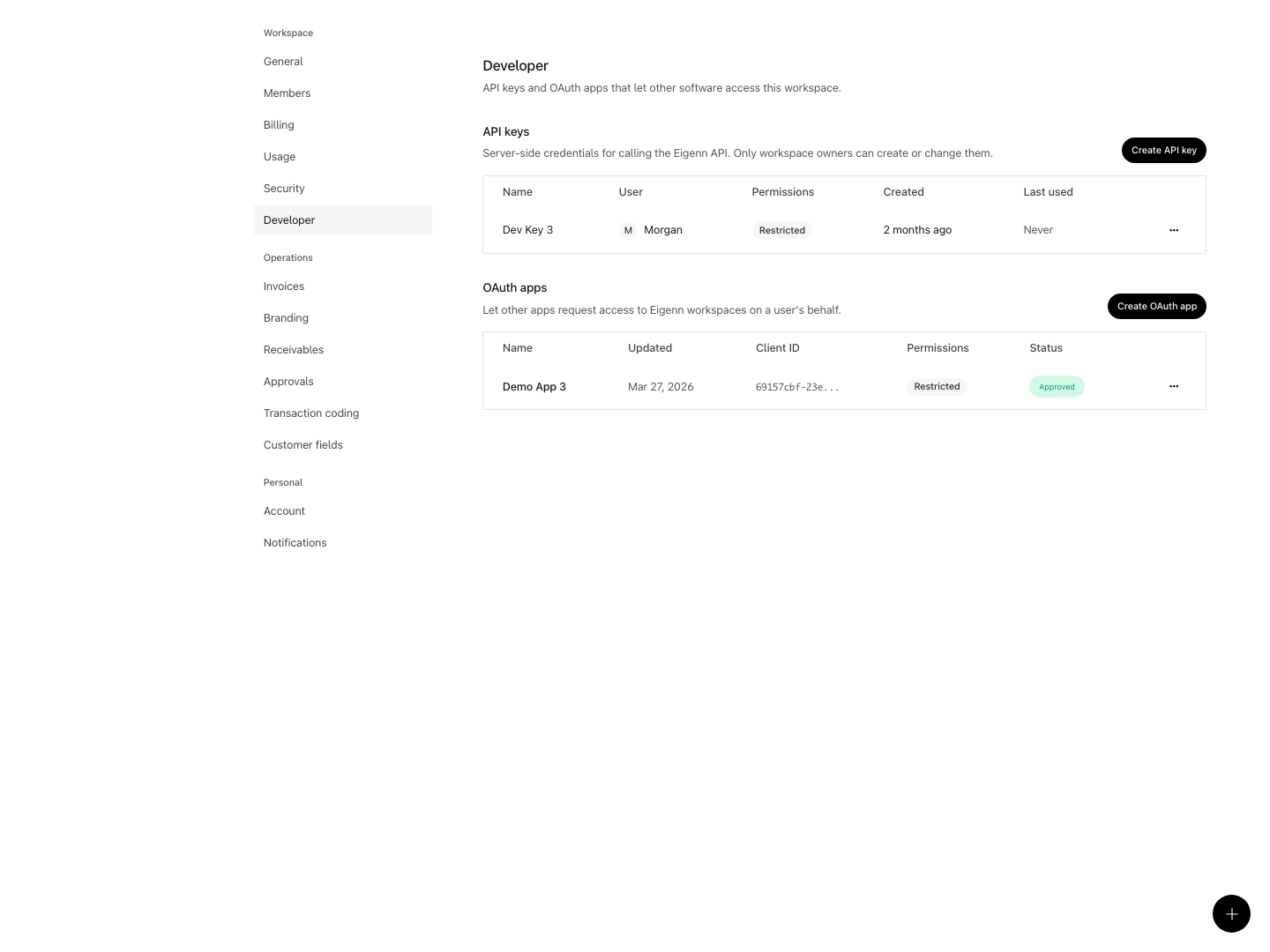
Shown with synthetic data in a local workspace.
Verification
- Attempt to create a new restricted key as a workspace owner. Expect a confirmation dialog with a one-time key display.
- Store the key in a server-side secret manager and verify it never appears in client or analytics code.
- Set the base URL according to chosen environment and confirm alignment with use case.
- Use curl with the key for the users.read endpoint, expecting an authenticated profile response.
- Investigate 401, 403, and 429 responses to confirm correct error handling.
- Use an isolated fixture to test a keyed write. Check persisted state even after failure. For customers, record the current response mismatch and confirm no blind retry creates a duplicate.
- Rotate the API key, deploy the replacement, and verify old key is revoked and no longer allows access.