Bank Connections
Link institutions, choose accounts, check consent and sync health, and control which accounts feed Eigenn.
Summary
Bank Connections is the administration page for the sources that feed bank transactions into Eigenn. It is where you authorize institutions, choose accounts, examine connection state, sync or reconnect, and remove stale sources.
Open it from Settings → Account → Bank Connections.
Capabilities
With Bank Connections, you can add institutions, select which accounts to sync, monitor connection and sync health, refresh provider permissions when required, manage the inclusion of individual accounts, and remove a source with its associated transaction history.
Prerequisites
Before You Connect
Use the intended team workspace. Owners and Members can save, change, sync, and remove team bank records; Viewers can read them. Billing must permit writes. Provider authorization is separate from your Eigenn role.
Have:
- access to authorize the institution
- the institution's country and name
- at least one supported account to select
- an available bank-connection slot on the workspace plan
Provider coverage, historical depth, and consent duration depend on the institution and country. Eigenn now presents supported institutions through Plaid, Teller, GoCardLess, or Enable Banking. Eigenn names the provider in search and on synced connection state.
Concepts
Bank Connections Is Not the Ledger
| Product area | Primary job |
|---|---|
| Settings → Account → Bank Connections | Manage institution authorization, sync health, and included accounts. |
| Transactions | Review individual cash movements, receipts, matches, categories, tags, owners, and notes. |
| Finances → Overview / Reports | Analyze aggregate financial performance. Older Finances → Bank links redirect to Finances → Reports in the current application. |
Use Sync or Reconnect here when the source is stale. Use Transactions when a row needs review.
Workflow
Connect an Institution
- Go to Settings → Account → Bank Connections.
- Choose Connect Bank.
- Select the country and search for the institution.
- Review the provider and choose Connect.
- Complete the provider's authorization flow.
- Check the retrieved accounts. Eigenn selects all of them at the start.
- Keep at least one account selected and choose Continue.
- After the connection saves, return to its card and monitor synchronization. Saving the account selection closes the current wizard and queues the initial sync; it does not wait for imported transactions.
The wizard labels its stages Choose a bank → Select accounts → Start sync. The account step shows name, type, balance, and currency, with Select all and Deselect all controls. Continue is disabled when no account is selected. The current save path closes the wizard after acceptance rather than displaying its final sync stage.
A saved connection is not proof of a successful import. Check the card and recent Transactions after background processing. If setup reports an error, check whether the connection already exists before repeating authorization; the connection can be saved before job setup fails.
Behavior specification
Bank Search Availability
The supported-bank catalog refreshes nightly. Coverage depends on the provider, country, account type, and enabled integrations. Search for the bank's complete name and check the provider before you connect. If a catalog refresh fails, the previous bank records remain available while the failure is investigated.
Account transactions follow each connection's sync schedule. A bank appearing in search does not confirm that its authorization or account sync has completed.
Connection Cards
Each institution has one card with its logo, name, state, actions, and expandable account list.
Connection states
| State | Definition | Recommended action |
|---|---|---|
| Syncing | A sync job runs now. The card can show progress and the current account. | Wait for completion before you start another sync. |
| Synced | A last-access timestamp exists. The card shows its age and provider. | Compare recent Transactions; the badge alone does not prove every account imported successfully. |
| Never synced | The connection has no recorded last-access timestamp. | Run sync and examine the progress. |
| Connection issue | The stored connection shows a disconnected state. | Choose Reconnect to restore provider permission. |
| Expires soon | Stored consent expires within 30 days. | Reconnect before access lapses. |
| Expired consent | Provider permission is no longer valid, even when the warning badge still uses expiry text. | Reconnect, then run sync. |
The connection UI derives its expiry warning from the consent timestamp of the provider. A message with zero or negative days means expired access. Reconnect the institution.
For GoCardless, consent expires according to when you accepted the agreement and the access period allowed by the bank. Running a sync does not extend that consent. If the provider does not supply a usable account balance or required transaction data, such as a stable identifier, amount, or date, the affected import fails. Missing optional exchange-rate or post-transaction balance details do not block the import. Check the sync result before relying on the latest values.
Sync one or every connection
Use the sync icon on a connected card to pull its latest transactions. When available, the bulk sync control requests a sync for every connected card. Its success count means a job ID was returned, not that every import completed. Follow each card’s progress and inspect Transactions even if the toast says all connections synced successfully.
Bulk sync skips disconnected connections. Manual requests use a per-connection queue key to reduce overlapping work; initial setup uses a different key. Do not assume every trigger shares one deduplication boundary. Wait for current processing to finish before requesting another sync.
Reconnect
GoCardless reconnect applies only to the bank connection you selected. Eigenn checks the returned consent and matches its accounts before replacing the saved connection. If that check fails, the previous connection stays unchanged. Restart Reconnect from the connection card if an older callback link no longer works.
Reconnect refreshes provider authorization. The exact provider flow is different for each provider. A successful authorization starts or turns on another manual sync.
Use reconnect when:
- the card shows Connection issue
- access expires soon or already expired
- the institution changed what it needs for login or consent
- repeated syncs fail before the account job starts
Manage Accounts Inside a Connection
Expand a connection card to see its bank accounts.
For each nonmanual account, the switch changes whether the account is enabled. Background sync and enabled-account balance calculations exclude disabled accounts. Existing transaction rows remain stored and can still appear in the ledger or reports that use those rows directly. This switch is not a universal hide-from-reports control. Disabled accounts stay visible and appear dimmed.
Open the account actions menu to:
- Edit its local name, type, nonnegative balance, and Default GL account
- Import a CSV specifically into that account
- Remove the account
When you remove an account, Eigenn permanently deletes its associated transactions. This is not the same as a disabled account. Disable the account when you only want future sync selection and enabled-account balance calculations to exclude it. A job already running may still finish.
The Edit Account form saves the GL default as a replacement for the account’s coding defaults. Clearing the field clears the defaults object; saving a GL value does not preserve a separately set category default. Saving it does not recode existing transactions by itself.
Remove a Connection
When you delete a connection, Eigenn removes the institution connection, every account under it, and associated transactions and recurring-transaction records. Provider cleanup runs separately afterward. A failed delete response can therefore follow successful local deletion; reload the page before retrying. Removal in Eigenn does not prove that provider-side consent was revoked.
Before you delete a connection:
- Export any transaction history that the team must keep.
- Confirm that the same institution is not the only source for a report or forecast.
- Check for manual notes, attachments, categories, or matches attached to its transactions.
- Prefer reconnect or account disablement when the problem is temporary.
Limits
For GoCardless banks that require separate consent for extended history, Eigenn requests a shorter history window so new transactions continue to arrive.
The connection limit counts institution connections, not individual accounts selected within one institution.
| Plan | Bank-connection limit |
|---|---|
| Starter | 2 |
| Growth | 10 |
| Scale | Unlimited |
| Enterprise | Unlimited |
The server blocks a new institution when the workspace has no capacity, including when two setup requests compete for the last slot. Disconnected institution records still count until removed. When you reauthorize an institution that is already there, Eigenn updates its connection. Eigenn does not use a second slot.
Plan configuration can change; the limit shown in the product is authoritative for the current subscription.
Diagrams
Rendering diagram…
Screenshots
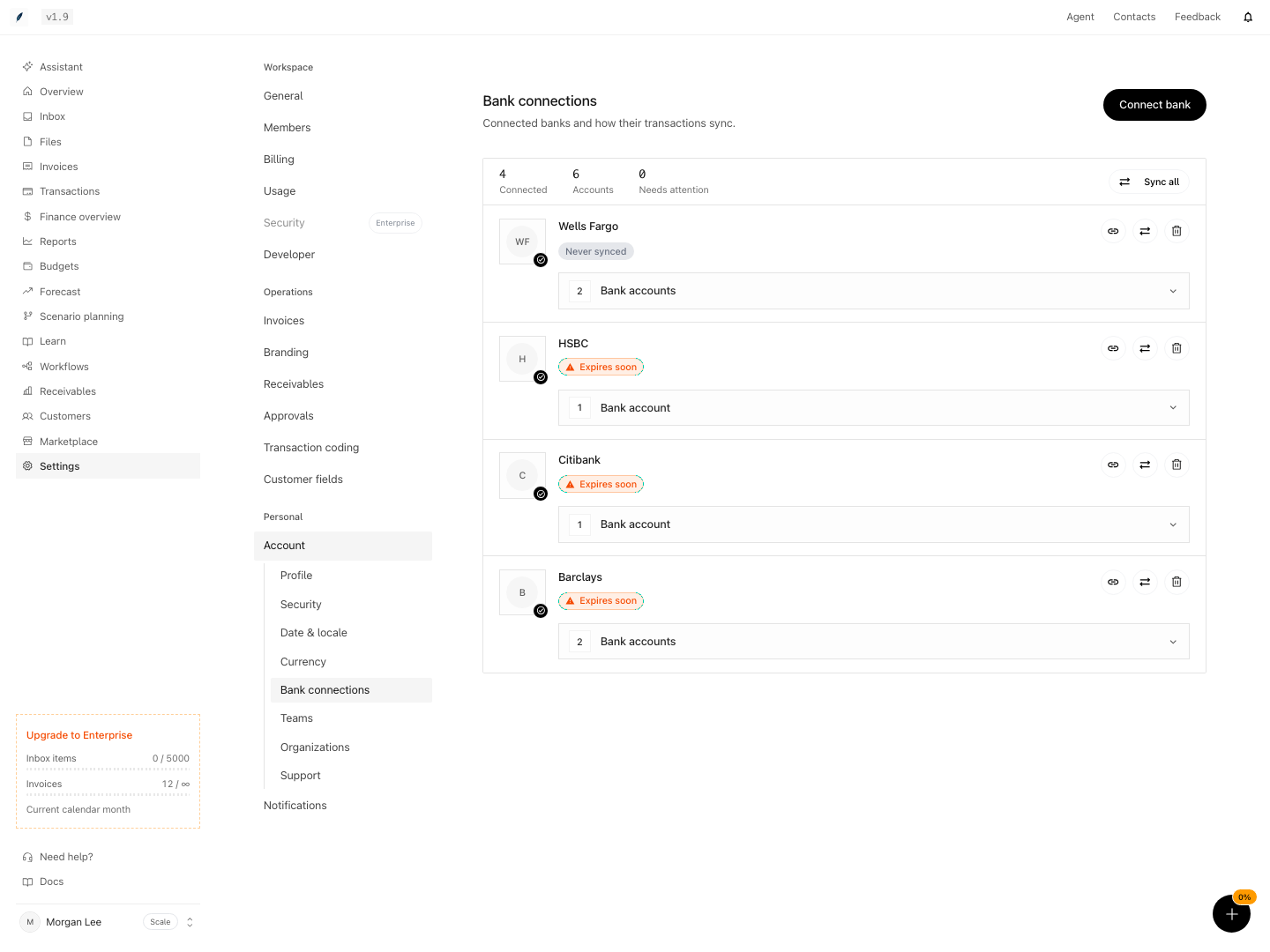
Shown with synthetic data in a local workspace.
Verification
Confirm a Healthy Connection
After setup or maintenance, confirm:
- the institution card is present and not disconnected
- you understand the expiry and the consent time is enough
- every intended account is present and its switch is on
- account name, type, currency, and balance look reasonable
- the latest manual sync reaches Completed
- recent source rows appear in Transactions under the correct account
- date, amount, currency, merchant, and counterparty match the institution
Troubleshoot
No banks match the search
Change the country and try the institution's complete name. Provider coverage varies. Use Transactions → More transaction actions → Add transactions → Import & backfill for a CSV alternative and send support the institution name, country, and account type.
Link is not ready
Retry the Connect action after a preparation error. Plaid Link is prepared when you choose Connect. The country affects institution search and available providers; the setup dialog can temporarily close while Plaid Link is open, then return after success or cancellation.
Connection saves but no transactions arrive
Expand the card. Confirm that at least one account exists and that its switch is on. Run manual sync. Wait for the job to finish. Then clear the filters on Transactions. A new card can show Never synced while background work is pending. Check actual imported rows as well as the card timestamp.
Sync fails
Read the error toast. If the provider reports a rate limit, wait for its stated retry time before syncing again. Reconnect when consent has expired or the provider asks you to authorize again. Collect the institution, provider, connection state, current account or stage, and approximate failure time before you contact support.
The card says access expires in a negative number of days
Treat the consent as expired and reconnect. The current order of the warning states can keep the expiry warning even after the stored date passes.
An account does not appear in reports
Expand its connection and confirm that the account switch is on. Then check the specific report’s transaction, status, and category filters. Turning an account off does not remove its historic ledger rows from every report.
You cannot remove a connection safely
Export the associated transactions and document the replacement source first. A connection removal cascades to its accounts and transactions. There is no nondestructive “hide connection” action.
Run the following acceptance checks with synthetic teams and controlled provider fixtures. Do not revoke real consent or delete needed history to test this guide.
- Add a new bank connection and verify it appears as a card with correct institution details. Confirm account selection closes the current wizard without claiming the sync is complete.
- Confirm at least one account is selectable and included in the new connection.
- Disable an account and check new sync selection and enabled-account balance calculations. Its historic transactions must remain stored; inspect each report’s own filters.
- Trigger a sync on a connected card and check for completion without errors.
- Simulate expired consent or provider refusal and check the warning/error and reconnect path. Do not treat a last-access timestamp as valid current consent.
- Remove a disposable connection and confirm its accounts and transactions disappear. Separately check provider cleanup; exercise a failure after local deletion without assuming rollback.
- Attempt to add connections over the plan limit and confirm the product blocks the action.
- Review Transactions for receipt of new imported rows after a successful sync and verify they match bank account values for date, amount, and other details.