Billing and Usage
Check the active plan, manage hosted billing, request a refund, and examine workspace consumption.
Summary
Settings → Billing manages the workspace subscription experience. Settings → Usage summarizes resource consumption and gives detail exports. Billing state and feature entitlements can also restrict write operations elsewhere in the app.
Capabilities
Billing Permissions
Only an active workspace Owner can start checkout, open the hosted billing portal, cancel a subscription, or resume it. Members and Viewers can read Billing information but cannot perform these subscription operations.
Refund requests have a separate workspace permission check. Submitting a request does not grant access to subscription controls or approve a refund.
Prerequisites
You need workspace access to read Billing and Usage. Subscription changes require an active Owner membership and a valid billing email context. The refund card appears when the workspace has a subscription record; submitting a request also requires an eligible paid invoice. A visible card does not guarantee refund eligibility.
Concepts
Current plans
There is no free plan. Starter is the entry tier. A workspace without a recognized subscription plan shows No active plan. Plan and subscription status are separate: a plan label alone does not establish paid access.
The Billing page shows these monthly plan cards:
| Plan | Monthly price | Included seats | Bank connections | Inbox items per month | Transactions per month | Storage |
|---|---|---|---|---|---|---|
| Starter | $79 | 2 | 2 | 50 | 1,000 | 10 GB |
| Growth | $299 | 5 | 10 | 500 | 10,000 | 100 GB |
| Scale | $899 | 10 | Unlimited | 5,000 | 100,000 | 500 GB |
| Enterprise | $2,500 | Unlimited | Unlimited | Unlimited | Unlimited | Unlimited |
Enterprise requires a sales agreement and is not available through self-service checkout, even if a Select Plan button appears on its card. Contact support to arrange Enterprise access.
Every plan permits unlimited invoices and unlimited customer records.
The pricing configuration also holds yearly prices, add-ons, and per-seat pricing. The Billing plan selector starts monthly checkout only.
Use the current Billing page and hosted checkout as the authority before you approve a purchase. Plan configuration can change independently of this documentation.
Order History
Billing shows Order History for eligible workspace states. The table loads platform billing orders and invoices in pages. Customer invoices under Invoices are a different record type.
For the authoritative payment method or provider invoice, open Manage billing and compare the hosted portal.
Usage Overview
Open Settings → Usage to review:
- Seats in use
- Bank connections
- Inbox items this month
- Invoices this month
- Storage across Vault and Inbox
Cards show the current amount, limit, percentage, a status badge, and change against the prior 30-day window when history is available. Invoice and Inbox counts reset by monthly period. Seats, connections, and storage are current workspace totals.
Owners, members, and viewers can read usage.
Workflow
Manage the Subscription
Open the hosted billing portal
Select Manage billing to open Stripe's billing portal. Use the portal for payment methods, platform invoices, and provider-supported cancellation controls.
A workspace can have no stored Stripe customer. In that case, checkout or the portal creates or retrieves one. It uses the email context of the workspace and the current user.
Change to a higher plan
- As an Owner, select Growth or Scale.
- Select Select Plan.
- Complete the monthly hosted checkout.
- Return to Billing and check the Current Plan card.
The plan card selection itself does not change access. Checkout and subscription synchronization must complete.
Cancel the subscription
- As an Owner, open Manage billing and review the provider's cancellation controls.
- Confirm the effective date before you submit cancellation.
- Return to Billing and compare the cancellation state with the hosted portal.
For a workspace on a higher plan, selecting Starter also opens a confirmation that requests cancellation at period end. This is cancellation, not a paid Starter downgrade. If Starter is already the current plan, selecting its card makes no change; use the hosted portal.
Cancellation does not immediately rewrite the local plan record. The Current Plan card can stay unchanged until subscription state synchronizes. There is no free plan to fall back to.
Request a Refund
The Request a refund card is available while the workspace has a subscription.
- Enter a Reason. The request is rejected without one.
- Select Submit refund request.
- Confirm the message that the request was submitted.
Submitting records a pending request for an Eigenn operator to review. No money moves at this step.
Your requests lists past requests with their status:
| Status | Meaning |
|---|---|
| Pending review | Submitted and awaiting an operator decision |
| Approved | An operator approved the request |
| Refunded | The refund was issued |
| Denied | An operator declined the request |
| Failed | The refund could not be processed |
Contact the workspace Owner through your normal communication channel when a billing action needs their attention.
Usage Detail and Export
Open a usage detail action to examine item-level data and a timeline. Detail pages support CSV export with Name, Detail, Value, and Unit columns.
Available cleanup actions include:
- Archive on a storage document
- Remove on a bank connection
These are real workspace writes. The app describes an archive as restorable. When you remove a bank connection, Eigenn stops its sync and reduces the active connection count. Confirm the item and the workspace before you act.
Behavior specification
Recommendations and Nudges
The page can show warnings near a limit. It can also recommend that you examine a metric or read Billing. When you select a recommendation, Eigenn opens an in-context sheet. Open full continues to the full detail page.
Warnings describe current configured limits. They do not themselves block a write. Feature and resource enforcement happens at the operation that checks the entitlement or quota.
When usage data does not load
If the usage query fails, the page shows this message instead of the cards:
Usage data is temporarily unavailable. Your plan and limits have not changed. Please try again shortly.
The page does not substitute a plan name, zero counts, or unlimited limits for real data. Reload the page. If the message persists, compare Settings → Billing and contact support.
A storage-specific failure is handled separately: the storage card falls back to document metadata rather than failing the page.
Billing Access Restrictions
Active and trialing subscriptions permit reads and writes, subject to role permissions and plan limits. A past-due subscription keeps write access during the seven-day payment grace period, then becomes read-only. Unpaid, paused, canceled, incomplete, and expired incomplete subscriptions are read-only. Restricted states can reject create, update, deploy, run, and delete actions while allowing you to examine records.
When a write fails across many product areas:
- Open Settings → Billing.
- Check the current subscription and cancellation state.
- Open Manage billing and confirm the provider state.
- Resolve the payment or subscription issue.
- Reload the original page and retry once.
Diagrams
Rendering diagram…
Screenshots
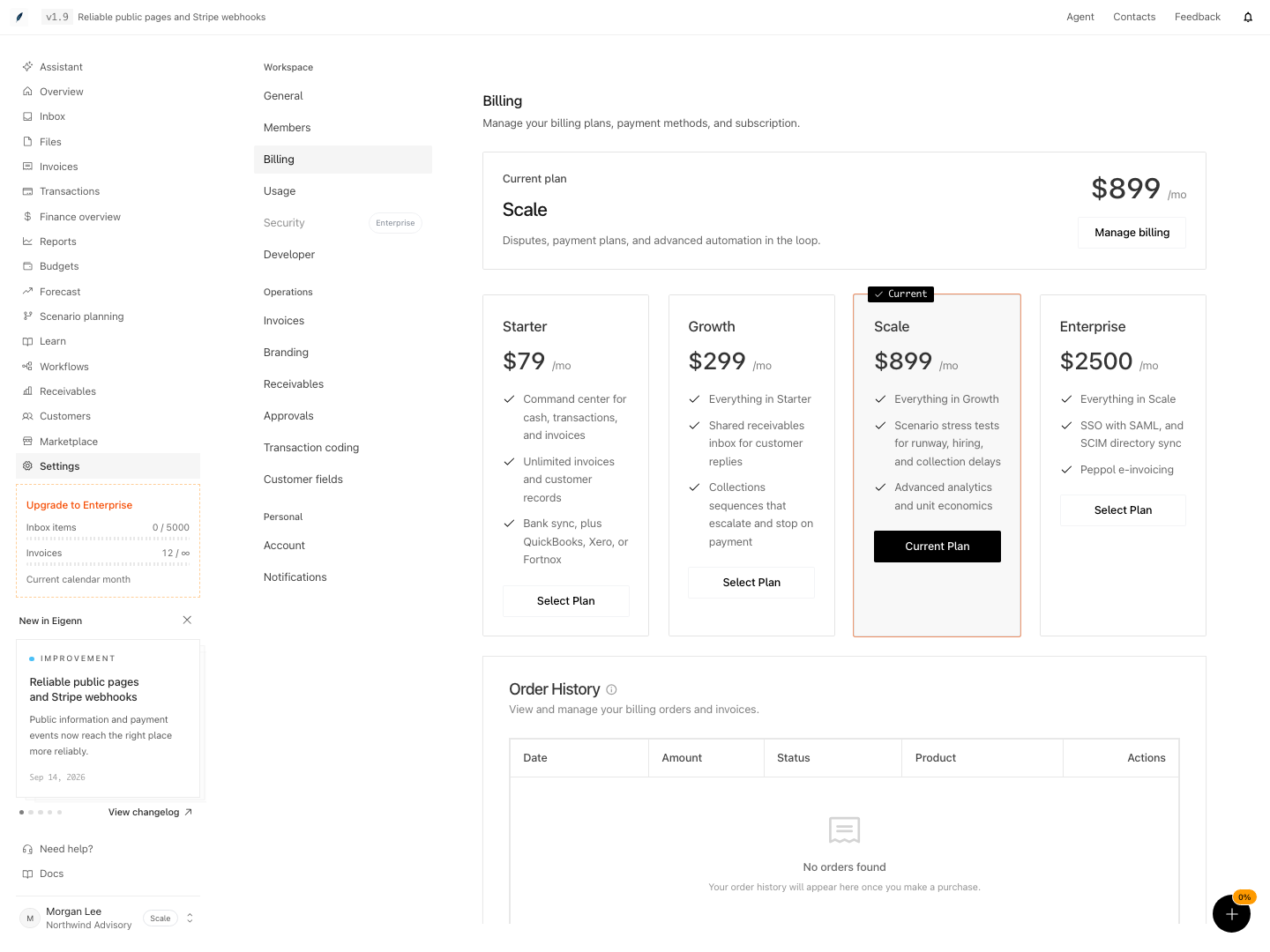
Shown with synthetic data in a local workspace.
Verification
Troubleshoot
Manage billing returns no portal link
Retry once. If it still fails, send the workspace and exact time through Support. Do not repeatedly create checkout sessions.
The plan card did not change after checkout
Wait for subscription synchronization, then refresh Billing. Compare the hosted portal before you purchase again.
Cancellation succeeded but the plan still looks paid
Stripe schedules the cancellation for the period end. The local badge can lag provider state until synchronization.
A refund request has not changed status
An Eigenn operator reviews each request by hand. Submitting records the request; it does not issue a refund.
Usage says the data is temporarily unavailable
The usage query failed. Your plan and limits did not change. Reload the page. If the message persists, check Settings → Billing and contact support.
A Member or Viewer can see Billing but cannot change the subscription
This behavior is correct. Checkout, portal access, cancellation, and resumption require an active workspace Owner. Ask an Owner to perform the action.
- Go to Settings → Billing and confirm the current plan matches Stripe's hosted portal. Expected: The plan card reflects your latest subscription.
- Attempt to change from Starter to Growth by selecting the relevant plan and completing checkout. Expected: After plan synchronization, Billing updates to the new plan.
- As an Owner, cancel through the hosted portal, or select Starter from a higher plan and confirm. Expected: Cancellation is scheduled for period end. Selecting an already-current Starter card makes no change.
- Try submitting a refund request on an active subscription. Expected: The request appears under 'Your requests' with status Pending review.
- Open Settings → Usage and confirm current utilization is displayed for all tracked metrics. Expected: Usage cards show accurate counts, status badges, and comparisons.
- Export usage details to CSV and confirm file contains Name, Detail, Value, and Unit.
- Test workspace write actions when subscription is unpaid and confirm writes are blocked but reads still work. Expected: Informative message on block, access to read-only data.
- Log in as a Member and then a Viewer and attempt checkout, portal access, cancellation, and resumption. Expected: Each subscription operation is denied; Billing information remains readable.