Workflows
Build, validate, deploy, run, and manage finance automations in the visual Workflow Studio.
Summary
Workflows turn repeatable finance operations into connected triggers, actions, decisions, delays, and human checkpoints. The web app includes a workflow library, a visual editor, and validation and deployment controls. It also includes manual test runs, execution history, and AI tools that help you edit.
Capabilities
With Workflows, users can design and automate end-to-end finance processes visually, using a library of specialized blocks such as triggers, communications, finance actions, flow control, and general actions. The system includes real-time validation, autosave, undo/redo, and version management. Integrated AI tools help suggest and generate improvements to workflow logic. Users can test, deploy, deactivate, or delete workflows, and see a live execution console for individual runs.
Prerequisites
Availability and Access
Workflows need an authenticated team workspace. Starter is the entry plan, so every paid workspace has some workflow capacity.
| Plan | Workflow limit |
|---|---|
| Starter | 3 workflows |
| Growth | 25 workflows |
| Scale | Unlimited workflows |
| Enterprise | Unlimited workflows |
Plan and role checks protect the current Create Workflow screen. The screen does not show how much of the workflow quota remains. It also does not show a pre-submit limit check. If the number that your workspace can create differs from the configured entitlement, use the workspace’s current billing state and support guidance as the authority.
The primary navigation gate applies to owners:
- workspace owners on Starter or higher can open Workflows from the sidebar;
- members and viewers can see a locked entry, even though the workflow service behind it has narrower namespace permissions for them;
- billing write restrictions can block create, edit, deploy, run, resume, cancel, and delete actions even when read access still works.
The workflow service applies this namespace matrix:
| Role | Payment Follow-up | Promise to Pay | Settlement |
|---|---|---|---|
| Owner | read, create, edit, deploy, and delete | read, create, edit, deploy, and delete | full definition access |
| Member | read, create, edit, and deploy; no delete | read, create, edit, and deploy; no delete | no definition access |
| Viewer | read only | read only | no definition access |
The web navigation itself needs an owner. Use an owner account for the supported browser workflow. A non-owner who opens a direct page can get a locked navigation item or a permission error. This can happen even when the service behind it grants read access.
Concepts
Autosave and Version Behavior
Every document edit marks the workflow dirty. The editor waits 1.5 seconds, then saves the definition and canvas positions. The header reports:
- Saved,
- Unsaved changes,
- Saving…, or
- Save failed.
Command+S or Control+S bypasses the debounce. A run and a deployment also request an immediate save first. When you leave the editor, Eigenn tries to flush the pending work. A browser or network failure can still stop persistence. Do not leave the editor while Save failed is visible.
Autosave preserves the displayed version and updates the draft. Deployment promotes a copy of that saved draft for new runs. Later autosaves do not change the promoted copy; use Redeploy to publish those edits. The version number alone does not tell you whether draft changes are published.
Workflow
Open Workflows
Choose Workflows in the primary sidebar. The section has five secondary tabs:
| Tab | Purpose |
|---|---|
| Workflows | Definitions, status, and edits |
| Outcomes | Recovered revenue, invoices resolved, estimated hours saved, and run health |
| Executions | Run history |
| Pauses | Human checkpoints waiting for a decision |
| Approvals | Proposed actions waiting for a person |
See Workflow Outcomes and Workflow Pauses.
Understand the Workflow Library
The Workflows page repeats the outcome cards from Outcomes, so the library opens with the result of the automation rather than a list alone.
Use Search workflows... to match a name, description, or namespace. The filter control can narrow by namespace and active state. The table shows Workflow, Namespace, Status, Nodes, Version, Updated, and Actions.
The page requests at most 100 definitions. Search runs against that loaded set in the browser. It is not an unlimited workspace-wide search.
From a workflow row you can:
- choose Edit to open Workflow Studio,
- choose Activate or Deactivate,
- choose View Details, or
- choose Delete.
Delete needs confirmation. Delete is owner-only. You cannot undo a delete from the web app.
Create a Workflow
- Open Workflows.
- Choose Create Workflow.
- Enter a mandatory Name.
- Choose a Namespace:
- Payment Follow-up for receivables follow-up,
- Promise to Pay for payment-promise operations, or
- Settlement for settlement negotiation.
- Add an optional Description.
- Choose Create workflow.
The new definition starts inactive at version 1. It then opens in Workflow Studio. It contains one Trigger block at the initial position. That trigger defaults to Invoice Overdue. Select it and change the settings when the workflow must start another way.
You cannot change the namespace after creation through the current update service. Choose it deliberately.
Build in Workflow Studio
Workflow Studio has a canvas, a resizable right panel, an optional console, and three panel modes:
- Library lists blocks that you can click or drag onto the canvas.
- Editor sets the name, description, on/off state, and block-specific inputs of the selected block.
- Copilot can explain the open definition, examine history, and propose edits.
Connect a source handle on one block to the target handle on the next. Select blocks or edges to move, change, duplicate, disable, or delete them. When you delete a block, Eigenn also removes the edges attached to it.
The current Library shows these blocks:
| Group | Blocks |
|---|---|
| Triggers | Trigger |
| Communications | Send Email, Send SMS, Notify Team |
| Finance actions | Apply Late Fee, Escalate |
| General action | Action |
| Flow control | Decision, Router, Loop, Parallel, Subflow, Wait, Pause, End |
The current Library deliberately hides other registered block types. Do not assume that you can add a registered or API-level type through the web editor.
Canvas controls and shortcuts
The canvas supports pan, zoom, partial selection, drag, connection handles, undo, redo, and fit-to-view. Useful shortcuts are:
| Action | macOS | Windows or Linux |
|---|---|---|
| Save now | Command+S | Control+S |
| Run or stop | Command+Enter | Control+Enter |
| Undo | Command+Z | Control+Z |
| Redo | Command+Shift+Z | Control+Shift+Z |
| Duplicate selected block | Command+Shift+D | Control+Shift+D |
| Delete selection | Delete or Backspace | Delete or Backspace |
| Fit to view | Command+Shift+F | Control+Shift+F |
| Auto-layout | Shift+L | Shift+L |
| Clear console | Command+D | Control+D |
The editor suppresses shortcuts that change the canvas while the focus is inside most editable fields.
Use the AI Edit Tools
Choose the sparkle icon in the editor header to open Generate with AI. A successful wand request applies its validated proposal immediately as one undoable change.
Open the Copilot panel for a conversational workflow. The server does not apply Copilot proposals. Read the latest proposal. Then explicitly accept or reject it. An accepted proposal is also one undoable document replacement.
AI requests can fail because of connectivity or assistant rate limits. Always examine the new blocks, connections, and settings before deployment.
Validate and Deploy
Choose Deploy to open the deployment sheet. Expand Validation to examine the structural and configuration checks.
Errors such as these block deployment:
- no trigger,
- orphaned or disconnected blocks,
- a cycle,
- a decision branch or router route without a mapped edge,
- an edge that references a missing block, or
- a mandatory block setting that is invalid.
The sheet shows warnings such as a missing terminal block, many triggers, or unreachable blocks. These warnings alone do not block deployment.
Choose Deploy in the sheet to activate a draft. Deployment saves, validates on the server, promotes a definition snapshot and sets the workflow active. The preview simulates the current draft without performing its actions; an unavailable preview does not itself block deployment. This page has no environment selection.
When the promoted definition is current, Deployed is disabled. Edited drafts show Redeploy. Use the separate undeploy control or Deactivate in the library to stop new runs; unpublishing clears the promoted copy but keeps the draft.
Run and Stop a Workflow
The Run button stays disabled until the workflow is active. A manual run:
- saves current editor changes,
- uses the configured supported trigger and asks you to select an eligible invoice when live invoice/customer context is required,
- opens the console, and
- overlays live step state on the canvas when realtime data is available.
While that editor-tracked run is active, Run becomes Stop. Stop calls the execution-cancel operation. A Manual workflow without record requirements sends empty trigger data. The invoice picker loads up to 100 eligible invoices. Workflows requiring a live event or a customer-communication instance cannot start through this editor button. Run sends no idempotency key; one click represents one intended execution.
New runs use the promoted definition and keep an execution snapshot. A waiting run resumes from its own snapshot; legacy runs without one fall back to the stored definition. Deactivation still prevents normal resume even when a snapshot exists. Review running/waiting executions before deactivating or deleting a workflow.
Behavior specification
Workflows persist every change with autosave, displaying save status indicators. Only one namespace can be set during creation, and each versioning/edit action is tracked. Activation makes the workflow eligible for runs, but only correct configurations pass validation and deploy successfully. The AI wand applies a validated edit immediately; Copilot waits for acceptance. Current executions retain their own definition snapshot, and access is regulated by workspace role and plan. Deleting workflows is irreversible and requires owner confirmation.
Diagrams
Rendering diagram…
Screenshots
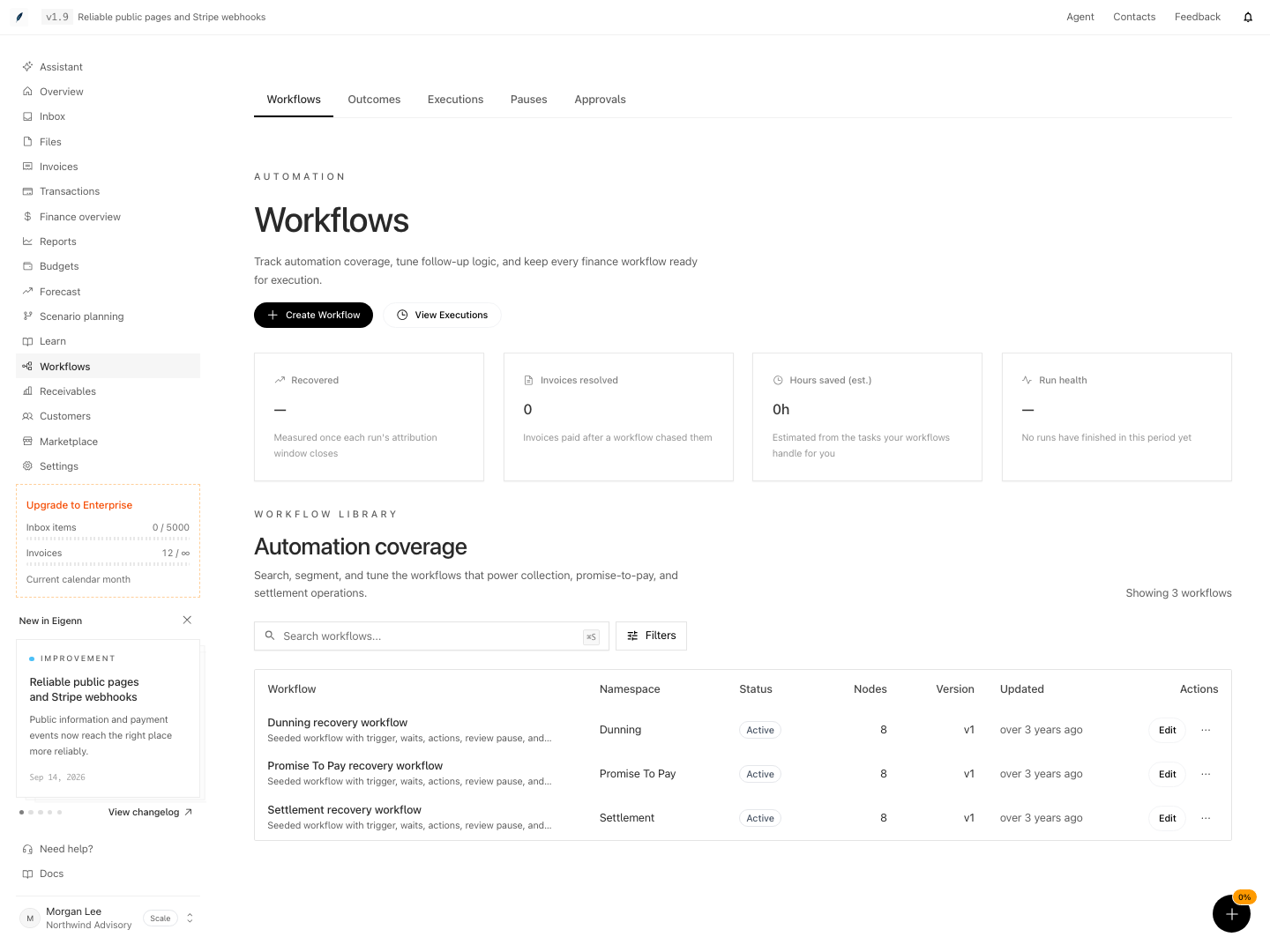
Shown with synthetic data in a local workspace.
Verification
Confirm a Deployment
- Confirm the header badge says Published and the save indicator says Saved.
- For a safe first test, use a Manual trigger and a no-side-effect path that stops at End.
- Choose Run once.
- Watch the console and canvas overlay.
- Open Workflows → Executions.
- Open the new run and confirm its status, steps, trigger data, context, and result.
An Active badge proves eligibility to run. It does not prove that an event trigger fired or that an execution completed.
Troubleshoot
Workflows shows a lock
Confirm that the workspace is on Starter or higher. Confirm that you are a workspace owner. A billing write restriction can keep reads available and still block changes.
Create workflow fails for Settlement
Settlement is owner-only. Members and viewers can use only the Payment Follow-up and Promise to Pay namespaces.
Deploy stays disabled
Expand Validation and correct every failed check. Warnings alone do not block deployment.
The editor says Save failed
Keep the page open. Restore network access. Make a small change, or use Command+S or Control+S to retry. Confirm Saved before you run the workflow or leave the page.
Run stays disabled
The workflow is a draft or inactive. Deploy it successfully before a manual run.
A published workflow changed while a run stayed in the Waiting state
Current runs resume from their execution snapshot, so editing or redeploying the draft does not replace their graph. Legacy runs without a snapshot fall back to the stored definition. Check whether the workflow is still active before resuming.
The version did not change after an edit or a deployment
That is current generic-editor behavior. Autosave and activation do not bump the displayed version.
- Open the Workflows section as a workspace owner and confirm you can see the 'Create Workflow' button. (Expect full access if your workspace is on a paid plan and you have owner rights.)
- Create a new workflow, enter a valid name and select a namespace. (Expect to proceed to Workflow Studio if successful.)
- Add at least one action and connect it to the default trigger. (Expect valid connections on the canvas.)
- Choose 'Deploy' and address any listed validation errors until deployment is enabled. (Expect 'Deploy' button to be active after resolving blocking errors.)
- After deploying, confirm the workflow shows an 'Active' or 'Published' badge. (Expect workflow is eligible for manual run.)
- Choose 'Run' and observe the execution console and live status overlay. (Expect run status and steps to appear.)
- Visit 'Executions' and verify this run is listed with correct status and trigger data. (Expect new execution to be visible with expected details.)
- Attempt to delete the workflow from the library as an owner. (Expect a confirmation prompt and permanent removal after confirmation.)