Weekly Finance Ritual
Run a repeatable review of cash, receivables, transactions, customer risk, forecasts, workflows, and accountable next actions.
Summary
The weekly finance ritual turns the workspace record into a regular cadence. Use the same order every week. This makes gaps in data, collection risk, and automation failures visible before the team makes a decision.
Capabilities
This feature supports teams in reviewing connected banking data, customer and invoice records, transaction categorization, receivable statuses, cash forecasts, and workflow health. It provides structured views and operational tabs to directly access and assess the health of all critical elements in a finance workflow.
Prerequisites
Prerequisites
- Sign in to an Eigenn workspace with current bank, transaction, customer, and invoice data.
- Use Starter or a higher plan for the Weekly Ritual and Workflows features.
- Confirm the review period and the people responsible for cash, receivables, accounting, and workflow operations.
- Ask a workspace owner to join when the review can need you to create, deploy, deactivate, or delete a workflow.
Concepts
The review relies on maintaining healthy and active integrations for accurate, current financial data. It depends on workspace roles with clear responsibilities for cash, receivables, transactions, customer follow-up, automation health, and escalation points. The review recommends attaching decisions to source records. It does not enforce completion or create a meeting record automatically.
Workflow
Run the Review in Order
1. Confirm source health
Open Settings → Account → Bank Connections. Then resolve stale or disconnected accounts. A finance review built on an incomplete sync can make cash, burn, and runway look healthier or worse than they are.
2. Read the owner brief
Open Overview. Choose the correct Reporting period. Read Owner brief and Do these first before you open individual records.
Record:
- the highest-priority action,
- the weakest business-health signal,
- current cash and runway, and
- any source that does not have enough data for a decision.
Overview is a summary. Confirm each material result in the page that owns the source record.
3. Work receivables
Open Invoices and Receivables. Examine overdue balances, payment promises, failed payments, risky terms, and follow-up ownership.
For every exception, find the invoice or customer, the next action, and the owner. Also find the date when the team expects a state change.
4. Review transactions and customer risk
Open Transactions for records that need categorization or explanation. Open Customers for customer-level context when a collection issue repeats. Also open Customers when the same account owns many overdue invoices.
Keep the decision attached to the relevant customer, invoice, or transaction. Do not move the only copy into a detached spreadsheet.
5. Test the decision
Open Forecast before you hire or add material spend. Also open it before you change payment terms or assume that overdue cash arrives on time. Compare the base view with a downside scenario. Then write down the assumption that changed the decision.
6. Review automation health
Open Workflows in the primary sidebar.
- Compare Active and Inactive workflow counts.
- Confirm that you still want every active workflow to run.
- Open the Executions tab.
- Filter for Failed, Waiting, and Canceled runs.
- Open each material run.
- Examine Execution Graph, Execution Replay, trigger data, context, and the recorded error.
- If Action Required appears, examine the checkpoint before you take a pause action.
The Workflow navigation includes Workflows, Outcomes, Executions, Pauses, and Approvals. Open Pauses to review checkpoints directly, or use Execution Details → View All Pauses from a run with a pending checkpoint.
Use Monitor and Recover Workflows for the full recovery sequence. A resume that returns queued enqueues the continuation job, but the run can still fail at a later step. Check the execution state, not only the pause badge.
7. Assign decisions
Every unresolved item needs:
- one owner,
- one source record,
- one expected outcome,
- one next-review date, and
- an explicit escalation condition.
Avoid assignments such as “finance will follow up.” Name the person and the record that will prove completion.
Close the Loop
The review is complete when:
- source connections are current or have a named repair owner,
- cash and runway use the intended reporting period,
- overdue invoices and customer risks have owners,
- you resolved or assigned every unusual transaction,
- you tested material decisions in Forecast,
- failed, waiting, and canceled workflow runs have dispositions,
- you examined pending human checkpoints, and
- the shared summary links back to the authoritative workspace records.
Behavior specification
What the Review Does Not Prove
- An empty Do these first queue does not prove that every ledger or invoice record is correct.
- A workflow marked Active is eligible to run. This does not prove that a trigger fired or that the latest run succeeded.
- A Waiting execution can represent a scheduled delay or a human checkpoint. Examine the execution before you assign it as a failure.
- The Workflows list loads up to 100 definitions. Executions shows up to 50 runs. The Pauses list shows up to 50 checkpoints at a time. These pages are operational views, not unlimited audit exports.
- The pause dashboard derives its resumed, expired, and total cards from lists with a cap of 100 records. Treat those cards as page summaries when a workspace has a longer history.
Troubleshoot
Cash or runway looks wrong
Confirm bank-connection health, the reporting period, and enough burn history before you change a decision.
Overview does not show receivables work
Open Invoices and Receivables directly. The owner brief only includes supported priority categories and a limited number of actions.
Workflows shows a lock or an upgrade prompt
The navigation gate needs a workspace owner on Starter or higher. Ask the owner to confirm the current workspace plan and role.
A workflow looked healthy last week but failed this week
Open the new execution. Do not depend on the Active badge of the workflow. Compare its trigger data, failed step, error, and definition with the last successful run.
A resumed pause still has a Waiting execution
Refresh the execution and check its state and timeline. A queued resume result confirms that a continuation job was enqueued, not that the workflow finished. Keep the execution ID and reported job details when escalating; avoid repeatedly resuming the same checkpoint.
Diagrams
Rendering diagram…
Screenshots
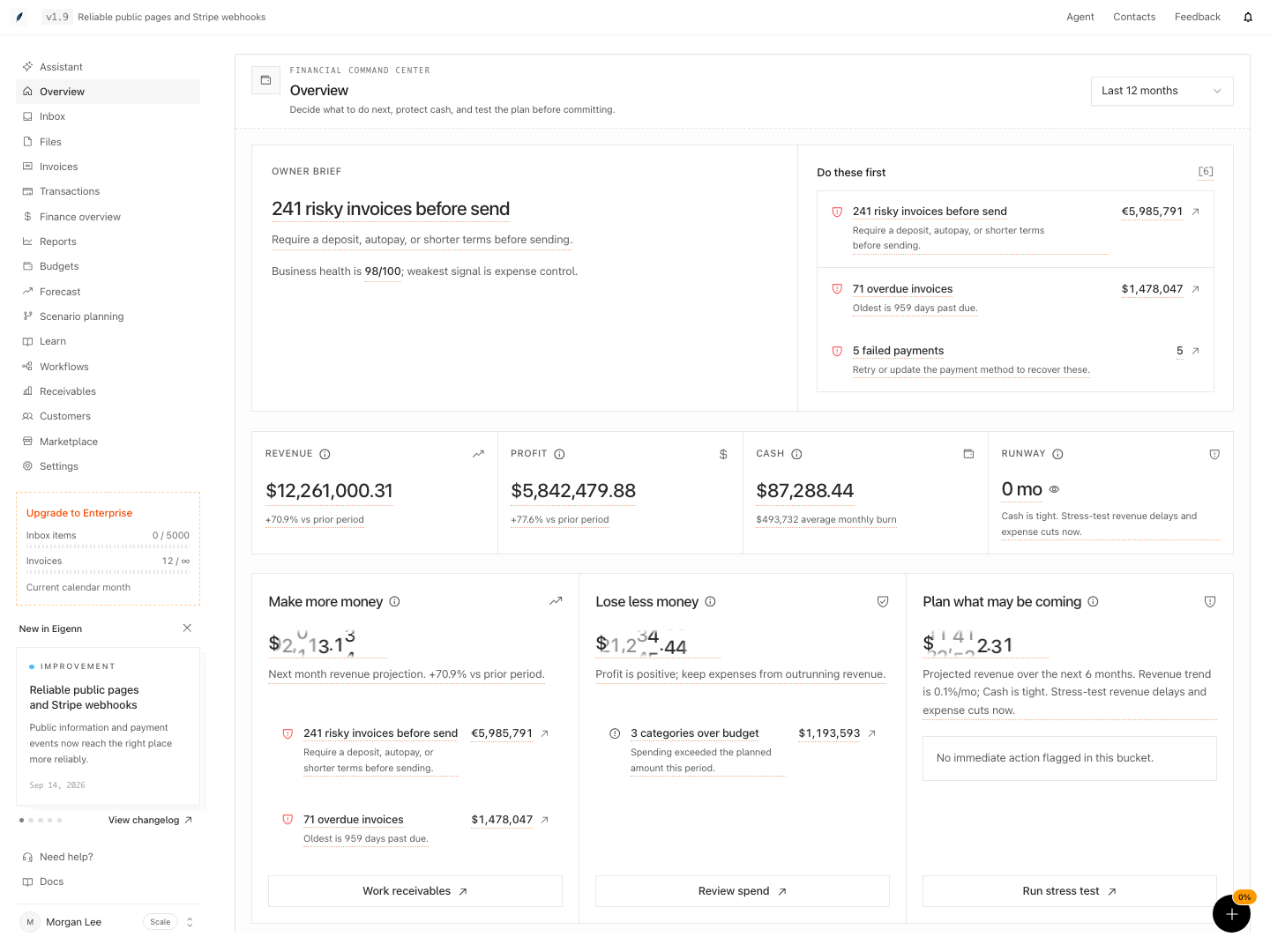
Owner overview with priority actions, business health, cash, and runway.
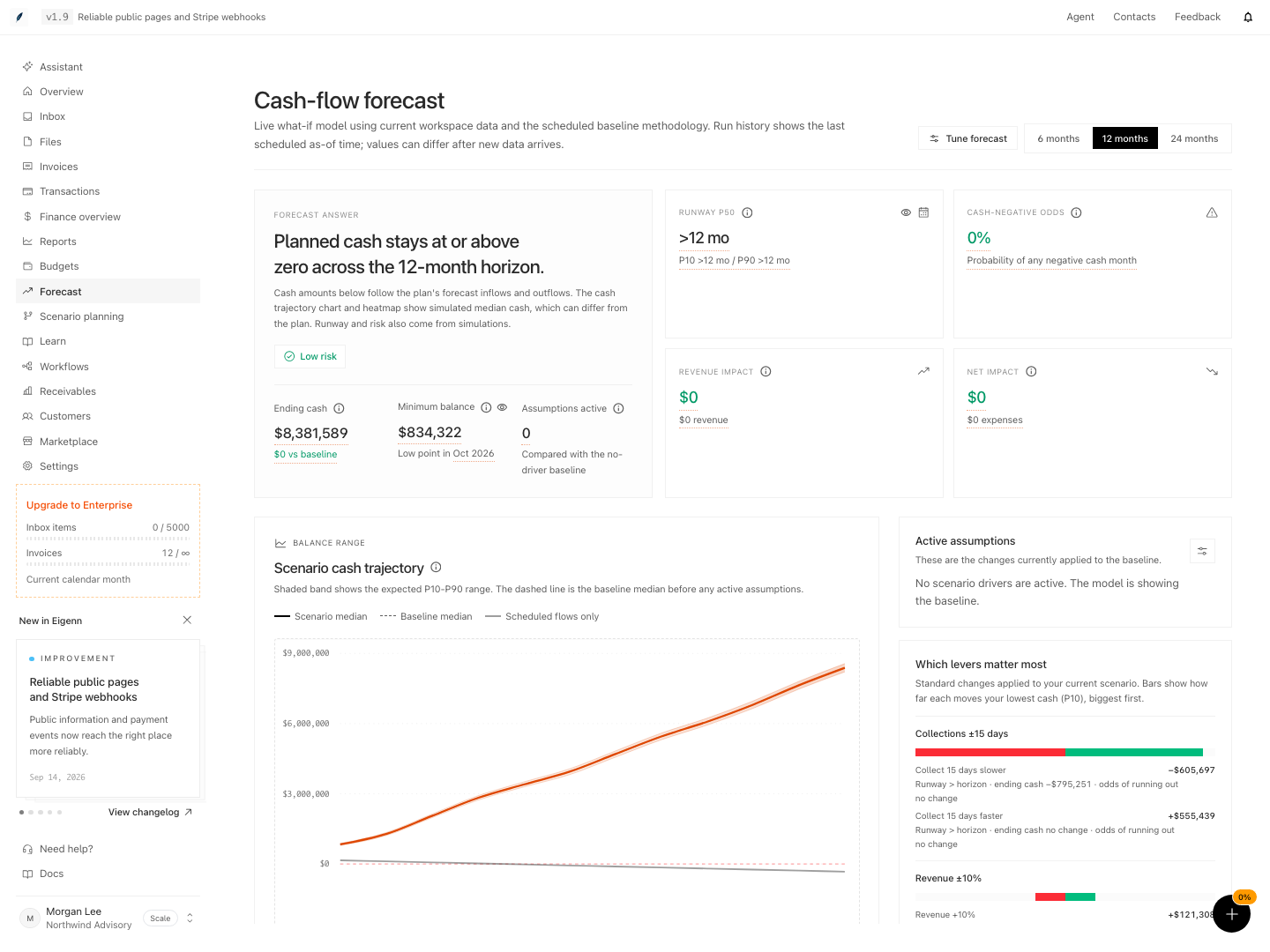
Cash-flow forecast with minimum balance, runway range, active assumptions, and scenario cash trajectory.
Shown with synthetic data in a local workspace.
Verification
- Sign in to an Eigenn workspace with bank, receivable, and invoice data. Expected: You can access the workspace features and see up-to-date records.
- Navigate to Settings > Account > Bank Connections. Expected: All connected accounts show as current, or stale accounts can be assigned for repair.
- Go to Overview. Expected: The Owner brief and recommendations match the most recent reporting period.
- Check Invoices and Receivables for overdue or at-risk records. Expected: You can see overdue balances and assigned owners for each exception.
- Open Transactions and Customers. Expected: Transactions requiring categorization are visible; customer-level context is present for repeated exceptions.
- Access Forecast and compare scenarios before changes. Expected: Forecast views update when you adjust reporting periods or assumptions.
- Review Workflows > Active/Inactive/Executions. Expected: You can identify failed, waiting, or canceled runs and see associated execution details.
- For any item left unresolved, verify an owner, expected outcome, and next review date are listed in the record. Expected: All items assigned or explicitly escalated.