Customer Lifecycle
Learn how Eigenn creates, enriches, uses, retains, and permanently deletes a customer record.
Summary
The customer lifecycle starts when a team creates or imports a billing contact. It continues when invoices, projects, communications, notes, tasks, and files add context. Eigenn does not have a functional active, inactive, or archived customer state. Lifecycle management depends on the record itself and on the financial objects that link to it.
Lifecycle at a Glance
| Stage | What changes |
|---|---|
| Create | Eigenn creates a team-scoped customer ID. Manual creation records a customer-created activity |
| Enrich | You add contact, address, tax, tags, notes, tasks, files, and payment context |
| Transact | Invoices and Tracker projects reference the customer |
| Review | Eigenn derives revenue, outstanding balance, payment health, engagement, and communication history from related records |
| Maintain | The team corrects details, changes tags, and closes follow-up work |
| Delete | Eigenn permanently removes the customer record. Some related records cascade away. Invoices remain without the customer link |
Capabilities
Access Boundaries
- The active team is the boundary for all customer reads and writes.
- Owners and Members can create customers, change them, tag them, change their country, and delete them.
- Viewers can read customer data but cannot change it.
- A customer ID from a different team returns no record. You cannot change or delete it from the current team.
- Bulk actions affect only customer IDs that belong to the active team.
Prerequisites
To use customer lifecycle features, you must be a Member or Owner within an active Eigenn team. You need at least a customer name (minimum two characters) and a valid primary email to create a record. All other details are optional and can be enriched after creation. Viewer roles have read-only access.
Concepts
Common Lifecycle Mistakes
A duplicate record
Search by name, email, contact, and address before you create a record. If duplicates already exist, Eigenn has no merge control. Select the record to keep. Copy the necessary context into it by hand before you delete the other record.
An open invoice counted as collected revenue
The customer list's Revenue adds paid invoice amounts, while the full record's Collected Revenue adds successful same-currency payment records linked to paid, unpaid, or overdue invoices. Manually marking an invoice paid does not create a payment record. Reconcile both before treating a status as cash received.
Reliance on Active, Inactive, or Archived
Eigenn has no customer status field or archive control. Use a tag and a note to record your team's convention; there is no promised release date for a separate lifecycle field.
Deletion of a customer to hide it
Deletion is not a filter or an archive. It removes operational context and clears customer links on retained invoices. Use a lifecycle tag when the record must remain available for history.
The assumption that the customer record owns every file
The Files tab includes customer uploads and invoice files. Customer deletion does not replace invoice retention or storage policies.
Workflow
1. Create a Team-Scoped Record
A customer record needs:
- A name with a minimum of two characters in the customer form
- A valid primary email
All other visible fields are optional. Owners and Members of the active team can create customers. Viewers have read-only access.
You can create a customer from:
- Customers → Create customer
- The empty customer-ledger action
- The customer selection when you create or change an invoice
When you create a customer from an invoice, Eigenn selects the new customer in that invoice after it saves the record.
The form does not enforce unique names or email addresses. Search the customer ledger before you create a record, so that financial history does not split across duplicates.
2. Build the Billing Identity
The customer form separates general contact details from billing details.
General
- Name
- Primary email
- Billing email
- Phone
- Website
- Contact person
The billing email is one more address that gets invoices. Keep the primary email correct even when finance messages go to a separate mailbox.
When the primary email uses a company domain and the website is empty, the form suggests that domain for the website. The form does not suggest common personal-email domains. Eigenn saves the website without the http:// or https:// prefix.
Details
- Searchable address and manual address lines
- Country, city, state or province, and postal code
- Tags
- Tax ID or VAT number
- General internal note
When you select a suggested address, Eigenn fills the available city, state, country, country code, and postal code. Review every field before you save. An address suggestion can still need correction.
Eigenn stores the complete set of selected tags. When you remove a tag in the form and save the update, Eigenn removes that tag from this customer.
3. Connect Financial Work
Invoices and Tracker projects reference the customer by ID. The customer ledger then derives:
- Invoice and project counts
- Paid revenue
- Outstanding and overdue amounts
- Last activity
- Engagement score
- Customer-level invoice history
- Successful collected payments and the separate invoiced-versus-collected cash view
- Monthly invoice-value chart
- Estimated MRR and ARR from paid invoices
- Payment-health signals when there is enough history
The customer record does not own the invoice lifecycle. Change invoice status, record payments, send reminders, or reconcile balances from the invoice and receivables workspaces.
4. Add Relationship Context
The full customer record stores these kinds of team context:
- Notes for internal decisions and relationship details
- Tasks for customer-specific follow-up, with To do, In progress, and Done states
- Files for contracts and other customer documents
- Emails for recorded collection communications
- Activity for customer-related events
Eigenn deletes a note or a task immediately when you select its list-level Delete action. Customer files have a confirmation step. You manage invoice files through their invoice.
5. Review and Correct the Record
Select Edit on the full customer page or in the customer actions. The submit button stays disabled until the form has a valid change.
After you save, confirm:
- The name, primary email, and billing email
- The contact and address fields
- The country and country code, especially when you filter by country
- Tag membership
- The tax or VAT number
- The related invoice and project counts
Custom field values are edited under General → Custom fields after an Owner or Member saves their definitions in Settings. Standard details and changed custom fields can save separately. If the form says standard details saved but custom fields failed, retry the fields; the first save was not rolled back.
When you change a customer, Eigenn does not rewrite historical invoices. Open the related invoice if the snapshot that the customer sees also needs correction. Do the same for its delivery details.
6. Organize Without a Status Field
The current customer table has no Active, Inactive, or Archived status column or bulk status operation. Bulk actions support tags, country, and deletion.
Use an explicit team convention:
- Tags for lifecycle groups such as
former-customerorrenewal-review - Tasks for the next action
- Notes for the reason and decision owner
- Paid and Unpaid tabs for invoice state
- Recent and Repeat tabs for relationship patterns
A tag is only a label unless your team has configured a workflow that uses it. A do-not-chase tag does not itself stop reminders or Auto-chase. Review communication preferences and active recovery work separately.
7. Delete With the Correct Expectations
Customer deletion is permanent and has no restore flow.
What Eigenn removes
- The customer record, including its custom field values
- Tag associations
- Customer notes and tasks
- Customer-uploaded file records
- Customer contacts and communication preferences
- Linked Tracker projects and their time entries
- Linked recovery instances, actions, and communications
- Customer segment membership and integration references
- Payment-method references
- Customer aging snapshots
What can remain
- Invoices and recurring-invoice definitions remain, but Eigenn clears their customer link
- Collection cases and promises remain with an empty customer link
- Activity entries that Eigenn keeps in general team history can remain
- The customer-delete action does not do physical storage cleanup for customer files
Delete individual customer files first when storage removal matters, then review invoices, recurring schedules, projects, and operational cases before deleting the customer. A file deletion attempts storage removal but can remove the file record even when storage cleanup fails; a success state alone is not proof that the stored object was erased.
Safer deletion paths
The full customer page and edit sheet ask for confirmation. Bulk deletion also confirms the action.
The customer-table row menu deletes immediately. Use the full page when you need to review consequences first.
Behavior specification
Retained History Is Not an Archive
Deleting a record removes customer context and can remove collection communications with its recovery sequences. Retained invoice snapshots and general team activity can still contain customer details. Customer deletion is neither a reversible archive nor a guarantee that every copy of customer information has been erased.
Diagrams
Rendering diagram…
Screenshots
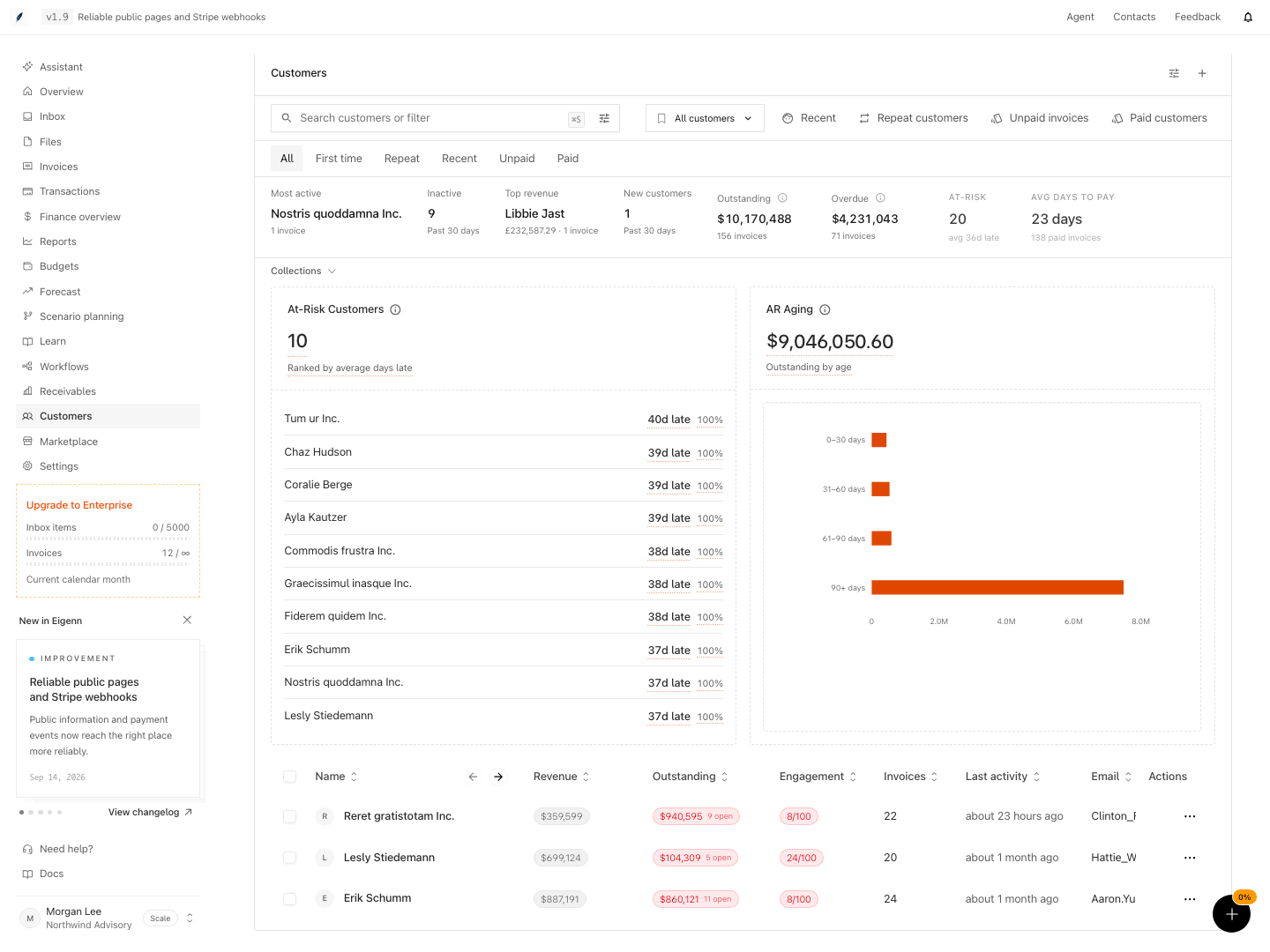
Shown with synthetic data in a local workspace.
Verification
- Create a new customer by providing a unique name and valid primary email; verify the record appears in the team customer ledger.
- Enrich the customer with billing, contact, tags, and notes; confirm all new information appears in the customer's details view.
- Link the customer to an invoice; compare paid-status revenue with successful payment records and the full record's Collected Revenue. Confirm the chosen currency before comparing totals.
- Add a task and a note; verify their presence in the customer's context tabs.
- Edit any details, save, and confirm the updated information displays correctly.
- Delete a disposable customer with synthetic invoices, projects, and recovery context. Confirm invoices and recurring definitions lose the customer link, while linked project time entries and recovery communications are removed. Verify there is no product restore control.
- Apply tags to indicate lifecycle states and confirm these are queryable and visible in list or detail views.