Invoice Insights
Read the payment, aging, revenue, operations, customer, and status metrics, and the accounting limits behind each number.
Summary
Invoice Insights summarizes the team's invoice history into payment, aging, revenue, operations, customer, and status signals. Use it for review and diagnosis. Use the invoice list or a full invoice record when you need to take action.
Capabilities
Review invoice payment times, outstanding amounts, collection rates, tax and discount use, and customer payment patterns. Insights also shows revenue trends, operational metrics, and status distributions. Open the invoice list to filter records and act on a finding. See the sharing limitation below before relying on a public link.
Prerequisites
Before You Start
- Sign in and select the team whose invoices you want to analyze.
- Confirm that invoice issue dates, due dates, paid dates, statuses, customer links, taxes, discounts, and reminders are accurate. Each metric is only as reliable as those records.
- Record payments and status corrections before you use the page for a finance review.
- For multi-currency teams, plan to reconcile monetary metrics by currency in the invoice list or your accounting system.
Concepts
Metric Reference
Payment performance
| Metric | What it means |
|---|---|
| Avg Days to Pay | Average elapsed days from issue date to paid date for paid invoices; creation time is used when the issue date is absent |
| Avg Days Overdue | Average days past due for invoices that are now unpaid or overdue and past due |
| Collection Rate | Paid invoice count divided by paid, unpaid, and overdue invoice count |
| On-Time Payment Rate | Paid invoices with a paid date on or before the due date, divided by paid invoices with usable dates |
The collection-rate denominator excludes draft, scheduled, and canceled records. On this page it covers all available history and counts invoices equally; it is not an amount-weighted cash collection rate. For example, two paid invoices and one unpaid invoice give a rate of about 67%, regardless of their amounts.
Aging analysis
| Metric | What it means |
|---|---|
| Oldest Invoice Age | Days since the earliest due date among unpaid or overdue invoices, with issue or creation date as fallbacks; future dates show zero days |
| Invoice Aging Buckets | Unpaid and overdue invoice totals without a paid date, grouped into 0–30, 31–60, 61–90, and 90+ day buckets |
The bucket chart measures whole calendar days from the due date. Future-due invoices and invoices without a due date enter the 0–30 bucket at zero days. The chart sums invoice totals without subtracting partial payments. Its 90+ label means more than 90 days; exactly 90 days remains in 61–90.
The Oldest Invoice Age card uses a different fallback: issue date, then creation date. A zero-day invoice can still be outstanding; the card shows Not overdue rather than treating it as missing. On-Time Payment Rate also falls back from due date to issue or creation date when needed.
Revenue and financial metrics
| Metric | What it means |
|---|---|
| Total Outstanding (AR) | Sum of unpaid and overdue invoice amounts |
| Revenue Recognition | Total invoice amounts grouped across statuses, with the paid amount called out separately |
| Discount Usage Rate | Share of all invoice records with a positive discount, plus total discount amount |
| Tax & VAT Summary | Tax and VAT amounts recorded across invoice statuses |
Revenue Recognition is a label for operations, not a GAAP or tax recognition rule. Its displayed total can include draft, scheduled, unpaid, overdue, paid, and canceled records. Use the paid callout for cash-paid context and reconcile official reporting in your accounting system.
Tax, VAT, and discount totals also include records across the lifecycle. These records include unpaid, draft, and canceled invoices. Do not use these totals directly when you file or remit tax.
Operations metrics
| Metric | What it means |
|---|---|
| Invoice-to-Cash Cycle | Average time from invoice creation to payment for paid invoices |
| Invoice View Rate | Sent invoices with a recorded view divided by sent invoices |
| Reminder Effectiveness | Invoices paid after a reminder divided by invoices with reminders |
| Invoice Volume Trends | Monthly counts of invoice records by creation date across available history |
Invoice volume includes all statuses and uses creation date, not issue date. Months with no invoice records can be absent. They do not always appear as zero.
Customer behavior
| Metric | What it means |
|---|---|
| Repeat Customer Rate | Customers with more than one invoice divided by customers represented in invoice history |
| Average Invoice Value | Mean invoice amount across recorded statuses |
| Customer Payment Patterns | Ranked best and worst payers with counts, amount, average days to pay, and on-time rate |
Customer rankings are a focused list, not an exhaustive customer export. Open the customer or invoice workspace before you change terms or collection treatment.
Status distribution
| Metric | What it means |
|---|---|
| Status Breakdown | Invoice amount and count grouped by paid, unpaid, overdue, draft, scheduled, and canceled status |
| Conversion Funnel | Separate counts for invoices now in draft, invoices with a sent date, and invoices now paid |
The conversion funnel is an all-time snapshot of operations. Eigenn counts the three stages independently from the current status and the send history. They are not a cohort. A paid invoice does not have to appear in the current draft count.
Workflow
Open Invoice Insights
- Open Invoices.
- Select Insights in the section navigation.
- Start with the payment and aging signals near the top.
- Continue through the revenue, operations, customer, and status views.
- Select View Invoices to move to the invoice list, or Create Invoice to open invoice creation.
Recommended Review Sequence
- Check Total Outstanding (AR) and Invoice Aging Buckets for collection exposure.
- Compare Avg Days to Pay, Avg Days Overdue, Collection Rate, and On-Time Payment Rate.
- Review Customer Payment Patterns to find customers that need different follow-up.
- Check Reminder Effectiveness before you change the reminder strategy.
- Use Status Breakdown and Conversion Funnel to find records stuck in draft, unsent, or unpaid states.
- Open the invoice list.
- Apply the related status or customer filter.
Turn an Insight Into Action
Follow up on aging exposure
- Note the oldest age and the largest non-zero aging bucket.
- Select View Invoices.
- Choose Overdue.
- Add Due Date, Customer, or Amount filters.
- Open the invoice.
- Review the payments and the communication history.
- Choose a reminder or recovery action that is correct for the status.
Investigate a low collection rate
- Compare the paid count with the total invoice count shown under the card.
- Review Status Breakdown for unpaid and overdue records that remain in the denominator.
- Open Invoices → Invoices and filter those statuses.
- Reconcile actual payments and correct stale statuses. Removing drafts does not improve this rate because drafts are excluded.
Investigate payment behavior
- Review the best and worst payer tables.
- Confirm that the customer has enough paid invoices to support a pattern.
- Open the customer's invoices and check due and paid dates.
- Use the history that you checked when you set future payment terms or follow-up times.
Share an Insights Section
The desktop hover control opens Share widget, but the current public renderer does not support the Invoice Insights section types. A link can be created without rendering the selected invoice metrics. Treat section sharing as unavailable for reporting until the destination displays the intended data.
If you inspect the exposed share control:
- Point to a section and select Share widget.
- Review Live (Relative) or Snapshot (Absolute) and the theme.
- Enter a password of at least four characters. Password protection is required.
- Open any generated link in a private window and check the actual metric content after unlocking it.
- Do not distribute a blank or incomplete view. Use the authenticated Insights page for review.
The share sheet's date range does not filter the current Insights page. Snapshot (Absolute) stores fixed dates, not a frozen copy of invoice data. Share passwords separately from links.
Behavior specification
What to Check Before You Report a Metric
- you selected the correct team
- the count below the card is non-zero
- paid invoices have a
paidstatus and paid date - sent and viewed invoices have the related activity dates
- Eigenn recorded the reminders before payment, for reminder-effectiveness analysis
- overdue records have correct due dates
- the customer records use consistent links
- monetary values use one currency, or you reconciled them by currency elsewhere
- you include or exclude draft and canceled records to match your reporting purpose
Edge Cases and Limitations
- Most Insights metrics are all-time. The page has no global date-range control now.
- The page has no CSV or PDF export control now.
- You can rearrange widgets in the current view. The page gives no visible confirmation that it saved a custom order. Refresh the page before you depend on the layout as permanent.
- Eigenn shows empty history as
0, No invoices yet, No paid invoices yet, or another empty-state message. Zero is not evidence of good performance without a count below the card. - Monetary cards can blend raw amounts from more than one currency, but show a single currency label. Treat multi-currency totals, averages, status percentages, tax, VAT, discounts, and revenue as directional. They stay directional until you reconcile them by currency.
- Total Outstanding (AR) does not subtract partial payments or payment plans in its aggregate calculation.
- Very large invoices can skew the average invoice value. The average also includes draft and canceled records.
- Payment metrics depend on invoice-level status and dates. A bank transaction alone does not repair a missing paid status or paid date.
- Analytics can take a short time to show a recent invoice or status update. Refresh the page after you confirm the source record.
Diagrams
Rendering diagram…
Screenshots
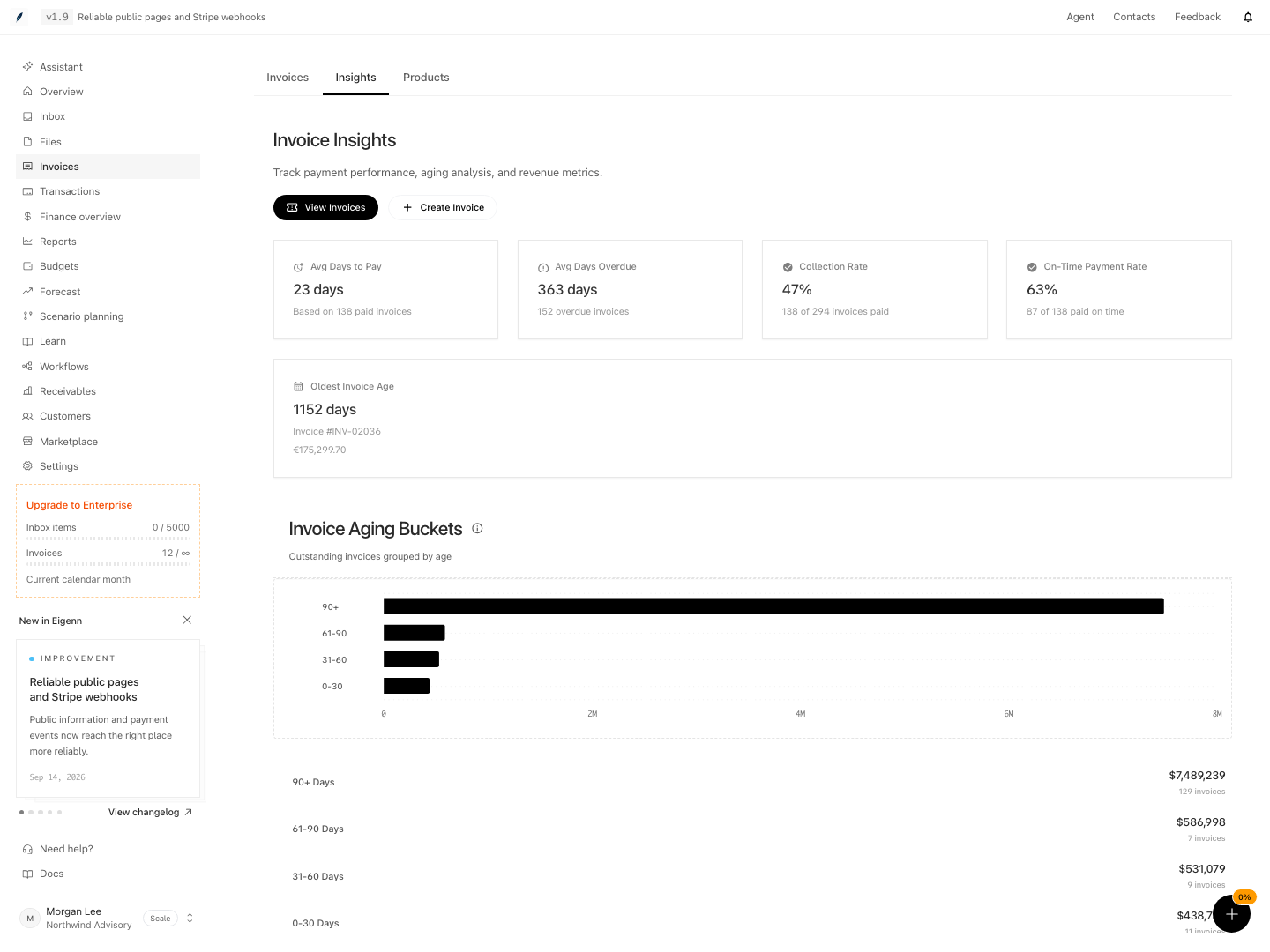
Shown with synthetic data in a local workspace.
Verification
Troubleshoot
A card shows zero even though invoices exist
Read the line below the card. Some metrics need paid invoices, sent dates, view events, reminders, past-due balances, or repeat customers. Open the invoice list and check the necessary data.
Collection Rate looks lower than expected
Its total count covers paid, unpaid, and overdue invoices. Review outstanding records and confirm that settled invoices have the correct paid status. Drafts, scheduled invoices, and canceled records do not lower this rate. Use a separate reconciled amount-based calculation when your review concerns collected cash.
Outstanding AR does not match payment progress
The aggregate AR card sums unpaid and overdue invoice amounts and does not subtract partial payments. Use each invoice's full page to review Payments received, Credits, and Amount remaining.
Revenue, tax, or status totals look wrong in a multi-currency team
Do not add different currencies as if they were one currency. Use the invoice list's currency-aware summary breakdown or your accounting system to reconcile each currency separately.
Aging is empty but unpaid invoices exist
The chart requires unpaid or overdue status and no paid date. Check for a stale paid date or a query failure. Future-due invoices should appear in the 0–30 bucket; use the invoice list to distinguish them from overdue records.
A recent status change is not reflected
Open the invoice and confirm the new status first, then refresh Insights. If the record is correct but the metric remains stale, retry after the analytics read has caught up.
I cannot see the Share widget control
The control appears on hover in the section's upper-right corner. Its presence does not mean Invoice Insights sharing is supported: the generated public view currently does not render these sections.
- Confirm you are signed in and your team's invoices display in Invoice Insights. Expected: Metrics such as AR, collection rate, and aging populate with non-zero counts if data exists.
- Change invoice status or payment details, refresh Insights, and verify that affected metrics update. Expected: Changes are reflected after analytics refresh.
- Inspect an Insights share link in a private window. Expected current limitation: password protection is required, but the invoice section does not render. Do not count link creation as successful report delivery.
- For multi-currency teams, open the invoice list and cross-check that single-currency and multi-currency totals align directionally. Expected: Totals are suggestive; correct per-currency breakdowns must be separately reconciled.
- Review the count below any card that shows '0'. Expected: Related raw data (e.g. sent, paid, viewed events) is present or absent as indicated by the count and customer filter results.