Planning Versions and Collaboration
Save and restore model history, attach comments to rows, propose scenario changes, and control who can review or edit planning work.
Summary
Versions and collaboration controls keep model changes reviewable. Use them to preserve decision points, discuss assumptions in context, and separate a proposed change from an accepted model change.
Capabilities
Comments
Open Comments to attach a discussion to a model row.
You can:
- choose a commentable row
- create a comment
- reply to a thread
- resolve a completed thread
Use comments for questions, rationale, ownership, and decisions. Keep the comment tied to the variable whose meaning or value is under review.
A resolved comment remains part of the model's review context. Resolve it after the question is answered or the decision is recorded.
Change Proposals
A contributor can propose the active scenario's changes to the base model without applying them immediately.
The proposal workflow supports:
- creating a proposal from scenario overrides
- reviewing the calculated diff
- approving or rejecting a proposal
- merging an approved proposal
- tracking open, approved, rejected, and merged states
Switch to a non-base scenario with changes before creating a proposal. The current proposal action includes ordinary variable-and-period overrides. Dimension-specific scenario overrides are not included in that proposal action.
Prerequisites
A workspace Owner can open the full model, manage named versions, and comment directly on its rows. Other teammates use a saved view shared with them. To comment through a saved view, the grant must allow commenting or editing, and the view must include the relevant rows. The workspace role still limits the available actions.
Concepts
Version History
Open Versions from the model toolbar.
Version history can include:
- regular auto-saved copies
- named versions created by a workspace owner with model-wide access
- snapshots created before a restore
- recovery versions created before high-impact scenario operations
Auto-saved copies protect recent work. The default schedule checks models hourly; model edits can also create a snapshot. Unchanged snapshot content is skipped, and automatic captures are at least ten minutes apart. Unreferenced automatic snapshots expire after 48 hours. A snapshot made before a restore is kept for 90 days. Referenced snapshots stay available while retained for a comparison or export.
Named versions do not expire automatically. Once a model has 200 named versions, delete an old named version before saving another. Names allow up to 160 characters; system labels reserve room for their status and may shorten the name.
An automatically calculated model is evaluated before a named or scheduled capture. Manual models keep their stored state and show (manual). If a named capture cannot evaluate the model, it preserves the stored state with (unevaluated). A scheduled capture retries after evaluation fails.
Access and Roles
Two controls decide what a person can do: the workspace role and the per-view grant.
A saved-view grant has three levels:
| Grant | Permits |
|---|---|
| view | Read the view |
| comment | Read, comment, and propose changes, but not edit the base model |
| edit | Change the model through the view |
The workspace role is the ceiling. A workspace Viewer is capped at read access even when the grant says edit. A per-view grant cannot raise a team-wide role.
A workspace Owner reaches any view of their own model without holding a grant. This is what lets an owner export through a view built for someone else.
Only an owner can open the model's unfiltered projection or call model-wide operations. Every other role, including a caller with no membership, is refused.
Eigenn answers a missing view and an unshared view identically. Telling them apart would let someone enumerate which views a model has.
Use the lowest level of access that supports the review.
Workflow
Create a Named Version
Create a version before:
- changing the model timeline
- replacing a major source
- restructuring formulas or dimensions
- rolling actuals forward
- presenting a board or operating-plan baseline
- merging or promoting important scenario changes
Use a label that explains the state, such as:
- FY27 plan before board review
- Latest June forecast
- Pre-close forecast, Q3
- Approved hiring baseline
Do not use Final as the only description. The model can continue to change.
Find and Preview Versions
The version panel supports search and a Named only filter.
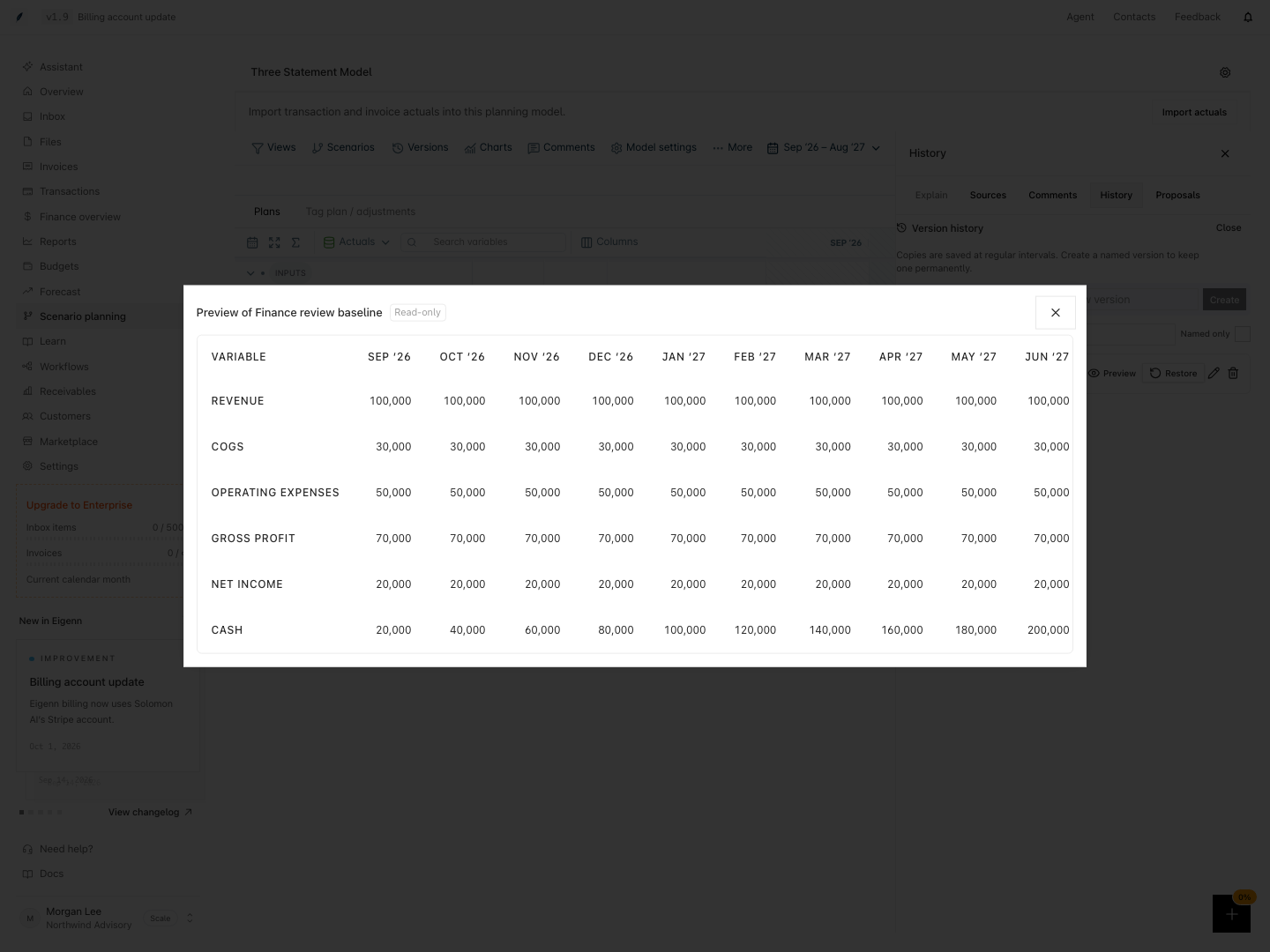
Select Preview to inspect a version without changing the live model. Press Escape to close the preview and return focus to its button. Preview is available to readers who can see version history even when they cannot manage the version lifecycle.
A version can be marked Not comparable. Eigenn states the reason:
| Message | Cause |
|---|---|
| Not comparable — currency changed | The version was saved in a different currency |
| Not comparable — granularity changed | The version used a different period granularity |
| Version unavailable — it may have been deleted | Eigenn cannot read the version metadata |
You can still preview a non-comparable version, but a direct comparison can mislead.
Restore a Version
Restore replaces the live model state with the selected saved revision.
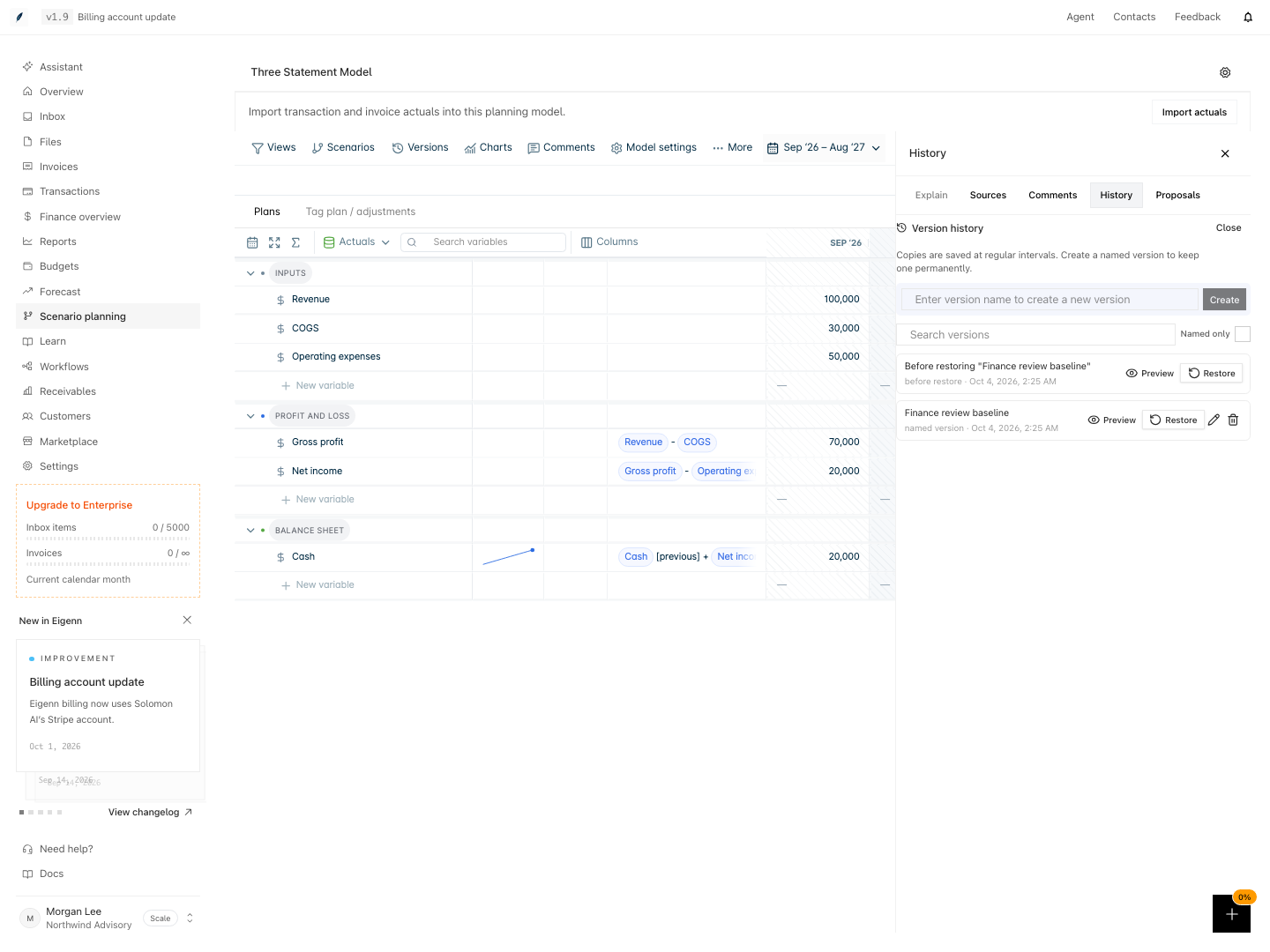
Eigenn uses a two-step confirmation and snapshots the current state first. This creates a path back when the restore was not the intended result.
A version includes the linked models it needs. The linked set must be available in the same workspace, contain no circular links, and use the same fiscal-year start month. Restoring that version restores its linked set in one operation. If any member cannot be restored, none of the model changes are applied.
Restore creates a new revision and refreshes current actuals and linked source values. The preview shows the saved numbers; restored live numbers can differ when source data has changed. Current comments and saved-view permissions remain in place. A simultaneous model edit can require you to reload and retry.
Before restoring:
- Preview the version.
- Confirm the model and date range.
- Notify active collaborators.
- Confirm source and actuals implications.
- Record why the restore is needed.
- Select Restore, then confirm.
A restore changes the model. A preview does not.
Rename and Delete Versions
Named versions can be renamed or deleted by a user with version-management access.
- Rename a version when its label no longer explains the decision point.
- Delete a version only when it is no longer needed for review, comparison, or audit context.
Auto-saved and pre-restore snapshots cannot be renamed or deleted from the named-version controls.
A delete can be blocked when another model artifact, such as a dashboard comparison, still references the version.
Review a Proposal
Before approving or merging:
- Read the proposal title and description.
- Review every changed variable and period.
- Confirm the base revision used by the proposal.
- Recalculate the effect on key outputs.
- Check for source or timeline changes since the proposal was created.
- Approve, reject, or merge according to the team's process.
Approval records a decision. Merge applies the approved changes.
Behavior specification
| Action or state | Result |
|---|---|
| Save a named version | Freezes the current root model and its linked set |
| Open History while it loads | Shows loading feedback; a failed list offers retry |
| Receive a model or version update | Refreshes the open model or history list |
| Open a shared view | Shows only named versions and the rows permitted by the current grant |
| Manage versions from a shared view | Create, rename, delete, and restore controls are unavailable |
| Restore while another restore wins | Returns a revision conflict; reload before trying again |
Collaboration Practices
- Assign one accountable model owner.
- Create named versions at decision points, not after every small edit.
- Use scenarios for alternatives and proposals for reviewable change sets.
- Keep rationale in row comments rather than a separate message thread when possible.
- Preview before restoring.
- Resolve comments after recording the decision.
- Tell active collaborators before a restore, merge, promotion, or timeline change.
Diagrams
Rendering diagram…
Screenshots
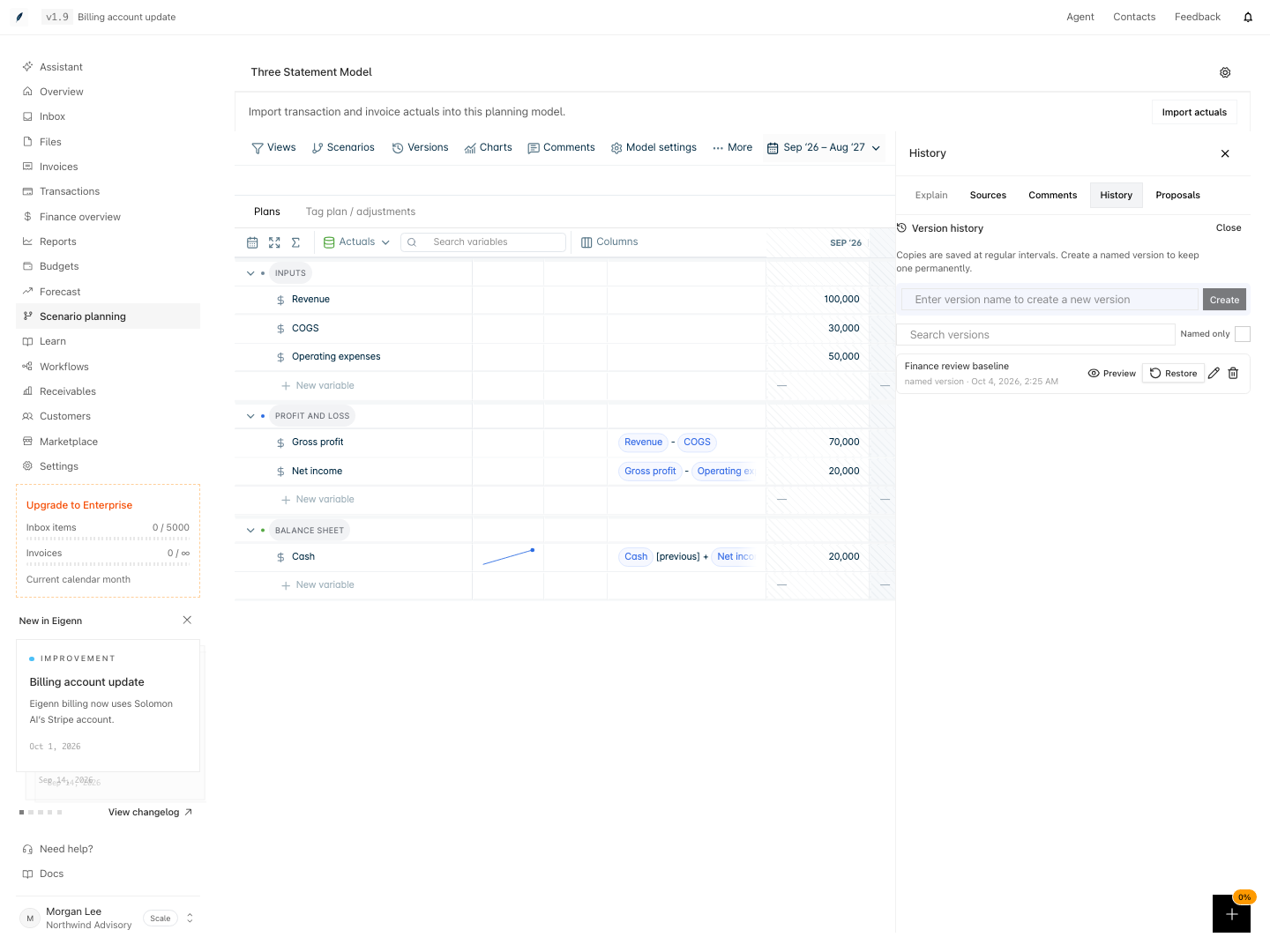
The named version remains in history after reloading the model.
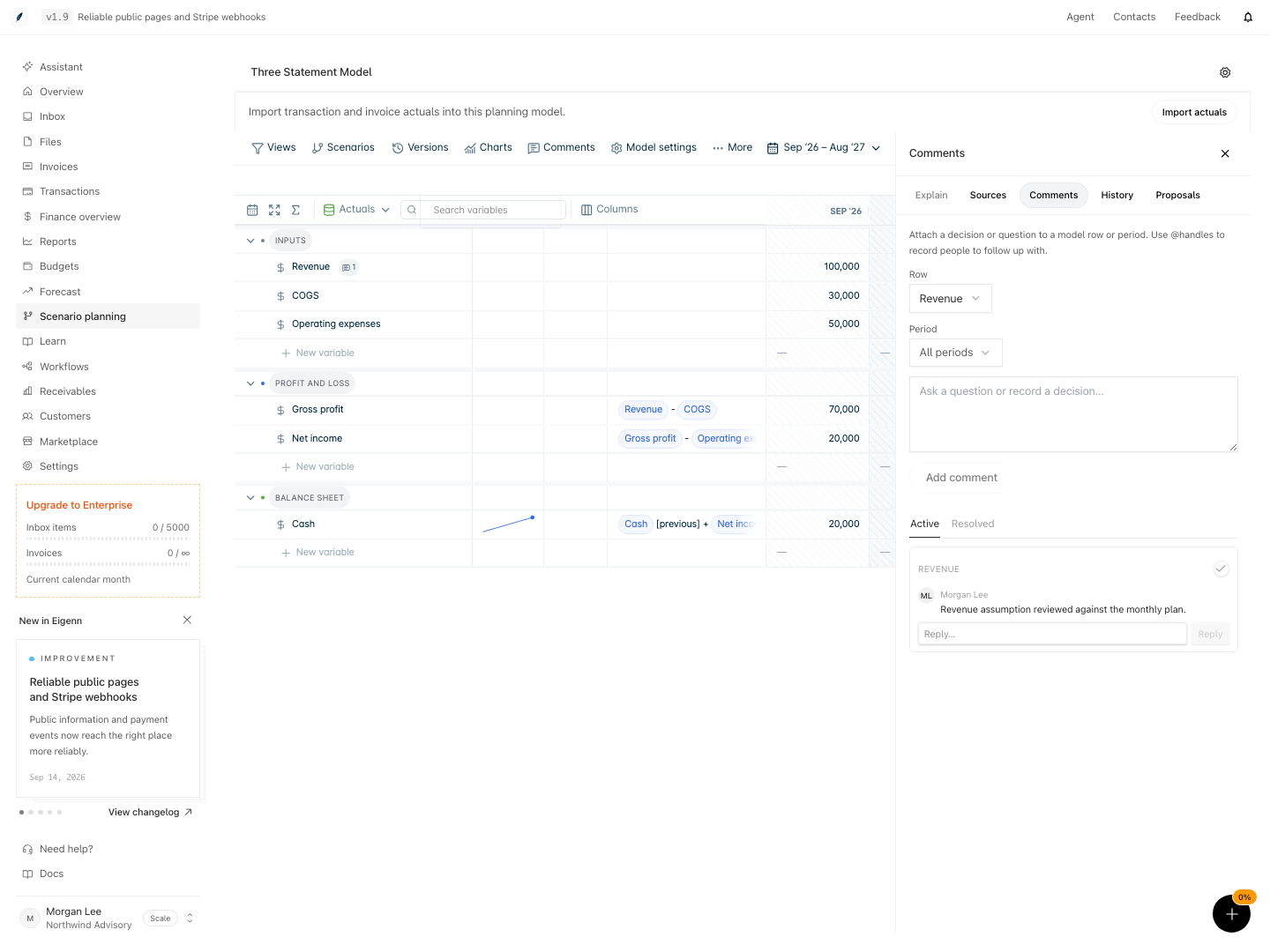
An owner can attach a comment to a row and all periods or one selected period.
Verification
The local seeded eigenn-planning-versions capture suite checks named-version persistence, frozen preview values, keyboard focus, two-step restore, and the recovery snapshot after reload. Screenshots use synthetic model data. Source evaluation, concurrent restore, tenant isolation, and shared-view restrictions are checked separately in the API, worker, and PostgreSQL behavior suites.
Troubleshoot
A version cannot be deleted
Check whether a dashboard, comparison, or other saved artifact references it. Remove or update the reference before deleting the version.
Restore is unavailable
Confirm that you have model-wide version access. A shared-view grant can allow preview without allowing restore.
A proposal contains no changes
Switch to a scenario with ordinary variable overrides. Base-case values and dimension-specific overrides do not create commands for the current proposal action.
A proposal no longer matches the model
Refresh the model and review the current revision. Recreate the proposal when the underlying model changed materially.
A commenter cannot see the expected row
Confirm the saved view includes the row and that the commenter's share grant applies to that view.
- Open the Versions panel and confirm that named and auto-saved versions are visible and distinguishable. Expected: The panel shows a list of both version types with labels and metadata.
- Create a named version before making model changes. Expected: The new named version appears in the version history with your label.
- Select a past version and preview it. Expected: The previewed state appears without changing the live model.
- Attempt to restore a version after previewing it. Expected: The system requests confirmation and creates a pre-restore snapshot, then updates the model.
- Add a comment to a row in the model. Expected: The comment is attached to the chosen row, visible in the Comments panel.
- Initiate a change proposal from scenario overrides. Expected: The proposal lists the calculated diff for review.
- Review, approve, and then merge a proposal. Expected: The proposal status updates and approved changes apply to the model.
- Attempt to rename or delete a version referenced by an artifact. Expected: The system blocks the action with an explanation.
- Verify permissions by attempting to comment, propose, or restore as users with different grants. Expected: Only users with sufficient access perform the respective actions. 10. Try to view or act on comments in a view that omits the referenced row. Expected: The comment is not visible if the row is outside the granted view.