Collaborate on a Planning Model
Use comments, scenarios, proposals, versions, and scoped sharing to review model changes without losing ownership or context.
Summary
This guide sets up a review workflow for a planning model without giving every participant full model control.
Capabilities
You can collaboratively review, comment on, propose, and approve changes in a planning model without giving all participants full edit access. The process supports scenario-based proposals, version control, scoped sharing, and focused collaboration for model review cycles.
Prerequisites
Comments and contextual review controls are available only when the planning context dock is enabled for the workspace. Source-detail inspection and manual calculation have separate rollout controls; their absence does not indicate missing model data.
Scenario planning requires Scale or Enterprise. Use a workspace Owner account for full-model workflows; other teammates open only saved views shared with them. Changes also require active billing access. See Planning access.
Before You Start
Assign:
- one accountable model owner
- the teammates who can edit
- the teammates who can propose changes
- the reviewers who need view access
- the viewers who only need results
Agree on the decision date and the output under review.
Concepts
Key concepts include base and scenario versions for separating proposals from approved changes, role-based sharing permissions for reviewers and contributors, tracked comments within the model context, proposals to group scenario-specific changes, and explicit saved views to focus attention on relevant assumptions and outputs.
Workflow
1. Save the Starting Point
Create a named version before collaborative review begins.
Use a label such as FY27 plan before department review.
This version separates the starting state from changes made during review.
2. Prepare a Review Scenario
Create or select a scenario for the proposed case.
Use a specific label and keep unrelated edits out of the scenario. The scenario should make the proposed assumptions easy to identify.
3. Add Comments to the Relevant Rows
Open Comments.
For each question:
- Select the affected row.
- State the assumption or issue.
- Name the owner or evidence needed.
- Reply in the same thread.
- Resolve the thread after the decision is recorded.
Keep model-specific rationale in the model instead of splitting it across private messages.
4. Save a Focused View
Include:
- the assumptions being reviewed
- the resulting outputs
- the required periods
- the active scenario
- rows with open comments
Give the view a label that identifies the audience and case.
5. Share the Correct Access
The model owner selects:
| Access | Use it when |
|---|---|
| Can view | The teammate only needs the result. |
| Can edit within view | The teammate owns input or formula changes inside the shared view. |
Do not grant edit access only to let someone leave feedback.
Before sharing, check whether visible totals include hidden child rows. Also use variable filters when a row must be hidden because a scenario filter alone still shows base-backed variables.
6. Create a Change Proposal
When proposal controls are available, switch to a non-base scenario with changes and select Propose “Scenario” changes.
The proposal captures eligible ordinary variable-and-period overrides. Dimension-specific scenario overrides are not included in the current proposal action.
Give the proposal enough context for the reviewer to understand the intended base change.
7. Review the Diff
A reviewer should check:
- each changed variable
- each affected period
- the source scenario
- key output changes
- current actuals and model revision
- comments related to the change
Reject the proposal when the assumptions or model context need revision. Approve it when the change is acceptable. Merge applies the approved change set.
8. Protect High-Impact Operations
Only the appropriate owner should:
- promote a scenario to the base
- merge scenario overrides into the base
- restore a version
- change the model timeline
- manage saved-view shares
Tell active collaborators before one of these operations.
9. Close the Review
After the decision:
- Merge or reject the proposal.
- Resolve completed comment threads.
- Save a named version of the approved state.
- Update the saved view.
- Export a point-in-time copy when required.
- Remove access that is no longer needed.
Behavior specification
Troubleshoot
A reviewer cannot comment
Comments are available only when the planning context panel is enabled for your workspace. If Comments is missing, ask your workspace owner about availability. Changing a saved-view grant does not enable this panel; do not grant edit access only for feedback.
The proposal button asks for scenario changes
Switch from the base to a scenario with eligible overrides.
A proposal misses a dimension-specific change
Document and review that change separately. The current proposal action excludes dimension-coordinate overrides.
The proposal diff is stale
Refresh the model and compare the proposal's base revision with the current model. Recreate the proposal when necessary.
A participant can preview but cannot restore a version
That is expected for scoped or read-only access. Restore is a model-wide operation.
Diagrams
Rendering diagram…
Screenshots
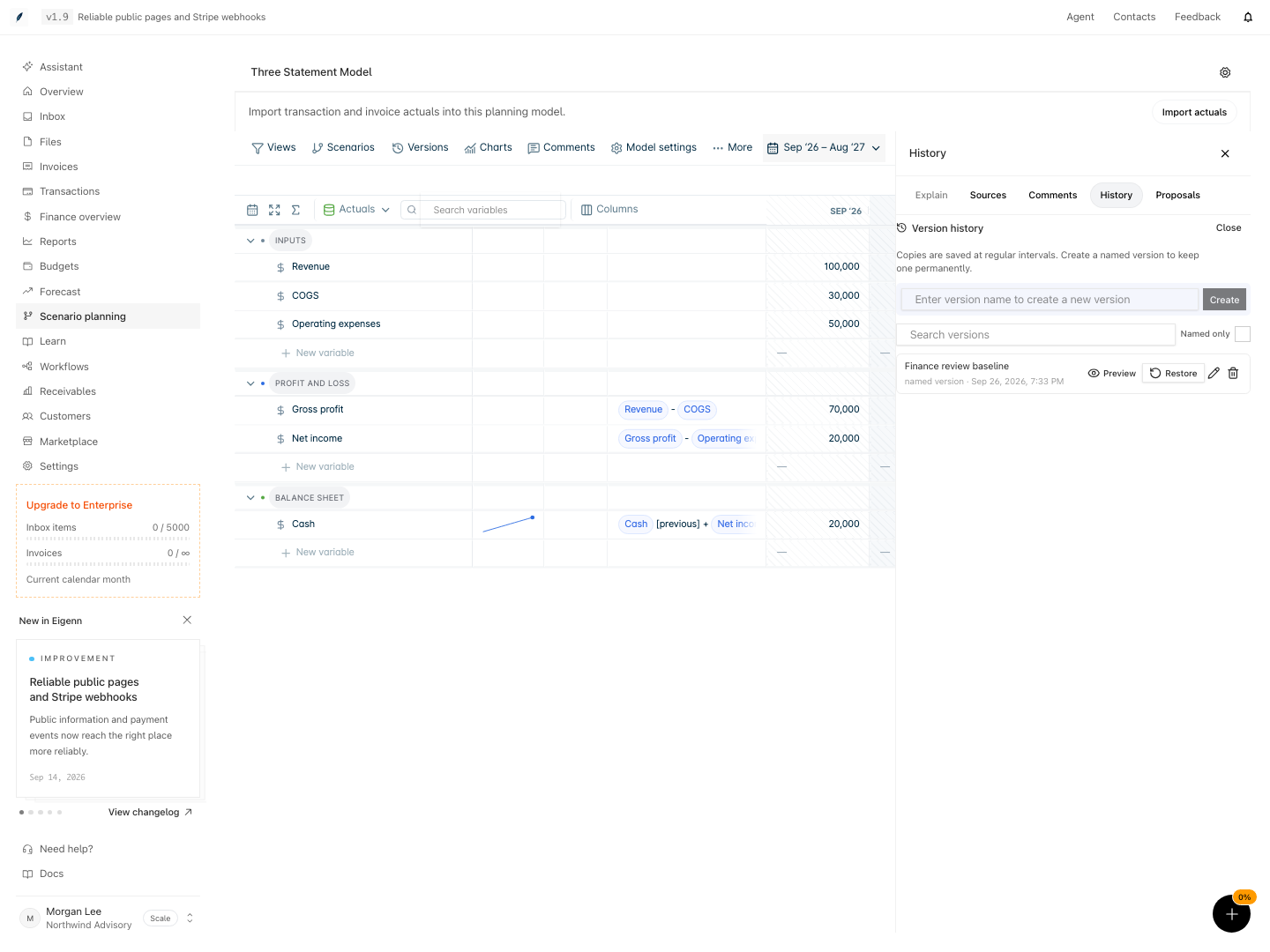
The named version remains in history after reloading the model.
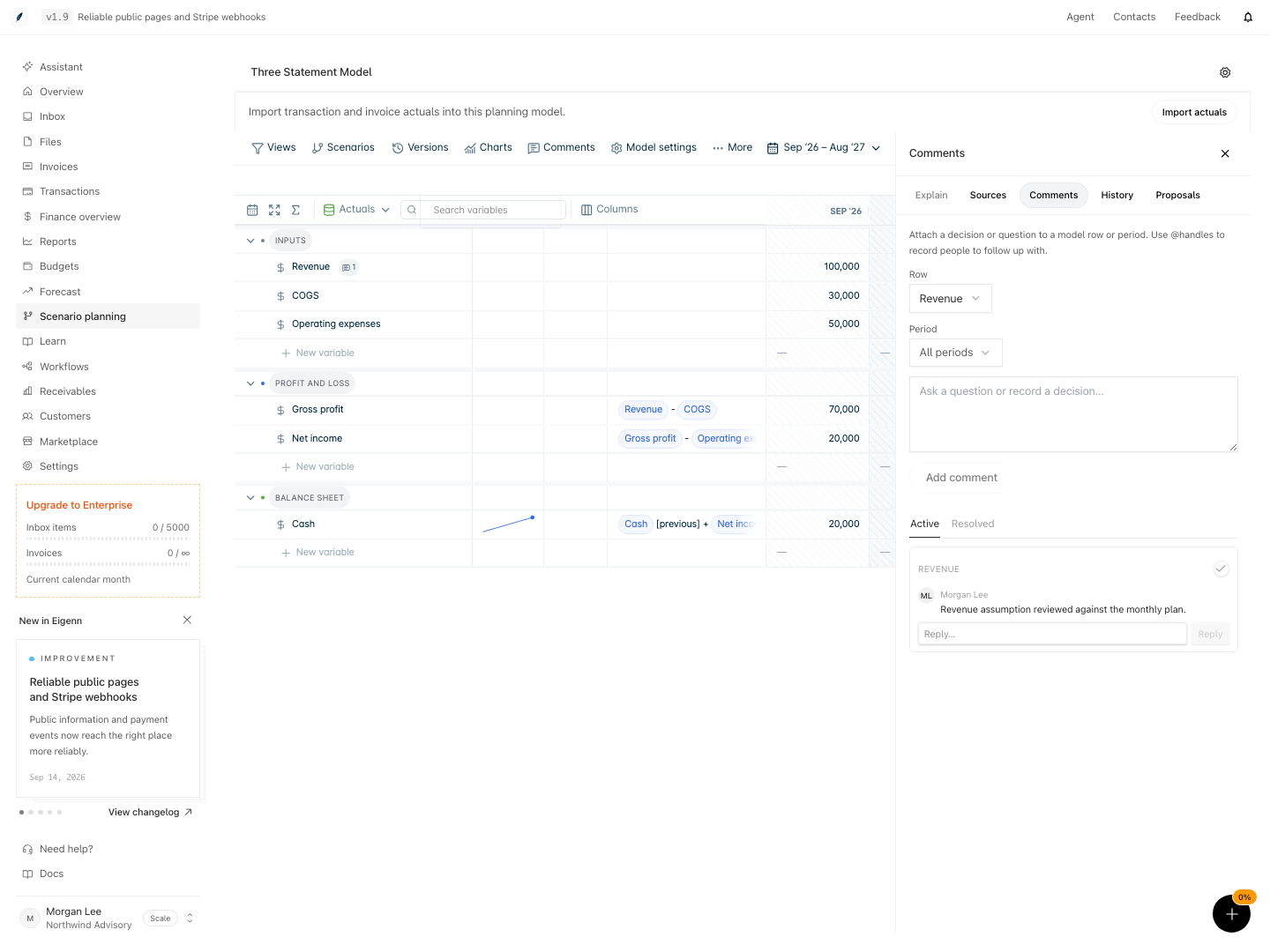
An owner can attach a comment to a row and all periods or one selected period.
Verification
- Ensure all roles are assigned and permissions set as intended. Expected: Each teammate only has the correct level of access.
- Save a named version at the outset. Expected: Model version list shows a labeled entry before any review edits.
- Create or select the appropriate scenario. Expected: Only relevant changes are made to the scenario under review.
- Add at least one comment and a reply on a model row. Expected: Comments are visible in the Comments panel, with decision context.
- Create a focused view and share with at least one teammate. Expected: Shared user can access exactly the intended data and actions.
- Initiate a change proposal from a non-base scenario. Expected: The proposal lists only eligible variable/period overrides and not dimension-specific changes.
- Review and merge or reject the proposal. Expected: Model reflects accepted changes and comments are resolved.
- Update and remove access when review completes. Expected: Only active roles retain privileges.