Connect Planning Data and Actuals
Add a supported planning source, refresh it, import actuals, and verify the model against source records.
Summary
This guide connects a planning dataset and verifies that its actuals reach the intended scenario-planning model.
Capabilities
You can connect external data sources such as accounting platforms or CSV files, import and refresh actual financial actuals, map to the appropriate model structures (including dimensions and categories), and review the impact of these actuals within planning models for ongoing scenario analysis.
Prerequisites
Before You Start
- Confirm the active workspace.
- Use a role that can connect or import the source and edit the model.
- Identify whether the model needs statements, transaction-category actuals, or invoice actuals.
- Keep one known source period available for verification.
Concepts
Planning models separate forecast and actuals by defined boundaries. Sources may include statements, transaction categories, or invoices, and can be connected directly from supported providers or imported as CSVs. Mapping and dimensions ensure actuals are not only loaded but also classified and structured for accurate scenario planning. Linking and refreshing data imports are distinct from changing any original provider records.
Workflow
1. Choose the Dataset
Open Scenario planning → Data, then select New.
Available datasets include:
- Xero statements
- QuickBooks invoice actuals
- bank-transaction category rollups
- CSV transaction-category actuals
- Stripe invoice actuals
Read the catalog description. A provider connection can exist without a supported planning dataset. Do not select a source marked Coming soon for a current model.
2. Complete the Connection or Import
Follow the source-specific steps.
Connected provider
- Select the provider.
- Complete authorization or choose the existing connection.
- Choose any required accounting method or dataset options.
- Finish the setup.
CSV import
- Select CSV import.
- Upload the supported file.
- Map the necessary transaction fields.
- Complete the import.
- Check the imported period and category values.
Return to Scenario planning → Data after the setup.
3. Confirm the Source
Find the new source under its provider connection.
Confirm:
- the source name
- the dataset type
- the expected connection
- the current status
- the last refresh value
If the source is missing, clear search and filters. Then confirm that the selected provider supplies a planning dataset.
4. Run the First Refresh
Use the source's refresh action.
Wait for the success or failure message. Do not navigate away while you still need the result to diagnose the first setup.
When the refresh fails:
- Read the error.
- Check provider authorization.
- Confirm that the provider or import contains records.
- Retry the individual source.
- Use Refresh all only after the source succeeds by itself.
5. Open the Model
- Select Scenario planning → Models.
- Open the intended model.
- Confirm the model name and active scenario.
- Open model settings.
- Check the date range and actuals boundary.
The source can refresh successfully while the model still excludes its periods.
6. Import or Link Actuals
Select Import actuals when the model has no imported actuals. Select Refresh actuals when they already exist.
When the model uses a focused source control:
- Open Sources.
- Select the statement, transaction-category, or invoice source.
- Link it to the intended model area.
- Refresh the source from the model when needed.
A source link changes planning data. It does not edit the original invoice, transaction, or provider statement.
7. Verify a Known Period
Choose one period that you can confirm in the source system.
Compare:
- the period
- the currency
- the category or invoice grouping
- the amount
- the actuals-versus-forecast boundary
Do not validate only the grand total. A total can match while categories or periods are mapped incorrectly.
8. Check Dimensions
When the model uses a dimension:
- Open Scenario planning → Dimensions.
- Find the dimension and owning model.
- Check its members.
- Return to the model.
- Confirm that imported values map to the intended members.
Create or rename a member before building formulas that depend on an unclear structure.
9. Recalculate and Review
After actuals are current:
- review formula outputs
- check for missing or error values
- confirm that forecasts begin after actuals
- compare the base and any active scenario
- save a version before a large remapping
Document any manual adjustment separately from the source import.
Ongoing Refresh Routine
Use this sequence when source records change:
- Refresh the source under Data.
- Confirm the refresh result.
- Open the model.
- Select Refresh actuals or refresh the linked source.
- Verify one changed period.
- Review dependent formulas and scenarios.
A recent timestamp is helpful, but representative record verification is the stronger check.
Behavior specification
Troubleshoot
The provider is connected but no planning source exists
Open the planning catalog and confirm that the provider has an available dataset. Some provider connections support other Eigenn features before they support planning data.
Refresh succeeds but values are missing
Check the source date range, model date range, actuals boundary, currency, and mapping. Also confirm that the provider or CSV contains the expected records.
Values appear in the wrong dimension member
Correct the member or source mapping. Do not change the formula to compensate for a classification error.
Refresh all reports several failures
Retry each failed source separately. This identifies which provider connection or dataset needs recovery.
Diagrams
Rendering diagram…
Screenshots
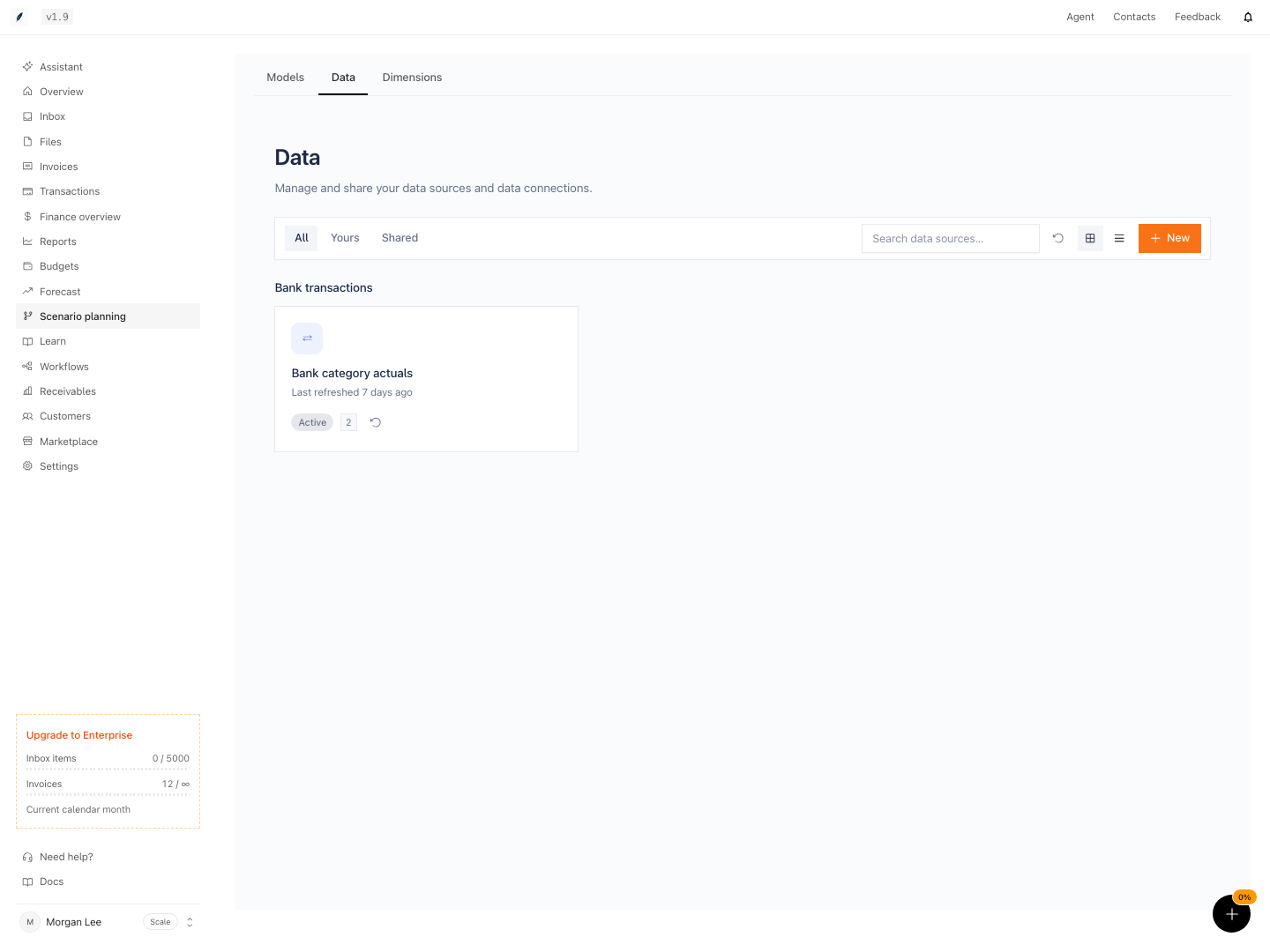
Shown with synthetic data in a local workspace.
Verification
- After connecting a source and importing actuals, locate the new source in the system and confirm it appears with the correct name, type, connection, and current status. (Expected: The source is visible and correctly listed.)
- Upon refreshing the source, check for the success or failure message. (Expected: Success or clear failure details are shown.)
- In the planning model, compare one known period's actual values against those in the original source, confirming period, currency, category, group, and amount. (Expected: All values match with the source system for that period.)
- For models using dimensions, check that imported actuals map to the correct members. (Expected: Each value appears under the intended dimension member.)
- After every update, review and confirm that forecast data begins after the actuals boundary and no formulas return errors. (Expected: Forecasts and actuals are separated and calculations complete without error.)
- On subsequent refreshes, verify at least one changed period aligns with external source records. (Expected: The updated period reflects new data as expected.)