Connect Transaction Records
Connect a bank feed or import a clean transaction history, then check the records that Eigenn uses.
Summary
This guide creates a reliable source for Eigenn's Transactions ledger. Use a bank connection for continuous sync, CSV import for historical backfill, or manual entry for one-off records.
The result should be a ledger you can compare with its source. Check the account, source, amount, currency, and date of imported rows; a completed setup or import message alone does not prove that every expected record arrived.
Capabilities
Users can link their workspace to supported financial institutions for automated transaction syncing, import historical transactions via CSV files, and manually add or adjust transactions. Transactions can be filtered, reviewed, annotated, and managed based on their source and account.
Prerequisites
Before You Start
Use the intended team. Owners and Members can create/import transactions and change bank records; Viewers can read them. Billing must allow writes.
For a bank connection, have:
- permission to authorize the institution
- the correct country selected for the institution search
- at least one account that you want Eigenn to sync
- capacity under the workspace's bank-connection plan limit
For a CSV backfill, prepare one file no larger than 5 MB with:
- a header row
- at least two transaction rows, with the header and opening data occupying at least four newline-separated lines (a trailing newline can supply the fourth line)
- columns for date, amount, and description
- an optional balance column
- a clear cutover date so the file does not overlap unnecessarily with bank-fed history
See Bank Connections for supported connection states and limits.
Concepts
Choose the Source Path
| Path | Best for | Continuous behavior |
|---|---|---|
| Bank connection | Current and future activity from a supported institution | Syncs automatically. You can also sync it manually. |
| Import/backfill | Historical CSV data or an institution that is not available in search | Imports the mapped rows one time into a selected account. |
| Manual transaction | Adjustments and isolated records | Creates one editable transaction. |
You can combine these paths, but define a date boundary first. An import of the same period that a bank later supplies can create rows that look like duplicates. The two sources do not share the same source identifier.
Workflow
Connect a Bank Feed
1. Open Bank Connections
Go to Settings → Account → Bank Connections. Then choose Connect Bank.
Do not use Finances for this setup. The current Finances → Overview / Reports pages are workspaces for reports. Older Finances → Bank links redirect to Finances → Reports.
2. Find and authorize the institution
- Select the institution's country.
- Search for the bank by name.
- Check the provider that appears beside the result.
- Choose Connect.
- Complete the provider's authorization flow.
At this time, Eigenn brokers supported institutions through Plaid, Teller, GoCardLess, or Enable Banking. The provider depends on the institution and the country. Availability, accessible history, and consent duration change with the provider and the bank.
The connection flow describes read-only access with encrypted credentials. It does not initiate bank transfers. Review the provider’s consent details before authorizing access; do not infer an end-to-end encryption guarantee from the setup label.
3. Choose accounts
After authorization, Eigenn gets the available accounts of the institution. Eigenn selects them by default.
- Check the account name, type, balance, and currency.
- Clear the accounts that you do not want to sync, or use Select all.
- Keep at least one account selected.
- Choose Continue.
One institution connection uses one connection slot, even when it has many selected accounts.
4. Let the initial sync run
The wizard labels its stages Choose a bank, Select accounts, and Start sync. In the current save flow, Continue saves the selected accounts, queues background work, and closes the wizard. It does not wait for the import or show the final sync stage.
Return to Bank Connections to watch progress when available. If saving reports an error, reload and check for an existing connection before authorizing again: storage can succeed before job setup fails. A bulk-sync success toast confirms accepted sync requests, not completed transaction imports.
5. Confirm the connection
Return to Settings → Account → Bank Connections and confirm:
- the institution card is present
- the connection shows Synced, Syncing, or Never synced rather than Connection issue
- the expanded card shows the selected accounts
- the accounts that you turned on show the expected type, currency, and balance
Then open Transactions and use the Source → Bank connection and Accounts filters. Check recent rows against the bank for date, amount, currency, and account.
Backfill from CSV
Use this path when you need older history or cannot find the institution.
1. Start the import
On Transactions, open More transaction actions → Add transactions → Import & backfill. You can also expand an account under Settings → Account → Bank Connections. Then open its actions menu and choose Import to preselect that account.
2. Upload the file
Upload one .csv file no larger than 5,000,000 bytes. The preview reads the first four newline-separated lines and requires at least two parsed data rows and more than one column. A shorter file without a final newline can be rejected even if it contains a header and two records. Add the normal trailing newline when exporting; do not fabricate transactions to satisfy the preview.
Quoted multiline cells in those opening rows can also make this limited preview incomplete. Inspect the displayed columns and rows before continuing; the preview is not validation of the entire file.
3. Check the column mappings
Eigenn proposes column mappings. You must confirm them.
These mappings are necessary:
- Amount
- Date
- Description
Balance is optional. When mapped, Eigenn takes that value from the first preview data row and uses it as the account balance; it does not calculate a closing balance from all imported rows. Choose the target account and currency. Both the selected currency and the supplied balance can be saved before the transaction import finishes. For credit accounts, check Inverted amount so charges and payments use the intended sign; inversion also applies to the supplied balance.
If no account exists, type a new account name in the account selector. Then choose the create option. This creates a manual account that can take the import.
4. Confirm and check
Choose Confirm import and wait for the import job to finish. An upload failure preserves the selected file and mappings for retry. The success message means the job completed; invalid rows can be logged and skipped, so compare the result with the source file. Then open Transactions and filter by:
- Source → Manual
- the target account
- the imported date range
Compare expected and actual row counts, first and last dates, positive and negative amounts, descriptions, and account balance. An import can persist some batches before a later failure, so inspect what arrived before retrying or correcting signs.
Create One Manual Transaction
For a single adjustment, open More transaction actions → Add transactions → Create transaction on Transactions.
Enter:
- description
- amount
- currency
- account
- date
You can also set the category and the owner, attach a receipt, exclude the row from analytics, and add a note. Eigenn treats a positive amount as income. Eigenn treats a negative amount as an expense. The date picker does not accept a future date.
Manual rows show Edit and Delete in their action menu. Bank-fed rows do not offer those direct record actions, although their review and classification controls remain available.
Behavior specification
Stop Duplicate History
Use a deliberate source cutover:
- Find the earliest date that the bank connection imported.
- End the CSV backfill before that date.
- Filter the combined ledger by account and date.
- Check the rows that Eigenn marks Possible duplicate.
The Possible duplicate indicator is a review aid based on similar merchant, amount, and nearby date. It does not delete or merge records automatically.
CSV imports also use a stable identifier based on team, account, parsed date, signed amount, original description, and currency. An identical row can be ignored on repeat import; changing any of those values can create another row. Two legitimate charges with identical identifying values can also collapse, so compare counts and totals rather than assuming one source row always becomes one ledger row. Bank-fed and CSV records do not share the same source identifier.
Assign Source Ownership
Eigenn does not store a dedicated “source owner” on the connection card. Name an owner for operations outside that control. Use transaction assignees for row-level follow-up.
The source owner must check these items regularly:
- consent and connection status
- the accounts that you turned on
- latest synced date
- duplicate boundaries after a backfill
- institution access when a teammate leaves
Source States and Limits
- Bank cards can report Syncing, Synced, Never synced, Connection issue, or consent that expires or expired.
- A new institution uses one plan connection slot, no matter how many accounts you select beneath it.
- Starter permits 2 institution connections and Growth permits 10. Scale and Enterprise have no connection limit. The limit that Eigenn shows is authoritative.
- CSV import accepts one
.csvfile up to 5,000,000 bytes. Its opening-line preview requirements are described above; invalid later rows can still be skipped. - Bank-fed rows keep their source identity. You cannot edit or delete them directly. You can edit or delete manual rows.
- Removing an account or connection permanently removes associated transaction history. Provider-side connection cleanup is separate and may fail after local deletion.
- Disabling an account excludes it from later sync selection and enabled-account balance calculations; existing ledger rows remain and can still contribute to reports that read them directly.
Diagrams
Rendering diagram…
Screenshots
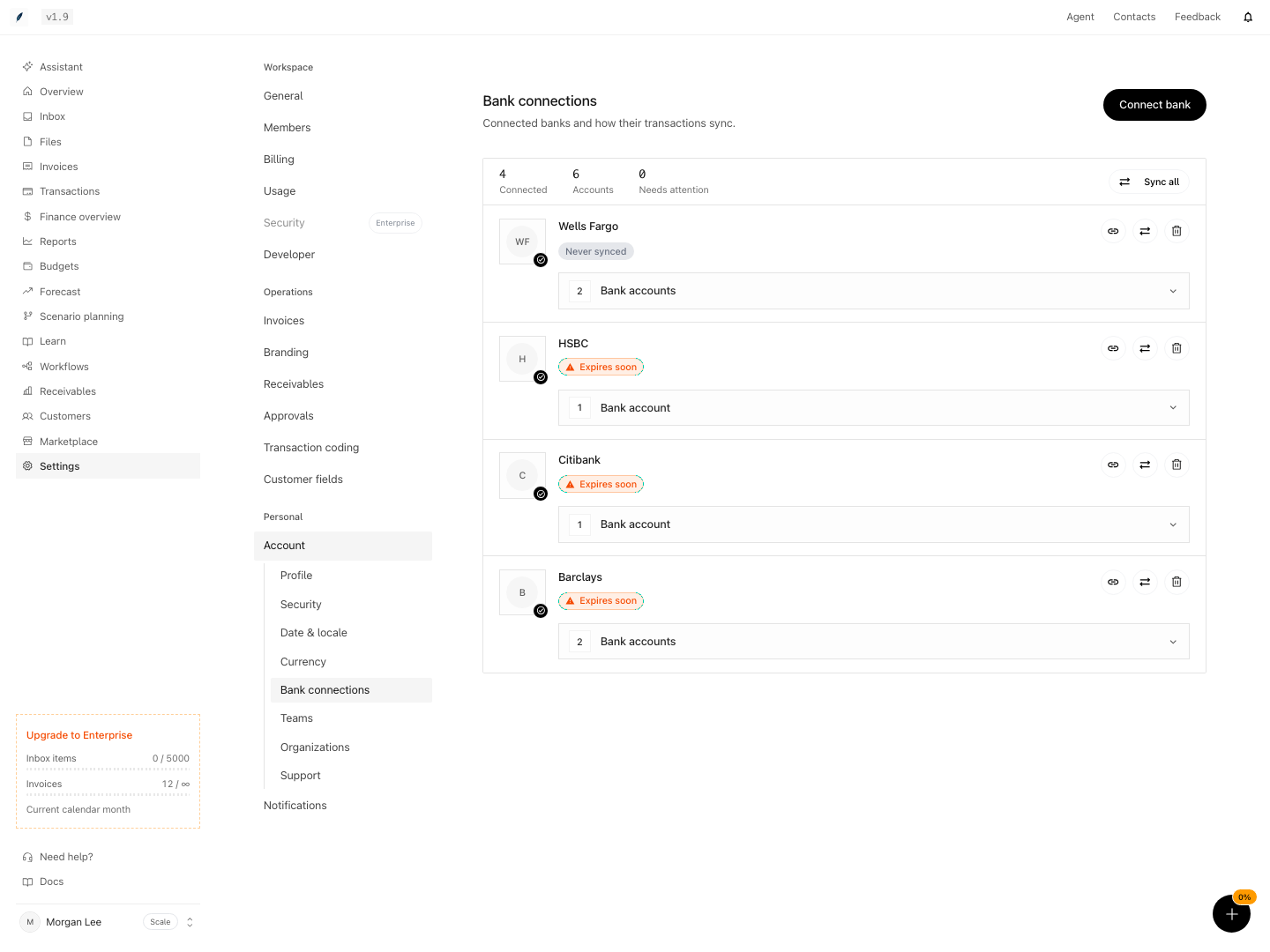
Shown with synthetic data in a local workspace.
Verification
Confirm the Result
- the connection or manual account appears in the intended workspace
- you turned on the selected accounts on purpose
- recent transactions match the source on date, amount, currency, and account
- CSV signs are correct, especially for credit accounts
- imported and synced date ranges do not overlap unexpectedly
- the Transactions review queue contains only records that genuinely need attention
Troubleshoot
The bank does not appear in search
Confirm the country and try the institution's full name. Provider coverage varies. Use Transactions → Import/backfill for a CSV alternative. Contact support with the institution name and the country.
The flow says that you reached the bank limit
The plan limit counts institution connections: Starter permits 2, Growth permits 10, and Scale and Enterprise have no limit. Eigenn also deletes the accounts and the transactions of a connection that you remove. Remove an unused connection only after you accept that result, or upgrade the plan.
No accounts appear after authorization
Return to the bank step and reconnect. Confirm that the bank granted access to at least one supported account. If the provider still returns no accounts, collect the institution, the country, the provider, and the time of authorization for support.
CSV mappings do not look right
Choose Choose another file and correct the headers or source data. Do not confirm an import whose date, amount, or description preview is wrong.
Credit-card charges have the wrong sign
Inspect the imported manual rows first. A changed sign produces a different import identifier, so repeating the file with inversion can add offsetting duplicates rather than repair existing rows. Correct or remove only the affected disposable/confirmed manual rows, then import with the intended sign. Verify the balance separately; inversion also changes a supplied balance.
The initial sync appears stuck
Examine the connection card and recent ledger rows after the wizard closes. Run a manual sync after current processing finishes. Manual requests use a shared per-connection key, but initial setup uses a separate queue key; do not assume all triggers collapse into one run.
Transactions exist but reports do not include them
Expand the account under Settings → Account → Bank Connections. Confirm that you turned the account on. Then check the report’s own filters for status, categories, and accounts. An account switch does not universally hide its historic ledger rows.
Use isolated synthetic data and intercepted provider delivery for these acceptance checks. This copy review does not establish runtime verification.
- Save selected bank accounts and confirm the wizard closes, the connection persists, and background processing is tracked separately from setup acceptance.
- Compare source rows with the ledger by count, date, signed amount, currency, and account. Include invalid CSV rows and a short-file preview failure.
- Check a mapped first-row balance and credit inversion independently of transaction import completion. Inspect account state after an import failure.
- Repeat an identical CSV, then change a sign or description in a disposable copy. Confirm duplicates are handled according to the identifying fields, without assuming bank-fed history will deduplicate against CSV rows.
- Disable an account and confirm stored history remains. Delete only a disposable account/connection and confirm the cascade; check provider cleanup separately.
- Test Viewer rejection, missing account selection, and new-institution plan limits. Keep credentials and account identifiers out of public evidence.