Review a Customer Finance Record
Examine customer-level invoice exposure, payment behavior, communications, and follow-up work before you make a collections or forecast decision.
Summary
A customer finance review turns a portfolio signal into an evidence-backed next action. Use the customer record to separate open billing value from collected cash. Check payment behavior. Understand the relationship context. Leave a clear owner and task.
Capabilities
Customer finance records let you view paid and unpaid invoice amounts, examine invoice details, assess payment behavior scores, read recent collection communications, view account activity and notes, add next-step actions as tasks, and document relationship decisions. Built-in tools consolidate the record's financial and communication context to support accurate collections and forecast actions.
Prerequisites
Before You Start
- Select the correct team.
- Know the customer name, invoice number, or primary email.
- Have read access to Customers and Invoices in the active team. Use an Owner or Member role with workspace writes available to add notes, tasks, or other changes; Viewers can review only.
- Decide which question you must answer: collection follow-up, payment risk, revenue concentration, or forecast impact.
- Treat customer MRR, ARR, engagement, and risk as derived signals that need invoice confirmation.
Concepts
Review Patterns
Routine unpaid invoice
- Confirm the due date and the balance that remains.
- Read the recent email activity.
- Open the invoice.
- Send or schedule the supported reminder.
- Add a note and a task when you need more follow-up.
Sensitive or disputed account
- Read notes, files, and communication history first.
- Confirm the dispute and decision owner.
- Do not start automated follow-up before you check the account policy.
- Add a dated task for the human response.
Account that affects the forecast
- Separate paid, unpaid, and overdue value by currency.
- Check the past payment schedule and the current risk.
- Confirm any promise or exception in notes.
- Update the forecast through the finance workflow, not through a change to the customer record.
Revenue-concentration account
- Compare paid revenue with total team revenue.
- Check the outstanding and overdue exposure.
- Check whether the displayed recurring estimates fit the contract.
- Record relationship or renewal risk in a note and task.
Workflow
1. Start From the Portfolio Signal
Open Customers. Then find why the account needs a review.
These are useful places to start:
- Outstanding for total unpaid and overdue exposure
- Overdue for past-due exposure
- At-risk for the ranked payment-timing list; confirm the source invoices rather than treating this as the customer health-score band
- Top revenue for concentration review
- Avg days to pay for payment-speed context
- Collections for at-risk customers and AR Aging
- Unpaid for customers with unpaid or overdue invoices
- Paid for customers with at least one paid invoice
Select the customer's name to open the full record. Use the compact sheet only for a quick identity, revenue, and payment-health check.
2. Confirm the Customer Identity
Before you interpret financial data, check:
- customer name
- primary and billing emails
- contact person
- address and country
- tax or VAT number when relevant
- tags
- customer age
Eigenn permits duplicate customers. If the account has an unexpectedly short history or missing invoices, search again by email and name. Do this before you conclude that the data is incomplete.
3. Reconcile the Headline Amounts
The customer workspace uses different financial definitions in different places.
| Signal | Included value |
|---|---|
| Customer list Revenue | Paid invoice amounts |
| Customer list Outstanding | Unpaid and overdue invoice amounts |
| Full record Collected Revenue | Successful same-currency payment records on paid, unpaid, and overdue invoices, for one invoice currency group |
| Invoiced Over Time | Paid, unpaid, and overdue invoice amounts minus tax and VAT, grouped by issue month with creation-date fallback |
| Invoiced vs collected | Tax-exclusive invoiced totals compared with gross successful payments; all-time raw amounts displayed as USD |
These customer-level financial totals exclude draft, scheduled, and canceled invoices. The list's Outstanding adds full open invoice amounts without subtracting partial payments. The compact sheet's Lifetime revenue uses the successful-payment total despite its all paid invoices subline.
Check the currency displayed on Collected Revenue: the summary returns one currency group and does not consolidate multiple currencies. Its invoice count includes eligible paid, unpaid, and overdue invoices in that group. A manual Paid status alone is not a successful payment record, and partial payments can contribute before an invoice is Paid.
Before relying on Invoiced vs collected, check three limits:
- Its Invoiced value excludes tax and VAT, while Collected uses gross successful payments. Outstanding is their difference floored at zero, without separate credits or write-offs. Its percentage can exceed 100% even though the bar stops at 100%.
- It combines raw currencies under USD without conversion or a same-currency payment check. This can differ from Collected Revenue's single-currency total.
- The bank-matched subline counts the full payment per reconciliation link. Multiple links can count a payment more than once; inspect the linked transactions before accepting the label as proof of reconciliation.
The chart's range applies only to Invoiced Over Time. Its default covers the current month and preceding 11 months; presets and custom dates use complete calendar months. It has no currency selector and can add different currencies under one label.
4. Examine the Invoice Evidence
Select Invoices in the customer record.
For each relevant invoice, check:
- invoice number
- amount and currency
- status
- issue and due dates
- paid date when present
Select an invoice to open its details. The tab loads up to 10 paid, unpaid, overdue, scheduled, or canceled invoices; drafts are absent. All Invoices counts that subset. Choose View All for the general invoice list, then apply the customer filter yourself.
For collection follow-up
Focus on unpaid and overdue invoices. Confirm that:
- the invoice is not a draft or canceled record
- the due date supports the overdue state
- recorded payments and credits agree with the balance that remains
- a recent reminder or promise does not make another message inappropriate
Choose Chase overdue only after this review. It opens the customer's overdue invoice queue. It does not send a message by itself.
For revenue review
Separate paid invoice value from open invoice value. A customer can rank highly by paid revenue and still have overdue exposure.
For forecast review
Use due dates, payment history, and documented promises rather than the customer-level total alone. The customer record does not give a committed cash date.
5. Evaluate Payment Behavior
The compact sheet can show:
- payment-health score from 0 to 100
- risk band
- on-time payment rate
A customer with only unpaid or overdue invoices can still have a score. With no eligible invoice history, the tile stays visible with — and no payment history. It can show the same placeholder before a query returns.
On-time rate divides paid-on-time invoices by all eligible invoices, including unpaid and overdue records. Average days late also includes zero contributions from unpaid invoices and invoices without due dates. The score uses invoice status and dates, not successful payment evidence.
On the full page, the peer comparison appears with at least three scored customers in the active team, including this one. Its median and percentile include the customer itself. Equal-to-median values are labeled better than typical, but ties do not count toward ahead of. Compare this with the underlying invoices before using the wording in a review.
Use the signal to prioritize the review. Then check the invoice and communication history. A risk band is not a substitute for a dispute note, payment promise, or customer conversation.
6. Treat MRR and ARR as Estimates
The record estimates MRR from positive paid invoice amounts. It shows ARR as 12 times that monthly estimate.
- Many paid invoices use their average amount.
- A single paid invoice becomes the monthly estimate.
- The recurring invoice count is just the count of eligible paid invoices. It does not confirm a monthly subscription cadence.
- Mixed currencies can be averaged as raw amounts under the latest paid invoice's currency label.
For quarterly, annual, usage-based, or one-time invoices, calculate the recurring value from the source contract. Do not copy the estimate on screen into a forecast.
7. Check Currency Before You Compare Totals
Customer-level analytics do not consolidate currencies with exchange rates.
If invoices use more than one currency:
- Open the invoice list.
- Group the relevant invoices by currency.
- Reconcile each group independently.
- Apply your approved conversion source outside the customer record when you need a base-currency view.
Do not add displayed amounts from different currencies as though they were the same unit.
8. Read Communication and Relationship Context
Emails
Open Emails to read up to 25 recent communications linked to recovery instances. The loaded subset is displayed oldest first, with subject context, a recipient, recorded state, channel, body preview, and timestamp. Manual invoice reminders without a recovery-instance link may be absent.
There is no load-more control here, and the tab does not contain every external mailbox message. Compare it with invoice activity when a conversation seems missing. Compose email opens the device's mail application rather than adding a message to this history.
Activity
Open Activity to read up to 20 recent events that reference this customer. If none are returned, the UI constructs a creation entry from the customer date. That fallback is not a saved audit event, and the timeline is not a complete log of all work.
Notes
Open Notes and look for:
- dispute details
- promised payment dates
- relationship sensitivities
- negotiated terms
- escalation decisions
- an accountable owner
If the record does not document the decision, add a note before you close the review.
Files
Open Files for up to 25 recent customer uploads and invoice files combined. Open the source document when its terms affect a decision. Notes and Tasks also load only 25 records each, with no load-more controls in these tabs.
9. Record the Next Action
Use a note for the decision and a task for the work.
Write the note
Include:
- what you examined
- the conclusion
- the amount and currency at issue
- any promised date or exception
- the task owner
- when you must examine the account again
Keep the note within 2,000 characters. Select Save note, then check its timestamp.
Create the task
- Select Tasks.
- Enter an action title of up to 200 characters.
- Add a description of up to 2,000 characters and an optional due date. Record the responsible person in the description; this form has no assignee control.
- Select Add task.
- Confirm that it starts in To do.
Advance the task to In progress when the work begins. Advance it to Done when the customer or invoice record confirms completion. Selecting the status again returns it to To do.
10. Confirm the Review Outcome
Before you leave the customer record, confirm:
- you examined the correct team and customer
- you separated the paid and open invoice values
- the currency was explicit
- you checked the invoice status and balance
- you thought about the latest communication
- you documented the relationship exceptions
- a task has an owner and due date
- you take any collection action from the correct invoice
Behavior specification
Troubleshoot
Payment health shows a dash
Check whether the customer has paid, unpaid, or overdue invoice history and whether the query loaded. No past payments alone does not explain the placeholder; unpaid invoices can produce a score.
Collected Revenue differs from the customer list
The full record counts successful same-currency payments, while the list counts paid invoice amounts. Inspect partial payments, manual status changes, and the full record's selected currency group. Neither a Paid label nor a successful capture alone proves bank reconciliation.
The Invoices tab looks incomplete
It initially shows up to 10 invoices. Choose View All and use the customer filter in Invoices.
MRR or ARR does not match the contract
The values are heuristic estimates from paid invoices. Calculate contract-normalized recurring revenue separately.
The account uses many currencies
Check the invoices by currency. Customer analytics do not apply a consolidated exchange-rate conversion.
Someone deleted a note or task
The record-level delete action is immediate. It has no restore control. Recreate the information from an authoritative source when one is available.
Diagrams
Rendering diagram…
Screenshots
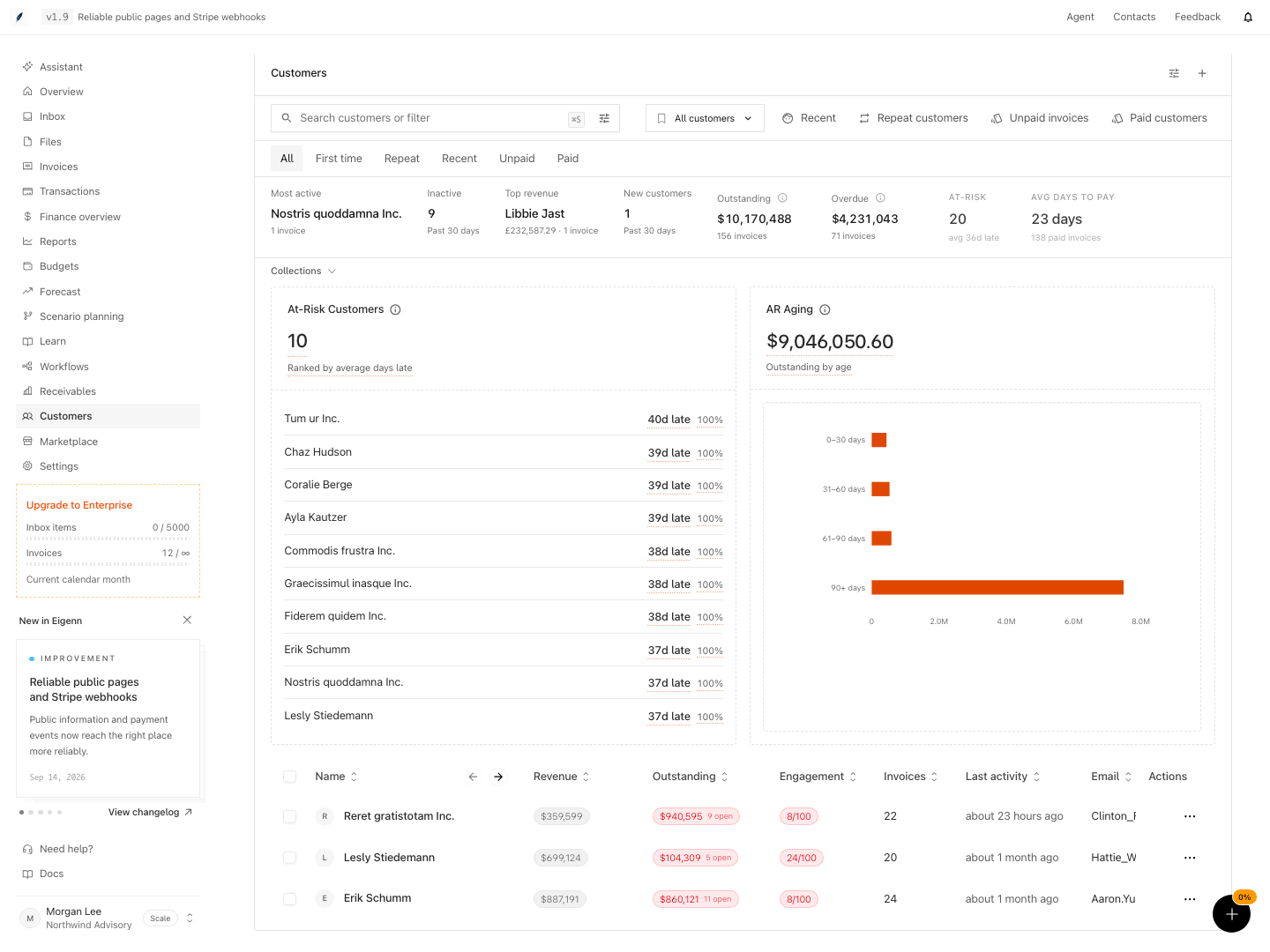
Shown with synthetic data in a local workspace.
Verification
- Open the Customers section and select a customer record; the correct account details should display.
- Confirm invoices listed in the customer record match those in the Invoices section for that customer by cross-checking invoice amounts, statuses, and currencies.
- Enter a note and create a task; verify both appear in their respective tabs with the correct timestamp and status.
- For a multi-currency account, open the list of invoices, group by currency, and check that each group's totals are reported separately.
- Delete a note or task, then check that the deleted item no longer appears and cannot be restored from within the record.
- View the Emails and Activity tabs; confirm the latest communications and actions are listed with appropriate detail and order.
- Review a customer with unpaid invoices but no payments, then one with no eligible invoices. Confirm the first can have health data and the second shows the placeholder. Check the peer comparison's three-customer threshold and treatment of ties.
- Compare taxed and mixed-currency examples across the cash panel, revenue card, and monthly chart. Confirm the different amount bases and that changing the chart range leaves the other metrics unchanged.
- Use View All and confirm that you must set the customer filter. Verify a Viewer cannot save the note or task.
Related
Related Pages
Reconcile and Categorize Transactions
Clear the transaction review queue with categories, receipts, matches, splits, owners, and reporting decisions.
Review, Restore, and Export a Planning Model
Preserve a decision point, preview or restore model history, prepare a focused review view, and generate a point-in-time file.