Manage the Invoice Lifecycle
Move invoices through the draft, scheduled, unpaid, overdue, paid, and canceled states, and keep the payment and communication context.
Summary
Invoice lifecycle work is more than a badge change. Each status changes the actions that your team can use. Every correction must agree with the invoice dates, payments, communications, and the link for the customer.
Capabilities
Eigenn lets you move invoices between draft, scheduled, unpaid, overdue, paid, and canceled statuses. You can finalize drafts, schedule, cancel, send reminders, mark paid or unpaid, offer settlements, initiate auto-chase, duplicate invoices, download PDFs, and delete draft or canceled invoices. The visible Send receipt control has the limitation described below. The system supports context-aware actions for partial payments, adjustments, and communication tracking.
Prerequisites
Before You Start
- Sign in and select the team that owns the invoice.
- Confirm that you have permission to change billing records for that team.
- Gather evidence for any payment, cancellation, or schedule correction.
- Open the invoice full page when the invoice has partial payments, credits, adjustments, or integration syncs.
Concepts
Understand the Statuses
| Status | Description | Normal next actions |
|---|---|---|
| Draft | Editable work that you did not finalize | Edit and choose Create invoice, Create & send, or Schedule; duplicate; delete |
| Scheduled | A future delivery job waits to run | Edit or reschedule; cancel schedule; duplicate |
| Unpaid | Finalized and outstanding | Remind; edit; mark paid; cancel; start recovery or offer settlement when applicable |
| Overdue | Outstanding and recorded as past due | Remind; edit; mark paid; cancel; start recovery or offer settlement |
| Paid | Recorded as paid with a paid date | Read receipt and payment evidence; mark unpaid to correct a mistake |
| Canceled | Preserved as canceled; check and stop any existing recovery sequence separately | Mark unpaid to reactivate, duplicate, or permanently delete |
Eigenn does not offer Overdue as a manual status action. Keep the due date accurate. The recorded lifecycle then sets when an invoice belongs in overdue work.
Workflow
Open the Invoice Record
- Open Invoices → Invoices.
- Use All, Open, Overdue, Paid, Scheduled, or Draft to narrow the list.
- Add customer, date, amount, status, or recurring filters when you need them.
- Select an invoice data cell to open the details sheet.
- Select Open full page for complete payment and lifecycle context.
Before you change the status, check the invoice number, the customer, the total, and the currency. Also check the issue date, due date, sent date, paid date, scheduled time, payment ledger, credits, and amount remaining.
Finalize a Draft
- Open the draft and select Edit or Edit invoice.
- Check the customer, number, dates, currency, line items, totals, payment details, and notes.
- Open the delivery action menu.
- Choose:
- Create invoice to finalize as unpaid with no planned email
- Create & send to finalize as unpaid and queue customer email
- Schedule to set a future send time
- Check the status and the activity that result.
You can delete a draft permanently. When the invoice is unpaid, overdue, paid, or scheduled, preserve the record. Use the correct status action instead.
Manage a Scheduled Invoice
Reschedule
- Open the scheduled invoice's edit form.
- Choose Schedule send or the scheduled delivery control.
- Select a new future date and time.
- Save the invoice.
- Check Scheduled at.
- Confirm that only the intended future send remains.
Cancel the schedule
- Open the row's three-dot menu.
- Select Cancel schedule.
- Confirm that the invoice returns to Draft.
- Confirm that Eigenn cleared the scheduled time.
A schedule cancellation does not delete the invoice. Read the draft before you choose a new delivery action.
Follow Up on an Unpaid or Overdue Invoice
Send a one-time reminder
- Open the invoice details sheet.
- Select Remind.
- Confirm Send Reminder.
- Wait for Reminder sent.
- Check the reminder date and the communication activity.
Use reminders only after you confirm the customer, email, balance, and dispute context. The success message records queue acceptance, not delivery or a customer read. The worker rechecks unpaid/overdue status, customer contact details, and email consent. Team quiet hours can defer a manual reminder; an opt-out or a paid/canceled status can prevent it from sending.
Start or stop Auto-chase overdue
- Open an unpaid or overdue invoice.
- Find Auto-chase overdue.
- Turn it on to enroll the invoice in the team's recovery sequence.
- Check the current step and the next reminder date.
- Turn it off to stop the active sequence.
Auto-chase needs a recovery policy that you set up. Eigenn hides the control for statuses that are not chaseable. But Eigenn shows the control when a recovery record still exists.
Offer a settlement
- Open an unpaid or overdue invoice that has a currency.
- Find Settlement offer.
- Enter a positive settlement amount.
- Select Offer.
- Check the amount and the expiration date.
The offer appears on the customer's public invoice page and expires after 14 days. When you create an offer, Eigenn does not mark the invoice paid. Check acceptance and payment separately.
Record or Correct Payment State
Mark an invoice as paid
- Open the row actions menu or the invoice details menu.
- Select Mark as paid.
- Choose the actual paid date. Eigenn does not offer future dates.
- Confirm the Paid status and the paid date.
Mark as paid records an invoice-level status and paid date. Use it only when you have evidence of settlement. It does not replace reconciliation of a bank transaction. It does not replace correction of the source payment ledger.
Review partial payments first
If payments exist, the details sheet can show:
- Amount paid and invoice total
- Percentage and the balance that remains
- Single, split, installment, or irregular payment pattern
- Individual payment dates
- Reconciled markers for linked bank transactions
- Predicted next payment when it is available
Open the full page. Compare Payments received, Credits, and Amount remaining before you mark the invoice fully paid.
Mark a paid invoice as unpaid
- Open the paid invoice's actions menu.
- Select Mark as unpaid.
- Confirm that Eigenn cleared the paid date and returned the invoice to Unpaid.
- Reconcile any payment or transaction record that caused the incorrect paid state.
Canceled invoices offer Mark as unpaid in the details sheet, but not in the table row menu. This clears the paid date and returns the status to Unpaid. Use it only when cancellation itself was wrong, then review any recovery sequence separately.
Cancel or Delete an Invoice
Cancel an active receivable
- Open an unpaid or overdue invoice.
- Select the more-actions menu.
- Select Cancel invoice or Cancel.
- Confirm the Canceled status.
- Inspect Auto-chase and stop any sequence that remains active. A status correction does not itself cancel every recovery record.
A cancellation preserves the invoice for history. You can duplicate or correct the invoice later.
Delete a draft or canceled invoice
- Confirm that the invoice is Draft or Canceled.
- Select Delete.
- Confirm the deletion when prompted.
- Search for the invoice number.
- Confirm that it no longer appears.
Deletion is permanent. You cannot delete an unpaid, overdue, paid, or scheduled invoice directly.
Duplicate an Invoice
- Open any invoice's actions menu or full page.
- Select Duplicate.
- Open the new draft.
- Check the new invoice number, customer, dates, currency, items, and totals.
- Update each field that must not carry forward.
- Choose a delivery action.
The duplicate is a fresh draft with a new number and a new token for the customer. The duplicate does not carry over the payment, sent, viewed, paid, and status history from the source invoice.
Share, Download, and Send a Receipt
- Link or Copy link copies the invoice URL for the customer.
- Open invoice opens that invoice for the customer.
- PDF or Download downloads the generated invoice document for non-draft records.
- The full page displays Send receipt, but this currently requests a payment reminder. The reminder worker skips paid and canceled invoices. A Receipt sent toast does not establish that a paid receipt was emailed. Use the invoice PDF and your approved communication process when you need to provide a receipt.
Before you share a document, confirm the recipient email, the status, the amount, and the content that the customer sees. The invoice link is sensitive. Share it only with the intended recipients.
Behavior specification
Status-Dependent and Conditional Behavior
- The row menu and full-page header do not show identical actions. Paid and canceled rows omit Edit invoice. The full page can still show an edit button. Recheck the status and the accounting intent before you edit a terminal invoice.
- Drafts do not offer list-menu PDF download because the final document can be absent.
- The details sheet offers reminders for unpaid and overdue invoices.
- Auto-chase and settlement controls are conditional and remain hidden when their prerequisites are absent.
- Eigenn hides payment progress until a payment exists.
- Eigenn hides sync status until an external provider reference exists.
- A populated paid date makes the full-page amount remaining show zero, even if the status or payment rows disagree. Without a paid date, the display subtracts payment rows and credit/write-off adjustments from the invoice total, with a floor of zero. It sums the loaded payment rows without restricting them to succeeded payments, and loads at most 50 payments and 50 adjustments. Reconcile payment statuses and amounts before relying on this display.
- Status corrections do not automatically repair external accounting, bank, or payment-provider records.
Diagrams
Rendering diagram…
Screenshots
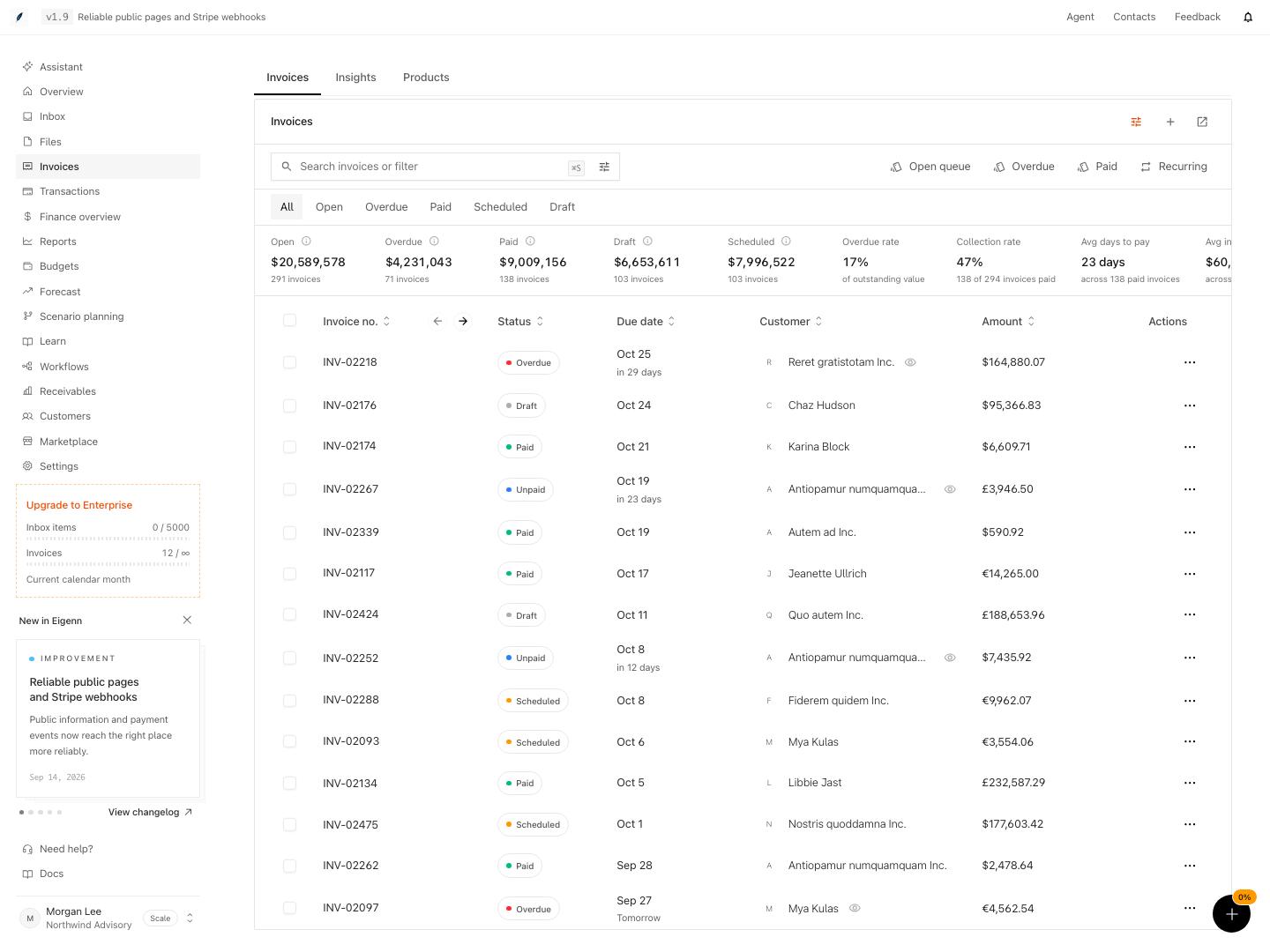
Shown with synthetic data in a local workspace.
Verification
Confirm the Lifecycle After Every Action
Check all applicable evidence:
- Current status badge
- Issue, due, scheduled, sent, viewed, reminder, and paid dates
- Communication history
- Status timeline and activity feed
- Payment progress and full-page balances
- Settlement or Auto-chase state
- Integration sync badges
- Invoice list summary and status filters
If a change affects analytics, refresh Invoices → Insights only after the invoice record itself is correct.
Troubleshoot
I cannot delete the invoice
You can delete only a draft invoice or a canceled invoice. Cancel an active unpaid or overdue invoice first when deletion is correct. Then confirm that the audit history does not need the canceled record.
Cancel schedule does not appear
The action appears only for an invoice with a recorded scheduled job. Confirm the Scheduled status and the Scheduled at value.
Auto-chase will not start
Confirm that the invoice is unpaid or overdue and that the team has a recovery policy. Resolve any policy error before you use the control again.
Settlement offer does not appear
The invoice must be unpaid or overdue and have a currency. An active offer can stay visible after the invoice leaves an open status. The offer form appears only for eligible statuses.
The balance and paid status disagree
Open the full page. Examine the payments, credits, adjustments, and amount remaining. Correct the payment ledger or the status with evidence that you can check. Do not use the status badge alone as reconciliation.
A reminder or receipt is not visible in activity
For a reminder, check the recipient, consent, quiet hours, invoice status, and delivery outcome before retrying. Send receipt uses the reminder path and does not send a receipt for a paid invoice, despite its toast. Do not repeatedly select it expecting a different result.
Mark as unpaid did not remove an external payment
That action clears the invoice paid status and paid date. It does not reverse a bank transaction or a provider payment. Correct the external record with the correct payment or accounting workflow.
Insights still show the old status
Confirm the invoice itself first. Then refresh Invoices → Insights. Analytics can lag for a short time after a lifecycle change.
- Confirm you are logged in and managing the correct team's invoices. Expected: You are able to view and select invoices as described.
- Change the status of an invoice (e.g., finalize a draft, mark as paid, cancel). Expected: The invoice updates to the new status and relevant actions change accordingly.
- Attempt to delete an invoice that is not a draft or canceled. Expected: The delete action is unavailable.
- Offer a settlement for an unpaid or overdue invoice. Expected: Settlement option appears and limits input to positive amounts; upon offering, expiration appears with the offer.
- Mark a paid invoice as unpaid. Expected: The paid status is removed and the invoice reverts to unpaid; paid date clears on the record.
- Use reminders or auto-chase, ensuring prerequisites (like a recovery policy) are met. Expected: Actions are only available for eligible statuses and existing team configurations.
- After actions, refresh insights or analytics. Expected: Invoice changes reflect in insights after data synchronization.