Reconcile and Categorize Transactions
Clear the transaction review queue with categories, receipts, matches, splits, owners, and reporting decisions.
Summary
This guide turns a synced or imported transaction backlog into a reviewed ledger. An empty queue is not the goal. The goal is a set of transactions with an explicit source, category, evidence, owner, and reporting treatment.
Capabilities
You can review transaction records, categorize them, split entries, attach receipts or invoices, assign owners and tags, apply bulk actions, exclude transactions from various reporting paths, and resolve duplicate detections or suggestion matches. Use the saved state, selected-row count, and original evidence to confirm the result of each change. A receipt badge, queued export, or Books state alone is not a completed accounting review.
Prerequisites
Before You Start
You need:
- transactions from a bank connection, CSV import, or manual entry
- a category model that matches the team's reports
- receipts, invoices, or evidence files for material movements
- team members and tags when you must track ownership or follow-up
Owners and Members can write while billing permits it; Viewers can read. Use a desktop-width layout for add/import controls that are currently hidden on narrow screens.
If the ledger is empty or stale, complete Connect Transaction Records first.
Concepts
Understand the Review Queue
Open Transactions and choose Review.
A row appears when:
- it has a pending receipt or invoice match suggestion, or
- it has no attachment, and no one marked it completed
The normal Review ledger hides archived and excluded rows. With grouping cleared, Review ignores All’s search and filters. Its badge excludes exported rows, although an exported row with missing evidence or a suggestion can still appear in the table. Refresh and inspect the actual rows when the count differs.
Use Uncategorized → One by one / By merchant for missing categories, and Books for accounting-sync states. These are separate queues. Books’ badge counts ready rows, while its ungrouped list also includes unreviewed and failed rows. Subscriptions lists active bank-detected recurring streams, not every row you manually marked recurring.
Use All when you need a specific account, date range, category, source, or amount. The owner shortcuts also open the full review queue, missing-receipt view, subscriptions, and rules.
Workflow
1. Scope a Manageable Working Set
For a first pass, stay in Review and use the visible review count. For a focused cleanup, return to All and filter by:
- one account
- a closed date range
- Attachments → Missing receipt
- a category or Uncategorized
- an owner
- Source → Manual or Bank connection
The ledger loads more rows as you scroll. The summary covers the full matching set, not just loaded rows. In a filtered view with no selection, the footer shows original-amount totals by currency; it can include internal rows omitted from summary money figures. The top cards use base amounts when present but display the first loaded row’s currency label. Check currency context before trusting a mixed-currency total.
A new search replaces prior filters; check the chips after generated search or its literal-search fallback. Has receipt and Matched include manual completion without a file. Missing receipt is an unfulfilled filter, not the same query as Review. Clear grouping for a queue review: grouped totals support a smaller filter set and do not inherit Review/Books restrictions.
2. Check Source Facts First
Open a row. Check these facts:
- date, amount, and currency
- source: manual or bank feed
- account, merchant, and counterparty
- method and provider metadata
- possible-duplicate warning, which compares only loaded rows with equal signed amount, currency, and normalized counterparty/name within five days
Do not “fix” a bank-fed source value with an unrelated manual replacement. Bank rows keep their provider record. Add context through the category, tags, owner, attachments, notes, splits, and reporting treatment.
You can edit manual rows, including CSV imports. They need a description, an amount, a currency, an account, and a date.
3. Categorize the Transaction
Choose a category directly in the table or in the detail sheet.
When you change the category from the detail sheet, Eigenn can find similar transactions. Eigenn then asks whether to apply the same category to them. Examine the suggested count and transaction name before selecting Yes. The original category has already saved; cancelling the prompt only declines the additional changes. Recheck tax values after categorization, which clears stored tax overrides and can expose category defaults.
If the category does not exist, type its name in the detail-sheet selector and choose the create option. Use the Categories page afterward to add hierarchy, tax settings, reporting code, description, or report exclusion.
For a transaction that belongs to more than one category:
- Open Split.
- Add a row for each part.
- Choose a category or leave a part uncategorized.
- Enter at least two non-zero amounts with the same sign as the transaction. Their sum must match the total to the cent.
- Choose Save splits.
You cannot save a one-part, zero-value, opposite-sign, or unbalanced split. Clear removes saved split allocations while preserving the transaction.
4. Add Ownership and Context
Use the detail sheet or inline columns to:
- assign a team member
- add tags that exist already
- create a tag when the selector offers that option
- add a note that explains an exception or a decision
Use owners for work that still needs action. Use tags for reusable context such as vendor review, reimbursement, renewal, or audit sample. Do not use a category as a substitute for workflow ownership.
5. Reconcile Evidence
Upload a receipt
From the row action menu, choose Attach receipt, or open Receipts & attachments in the detail sheet.
The detail-sheet uploader accepts PDFs and supported images up to 3,000,000 bytes per file. It uploads files, creates attachments, and separately requests processing. For supported formats, processing can apply an extracted tax rate and type; it does not guarantee extraction or write an extracted tax amount through this path. Inspect the saved tax result yourself.
The row-menu Attach receipt action attaches a file but does not make that separate tax-processing request. Page-level Upload receipts uses inbox ingestion instead, allowing up to 25 files of 5,000,000 bytes each. Check the result in the path you used; these flows have different limits.
Reuse a stored document
The attachment search can select a stored document or invoice. When you select an invoice, Eigenn:
- first marks the invoice paid using the transaction date
- then checks that a PDF exists and creates its attachment
Only select an invoice when the transaction is the actual payment. An incorrect selection changes the invoice state, not only the attachment list. A missing PDF or attachment failure can leave the invoice paid. After an error, inspect the invoice and transaction separately before retrying.
Resolve a suggested match
A suggested match shows document preview, confidence, amount, and explanation or partial-payment context when available.
- Choose Confirm when the document and transaction belong together.
- Choose Decline when they do not.
Eigenn records the decision for later matching feedback. If another action already processed the suggestion, confirmation or decline can fail with a conflict; refresh the transaction. The decision and follow-up matching steps are separate, so after any failure check both the suggestion state and actual attachment. A completed mark does not resolve a separate pending suggestion.
Confirm an Invoice Payment
For an unpaid or overdue invoice, open Invoices and review Suggested payments in the details sheet or full page. Check the bank transaction and its explanation, then choose Review match and Confirm payment. Confirmation records one full bank-transfer payment, reconciles it, and marks the invoice paid using the transaction's UTC date.
This action requires an exact positive payment in the invoice currency, invoice editing access, and transaction management access. Existing payments or adjustments, partial payments, overpayments, foreign-currency payments, internal transfers, and used transactions need a different reconciliation path. If customer payment history improves the date score, the explanation says so. See Invoices for the full requirements.
Complete without a receipt
Choose Mark as completed only when the team accepts the transaction without an attachment on purpose. Completion makes the transaction fulfilled and shows Matched. It does not resolve a separate pending suggestion.
6. Choose the Correct Exclusion
Eigenn has three distinct controls.
Transaction detail: Exclude from analytics
This marks one transaction internal and keeps it in the normal ledger. Use it for an internal transfer or another movement that must not count as revenue, profit, or expense.
Row or bulk action: Exclude
This changes the transaction's status to excluded and hides it from the default ledger. Use an excluded-status filter to find it later, or choose Include to return it to posted state.
Category: Exclude from Reports
This sets the category exclusion honored by supported reports; it does not remove rows from the ledger or apply uniformly to every summary. Use it only when the category itself is non-operational for reports.
Choose the narrowest control that matches the intent.
7. Use Bulk Actions Carefully
Select rows only after checking the active tab, grouping, and filters. The header checkbox first selects loaded rows, then expands to matching IDs up to 10,000, including unloaded rows. If the fetch fails, a toast reports that only loaded rows were selected. The final selected count is the action scope, not the visible rows. Bulk actions can set the category, tags, exclusion, archive state, owner, completion state, or recurring cadence. Bulk actions can also move rows to review.
Before you apply a bulk action:
- Wait for selection to settle, then read the loaded, selected, and total counts. Narrow the range if there are more than 10,000 matches.
- Spot-check the first, middle, and last selected rows.
- Confirm that the selection does not mix different accounts or currencies by accident.
- Apply one type of change at a time.
- Run the filter again to check the result.
Delete appears only for a manual-only selection, and the request accepts at most 100 IDs. You cannot delete a bank-fed row directly from the ledger. Removing its account or connection would destroy all associated transactions; use a row-level classification or exclusion decision instead.
Move to review resets archived, excluded, or exported status to posted. It does not remove evidence or force the row into Review. Bulk tag removal and move-to-review use separate per-row requests, so a failure can follow partial changes; reload before repeating the action.
The selection bar also offers Mark ready and Mark synced, each limited to 5,000 IDs per request. Mark ready skips unbalanced splits. Mark synced records the Books state; it does not itself deliver entries to an accounting provider, and synced rows cannot be moved backward with these controls. Check the updated/skipped count.
For an export, choose CSV, Excel, or both. Eigenn marks rows exported when the job is queued, before the ZIP and any requested email finish. Inspect the generated file and delivery result; exported state alone does not prove a completed handoff.
8. Confirm Completion
For each material transaction, confirm:
- the transaction has a category or a valid split
- the transaction has a receipt, an invoice match, or a completion that you made on purpose
- you confirmed or declined the pending suggestions
- the owner and the tags show the follow-up work that is still open
- you did not confuse analytics exclusion, status exclusion, and category exclusion
- the tax fields agree with the receipt and the category
Then return to Review. The count falls when you resolve the suggestions and the unfulfilled rows. Open Finances → Reports only after you check the transaction treatment.
Behavior specification
States and Limits
- Matched means that the transaction has an attachment, or that you completed it manually.
- Suggested match means an unfulfilled row has a pending suggestion; No receipt means it has neither fulfillment nor a suggestion.
- Review can still include a completed row when a match suggestion stays open.
- Detail-sheet receipt uploads have a 3 MB limit; page-level ingestion allows 25 files up to 5 MB each. Row-menu attachment and extraction behavior differ.
- A split needs at least two non-zero, same-sign parts whose total matches the original amount to the cent.
- Ledger rows load in pages; select-all matching IDs is capped at 10,000.
- Similar-category suggestions and possible-duplicate indicators are aids only. Neither one changes more rows without your decision.
- You can edit and delete only manual transactions directly.
Troubleshoot
The transaction stays in Review after completion
Open the detail sheet and resolve any suggested match. Completion handles the missing-receipt condition, not a pending suggestion.
The category selector stays in the analysis state
Wait for enrichment to finish. If automatic categorization times out, the table presents Select category so you can assign one manually.
Eigenn rejects a receipt
For the detail sheet, use a supported PDF or image within 3 MB. A duplicate name after cleanup can be silently skipped. Inspect existing attachments before renaming or retrying, and separate upload success from extraction success.
A split will not save
Compare the unallocated amount with the original signed total. Expenses need negative parts and income needs positive parts. Use at least two rows, remove zero values, and match the total to the cent.
A report still counts an internal transfer
Confirm the transaction's Exclude from analytics switch or use the system Internal Transfer category. A completed mark alone does not exclude the row from analytics.
You cannot find a transaction
Clear the filters. Return to All. Examine the archived, excluded, and exported statuses. Confirm that its account and its connection still exist.
A possible duplicate is real activity
Leave both rows and record the distinction with a note, tag, receipt, or owner. The duplicate badge is advisory. It does not need a deletion.
Diagrams
Rendering diagram…
Screenshots
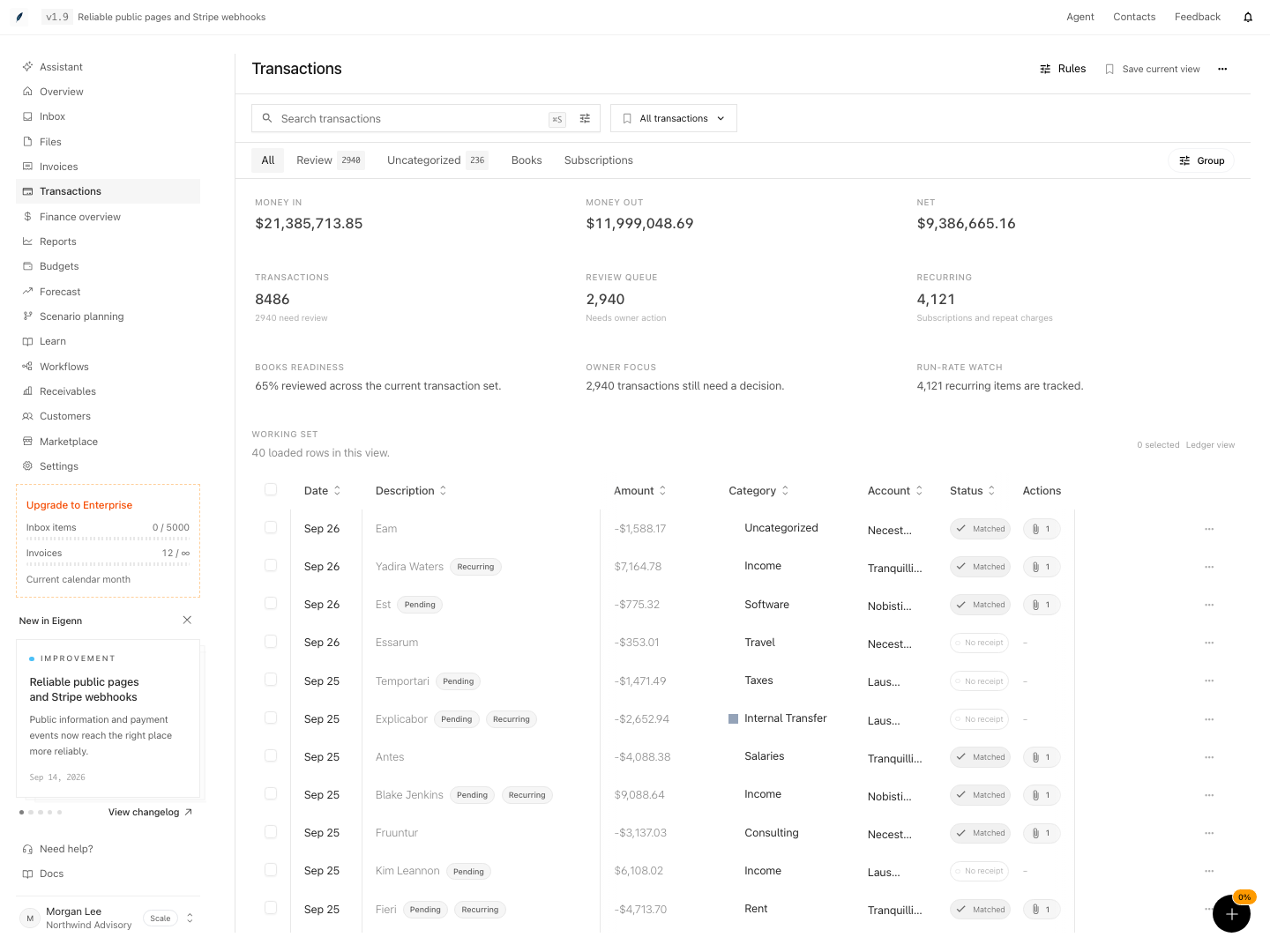
Shown with synthetic data in a local workspace.
Verification
The suggested-payment workflow was verified on October 3, 2026: a synthetic customer’s settled history improved the date score, an exact USD payment was confirmed, and the paid state persisted after reload. The detail sheet, mobile layout, retry action, and keyboard dialog were also checked. This verification covers suggested payments; other transaction workflows keep their existing verification scope.
- Open ungrouped Review and compare pending suggestions and unfulfilled rows with the saved records. Check exported rows separately because the tab badge excludes them.
- Filter All by account/date and check the full-set summary, loaded count, and raw per-currency footer separately. Verify that a new search replaces filters and that grouping uses its smaller supported filter set.
- For a transaction, verify that manual sources allow editing and bank-fed transactions preserve provider records (Expected: Edit options are available only for manual entries, and non-editable fields remain locked on bank-fed data).
- Assign a category or split transaction and validate that saving is only allowed when amounts balance precisely (Expected: Split is saved if parts sum to the transaction total; otherwise, the system prevents save with an error message).
- Check detail-sheet upload, row-menu attachment, and page-level ingestion separately. Verify size limits, duplicate-name behavior, saved attachments, and any extracted tax values. With a disposable invoice, confirm both paid status and PDF attachment after selection.
- Mark a transaction as excluded via the row, analytics switch, or category, and inspect how its status/reporting presence changes (Expected: The transaction is removed or omitted from relevant analytics and/or reports per the chosen exclusion method).
- Apply a bulk action (e.g., set category) across multiple filtered transactions, verify that the correct rows are affected, and inspect results after reapplying filters (Expected: Bulk updates match intended selection, and post-action filters show the expected state).
- For any completion, confirm that all criteria for completeness are met: proper category, evidence, suggestion resolution, and report/analytics decisions are reflected in the transaction view (Expected: Transaction is removed from review queue, and detail reflects completion and reporting settings).
These acceptance checks remain pending for this page. Source review and documentation rendering do not establish verified application behavior.
Related
Related Pages
Process Inbox Items
Move receipts and invoices from intake through review, transaction matches, and a clear completed state.
Review a Customer Finance Record
Examine customer-level invoice exposure, payment behavior, communications, and follow-up work before you make a collections or forecast decision.