Run a Runway Stress Test
Compare baseline cash with a severe downside or a decision-specific set of assumptions.
Summary
Use this guide before you hire or commit to a large expense. Also use it before you extend payment terms or assume that an important customer pays on time.
Capabilities
The stress test tool lets you model substantial negative impacts on revenue, expenses, cash timing, and currency exposure. It enables you to actively compare baseline, severe downside, and defensive plans within the planning interface, and to save and revisit scenario results. The tool offers clear risk categorization and detailed simulation metrics including P10, P50, P90, and cash-negative odds.
Prerequisites
Before You Start
- Make sure that the bank accounts that you turned on represent the cash available to the business.
- Confirm the workspace has recent revenue and expense history.
- Use an Owner or Member account. Forecast runs and saved-scenario changes need write access.
- Define one decision and one downside. A useful test answers a specific question.
Examples:
- Can we add two hires next quarter?
- What happens if our largest invoices arrive 30 days late?
- Can cash absorb a six-month revenue decline and cost increase?
Concepts
Keep it separate from other finance records
- A stress scenario does not change observed transactions or balances.
- It does not create a monthly budget.
- It does not update invoice status.
- It is not an invoice insight report.
- It is not a public snapshot. A copy of the URL keeps the lever state. Recipients still need workspace and Forecast access.
Workflow
1. Open Forecast
- Select Forecast in the sidebar.
- Choose a horizon:
- 6 months for immediate liquidity
- 12 months for an operational plan
- 24 months for longer commitments
The page calculates a no-driver baseline automatically. The same browser tab also remembers unsaved assumptions from your previous visit. Use Tune forecast → Reset all assumptions before comparing a fresh baseline.
2. Confirm the baseline
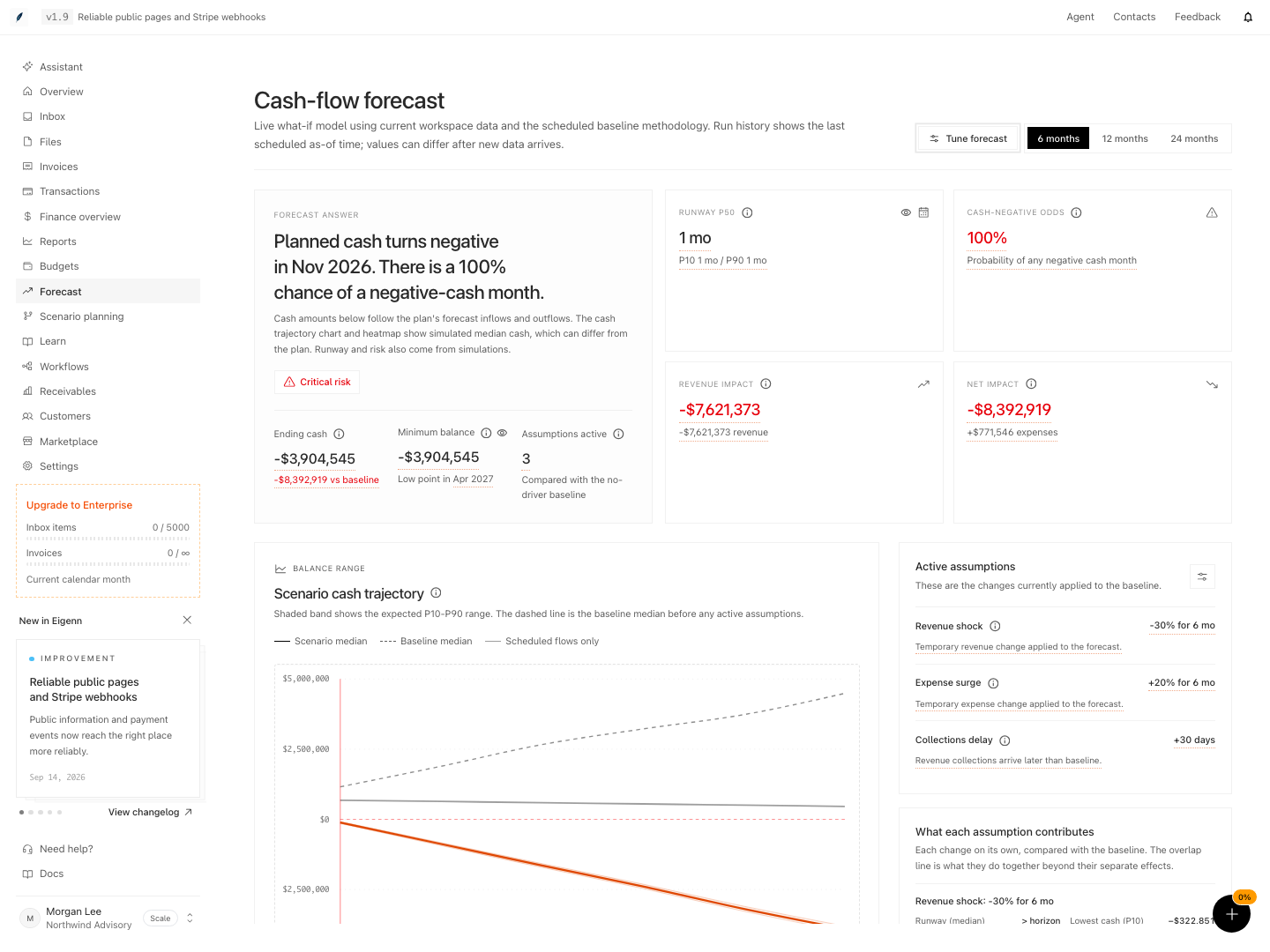
Before you add assumptions, examine:
- Ending cash
- Minimum balance
- Runway P50, P10, and P90
- Cash-negative odds
- the Scenario cash trajectory
With no active assumption, Active plan describes the current baseline. Active assumptions says that the model shows the baseline.
If the chart says Not enough history to forecast, stop. Repair the source data before you use the test.
3. Apply a severe downside
Select Tune forecast to open Scenario assumptions. Under Quick presets, select Severe stress test, then close the sheet to review the results.
The preset replaces the current lever set with:
- 30% revenue drop
- 20% expense increase
- 30-day collections delay
- six-month duration for the revenue and expense shocks
Confirm that Assumptions active lists each change. If your decision is narrower, use the grouped levers instead:
- Revenue for revenue shock, growth, or customer cancellations
- Team for headcount and loaded monthly cost
- Spend for expense surge or a dated one-time expense
- Timing for collections delay, acceleration, or recovery rate
- FX for foreign-currency sensitivity
4. Read downside risk
Start with Forecast answer:
- an "at or above zero" headline means planned cash does not fall below zero for the selected horizon
- a named breach month means planned cash turns negative then
Planned cash applies forecast inflows and outflows once. The cash trajectory chart and heatmap show simulated median cash, which can differ from the plan. Use the simulations to assess uncertainty alongside the plan.
Next examine:
- P10 in the Runway P50 hint, for the conservative outcome.
- Runway P50 for the median outcome.
- P90 in the same hint, for the more favorable outcome.
- Cash-negative odds for the chance that any month goes below zero.
- Pressure starts and Worst month.
Risk badges use these breakpoints:
- Low risk: less than 10%
- Moderate risk: 10% to less than 25%
- High risk: 25% to less than 50%
- Critical risk: 50% or more
A runway label such as >24 mo means no breach inside the 24-month horizon. It does not establish what happens after month 24.
5. Compare plans
In Scenario comparison matrix, compare:
- Baseline
- Active plan
- Defensive plan
Examine ending cash, minimum cash, runway, cash-negative odds, and net impact with the same horizon and currency.
Use Cash runway decision timeline and Cash pressure by month to find when the scenario moves from Stable to Watch, High, or Critical.
Do not approve a decision based only on P50. The P10 runway and the cash-negative probability show tail risk that the median can hide.
6. Test the response
Change one controllable assumption at a time. For example:
- Apply Severe stress test.
- Reduce Expense surge or use the Defensive cost plan.
- Compare the new ending cash and first pressure month.
- Reset that change.
- Test Collections acceleration or Recovery rate change.
The workbench refreshes after each adjustment. There is no separate run button for the live, unsaved scenario.
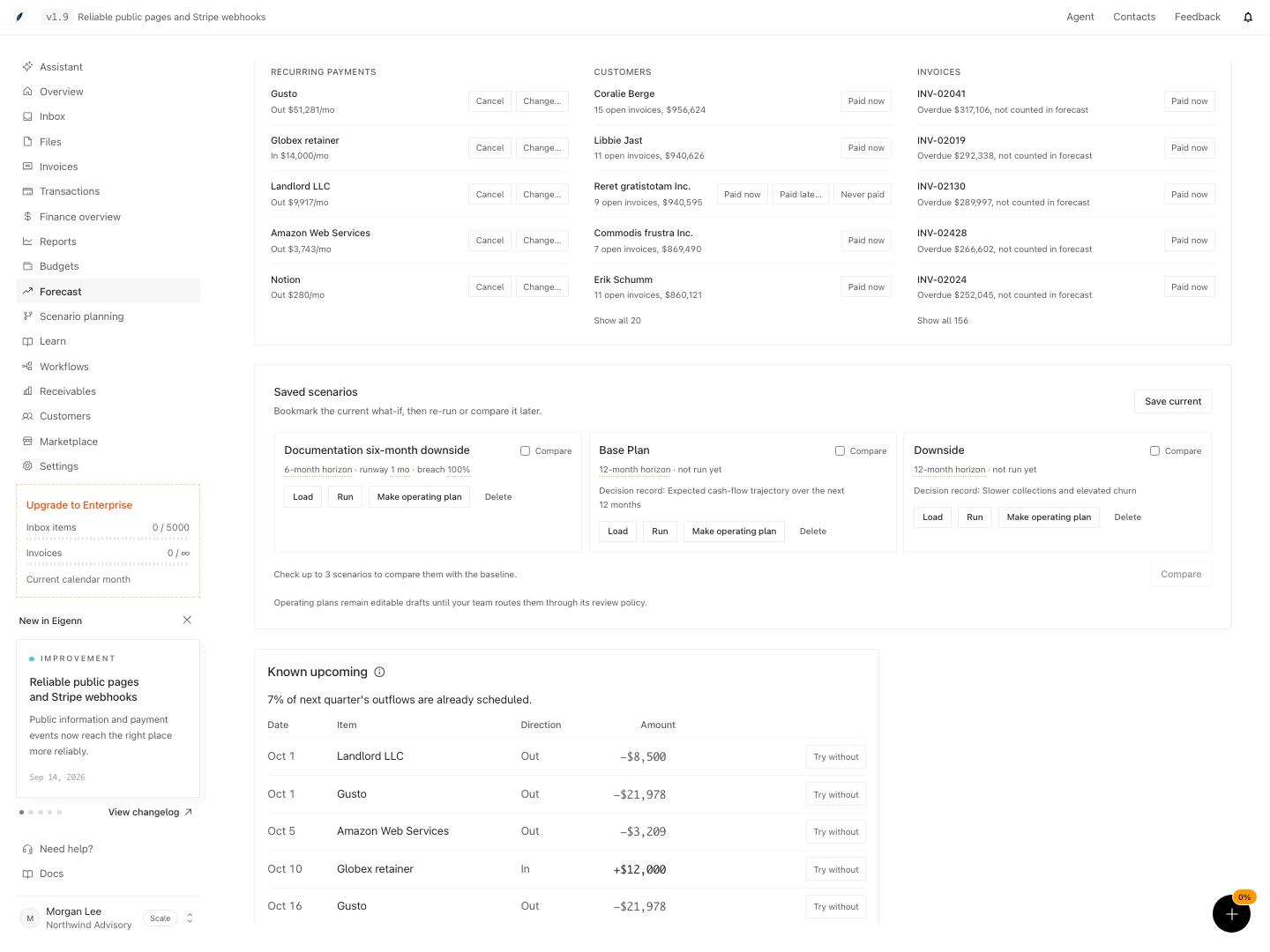
7. Save the decision case
- Confirm that at least one assumption is active.
- Under Saved scenarios, select Save current.
- Name the scenario for the decision, such as “Q4 hiring downside.”
- Select Save.
- In the saved row, select Run to recalculate it against the latest history and populate its latest summary.
Use Load to restore the saved drivers and horizon. The live payment-behavior toggle is not part of that saved definition. The saved Run summary uses its own history and simulation settings and can differ from the live chart. Use Delete only when you want to remove the scenario permanently.
Behavior specification
Confirm the Result
A decision-ready runway test has:
- one clearly stated business decision
- a no-driver baseline that you checked
- explicit assumptions with amounts, dates, percentages, and durations
- the same horizon and currency across comparisons
- P10, P50, P90, and cash-negative odds that you examined
- a known first pressure month
- a mitigation case compared with the downside
- a saved, named definition when the team needs to revisit it
Diagrams
Rendering diagram…
Screenshots
Verification
Troubleshoot
Forecast is unavailable
Confirm your workspace access. Use an Owner or Member account. The page uses the same unavailable message for a forbidden forecast request.
Cash starts at zero
Check Settings → Account → Bank Connections. Eigenn calculates the initial cash from the accounts that you turned on in the forecast currency.
Eigenn ignores the one-time expense
Enter both a positive amount and a valid date. Either value by itself does not create an active driver.
Eigenn ignores the FX shock
Enter a three-letter currency and nonzero shock. The workspace also needs exposure in that currency on an account that you turned on. Then the model can estimate an effect.
Saved scenario still says not run yet
When you save, Eigenn stores the definition. Select Run on the saved row to calculate its latest result summary.
- Log in with Owner or Member access and connect all relevant bank accounts to verify initial cash matches available funds. Expected outcome: Baseline cash equals the sum in connected bank accounts.
- Confirm the workspace shows recent revenue and expense history. Expected outcome: Baseline forecast generates with no data errors.
- Select a planning horizon and check that P10, P50, P90, and cash-negative odds are visible in the forecast output. Expected outcome: All risk metrics display for the chosen scenario.
- Apply the Severe stress test preset and verify that all specified changes (revenue drop, expense increase, collection delay, duration) are active. Expected outcome: 'Assumptions active' lists all stressor changes.
- Compare baseline, active, and defensive plans in the scenario comparison matrix, examining all key indicators for consistency. Expected outcome: The compared results use a consistent currency and horizon. The values can coincide when the assumptions have no effect on the available data.
- Save a scenario after activating at least one assumption, then select Run in the saved row and confirm the scenario's summary updates, showing the latest calculations. Expected outcome: Saved scenario displays fresh results reflecting current data and scenario levers.
- Test troubleshooting steps if issues arise, such as verifying bank connections if cash starts at zero or ensuring both dates and amounts are set for one-time expenses. Expected outcome: Connection or entry errors are resolved and functionality restored.
Related
Related Pages
Run a Receivables Tone Experiment
Compare two tone profiles on eligible communication traffic, preserve a valid observation window, and roll out a reviewed winner manually.
Run Planning Uncertainty Analysis
Replace selected fixed assumptions with defensible probability formulas, simulate the model, and communicate the resulting range.