Integrations
Connect external systems through the App Marketplace, examine their permissions, and manage connection health safely.
Summary
Use Apps to find available payment, accounting, communication, automation, and AI integration options for a team. Each connection has its own setup and data responsibilities. Some catalog entries lack a complete install or delivery flow; verify the connection before using its data or automation.
Capabilities
Current Boundaries
- App capabilities are integration-specific. No single event, retry, sync, or disconnect contract applies to every marketplace app.
- A marketplace event label describes intended coverage. It does not establish an event producer, saved subscription, or delivery guarantee.
- The public REST API and MCP endpoint are separate from marketplace installation. An app installation does not create a general-purpose API key.
- The external catalog shows approved OAuth applications owned by the selected team. Approved inactive applications can remain visible but cannot be installed. It is not a global directory of all approved apps.
Prerequisites
Use the team that must own the connection. Owners and Members can change team connections and settings; Viewers can read them. Billing must allow writes: a Billing required install action or disabled connection/settings controls indicate a billing restriction. Provider authorization is separate, so use an account allowed to grant the required access at that service.
Concepts
Connection Methods
| Method | What to expect |
|---|---|
| OAuth | A supported official install action opens provider authorization. External app installation opens the app’s configured URL, which must lead to a valid Eigenn consent request. |
| API key | Use the credential setup supported by that app. The badge alone does not mean the marketplace has a working key-entry flow. |
| Webhook | A destination URL is only part of setup. The current Zapier/n8n/Make listings do not establish a complete install and event-delivery path; see Webhook boundaries. |
| MCP | You copy a client configuration or connect to Eigenn's remote MCP endpoint. |
External OAuth apps use Eigenn's consent screen. The consent request must use a registered redirect URL and allowed scopes. Public OAuth clients must use PKCE. See Authentication for client and token requirements.
Workflow
Find the Right App
- Open Apps from the main navigation.
- Search by app name or browse the category sections.
- Filter by category, capability, connection method, availability, or installed state.
- Open an app and read its details before you connect it.
The marketplace combines:
- Official apps maintained in Eigenn
- External apps that Eigenn approves for the marketplace
The catalog can show Beta, Coming soon, or Deprecated badges; active entries need no status badge. Coming soon disables installation. An active Install button alone does not prove that setup is wired. Stripe Connect, Gmail, Slack, QuickBooks Online, and Xero have install actions; some other entries only provide descriptions, settings, or MCP snippets.
If an app seems missing, clear capability or connection-method filters, which exclude entries without matching metadata. Failed connection-data reads can leave the catalog visible with missing installed markers or external entries. Reload before treating an empty list as proof of disconnection.
Examine Access Before You Connect
The app detail panel can show:
- the connection method, such as OAuth, API key, webhook, or MCP
- the capabilities the app can use
- provider scopes requested during authorization
- setup prerequisites
- events named by the integration catalog
- configuration fields and client snippets
- documentation and availability status
Do not infer permissions from an app name alone. For example, an accounting connection can read customers and also write invoices or payments. Confirm the displayed scopes and the capability labels against the workflow that you want to turn on.
Check Connection Health
Official app activity can show Connected, Last sync, Synced, Failed, and up to eight recent entries. The labels mean:
- Healthy: a recorded success with no newer failure or conflict.
- Needs attention: the latest failure or conflict is newer than any success.
- Not synced yet: no success or failure signal; this is not a successful connection test.
Last sync can refer to a failed attempt. Counts describe recorded activity rather than unique imported records. The panel does not show detailed provider error messages or a universal enable/disable control. External OAuth apps show Last used, when available, instead of the official-app sync summary.
Before depending on the connection, compare a few source records with Eigenn and inspect the latest activity. Use a test action only if that app supplies one. A saved URL, installed marker, or older healthy activity does not prove that credentials or delivery work now.
For editable app settings, switches and selections save on change; text fields save when focus leaves the field. Check for a save error and reload the details to confirm the value persisted.
Disconnect an App
Disconnect behavior depends on the app type:
- When you disconnect most official apps, Eigenn removes the saved team connection.
- Gmail uses Disable and Enable for all Gmail inbox accounts in the current team. It retains the installed app record; check mailbox status and subsequent activity after changing it.
- External OAuth disconnection revokes the current user’s tokens for that application across teams. It does not revoke other users’ or machine credentials.
- The Conduitt bridge attempts a remote uninstall, then removes its local connection even if that remote attempt fails. Confirm removal in Conduitt separately.
Generic app disconnection does not delete customers, invoices, transactions, or documents already imported into Eigenn. Disconnection also does not always guarantee that the provider revoked its authorization. Examine the records that stay in Eigenn. Then remove Eigenn from the provider's connected-app settings when your security policy needs both actions.
Behavior specification
Security Practices
- Connect apps only from the team that must own the data.
- Grant the smallest provider and Eigenn scopes that support the workflow.
- Keep provider API keys out of browser code, chat, screenshots, and shared documents.
- After provider permissions change, check the integration’s authorization requirements and reauthorize when required. Do not assume Eigenn will always prompt automatically.
- Treat webhook URLs and MCP configuration as credentials when they contain secrets or grant access.
- Review installed apps when a team member changes roles or leaves the organization.
Diagrams
Rendering diagram…
Screenshots
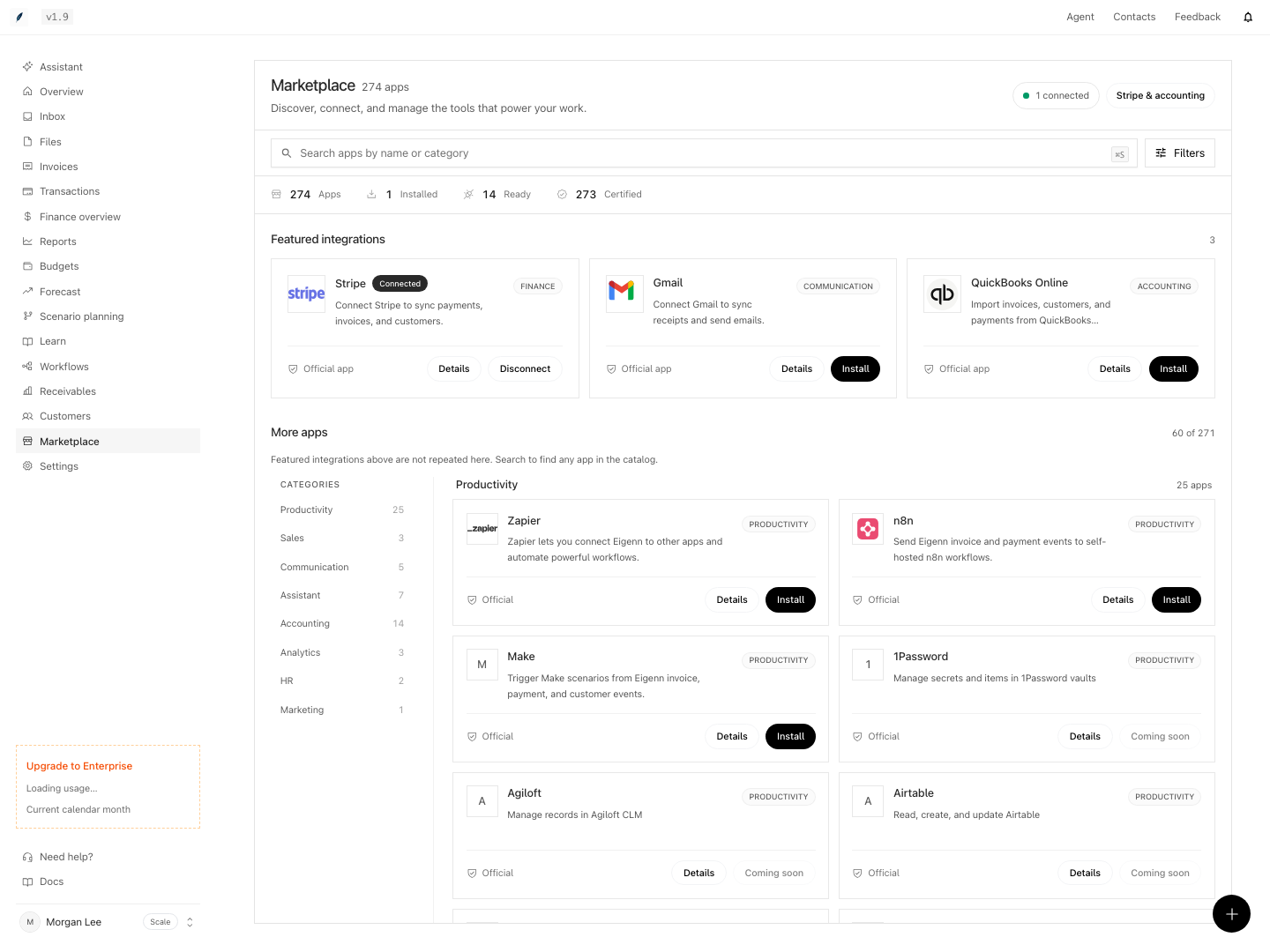
Shown with synthetic data in a local workspace.
Verification
Run these acceptance checks with an isolated team and controlled provider fixtures. Runtime verification remains pending.
- Compare the unfiltered catalog with category, installed, capability, and connection-method filters. Check that missing metadata can exclude an app from a filtered result.
- Inspect an approved inactive external app: it may be visible but installation must be disabled. Confirm external results belong to the selected team.
- Complete a supported official installation and compare a known source record with Eigenn. A listed capability or idle installed row is insufficient.
- Check activity with a success, a newer failure, and no success/failure history. Expect Healthy, Needs attention, and Not synced yet. Do not expect provider error text in this panel.
- Check team write rejection for a Viewer and billing-locked controls. Confirm a permitted setting remains saved after reload.
- With disposable connections, distinguish official disconnection, Gmail sync disable/enable, current-user OAuth revocation, and bridge remote-uninstall failure. Verify retained records and provider access separately.