Marketplace Integrations
Discover, authorize, check, and disconnect the apps that extend an Eigenn team workspace.
Summary
Use Marketplace to browse integration options, open available setup flows, and inspect existing connections. The catalog also includes entries whose installation or event delivery is incomplete; a listed capability is not proof of a working connection.
Capabilities
What the Marketplace Helps You Do
- Browse official and approved external apps.
- Search and filter by capability, category, connection method, or availability.
- Read the permissions and the setup needs before you connect.
- See which apps the current team installed.
- Examine recent sync health when an app records activity.
- Update settings, disconnect access, or report an app.
Prerequisites
You need access to the intended Eigenn team and permission at the provider to authorize its data. Team Owners and Members can change team app settings and connections; Viewers have read access. Workspace billing must allow writes. When billing blocks changes, install controls show Billing required and connection/settings controls are disabled. An enabled control alone does not establish role permission; the server also checks access.
Concepts
Understand App Types
Official apps
Official apps are included in the Eigenn catalog. Some provide an OAuth setup action or editable settings; MCP entries can show configuration to copy. A connection-method badge describes the intended method, not necessarily an available setup flow.
Stripe Connect, Gmail, Outlook, Slack, QuickBooks Online, Xero, and Fortnox have installation actions. Other active entries, including Zapier, n8n, Make, Resend, and MCP clients, do not currently wire the generic Install button to a setup action. For MCP, follow MCP setup. For automation, read Webhook boundaries before depending on event delivery.
External apps
External apps are OAuth applications created by a developer team. The current catalog loads applications owned by the selected team and shows those with approved status; it is not a global directory of every approved developer app. An approved but inactive application can remain visible while installation is disabled.
Install opens the application’s configured install URL. Authorization still requires a valid OAuth request, registered redirect URL, allowed scopes, and consent. Opening that URL does not itself grant access.
Read the developer name, website, scopes, screenshots, and install URL before you give access.
Read the Detail Panel
The contents of the panel change with the app. The panel can include:
| Detail | Why it matters |
|---|---|
| Connection method | Tells you whether the app uses OAuth, a provider key, a webhook URL, or MCP. |
| Availability | Can show Beta, Coming soon, or Deprecated. An active entry does not need a status badge. |
| Capabilities | Describes the record types and the actions that the app can use. |
| Provider scopes | Shows permissions requested from the connected service. |
| Before you connect | Lists prerequisites and necessary mappings. |
| Reacts to these events | Lists the event names that the app recognizes. |
| Activity | Shows recent sync outcomes when the connection records journal activity. |
An event badge describes intended coverage. It does not create a subscription or prove that a business change produces a delivery. Some app descriptions refer to signed test events, but the current generic webhook action supplies no signature or complete test flow.
Workflow
Browse the Catalog
- Open Marketplace.
- Review the featured integrations.
- Search by app name or description.
- Narrow the catalog with:
- category
- official or external type
- active availability
- capability
- authentication method
- installed state
- Open an app card for details.
The default featured set highlights Stripe Connect, Gmail, and QuickBooks Online when available. Featured cards disappear when filters are active. Results are paginated at 60 catalog entries per page.
Capability and connection-method filters exclude apps without that metadata, including some external entries. Clear filters before concluding that an app is absent. If connection data fails to load, the catalog can still appear while installed markers or external apps are missing; reload before reinstalling or assuming access was revoked.
Connect an App
- Select the correct Eigenn team.
- Open the app.
- Review its permissions and availability.
- Complete the displayed prerequisites.
- Select Install only for an app with a supported setup flow.
- Complete provider consent or enter the necessary configuration.
- Return to the marketplace.
- Confirm that the app appears as installed.
- Run a test or check the first sync before you depend on the data.
For an accounting app, confirm the company and any mappings its setup exposes. For an inbox connection, confirm the mailbox and any available folder or label selection. For automation, first establish a working event source and subscription; a catalog entry or saved URL does not complete this step.
Settings appear only when the app defines them. Switches and selections save on change; text fields save when you leave the field. A rejected save displays an error. Reload the app details to confirm the persisted value; saving a URL does not test delivery.
Complete Accounting Setup
After you approve access at QuickBooks, Xero, Fortnox, or another accounting provider, the provider returns you to Eigenn. Eigenn finishes the connection in your signed-in session, so stay signed in while you approve.
Only the person who started the connection can finish it, and only in the workspace where they started it. When someone else approves the link, or you switch workspaces first, Eigenn connects nothing and shows an error. Start a new connection from Eigenn. Do not forward the provider's consent link to a colleague; ask them to start the connection themselves.
An install URL requested through the API follows the same rule. Approve access in a browser signed in to Eigenn as the user who owns the API key, with the key's workspace selected.
Complete Outlook Setup
Outlook installation opens Microsoft authorization and completes in the Eigenn session that started it. Keep the same user and workspace selected until the callback completes. Confirm the connected mailbox and subsequent activity after returning; an authorization screen or catalog badge alone does not prove mail ingestion.
Complete Slack Setup
After you approve the Eigenn app in Slack, Slack returns you to Eigenn, which finishes the install in your signed-in session. As with accounting apps, only the person who started the install can finish it, and only in the workspace where they started it. When someone else approves the link, or you switch workspaces first, Eigenn installs nothing and shows an error; start the install again from Marketplace. A Slack install link works once.
Complete Stripe Setup
Keep the Eigenn session that started the connection open while you authorize Stripe. Returning from Stripe requires that signed-in session and any MFA verification your workspace requires.
If Connection failed appears, select Return to app and check the connection status before starting again. During onboarding, confirm that setup advances from STRIPE to Bank. In Marketplace, confirm that Stripe appears as installed. A completed Stripe screen alone does not confirm that Eigenn saved the connection.
If your Eigenn session expired, sign in again and complete any required MFA. Start a new connection attempt from Eigenn; do not refresh the old callback page. If the error persists, contact support with the workspace name and the approximate failure time. Do not share the callback URL or authorization details.
Check Sync Activity
For installed official apps, Activity can show connection time, Last sync, Synced and Failed counts, and up to eight recent entries with direction, entity type, status color, and time.
| Label | What it means |
|---|---|
| Healthy | A success is recorded and no later failure or conflict is recorded. |
| Needs attention | The latest failure or conflict is newer than any success. |
| Not synced yet | No success or failure signal is available. Skipped entries alone do not establish a successful sync. |
Last sync can be the time of a failure, not the last successful import. Counts reflect recorded activity, not necessarily unique source records or the completeness of a provider import. The panel does not display detailed provider error text or a general on/off control. Gmail has its own Disable and Enable controls.
External OAuth apps show Last used when available instead of this sync summary. Neither an installed marker nor a healthy historical entry proves that the current provider credential still works.
If data appears stale, compare the most recent recorded activity with a known source record. Check the provider authorization and the app-specific setup. Use a connection test only when that integration exposes one; there is no universal test button.
Disconnect and Revoke
Most official Disconnect actions remove the saved connection for the current team. An external app disconnect revokes the current user’s tokens for that OAuth application across teams; it does not revoke other users’ or machine credentials.
Gmail uses Disable and Enable instead. These apply to all Gmail inbox accounts in the current team and retain the installed app record. Check mailbox status and subsequent activity after changing the control.
The Conduitt bridge attempts to remove its paired remote connection before removing the local connection. Remote failure can still leave local disconnection successful, so confirm the Conduitt side separately.
Important limits:
- Generic disconnection removes the app connection, not the customer, invoice, transaction, or document records previously imported.
- The marketplace action does not universally revoke provider-side authorization.
- Other team members can have their own authorization to an external app.
For a complete security removal, disconnect the app in Eigenn. Revoke Eigenn at the provider when applicable. Then check the retained records.
Behavior specification
Availability Boundaries
- Coming soon disables installation. An active Install button can still belong to an entry without a setup action; confirm the supported flow above.
- Beta apps can change behavior. We recommend that you test them with representative records.
- A capability label does not guarantee every record field or direction.
- No single retry, signature, sync frequency, or disconnect rule applies to every app.
- When you install an app, you do not get access to undocumented public API operations.
Diagrams
Rendering diagram…
Screenshots
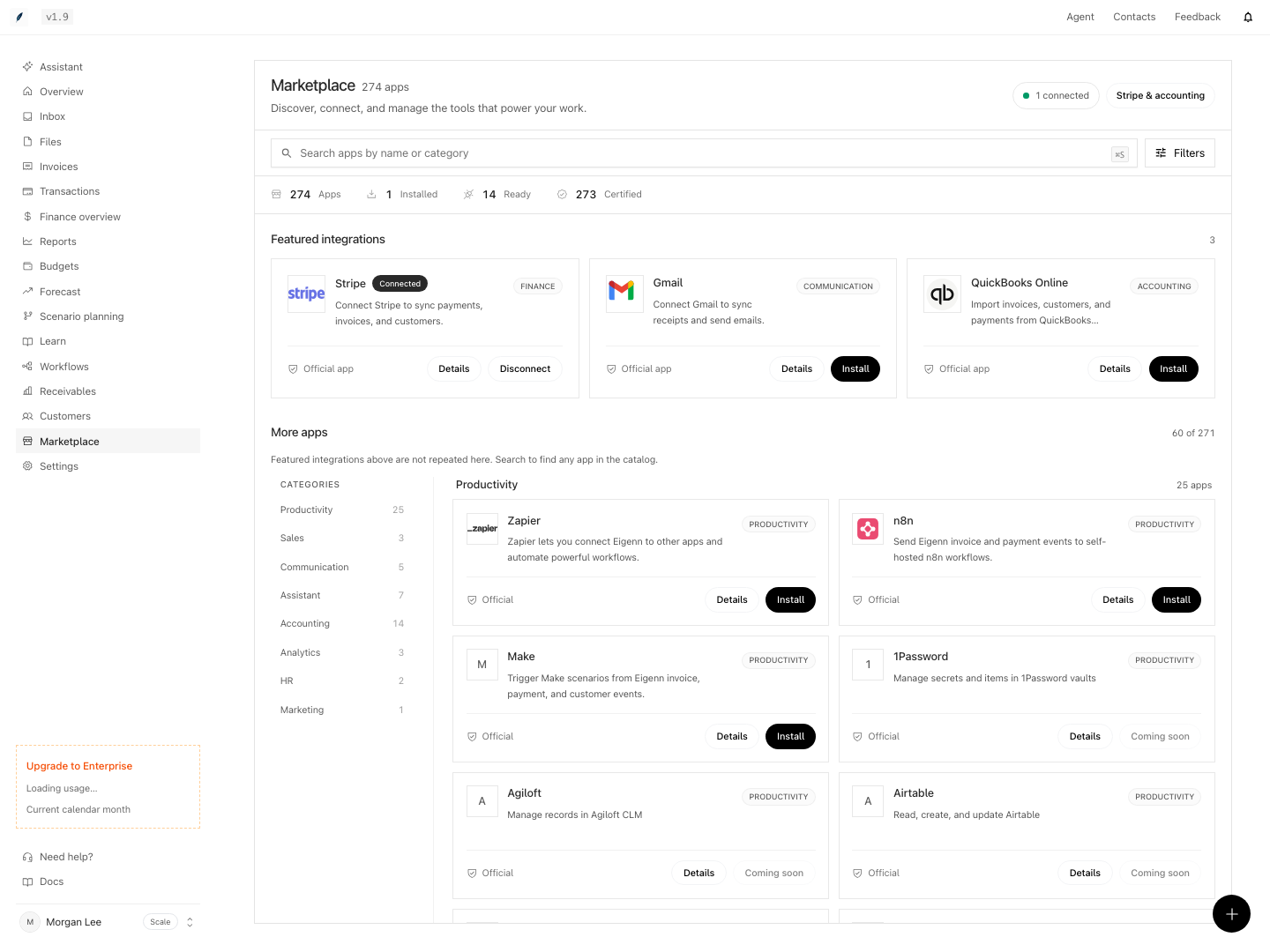
Shown with synthetic data in a local workspace.
Verification
Use an isolated team and controlled provider fixtures for these acceptance checks. They do not claim runtime verification from this copy review.
- Open the App Marketplace and confirm visibility of featured and approved integrations. Outcome: Featured apps such as Stripe Connect, Gmail, and QuickBooks Online are displayed if available.
- Search or filter the catalog to locate a desired app by name, category, or capability. Outcome: Relevant apps are shown according to search/filter criteria.
- Open app details and check the fields supported by that app. Optional metadata and activity must not be assumed present for every entry.
- For an app with a supported install flow, complete controlled authorization and reload its installed state. Separately confirm that an active entry without a setup action is not treated as connected.
- Review synthetic success, newer failure, and empty activity cases. Expect Healthy, Needs attention, and Not synced yet respectively. Last sync may identify a failure; detailed provider errors are not shown in this panel.
- Disconnect a disposable official connection and confirm imported records remain. Check Gmail disable/enable, current-user external revocation, and bridge remote-uninstall failure as distinct cases.
- Check that Coming soon and billing-locked actions are disabled. Check Viewer rejection of team connection/settings writes, and Owner/Member access with writable billing.
Disconnecting Stripe removes the selected workspace connection. If another workspace or integration still uses the same Stripe account, its access is retained. Platform access is revoked only after the last stored connection is removed.
Stripe synchronization revisits imported pending payouts and disputes even when they were created before the latest sync window. Failed payouts and resolved disputes update the existing transaction, so stale pending records do not keep affecting your financial reports.