Invoices
Review balances, find the invoices that need attention, and take the next action that the status permits from one workspace.
Summary
Invoices is the ledger for customer billing operations. It brings open balances, due dates, payment state, collection risk, and invoice actions together. You can then move from review to follow-up, and you do not rebuild the story in a spreadsheet.
Capabilities
What Invoices Helps You Do
- see open, overdue, and paid totals at a glance
- find a specific invoice by number, customer, amount, date, or status
- open a compact details sheet and stay in the list
- continue to a full invoice record for payments, balances, activity, and customer context
- create, send, schedule, duplicate, download, cancel, or correct an invoice when its status permits that action
- review ranked bank payments and confirm an exact full payment
Prerequisites
Before You Start
- Sign in and select the team whose invoices you want to manage.
- Make sure you can access that team's billing records. Invoice data is team-scoped.
- Add or check the customer before you send an invoice. You can also create a customer from the invoice form.
- Review Settings → Invoices if the invoice numbers, payment terms, tax behavior, reminders, PDF attachment, or currency defaults need to change.
Concepts
Status and State Notes
- Draft means that you can still edit the invoice. No delivery action finalized it yet.
- Scheduled means that a future delivery job waits to run. When you cancel the schedule, the invoice returns to draft.
- Unpaid means that Eigenn finalized the invoice. The invoice is still outstanding.
- Overdue is an outstanding, past-due state. It is not offered as a manual status action.
- Paid records an invoice-level paid state and payment date.
- Canceled keeps the invoice record. Check and stop any existing recovery sequence separately.
- Deletion is permanent. You can delete only draft and canceled invoices.
- When you duplicate any invoice, Eigenn creates a new draft for review. The new draft does not keep the source invoice's paid or canceled state.
Workflow
Open the Invoice Workspace
- Open Invoices in the main navigation.
- Select Invoices in the section navigation.
- Use the adjacent Insights and Products tabs when you need analytics or reusable catalog items.
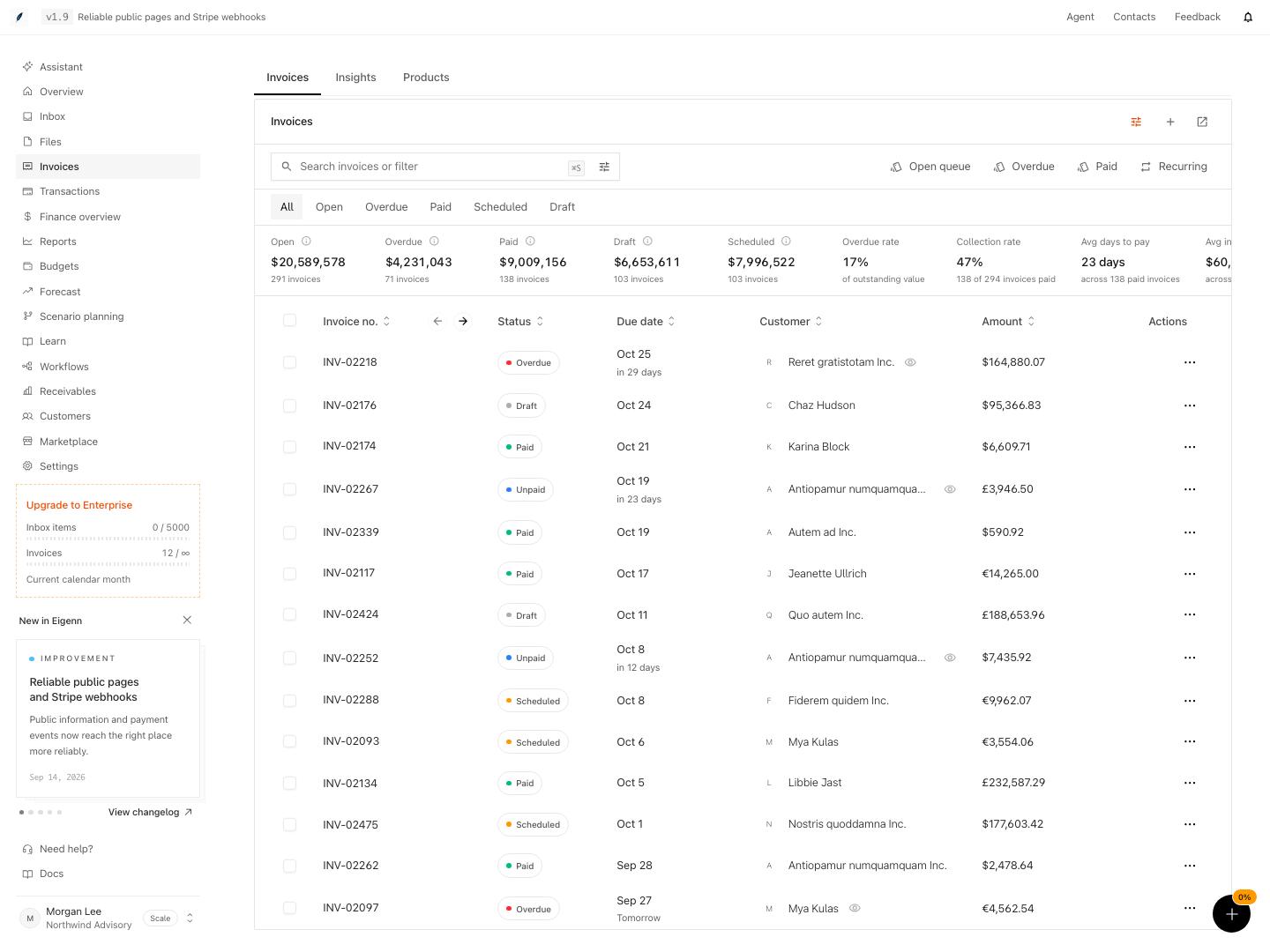
The top of the page shows four signals for operations:
| Signal | What it represents |
|---|---|
| Open | Draft, scheduled, and unpaid invoices |
| Overdue | Invoices now recorded as overdue |
| Paid | Invoices now recorded as paid |
| Payment score | A payment-health score when enough invoice history exists |
Select Open, Overdue, or Paid to apply the related status filter to the table. If the payment score says No data, create and complete invoices before you use it as a decision signal.
When more than one currency is present, the summary cards show a total in the team's base currency. Open the information tooltip beside a summary label to examine the original-currency breakdown and the converted amounts. A missing exchange rate currently falls back to 1:1. Reconcile the currency amounts before using the summary for financial reporting.
Find the Invoice That Needs Attention
Use the status tabs
The primary tabs are All, Open, Overdue, Paid, Scheduled, and Draft. Open combines draft, scheduled, and unpaid records; it does not include overdue invoices.
The shortcuts above the table give Open queue, Overdue, Paid, and Recurring views.
Search and filter
- Enter an invoice number, a customer name, or other text from the invoice in Search invoices or filter.
- Select Open filters.
- Add one or more filters:
- Due Date
- Issue Date
- Sent date
- Amount
- VAT
- Tax
- Customer
- Status
- Invoice type: recurring or one-off
- Review the visible rows after you apply each filter.
- Select Clear filters if the page shows No results.
VAT and Tax ranges appear under VAT & Tax.
Status filters can include draft, overdue, paid, unpaid, canceled, and scheduled invoices. A Custom tab appears when the selected status combination does not match one of the standard tabs.
Adjust the table
Use Manage invoice columns to show or hide optional fields. Available columns include invoice number, status, due date, customer, customer email, and amount. More columns include tax and VAT fields, issue and payment dates, and sent and viewed dates. The list ends with recurring information, source, sync information, and e-invoice details.
The table loads more records as you scroll. A count of the rows on screen now is not always the team's complete invoice count.
Examine an Invoice
- Select a normal data cell in an invoice row. Avoid the selection checkbox and actions menu when you want to open details.
- Review the details sheet:
- customer, amount, and status
- issue, due, sent, and scheduled dates when available
- invoice link and activity
- payment progress, collection signals, recovery controls, settlement offers, and sync badges when the necessary data exists
- internal notes
- Select Open full page for the complete record.
- On the full page, review the totals, payment link, customer context, and line items.
- Then review related invoices, payments, adjustments, notes, lifecycle activity, performance signals, and balances.
What to check
Before you take an action, confirm:
- the invoice number and customer are correct
- the displayed currency and total match the invoice
- the due date supports the status that you see
- Payments received, Credits, and Amount remaining agree with your records
- the activity and communication history show the expected send, reminder, view, and payment events
- any integration badge names the provider you expect
Confirm a Suggested Payment
- Open an unpaid or overdue invoice in its details sheet or full-page view.
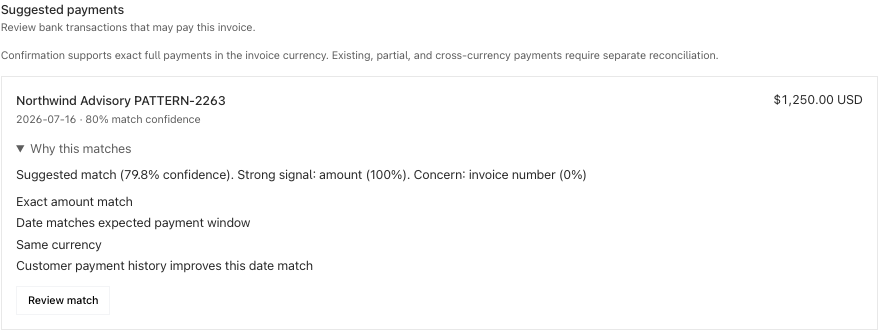
- Find Suggested payments beside the payment information. Review each transaction's name, date, amount, currency, and confidence.
- Expand Why this matches to see the explanation. Customer payment history improves this date match means this customer's settled invoices improved the date score. Suggestions keep the generic date score when history cannot improve it.
- For an exact full payment in the same currency, select Review match.
- Check the confirmation dialog, then select Confirm payment. This records a bank-transfer payment, reconciles it to the bank transaction, and marks the invoice paid. It does not charge the customer.
- Reload the invoice. Check the paid status, payment entry, and remaining balance.
You need invoice and transaction viewing access to see suggestions. Confirmation also requires permission to edit invoices and manage transactions. If loading fails, select Try again. If the invoice or transaction changed before confirmation, refresh and review its current state.
Behavior specification
Available Actions by Status
Actions are split between the row menu and the details sheet. Their availability changes with invoice status.
| Status | Typical available actions |
|---|---|
| Draft | Edit, open the invoice link for the customer, copy the link, duplicate, or delete |
| Scheduled | Edit, open or copy the link, download, duplicate, or cancel the schedule |
| Unpaid | Edit, open or copy the link, download, duplicate, mark as paid, or cancel |
| Overdue | Edit, open or copy the link, download, duplicate, mark as paid, or cancel |
| Paid | Open or copy the link, download, duplicate, or mark as unpaid |
| Canceled | Open or copy the link, download, duplicate, mark as unpaid in the details sheet, or delete |
When you select many invoices, the page shows a bulk Download action. The invoice table does not offer bulk status changes or bulk deletion. Bulk download attempts the selected loaded rows one at a time and continues after an individual failure. Check that each expected PDF arrived; completion of the progress indicator does not prove that every file downloaded.
Suggested Payment Limits
- Confirm only posted incoming payments for the exact positive invoice total and currency.
- Partial payments, overpayments, cross-currency payments, drafts, canceled invoices, internal transfers, and already-used transactions cannot be confirmed here.
- If a payment is already pending or recorded, or an adjustment changes the balance, reconcile that balance instead of recording another full payment.
- Learned payment timing uses settled history and refreshes nightly. Customers without enough history retain generic matching.
- A confirmation saves all payment and reconciliation changes together. Repeating a completed confirmation does not create another payment. The paid date comes from the bank transaction's UTC date.
- Suggestions do not trigger automatic matching or payment collection.
Delayed Comment Activity
Invoice comments can appear in activity feeds after a delay if the feed service or its background queue is unavailable. Eigenn periodically recovers saved feed deliveries that were never attempted. It also resumes deliveries paused because the feed service was not configured, once configuration is restored.
Recovery checks run every ten minutes. Unattempted deliveries must remain untouched for at least fifteen minutes before recovery; a large backlog can take longer. Recovery retains the original activity and its team. It does not recreate the comment, collect payment, or send an invoice. Deliveries already being retried keep their retry schedule; permanently failed deliveries need operator investigation.
Conditional Capabilities and Limitations
- Remind, Auto-chase overdue, and Settlement offer appear for unpaid or overdue invoices. Each control has its own conditions.
- Auto-chase needs a recovery policy that you set up. Its panel shows the current step and next reminder when an active sequence exists. A start toast means enrollment was queued; confirm that the sequence actually appears. The control can remain visible for a non-open invoice when a recovery record exists.
- Settlement offers are available only for open unpaid or overdue invoices. Eigenn shows an offer on the customer's invoice page. The offer expires after 14 days.
- Payment progress appears only after you record at least one payment. Reconciliation and predicted-next-payment details appear only when that data is available.
- Sync badges appear only after an invoice has a recorded connection to a supported accounting or payment provider.
- The invoice list does not offer PDF download for drafts, because a final document does not always exist yet.
- The table menu and full-page header do not show identical controls. For example, paid and canceled rows omit Edit invoice. The full-page header can still display an edit control. Recheck the current status before you change a terminal record.
Diagrams
Rendering diagram…
Rendering diagram…
Screenshots
Shown with synthetic data in a local workspace.
Verification
The suggested-payment workflow was verified on October 3, 2026: a synthetic customer’s settled history improved the date score, an exact USD payment was confirmed, and the paid state persisted after reload. The detail sheet, mobile layout, retry action, and keyboard dialog were also checked. This verification covers suggested payments; other transaction workflows keep their existing verification scope.
Team-feed recovery was verified on October 3, 2026 against the application commit above using disposable PostgreSQL and Graphile. Checks covered concurrent claims, tenant pairing, disabled delivery recovery, preserved queue timing, and recovery after an injected enqueue failure. External feed delivery was disabled for this verification. The updated page was rendered on desktop and mobile.
Troubleshoot
I see No results
Select Clear filters, then check the standard status tabs. A date, customer, recurring, or amount filter can remain active even when the search field looks empty.
I cannot find an invoice in Open
Open includes draft, scheduled, and unpaid invoices. Check Overdue, Paid, or All for other statuses, and confirm that you are in the correct team.
The summary amount looks different from the row amounts
The summary can convert many currencies into the team's base currency. Open its currency tooltip to compare the original and converted values.
I cannot edit, download, or delete an invoice
Actions depend on the status. Drafts do not offer PDF download. Paid and canceled rows do not offer edit in the table menu. You can delete only draft or canceled invoices.
The details sheet did not open
Select a regular invoice cell rather than the checkbox or the three-dot actions button. If the row still does not open, refresh the page and confirm the invoice still exists in the current team.
I recorded a payment but the status or balance looks wrong
Open the full page and compare Payments received, Credits, and Amount remaining. An invoice-level status correction and a payment ledger entry are separate concerns. Reconcile the payment record before you use Mark as paid or Mark as unpaid.
- Log in as a user with invoice management access and select a team; confirm the Invoices workspace loads and relevant statuses are visible.
- Search using invoice number, customer, or amount; verify only relevant invoices appear in results.
- Apply a filter (e.g., by due date), and check that only invoices matching the filter are shown in the table.
- Select an invoice's data cell (not checkbox or action menu); review that the details sheet opens with correct summary information.
- Open the full page for an invoice; confirm visibility of lifecycles, payment status, related records, and context.
- Attempt to download a draft invoice; check that PDF download is not offered.
- Attempt to edit a paid or canceled invoice from the table; confirm the edit option is missing.
- Review payment and credit amounts displayed and compare with your records; discrepancies must match actual invoice events.
- Select multiple invoice rows; verify that only the bulk download action appears, not bulk delete or status change.
- Try to activate auto-chase or settlement offers on overdue invoices and check that actions only appear when requirements are met.
Related
Related Pages
-
Planning views and exports — Review a focused planning model after importing invoice actuals.